

Build the homepage from sections, write pages like About and FAQ, arrange the menus, edit the emails customers receive, publish your legal documents and point old addresses at new ones.
Start from a template
Needs the permission Manage branding.
Templates gives your shop a finished look in one click: colours, fonts, corners and a homepage to start from. Fifteen are free.
Twelve more are premium: built from slideshows, products in tabs, reviews, timelines, comparison tables and sections with their own look. A premium card says Premium and its price. Buy for the price adds it once to your next invoice, and it is yours for good, whatever plan you move to; buying changes nothing on your shop until you click Use. Some plans include premium templates, and then the card says so. Buying needs Manage business settings.
- Click Templates in the sidebar, under Content.
- Look through them. Each card shows its colours, its fonts and the sections its homepage brings.
- Click Use on the one you like, and confirm. Your shop changes for everybody straight away.
- Then make it yours: add photographs and change the words in the homepage builder, and fine-tune colours in Branding.
Your logo, menus, pages and custom CSS stay as they are. The homepage you had is kept in its history, and unpublished changes to it are replaced.
Changed your mind? While a template is on, Go back to my design from before at the top of the page puts back your colours, fonts and homepage from before the first template you used.
Tip: Using a template needs both Manage branding and Manage homepage.
How the homepage builder works
Needs the permission Manage homepage.
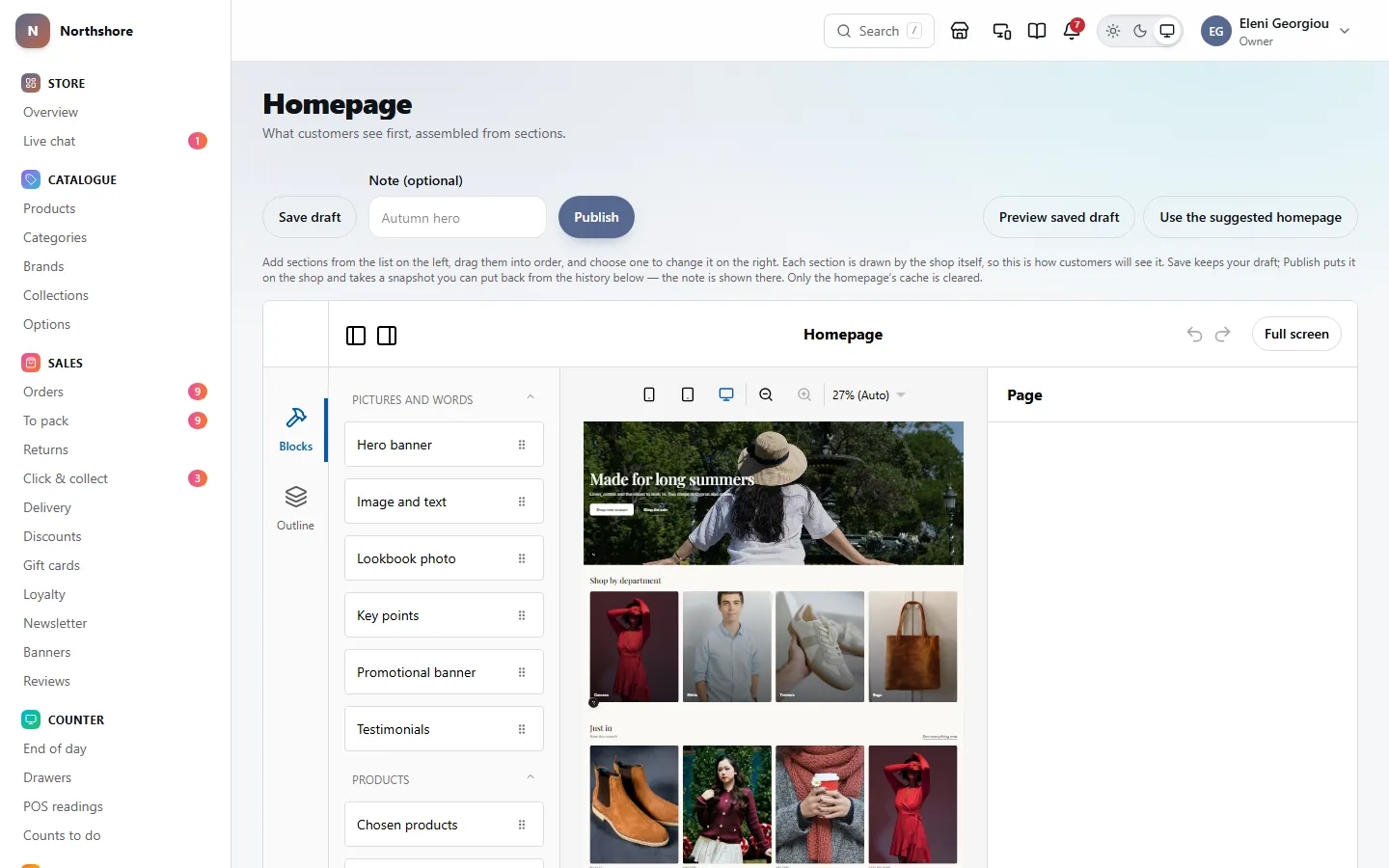
The Homepage is built from sections stacked top to bottom, on a canvas. The kinds of section you can add are listed on the left, the homepage is in the middle, and the settings of the section you have chosen are on the right. Every section in the middle is drawn by the shop itself, so it looks exactly as customers will see it — the fonts, the spacing, the way a picture crops — and it updates a moment after you change a setting, before you save.
What you change here is a draft. Customers keep seeing the last published version until you click Publish. While the draft differs from what is live, a blue note at the top says so.
- Save draft keeps your changes without showing them to customers.
- Publish saves what is on screen and makes it live straight away.
- Every publish is kept in History, so you can put an earlier version back.
Take care: Changes are only kept when you click Save draft or Publish. Leaving the screen without saving loses them.
Add, arrange and remove homepage sections
Needs the permission Manage homepage.
- Open Homepage.
- Drag a kind of section from the list on the left onto the page, where you want it. The sections are grouped: Pictures and words, Products, About the shop and Advanced.
- Click the section on the page to choose it. Its settings open on the right; fill them in.
- To move a section, drag it up or down the page. The Outline on the left lists the sections in order, and you can drag them there too.
- Click Save draft to keep the change, or Publish to put it live.
A chosen section has a small bar of buttons over it: one to copy it, and one to delete it from the draft. The arrows at the top undo and redo. Nothing changes on the shop until you save and publish.
The phone, tablet and desktop buttons at the top show the page at that width.
Use the suggested homepage replaces every section with a ready-made layout to start from. It asks first if there are sections already, and nothing changes for customers until you save and publish.
Labels in a section’s corner show when it is Off (it is also faded), Scheduled, Desktops only or Phones only. The canvas shows every section whatever its switches say, so you can still find and change it.
The kinds of homepage section
Needs the permission Manage homepage.
- Hero banner — a big picture with a heading, subheading and button. It can have a separate Image for phones, a Style, a Height, a Text position and Darkening (%) to keep text readable. Without a photograph says what shows until you choose an image: Your newest products in a collage, which fills itself from your catalogue, A glow of your colours, or Your colour alone.
- Featured categories — the categories you pick, in the order you pick them, in a number of Columns.
- Image and text — a photograph beside a few lines of text.
- Lookbook photo — a full-width photograph with a caption, with an optional upright crop for phones.
- Shop the look — an outfit photograph with the products in it, chosen from your published products.
- Key points — short points side by side, optionally numbered, each with an optional link.
- Delivery prices — taken straight from your shipping settings, so it always matches the checkout.
- Returns at a glance — the returns window and who pays postage, from Returns settings.
- Size chart — a table of sizes. Choose who it is For, or which categories open it from the Size guide button on a product.
- Chosen products — the products you pick, up to 24, in the order you set. Under The products, type to find a product and click it to add it; use the arrows to move one up or down, and Remove to take it out. A product taken off sale drops out by itself. Pick none and the section shows the newest products instead.
- New arrivals, Best sellers and On sale — products the shop picks for itself, in a grid or a sliding row. Set How many (up to 24) and, optionally, choose a collection in From a collection to narrow them; The whole catalogue means no narrowing.
- Promotional banner — an image, heading and button on a coloured band.
- Brands — the brands you pick.
- Newsletter signup — a signup form with your heading.
- Testimonials — quotes and who said them.
- Instagram feed — pictures from your Media library with a link to your profile. It does not connect to Instagram itself.
- Custom HTML — your own code. Scripts and embedded frames are removed when you save.
- Image tiles — two to four photographs, each with words on it and a link, such as "Women" and "Shop now". The first one large puts the first tile at half the width beside the others; it needs three or four tiles. Shape makes them tall, square or wide.
- Photo gallery — up to 12 photographs in a grid, 2, 3 or 4 Across. As taken keeps each photograph whole in staggered columns instead of cropping them all to one shape.
- Text — a heading and your own paragraphs; leave a blank line between paragraphs. Choose a narrow or wide Width, and the soft colour band behind it if you like.
- Icons with words — up to six short points, each with an icon from the list, a title and a line of text: free delivery, easy returns, secure payment. They can sit on the page colour, a soft band or your brand colour.
- Numbers — up to four big figures with a few words under each, such as "12,000+" and "Happy customers". Type them as you want them shown.
- Call to action — a large heading with one or two buttons on A glow of your colours, your brand colour, dark or the soft colour. Good near the bottom of a page.
- Scrolling words — short phrases, one per line, moving across a band. Choose Large for a statement or Small for a notice, its Speed and Colour. Customers whose device asks for less motion see the words still.
- Spacer — room between two sections, A little, Some or A lot, with a thin line across the middle or without.
- Countdown — a clock counting down to the moment you set, with the words to show once it is over (or nothing).
- Video — a YouTube or Vimeo video, or one from your library, with a heading.
- Hotspots — a photograph with dots on the products in it; each dot opens its product.
- Logo strip — logos in a row, such as the press you were in. They can sit in grey until the pointer is over them.
- Before and after — two photographs of the same thing with a handle to slide between them.
- One product — a single product, large, with its photograph, price and a few words.
- Customer reviews — approved reviews of your products, newest first, with the stars and who wrote them. Choose How many, the Fewest stars, a grid or a sliding row, and whether to show the average above them and which product each review is of. Nothing to type: they come from Reviews.
- Our shops — your public locations with their address, whether they are open now, the week’s opening hours, click and collect and a link to directions. Pick Which shops, or none for all of them.
- Products in tabs — up to five lists in one section, a tab for each: new arrivals, best sellers, on sale, or a collection. Customers switch between them without the page reloading.
- Collections — the collections you pick, as tiles that open each collection. A collection’s picture is set on the collection itself.
- Gift cards — a picture, the amounts you offer and a button to buy one. It shows only while gift cards are switched on.
- Loyalty points — your scheme in your own words: the points a purchase earns and what they buy, taken from the loyalty settings, and up to four steps with icons. It shows only while loyalty points are switched on.
- Recently viewed — the products this visitor looked at last, kept on their own device and only with their agreement. It is empty for a new visitor, so it does not show for them, or on the canvas.
- Contact — your email, phone, WhatsApp and main shop address from your business details, as cards, in one row, or beside a photograph, with a button to your contact page.
- Slideshow — up to six hero slides, each with its own photograph (and one for phones), words and button. They can change by themselves every few seconds, fading or sliding, with arrows and dots. They stop while the pointer is over them, and never move by themselves for customers who ask their device for less motion.
- Picture cards — up to four cards, each with a photograph on top and a title, text and link under it.
- Pull quote — one quotation, large, with who said it and an optional small photograph of them.
- Timeline — your story as dated steps, down a line, either side of it, or across in a row.
- Team — the people behind the shop, with a photograph, name, role and a few words.
- Payment and trust badges — the ways to pay you take, from your payment settings, and up to six promises with icons, such as Secure checkout.
- Social links — your social pages from your business details, as buttons, coloured circles or words.
- Map — a map of one of your shops. The location needs a map position; the map loads only when a visitor asks for it.
- Buttons — one to three buttons on their own: solid, outlined or a link.
- Comparison table — the things you compare across the top and a row for each feature. Type Yes or No for a tick or a dash, or a few words. Pick out colours one column.
- Lookbook slideshow — full-width photographs to swipe through, each with a caption over it or under it and an optional link.
Images, spacing, scheduling and devices
Needs the permission Manage homepage.
For any picture, click Choose (or Change) to pick an image from your Media library; you can search by file name or description. Remove clears it. Images have to be uploaded to Media first. An image marked No description has no alternative text for blind customers — add one in Media.
A section’s settings are in three groups on the right: Content (its words, pictures and buttons, with its Layout choices under them), Look and Spacing. Click a group’s name to open or close it; a dot beside a closed group means something in it has been changed.
Look is the same for every kind of section:
- Background — none, your soft, brand or accent colour, dark, A colour of your own, A gradient (choose From, To and a Direction; empty uses your brand and accent colours) or A photograph with Darkening (%) so the words can be read.
- Fade into the page — the background melts into the page at the top, the bottom or both. The words stay sharp.
- Words — Automatic picks light or dark words to read on the background; or choose dark, light or a colour of your own.
- Shape — edge to edge, or A card inside the margins. Content width makes the content narrow, wide or the full screen. Corners, Outline (with its colour) and Shadow finish the edge.
- As it scrolls into view — fade in, rise up, zoom in, slide in from either side, come into focus, or keep it still, at three speeds. Customers whose device asks for less motion see it still.
- Link to it — give the section a name, like offers, and a button going to #offers scrolls to it.
Under Spacing, Space above and Space below set the gap to the next section (None puts them flush together), and Inside, top and Inside, bottom set the room around the content.
Every section also has:
- Live from and Until — show it only between these times. Empty means straight away and indefinitely. The schedule still needs to be published.
- Show this section — off keeps it in the list but takes it off the shop.
- Show on phones and Show on desktops.
Preview the homepage
Needs the permission Manage homepage.
The canvas already shows each section as the shop draws it, including changes you have not saved. To see the whole page with the shop’s header and footer around it, click Preview saved draft: the real shop opens in a new tab showing your last saved draft.
The links behind both expire after a while, so nobody can find an unannounced sale by guessing them.
Publish the homepage, or put back an earlier one
Needs the permission Manage homepage.
- On Homepage, optionally type a Note beside Publish, for example “Autumn hero”. It is shown in the history so you can find this version again.
- Click Publish. What is on screen is saved and goes live at once.
The History box lists every publish with its date, the number of sections, who published it and its note. The one customers see is marked Live.
To go back, click Put this one back beside an earlier version. It goes live immediately, with no confirmation, and counts as a new publish — so you can undo it the same way.
Tip: Until the very first publish, the shop shows the draft as it stands.
Arrange the product page and the product lists
Needs the permission Manage homepage.
Page layouts is where you arrange the pages the shop builds for you: every Product page, and the product lists — All products, Category pages, Brand pages, Collection pages and the Sale page, and the Closed shop page visitors see while the shop is in Maintenance mode. Each says Standard until you change it, then Changed.
- Open Page layouts and click Edit beside the page.
- The page’s own parts are already on the canvas, marked Part of every page: on a product page, The product (photographs, name, price, sizes, Add to bag and the tabs), Reviews, Questions and You might also like; on a list, its Title and Products and filters.
- Drag a section from the list on the left onto the page — a banner above the product, delivery prices under it, a size chart, key points, products and so on. Click it to change its settings on the right.
- Drag any part, or any section, up or down to move it.
- Use Show the page for to see the page with a different product, category, brand or collection.
- Click Save. The change is live on the shop straight away.
The parts marked Part of every page cannot be removed or copied, and they have no settings of their own: they are drawn from each product or list. Reviews only appear when they are switched on in Features, and questions while the Product questions add-on is on.
Under Layouts of their own, choose a category, brand or collection and click Give it its own layout. It starts as a copy of the shared layout; change it and click Save, and that one uses it instead — for example a banner on Women only. Remove its own layout puts it back on the shared one.
Back to the standard layout removes every section you added to a layout and puts its parts back in their usual order.
Tip: Arranging layouts needs the Manage homepage permission.
Arrange and size the header
Needs the permission Manage homepage.
On Page layouts, click Edit beside Header and footer, then click the header on the canvas (or Header under Outline). Its settings open on the right, and the canvas shows each change as you make it. Save puts it live on every page.
- Left side, Middle and Right side: what sits where. Add something with the button under a list, choose what it is, and drag it up or down to move it. You can place the logo, the Menu button, the main links, search, account, saved items, the basket, the currency switcher, social links, and text or a button of your own, with its words and where it goes: a page of your shop (/pages/about), a web address, an email (mailto:) or a phone number (tel:).
- The main links on a row of their own puts your main menu on a line under the header.
- Height, Width, and the logo’s height in pixels, on a computer and separately on a phone. With no logo uploaded, your shop’s name grows and shrinks with it.
- Icon size, and words beside the icons on a computer.
- Background: the page colour, your main colour, or a colour of your own with the colour of the words on it. Leave the words’ colour empty for black or white, whichever reads. A pair hard to read together is flagged.
- Under it: a line, a shadow or nothing. See-through over the homepage’s first banner lays the header over the homepage’s top picture until the page scrolls; put a banner first on the homepage when you use it.
- Main links: their size, weight, and capitals or as written.
- Stay at the top while scrolling, and slide away scrolling down, coming back as soon as somebody scrolls up.
- A thin bar above it, with a message and, on its right, your phone and email or your social links.
- On a phone: whether search and saved items stay in the header, where there is little room.
Whatever you arrange, a visitor on a phone can always reach your categories: with no Menu button placed, one is added on phones, where the main links do not fit.
Tip: Back to the standard layout puts the header and footer back to the standard ones. A template sets a header of its own: use the template again on Templates to get its header back.
Arrange the footer
Needs the permission Manage homepage.
In the same place, click the footer on the canvas (or Footer under Outline).
- Blocks: what the footer holds, in order, filling its columns from the left: your shop’s name and description, your logo, the footer menu (each of its columns becomes a column here), your email and phone, today’s opening hours, social links, the newsletter sign-up, payment badges, and text of your own with a heading. Add, remove and drag them into order. The list starts as the standard footer; it stays the standard one until you change it.
- Columns on a computer, from one to five. On a phone the blocks are one under another.
- Words in the blocks: from the left, or centred.
- Background: a light band, your main colour, dark, or a colour of your own with the colour of the words on it.
- Room above and below: compact, normal or roomy.
- The line at the bottom: your own words, with {year} and {shop} filled in, and whether that line is spread along one row or centred.
- The newsletter band above the footer, social links and the payment badges on the bottom line can each be switched off.
The links to your legal pages and the cookie preferences are always on the bottom line: a customer must always be able to find them.
Your pages
Needs the permission Manage pages.
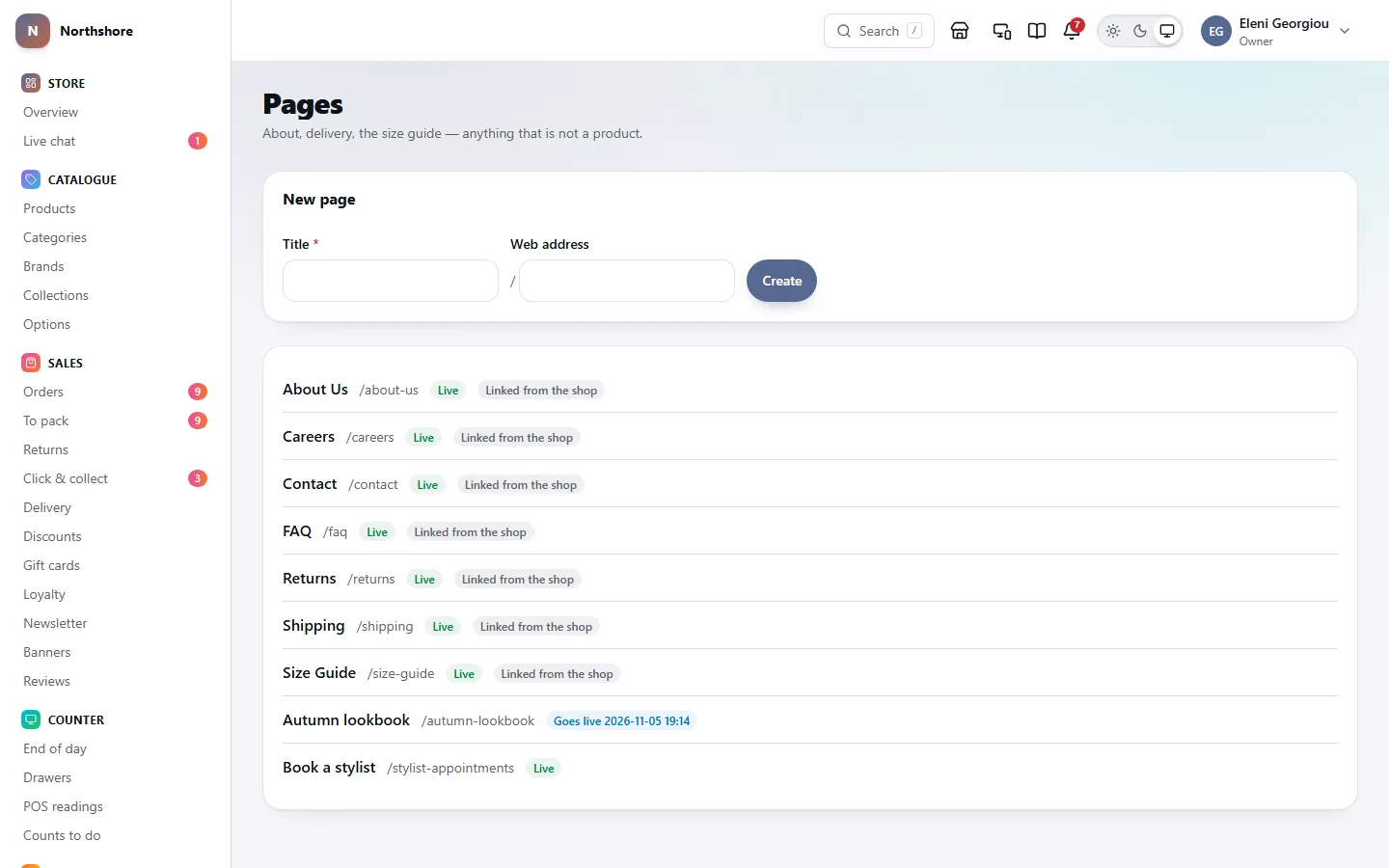
Pages lists the shop’s own pages — About, delivery, the size guide, anything that is not a product. Each shows its title, its web address and whether it is Live, a Draft or Goes live on a date. Pages marked Linked from the shop are the ones the shop’s footer and navigation link to; they are listed first.
Click a page to edit it.
Create a page
Needs the permission Manage pages.
- Open Pages.
- In New page, type a Title. The Web address is filled in from it; change it if you like.
- Click Create. The new page opens in the editor as a draft.
Two pages cannot share an address, and some addresses — such as cart, checkout, account and search — are used by the shop itself and cannot be taken.
Write and edit a page with blocks
Needs the permission Manage pages.
A page is made of blocks that appear in order, built on a canvas under Title and address in the same way as the homepage: drag a block from the list on the left onto the page, click it to change its settings on the right, and drag it to move it. Each block is drawn by the shop in its place on the page — a run of text in one column, a heading over its questions — so the canvas looks like the page will.
Under Text and pictures you can add:
- Heading — a title, with a Size of Section or Sub-section.
- Text — paragraphs, links, bold and lists. Open Insert a fact from your settings for markers like the VAT number or returns window, which are filled in from your settings so they stay correct.
- Image — click Choose an image to pick from Media, then add a Description for blind customers and an optional Caption.
- Buttons — one or more links shown as buttons, each with a Label and Link. Use Add another and Remove the last.
- Questions and answers — an FAQ that opens and closes, which Google can show under your search result. Use Add a question.
- HTML — markup you already have. Scripts and frames are removed when you save.
Under Sections you can add any homepage section except the newsletter signup — image and text, a lookbook photo, a size chart, delivery prices, products and so on. They have the same settings as on the homepage.
When everything is ready, click Save under the title. It saves the title, the address and everything on the canvas. Preview saved draft opens the page as last saved, in a new tab, with the shop’s header and footer around it.
The line under Save says what saving will do: on a live page, that saving changes it for customers straight away; on a scheduled page, when it goes live; on a page that is not live, that customers cannot see it yet.
Take care: There is no separate draft for a page that is already live. Clicking Save on a live page changes what customers see straight away. To prepare a big rewrite, create a new page and swap them over when it is ready.
Tip: For the pages the shop links to itself, Use the suggested layout fills the page with a ready-made starting point. It asks first if you have written anything, and nothing is kept until you click Save.
Change a page’s title or web address
Needs the permission Manage pages.
Change the Title or Web address in the Title and address box and click Save. Open the live page opens the page at the address as it is saved now.
If the page has ever been published, changing its address adds a redirect automatically, so old links and bookmarks keep working. You can see it in Redirects.
Take care: For a page Linked from the shop, check the footer after changing its address.
Publish, schedule or take down a page
Needs the permission Manage pages.
The Publishing box under the editor says whether the page is live, scheduled or a draft.
- To publish now, leave Publish at empty and click Publish now.
- To schedule, pick a date and time in Publish at and click Schedule. The page stays a draft until then and goes live by itself.
- To hide a live or scheduled page, click Take it down. Its address then shows a not-found page.
Delete a page
Needs the permission Manage pages.
- Open the page and click Delete this page at the bottom of the Publishing box.
- Read the warning and click Delete it, or Keep it to back out.
Take care: Its address starts showing not-found, and no redirect is left behind. If people may still have the link, add one yourself in Redirects. Pages Linked from the shop cannot be deleted at all — take them down instead.
How a page looks in Google and when shared
Needs the permission Manage pages.
The Search appearance box at the bottom of a page controls what search engines and social networks show. Left alone, the text is generated from the page and updates itself.
- Page title and Meta description — leave empty to use the generated ones.
- Canonical URL — usually empty; only needed when this page duplicates another one.
- Hide from search engines — keeps it out of search results. Anyone with the link can still open it.
- Sharing image — the picture shown when the page is posted to WhatsApp, Facebook or X. Click Choose a picture, or Use the page’s own to go back to the shop’s default.
Click Save search settings. Once you have written your own, Use generated text puts the automatic text back.
The three menus
Needs the permission Manage navigation.
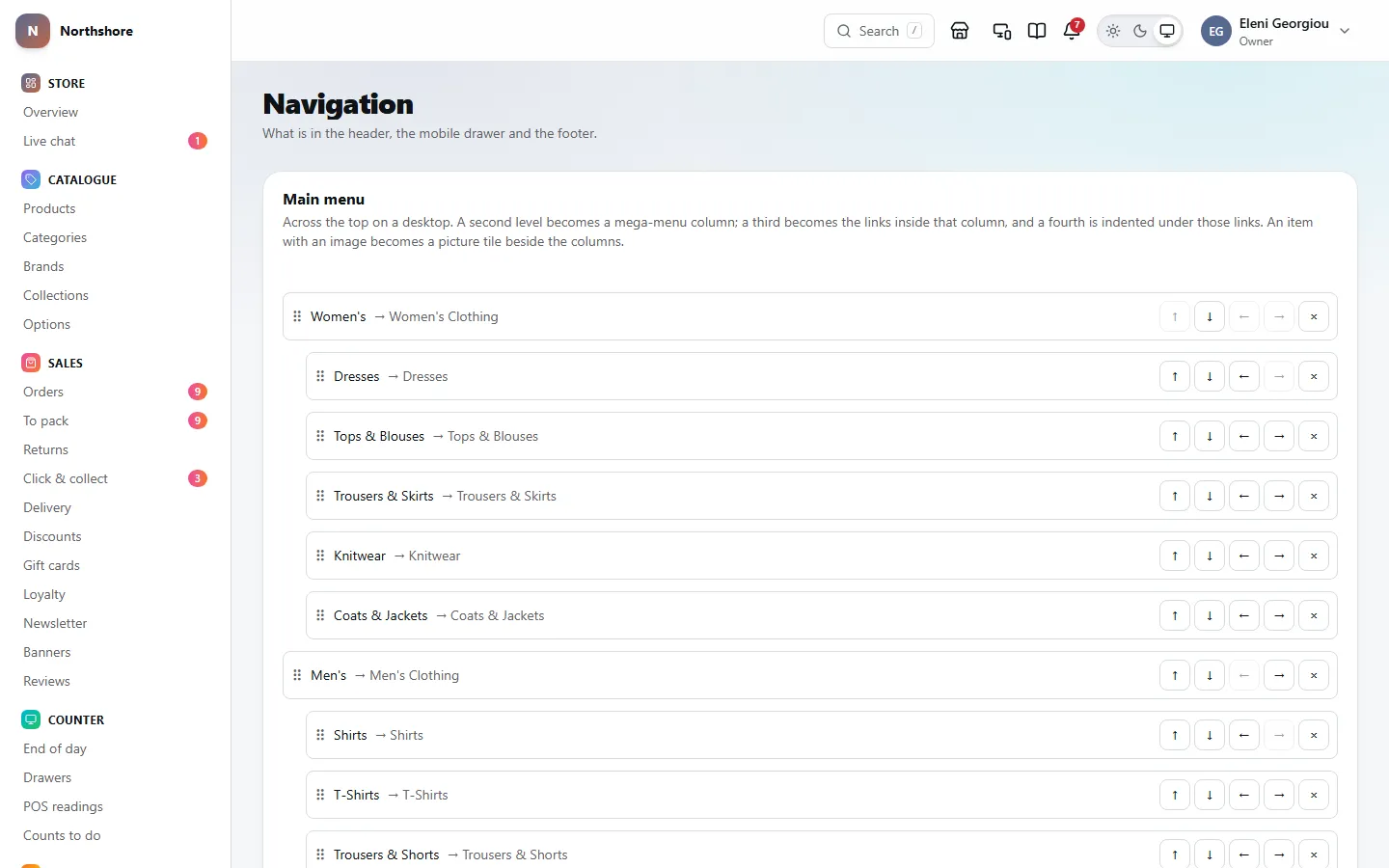
Navigation holds three menus, one under the other:
- Main menu — across the top on a computer. Up to four levels: a second level becomes a column in the drop-down, a third becomes the links in that column, and a fourth is indented under those.
- Mobile menu — the drawer behind the ☰ button on a phone. Up to four levels; each level is a step further in, with a back button. Leave it empty to use the main menu.
- Footer — columns at the bottom of every page. Two levels: top-level items are the column headings (not links), and the items under them are the links.
If the main menu is empty, the shop shows your categories instead. If the footer is empty, it shows no link columns.
Take care: Each menu has its own save button — Save main menu, Save mobile menu and Save footer — and saving puts it live on the shop immediately. There is no draft.
Add and arrange menu items
Needs the permission Manage navigation.
- Open Navigation and find the menu you want to change.
- Click Add an item. It appears at the bottom with its settings open.
- Type the Label customers will see.
- Choose what it Points at: Category, Collection, Brand, Page, Product or Web address.
- Pick the item from the list (items marked hidden are not visible on the shop), or for Web address type a path such as /categories/coats or a full address.
- Drag it by the handle on its left to where you want it, or use the up and down arrows to move it one place at a time. Use the right and left arrows to move it in or out a level, under the item above it.
- Click the menu’s save button.
Moving or removing an item takes everything under it along too. An item dropped on another item lands beside it, at the same level — above it if you dragged upwards, below it and anything under it if you dragged downwards. To put an item under another one, use the right arrow. An item can only be one level deeper than the one above it, and a drop that would take anything deeper than the menu allows does nothing.
Tip: Prefer Category, Collection, Brand, Page or Product over Web address. They follow the target if it is renamed; a typed address does not.
Badges, highlight colours and picture tiles
Needs the permission Manage navigation.
- Badge — a short word like “New” or “Sale” shown beside the label (up to 12 characters).
- Highlight colour — a colour for the label, as a hex code like #b91c1c. Usually left empty.
- Add a picture — only on items below the top level. An item with a picture is shown as a picture tile beside the drop-down’s columns, for a featured product or a season’s campaign. Use Change picture or Remove it to change it.
- Show this item — off keeps the item in the list but hides it on the shop, handy for a seasonal link.
Menu items that will not appear
Needs the permission Manage navigation.
The shop quietly skips an item that points at nothing, so customers never see a dead link. This screen is the only place you will notice. A yellow box at the top of the menu says how many items will not appear, and each one is marked:
- Target deleted — what it pointed at has been deleted.
- Target hidden — the category, page or product is hidden or unpublished.
- Nothing chosen — no target or web address has been filled in.
Fix the target, or remove the item, and save the menu.
The emails your customers receive
Needs the permission Manage store settings.
Emails lists every email the shop sends, grouped by when it goes out: Orders, Click and collect, Cancellations, Returns, Gift cards, Reviews and questions, Accounts, Marketing, Privacy and legal, and those sent to you rather than to customers. Each shows its subject; whether it is On, Off or Always on; and whether it is the Original wording or Edited on a date.
Every email comes from your Shop name on Store, unless you give a From name on Email delivery. The shop name is also at the top and in the footer, with your main shop’s address under it — the first location marked Main shop on Store locations. Only while no location is on the storefront does the footer use the registered address from the Business profile. Your legal name and registered office are never in an email: they belong on invoices.
Marketing emails only ever go to people who agreed to receive them, whether or not they are switched on here.
Tip: If emails are not arriving at all, check Email delivery rather than the templates.
Switch an email off
Needs the permission Manage store settings.
- Open Emails and click the email.
- Under Sending, flick the switch to Off. It is saved straight away; there is nothing else to press.
From then on nothing of that kind is sent, until you switch it back on. Emails that would have gone out while it was off are not sent later. Your wording is kept, and Send a test to me still works, so you can check an email before switching it back on. The list shows it as Off.
Some emails are Always on, and their switch is locked with the reason underneath. They are the ones somebody needs to finish what they started — resetting a password, confirming an email address or a newsletter subscription, accepting a staff invitation, moving an account across, sending a return, paying a balance, receiving a gift card — the order confirmation, the security warnings about a changed password or a new sign-in, your answers to cancellation and return requests, contact form messages, scheduled exports, purchase orders you email, and the emails the law requires about personal data and changed terms.
Tip: Switching emails on and off is recorded in the Audit log, with who did it and when.
Change an email’s wording
Needs the permission Manage store settings.
- Open Emails and click the email.
- Change the Subject and the Body. The body is HTML; the header, footer, logo and colours are added around it automatically.
- Click Update preview to see your changes on the right.
- Click Save. The next email of this kind uses your wording.
The preview uses made-up sample data. Switch between HTML and TEXT to see the plain-text version, which is generated from your HTML every time and is what smartwatches and some email apps show.
What you can put in it lists the placeholders this email can use, such as a customer’s name or an order number. Type them exactly as shown, double curly braces and all. A placeholder the shop cannot fill is left visible rather than blanked, so a typing mistake shows up in the preview.
Send yourself a test, or go back to the original
Needs the permission Manage store settings.
Click Send a test to me to email what is on screen — even if not yet saved — to your own staff email address, filled with sample data. If it says no mail server is configured, set one up in Email delivery.
Once you have edited an email, Reset to the original throws your version away and goes back to the standard wording, including any later improvements to it. It asks first: click Reset it to go ahead, or Keep my version.
Take care: Once reset, your edited wording cannot be recovered. Copy anything you want to keep before you confirm.
Your legal documents
Needs the permission Manage legal pages.
Open Legal documents from Settings. The Legal documents screen always lists six: Terms and conditions, Privacy policy, Cookie policy, Returns and refunds, Delivery and Accessibility.
Each card shows Live with its version number, or Nothing published; Reviewed or Not reviewed by a lawyer; a Draft if one is in progress; Accepted at checkout for the terms; and whether part of it is generated automatically (the list of companies that receive personal data, or the cookie table).
Take care: A document with nothing published is not linked in the shop’s footer. A document not marked as reviewed carries a notice on its public page telling customers no lawyer has checked it.
Write or update a legal document
Needs the permission Manage legal pages.
- Open Legal documents.
- Click Write it for a document that has never been published, or Start a new version to change one that is live. A new version starts from the wording that is live now. If a draft already exists, click Edit the draft instead.
- Edit the Title and Body. Headings, paragraphs, lists, links and tables are kept; anything else is stripped out.
- Keep the markers in Filled in from your settings, such as the company name and VAT number, where those details belong. They are filled in whenever somebody reads the page, so the document stays correct when a setting changes.
- Click Save the draft. Nothing is live until you publish.
What this kind of document normally covers is a checklist of usual headings, ticked when the heading text appears in your body. It is a guide only and never stops you publishing.
Tip: In the privacy and cookie policies, leave the processors or cookies marker in place rather than typing the list yourself. It is generated from the services the shop actually uses.
Publish a legal document
Needs the permission Manage legal pages.
- Open the draft from Legal documents.
- In Publish it, set In force from. Until that date the current version stays live, which gives customers notice of a change.
- For a change that alters the deal, switch on Customers must accept this version again. Leave it off for a small correction.
- Click Publish…, read the warning, then click Yes, publish it (or Not yet).
Take care: A published version can never be edited — to change it, start a new version. If you switch on Customers must accept this version again, every customer is emailed and asked to accept it.
Every version at the bottom lists all versions with their state, date in force, whether they were reviewed and when they were changed. Click one to read it. Read what is live on the list opens the current one.
Record that a lawyer has reviewed a document
Needs the permission Manage legal pages.
- Open the version from Legal documents.
- In Legal review, switch on A qualified lawyer has reviewed this version.
- Fill in Who, and when — it is required.
- Click Save.
A review belongs to one version. When you publish a new version, record its review again. Recording it removes the “not reviewed” notice from the public page.
Redirects: sending old addresses somewhere new
Needs the permission Manage store settings.
Open Redirects from Settings. A redirect sends anybody who visits an old address to a new one, so old links and bookmarks keep working.
Most write themselves: renaming a product, category, brand or collection, or changing the address of a published page, adds one automatically. All redirects lists them 25 to a page, with From, To, the Kind (Permanent or Temporary), any reason, and how many times each has been Followed and when last. The line under the heading counts every redirect, not just the page you are on: how many there are in total, and how many somebody has followed.
Tip: The Followed count tells you which old links are still in use. One that is never followed can safely go.
Add or remove a redirect
Needs the permission Manage store settings.
Add one yourself for an address the shop cannot know about — a link printed on a card, or a page from your old website.
- Open Redirects.
- In Add a redirect, type the Old address — just the path, starting with a slash, such as /old-page.
- Type where it Goes to — a path on this shop such as /categories/shoes, or a full address elsewhere.
- Choose the Kind: Permanent — the page has moved for good (usually right, and it carries the old page’s standing in Google across), or Temporary — it will move back.
- Optionally say Why, for whoever reads the list later.
- Click Add redirect.
To remove one, click Remove on its row, then Yes, remove.
Take care: If a redirect has been followed, removing it makes that old link show a not-found page to anybody who still uses it.