

Keeping a list of who you buy from, deciding what to reorder, and following a purchase order from draft to delivery so the stock lands on the shelf with the right cost.
How buying stock works
Needs the permission Buy stock.
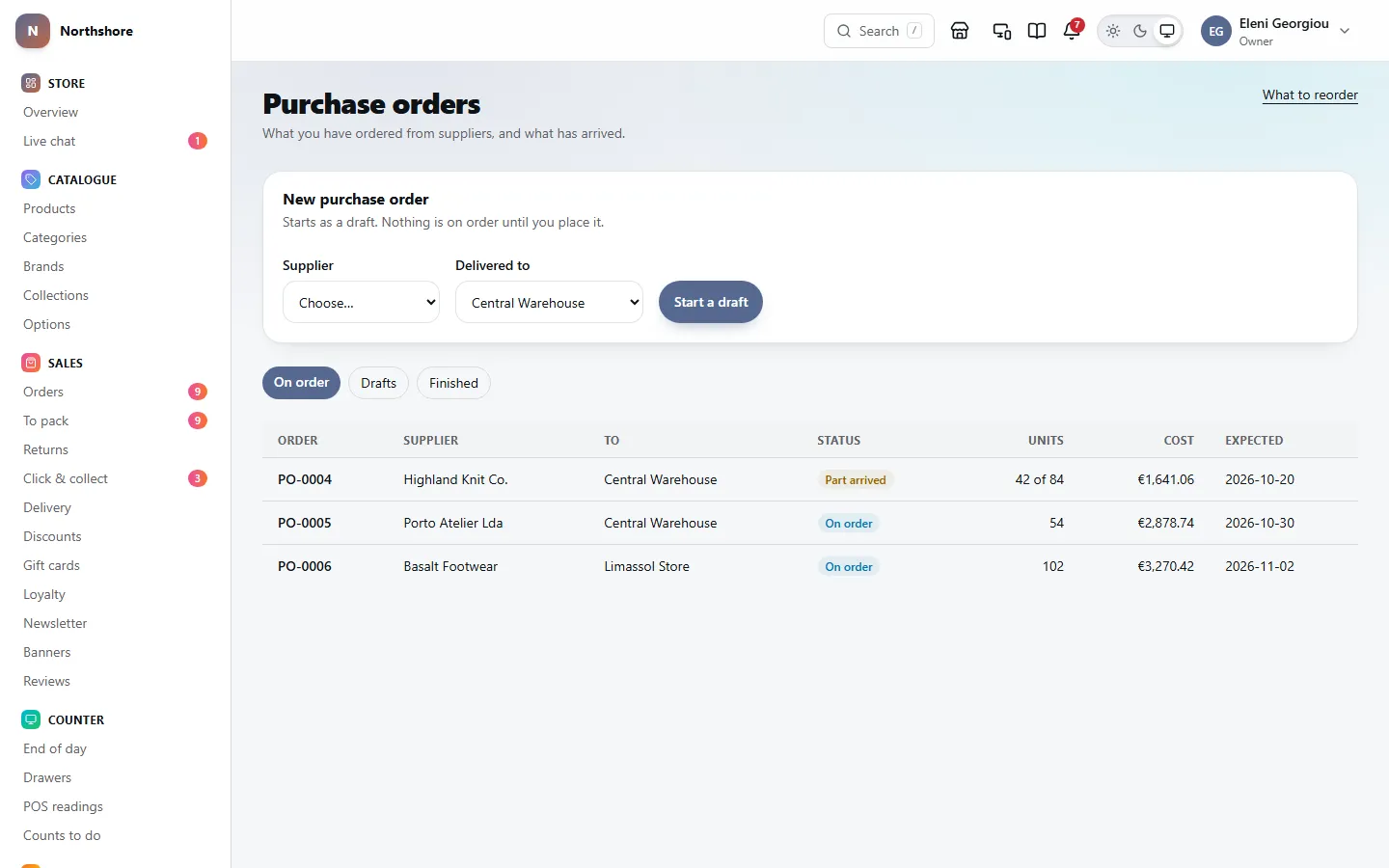
A purchase order goes through these stages:
- Draft — you are still deciding what to buy. You can change anything.
- On order — you have placed it. The quantities count as on their way, and show as On order on each item’s stock page.
- Part arrived — some of it has been received.
- Received — everything arrived, or you closed it because the rest is not coming.
- Cancelled — called off before anything arrived.
Receiving a delivery puts the stock on the shelf at the location the order is going to, and updates each item’s cost price to what you paid. A line with no cost leaves the item’s cost price as it was.
You need the Buy stock permission for everything in this chapter. Receiving a delivery also needs Adjust stock, because it changes what is on the shelf.
Take care: Placing an order does not send it to the supplier. It only records that you have ordered. Send it yourself, by email or phone, or click Email it to the supplier on the order — see Email the order to the supplier.
Add a supplier
Needs the permission Buy stock.
- Open Suppliers.
- Fill in the New supplier form at the top of the page, above the list. Only Name is required.
- Add a Contact, Email and Phone if you have them.
- Set Lead time, in days — how long they usually take from order to delivery. It starts at 14 and can be anything from 0 to 365.
- Write their Payment terms, such as “30 days” or “pro forma”, and any Notes.
- Click Add supplier. Their page opens.
The lead time matters: a new order is expected that many days after you place it, unless you give it a date, and reorder suggestions order enough to last until the next delivery.
Say who you buy each product from
Needs the permission Buy stock.
Each product has a Supplier field in the product editor: who you usually buy it from. Reorder suggestions are grouped by it, so one group becomes one order to one supplier.
- Open the product from Products.
- Choose the Supplier, or No supplier.
- Save the product.
The field only shows to staff with the Buy stock permission. See Products for the rest of the product editor.
Check a supplier and how they deliver
Needs the permission Buy stock.
Suppliers lists every supplier with their contact details, Lead time, how many Products are linked to them and how many Orders you have placed.
Click a supplier to open their page. Change any of their Details and click Save.
How they deliver is worked out from their finished orders:
- On time — the share of orders that arrived by the end of the day they were expected.
- Average lead time — the average number of days from placing an order to the last of it arriving.
- Of what was ordered, arrived — how much of what you ordered actually came.
These show a dash until at least one order from them has been received. Recent orders lists their last ten orders with their status, such as On order or Part arrived, and the day each was placed; click one to open it.
Tip: If a supplier’s real lead time is longer than the one you set, change Lead time, in days so expected dates and reorder quantities are realistic.
Archive a supplier you no longer use
Needs the permission Buy stock.
Suppliers cannot be deleted, because their order history is kept. Archive them instead.
- Open the supplier from Suppliers.
- Click Archive supplier at the top.
- An archived supplier stays on the list, faded and marked Archived, with all their orders.
- You cannot start a new purchase order with them.
- Products still linked to them show under No supplier set in reorder suggestions until you choose another supplier on the product.
- Click Restore supplier to bring them back.
Find a purchase order
Needs the permission Buy stock.
Purchase orders lists your orders in three tabs:
- On order — placed and not yet finished, including ones that have part arrived.
- Drafts — not placed yet.
- Finished — received in full, closed or cancelled.
Each row shows the order number (such as PO-0012), Supplier, where it is going (To), Status, Units (for a part-arrived order, how many of how many have come), the Cost and the Expected date. An order still waiting after its expected date is marked Late. If some lines have no cost, the Cost says how many, because they are not in the total.
Click the order number to open it.
Start a purchase order
Needs the permission Buy stock.
- Open Purchase orders.
- Under New purchase order, choose the Supplier.
- Choose where it is Delivered to.
- Click Start a draft. The draft opens.
You need at least one supplier first — add one on Suppliers. You can also start a draft from reorder suggestions, already filled in.
Fill in a draft
Needs the permission Buy stock.
- In Add an item, type at least two letters of a product name, variant, SKU or barcode.
- Click the item in the list. It is added with a Quantity of 1 and the Cost each you paid last time, if there was one.
- Change the Quantity and Cost each as needed. Cost each is what you pay for one unit. Leave it empty if you do not know the price yet — it shows Not known.
- Click Remove on any line you do not want.
- Under Delivery, check Delivered to, and set an Expected date if the supplier gave you one.
- Add a Note if you want. It is only for you and is not sent anywhere.
- Click Save draft.
- Each line shows its total, and the order total is under the list. Lines with no cost are left out of the total, and a note under it says how many.
- An item can only be on an order once. Adding it again does nothing — change its quantity instead.
- If you leave Expected empty, the order is expected the supplier’s lead time after you place it.
- An empty Cost each stays empty. It is not saved as 0.00.
Take care: Leaving the page without clicking Save draft loses your changes.
Tip: Fill in costs carefully. When the delivery is received, each item’s cost price in the catalogue is set to the cost on this order, and profit reports use it. A line with no cost leaves the item’s cost price as it was.
Place the order
Needs the permission Buy stock.
- Open the draft.
- Check the lines, quantities and costs.
- Click Place order. A box asks you to confirm.
- If any line has no cost, the box is headed Place it without every cost? and names those lines. Click Go back to fill them in, or Place it anyway.
- Otherwise click Place order in the box. The draft is saved and placed in one go.
The order moves to On order with today as the placed date. Its quantities now count as on their way: they show as On order on each item’s stock page, and in the On order column of reorder suggestions so you are not told to buy them again.
Take care: Once placed, the items, quantities and costs cannot be changed. If the order is wrong, cancel it and start a new one.
Placing the order does not send it to the supplier. See Email the order to the supplier.
Email the order to the supplier
Needs the permission Buy stock.
A placed order has a The supplier card. It says whether the order has been emailed from here, and when.
- Open the order from the On order tab of Purchase orders.
- In The supplier, click Email it to the supplier.
- Check the address in the box, then click Send it.
The supplier gets the order number to quote on their delivery note and invoice, every item with its SKU and quantity, the cost of each where you entered one, where to deliver it, and the expected date if the order has one. The order then shows Emailed to the supplier with the day and the address.
- The button only appears when the supplier has an Email on their page and the shop’s email is set up in Email delivery. Otherwise the card says which is missing.
- You can reword the email on Emails. It is Purchase order, under To suppliers.
- If the mail server refuses it, the message says why and the order is not marked as emailed.
Take care: An email cannot be taken back. If you send it again, the supplier gets a second copy and may send the goods twice.
Receive a delivery
Needs the permission Adjust stock.
When the boxes arrive, count them in against the order. Nothing goes on the shelf until you click Receive.
- Open the order from the On order tab of Purchase orders.
- Under Receive a delivery, each line shows what was Ordered, what is Received so far, and a box for what is In this delivery. The box starts at everything still outstanding.
- Change any box to what actually arrived. Type 0 for a line that did not come.
- Click Receive.
The stock goes on the shelf at the order’s location, recorded as Delivery received with the order number in the movement history. Each item’s cost price is updated to the order’s cost, except on a line with no cost, where it stays as it was.
- If everything has now arrived, the order becomes Received. If not, it becomes Part arrived and you can receive the rest later the same way. Finished lines show All in.
- You cannot receive more than was ordered on a line. If the supplier sent extras, add them with an adjustment on Stock using Delivery received.
- If two people receive the same delivery at the same moment, the second is stopped and asked to reload and count again.
You need both Buy stock and Adjust stock to receive. Without Adjust stock you can see the order but the Receive button is replaced by a message.
Close an order when the rest is not coming
Needs the permission Buy stock.
If a supplier has sent part of an order and will not send the rest, close it so the missing quantities stop counting as on their way.
- Open the Part arrived order.
- Click Close — the rest is not coming.
- The box says how many are still to come. Click Close the order, or Keep it open.
The order becomes Received and moves to Finished. What never came counts against the supplier’s Of what was ordered, arrived figure.
Take care: A closed order cannot be reopened. If more turns up later, add it with an adjustment on Stock.
Cancel a purchase order
Needs the permission Buy stock.
You can cancel a draft, or a placed order that nothing has arrived for yet.
- Open the order.
- Click Cancel order.
- Click Cancel the order in the box to confirm (Cancel the draft for a draft), or Keep it.
The order becomes Cancelled and moves to Finished. Its quantities stop counting as on their way.
Take care: Cancelling cannot be undone, and it does not tell the supplier. If you have already sent them the order, let them know yourself. Once anything has been received, an order can no longer be cancelled — close it instead.
Work out what to reorder
Needs the permission Buy stock.
What to reorder looks at everything low, out of stock or oversold, and suggests how many to buy. Open it from What to reorder at the top of Purchase orders.
Suggestions are grouped by supplier and by the location the stock is needed at — one group is one purchase order. Each item shows how many are Available, the low-stock line (Low at), how many sold in the last 30 days (Sold, 30 days), how many are already On order, and a suggested Order quantity.
The suggestion is enough to last until a new delivery would arrive (the supplier’s lead time) and a month after that, at the rate it sold over the last 30 days. It is never less than what takes the item back above its low-stock line, and what is already on order is taken off.
- Check each Order quantity and change any you disagree with.
- Set a quantity to 0 to leave that item off.
- Click Draft a purchase order. A draft opens with those items, at the cost you paid last time. An item you have never bought has its Cost each left empty.
- Check the draft, fill in any missing costs, and place it.
- Items whose product has no supplier, or whose supplier is archived, are grouped at the end under No supplier set. Choose a supplier on those products to be able to order them from here.
- An item that is low but already fully covered by what is on order does not appear.
Take care: Last month’s sales are a rough guide, especially for clothing, which sells by season. Treat the numbers as a starting point.