

Looking people up, what their record shows, helping them with their account, handling their privacy requests, and answering them on live chat.
Find a customer
Needs the permission View customers.
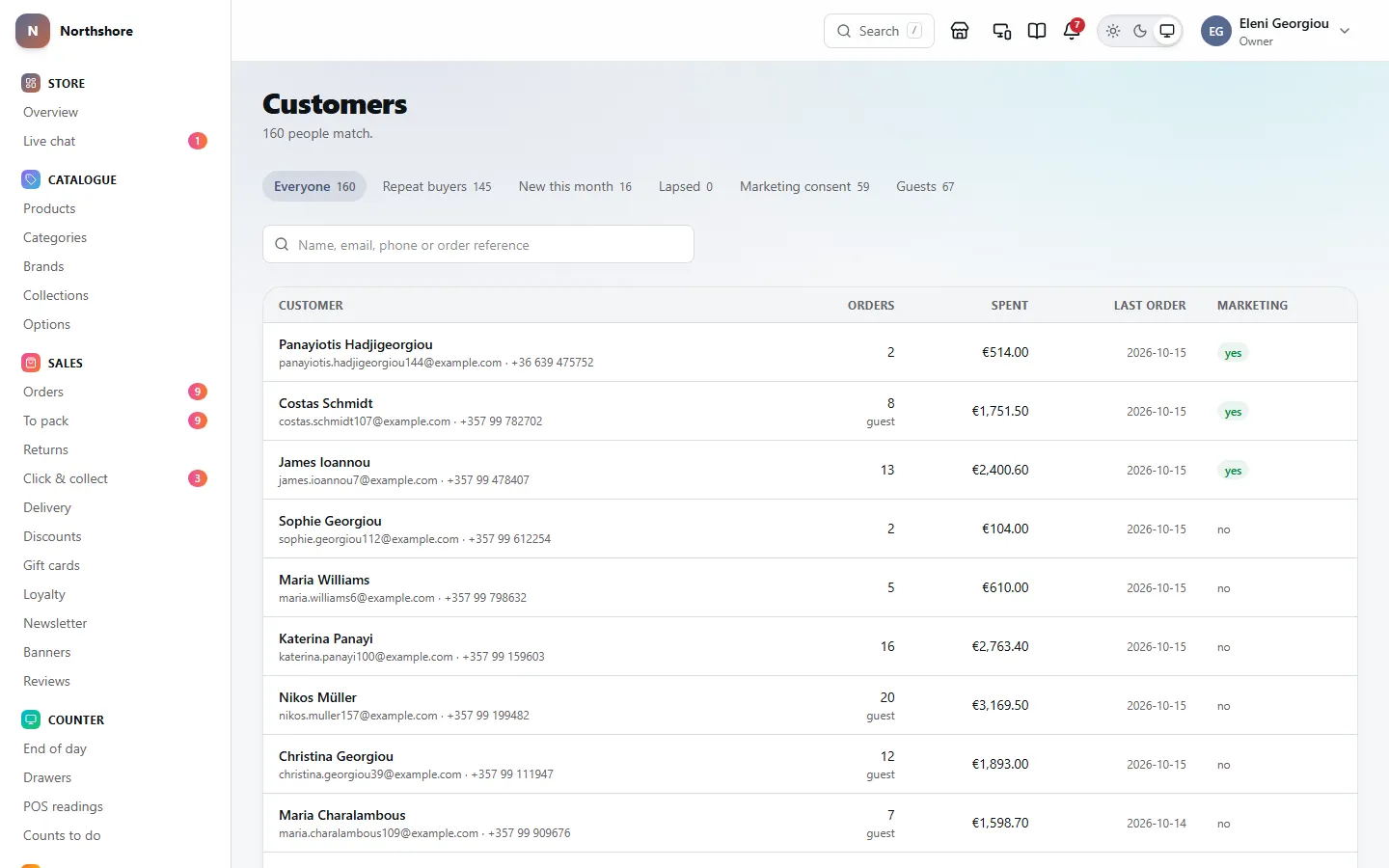
Customers lists everybody who has bought from the shop or made an account, including people who checked out as guests.
- Type in the box that says Name, email, phone or order reference.
- Press Enter.
Each row shows the person’s name, email and phone, how many orders they have placed (with guest if they never made an account), how much they have spent, the date of their last order, and yes under Marketing if they have agreed to marketing emails.
Click a row to open their record. Use Previous and Next at the bottom to move between pages.
Tip: Searching by order reference is the quickest way to find who a parcel belongs to.
Add a customer
Needs the permission Manage customers.
For somebody you met in person or who rang, so you can take an order for them. Press Add a customer on Customers, fill in their name and email address, and their address if you have it.
Tick They agreed, to me, to hear about offers and news only if they said yes to you. It is recorded as consent given in person, with your name and the date.
Customer groups
Needs the permission View customers.
The tabs above the list split customers into groups. The number beside each is how many people are in it.
- Everyone.
- Repeat buyers — two or more orders.
- New this month — first seen this calendar month.
- Lapsed — has ordered before, but nothing in the last six months.
- Marketing consent — has agreed to marketing emails.
- Guests — checked out without making an account.
These are the same groups you can aim a discount code or a free delivery offer at, so the people on the list are exactly the people the offer reaches.
What a customer record shows
Needs the permission View customers.
Badges at the top say whether they are a Guest — never registered or Has an account, whether they have given Marketing consent, whether Two-factor on protects their account, and Erased if their data has been removed at their request.
- Orders — every order, with its date, status, total and anything refunded. Click a reference to open it.
- Addresses — the addresses they have saved, marked default delivery or default billing.
- Saved items — what is on their wishlist, with anything out of stock marked.
- Summary — lifetime spend, number of orders, when they became a customer, and their phone number.
- Points — their loyalty balance, if the points scheme is switched on.
- Marketing — whether they have agreed to marketing emails, when and how.
- Account — whether the account is active, whether their email address is confirmed, and when they last signed in. For a guest it says they have never made an account, so there is nothing to sign in to, reset or turn off.
- Internal note — anything staff have written about them.
Staff with Manage customers can correct their name, phone number and saved addresses — see Correct a customer’s details. Their email address and marketing consent are theirs to change, from their own account.
Take care: Every time somebody opens a customer record, it is written in the audit log with their name. Only look up people you have a reason to.
Correct a customer’s details
Needs the permission Manage customers.
When a customer rings to say their name is spelled wrong, their phone number has changed or they have moved, you can put it right on their record.
- Open the customer.
- On the Summary card, click Edit details.
- Correct the First name, Last name or Phone. Type the phone with its country code, or as it would be dialled from your own country.
- Click Save details.
For their saved addresses, use the Addresses card:
- Add an address — type a new one. Their first address becomes their default automatically.
- Edit beside an address — correct it. Switch on Their default delivery address or Their default billing address to make it the one checkout offers first.
- Remove beside an address — takes it out of their address book, after you confirm.
Addresses are checked the same way as at checkout, so a missing street or a postcode that does not fit the country is pointed out before anything is saved.
- Orders already placed keep the address they were placed with. To change where an order is going, edit the order itself — see Correct an order before it is packed.
- The email address cannot be changed here. It is what they sign in with, so they change it from their own account and confirm the new one.
- An Erased customer cannot be edited: their details were removed at their request.
Take care: Every change is written in the audit log with your name, what it was before and what it became.
Marketing consent
Needs the permission View customers.
The Marketing card shows whether the customer has agreed to marketing emails — Given or Not given — with the date and how they gave it, where known.
Consent belongs to the customer. Staff cannot switch it on or off; only the customer can, from their own account. If somebody asks you by phone or email to stop sending them marketing, ask them to unsubscribe using the link in any marketing email, or from their account.
Tip: To see everybody you are allowed to send marketing to, open the Marketing consent tab on Customers.
A customer’s points
Needs the permission View customers.
When the points scheme is on, a Points card shows the customer’s Balance, what they have Earned altogether, how many points take a euro off, and their last five movements.
A balance below zero means points were taken back after a refund, and are owed back before they can spend more.
To add or take away points by hand, click Change the balance. It opens Loyalty — see Marketing.
Keep a note about a customer
Needs the permission Manage customers.
The Internal note on a customer record is for things every member of staff should know about them: a preferred size, a past problem, how they like to be contacted.
- Open the customer.
- Type in Internal note, or change what is there.
- Click Save note.
Only staff see it. It never appears on an invoice or in an email.
Take care: Write it as if the customer will read it. If they ask for a copy of their data, this note is included.
Help a customer who cannot sign in
Needs the permission Manage customers.
The Account card on a customer record has buttons for the usual problems. A guest has nothing to sign in to, so for them the card says so instead of showing buttons.
- Email a reset link — sends them a link to choose a new password. It goes to them, not to you, and you never see it.
- Mark the address confirmed — for when the confirmation email will not arrive and you are sure who they are. Only shown while their address is unconfirmed.
Tip: Before marking an address confirmed, make sure you are talking to the real owner of that email address — for example, ask them to email you from it.
Block a customer’s account
Needs the permission Manage customers.
- Open the customer.
- In the Account card, click Turn the account off.
They can no longer sign in, and are signed out everywhere straight away. Their orders and history stay.
To let them back in, click Turn the account back on.
See the shop as a customer sees it
Needs the permission Sign in as a customer.
When a customer says something looks wrong in their account, you can look at it as them.
- Open the customer.
- In the Account card, click Sign in as this customer.
- In Why, say in a few words why you need to, for example which order you are checking.
- Click Sign in as them.
The shop opens in a new tab, signed in as them, for half an hour. A red bar on every page reminds you.
- You cannot place orders, enter payment details, change their password or email, or delete their account.
- Starting and stopping are written in the audit log with your name and your reason.
Take care: Use this only to help the customer with something they have asked about. Somebody may read your reason later to decide whether you should have been there.
Requests for a copy of data, or to be deleted
Needs the permission Erase customer data.
Customers can ask, from the shop, for a copy of their data or for their account and data to be deleted. Once they confirm the request by email it is carried out automatically, and you do not need to do anything.
Requests that need a person — and requests that reach you another way — are handled in Privacy and data.
- Under Record a request that came in another way, choose What have they asked for?: Download a copy of your data or Delete your account and data.
- Type Their email address.
- Click Record the request.
The customer is then asked to confirm it. If they cannot, and you have established who they are some other way, click Confirm by hand on the request under Open requests, say how you established it, and click Confirm and start.
Deleting someone removes their account, addresses, basket, saved items, reviews, questions, chats, newsletter subscription and stock alerts, and the photos they added to reviews or sent with returns. Their orders are kept as invoices, which the law requires, without the phone number, notes or advertising identifiers. A return photo on an order whose payment is being disputed is kept as evidence until the dispute closes, and a photo you have also used on the shop yourself stays where you put it.
If a request is clearly unfounded or excessive, click Refuse, explain why — they are sent your words exactly — and click Refuse and tell them.
Take care: An erasure cannot be undone. You have one month from the day a request arrives to answer it; each request shows its due date.
You need permission to erase customer data, and to manage the shop’s legal settings, to work on that screen. See Settings for the rest of it.
Your email, in the Inbox
Needs the permission Read and answer email.
The Inbox shows your shop’s own mailboxes, such as orders@yourshop.com, beside your orders and customers, so you answer email here rather than in another window. It is free. New mail comes in every two minutes; Check for mail fetches it now.
- Folders — each mailbox’s folders are down the side, its Inbox first, with how many are unread.
- Open an email to read it. It is marked read in the mailbox itself, so your phone and any other mail app agree. Pictures from the web are not loaded, so the sender cannot tell you opened it.
- Reply, Reply to all and Forward send it as the mailbox, through its own server, and keep a copy in its Sent folder.
- Flag, Archive, Junk and Delete do the same as in any mail app.
- Many at once — tick the boxes on the left of the emails, or Tick all, and the bar above them marks them read or unread, flags, archives, deletes or labels them all together.
- Labels — put one on an email from the email itself, or on many at once from the list. Your labels are down the side; pressing one lists its emails from every folder. Labels are made under Inbox → Mailboxes, and kept here: other mail apps do not see them.
- Search looks through the folder’s emails, their text as well as who and what.
- Writing — as you type in To, Cc or Bcc, your customers are suggested by name or address. Any other address can be typed too.
An email from one of your customers says so, with a link to them, and one whose subject names an order (#1042, or its reference) links to the order. Their emails are on their page too, with Write to them.
Tip: The bell tells you when new email arrives, if you have it on in its settings.
Add a mailbox to the Inbox
Needs the permission Manage the Inbox’s mailboxes.
- Go to Inbox → Mailboxes.
- Type the Email address and its Password.
- Under Where it is, choose where the mailbox is: one bought here on Mailboxes, Gmail or Google Workspace, or Zoho. Its servers are filled in. For any other provider, type in its incoming (IMAP) and outgoing (SMTP) servers from their help pages.
- Choose Who sees it: everyone who reads the Inbox, or only the people you tick, for a mailbox of your own.
- Press Add to the Inbox. Both servers are tried with the password first, and their answer is shown if they refuse it.
Gmail and Google Workspace want an app password, made in your Google account, not your Google password. Outlook and Microsoft 365 mailboxes cannot be added yet: Microsoft no longer takes passwords from other apps.
Remove takes a mailbox out of the Inbox. The mailbox and its email stay as they are on its server.
The live chat inbox
Needs the permission Answer live chat.
Live chat lists the conversations customers have started from the website. Everybody who can answer chat sees the same list, and it updates by itself.
- Waiting — a customer is waiting for a reply. This is where to start.
- Mine — chats you have accepted.
- All open — every chat still going, whoever has it.
- Closed — finished chats.
Each chat shows the customer’s name, a Waiting badge if they are waiting, the last message, who has accepted it (or Not accepted), and when the last message was. Click one to open it.
Chat settings at the top opens Live chat settings, where you set when you show as online and what the chat says. Set to opening hours, the chat follows your main shop’s hours, holidays and closures included: on a day marked closed under the shop’s exceptions it shows nobody in, and takes messages to answer by email.
Chats are deleted a month after the last message.
Answer a chat
Needs the permission Answer live chat.
- Open the chat from Waiting.
- Click Accept this chat, so others know you have it. Sending a reply accepts it too.
- Type in Reply.
- Press Enter, or click Send. Press Shift and Enter together for a new line.
The customer’s messages are on the left, yours on the right with your name. About them shows their email, a link to Open their customer record if they were signed in, the page of the shop they started the chat on, and when the last message was.
- If the customer has left the website, your reply is emailed to them.
- If somebody else has the chat, it says so. Click Take it over to take it from them.
Close a chat
Needs the permission Answer live chat.
When the conversation is finished, click Close chat. It moves to Closed.
A closed chat is not gone. If the customer writes again it reopens, and a reply from you reopens it too.
Being told when somebody is waiting
Needs the permission Answer live chat.
When a customer starts waiting on live chat:
- A message appears on whatever dashboard screen you have open — "… is waiting on live chat." — with an Open button. It stays until you dismiss it.
- The bell chimes, if you have Make a sound when an order comes in switched on in My profile.
- A desktop notification appears, if you have switched those on in your profile and your browser allows them.
- Everybody who can answer chat is emailed.
Tip: On a counter or packing bench computer that nobody is watching, switch the sound on so a waiting customer is not missed.