

Discount codes and automatic offers, batches of one-use codes, gift cards, loyalty points, the newsletter, banners, and the reviews and questions customers leave on product pages.
See your discounts and how they did
Needs the permission Manage discounts.
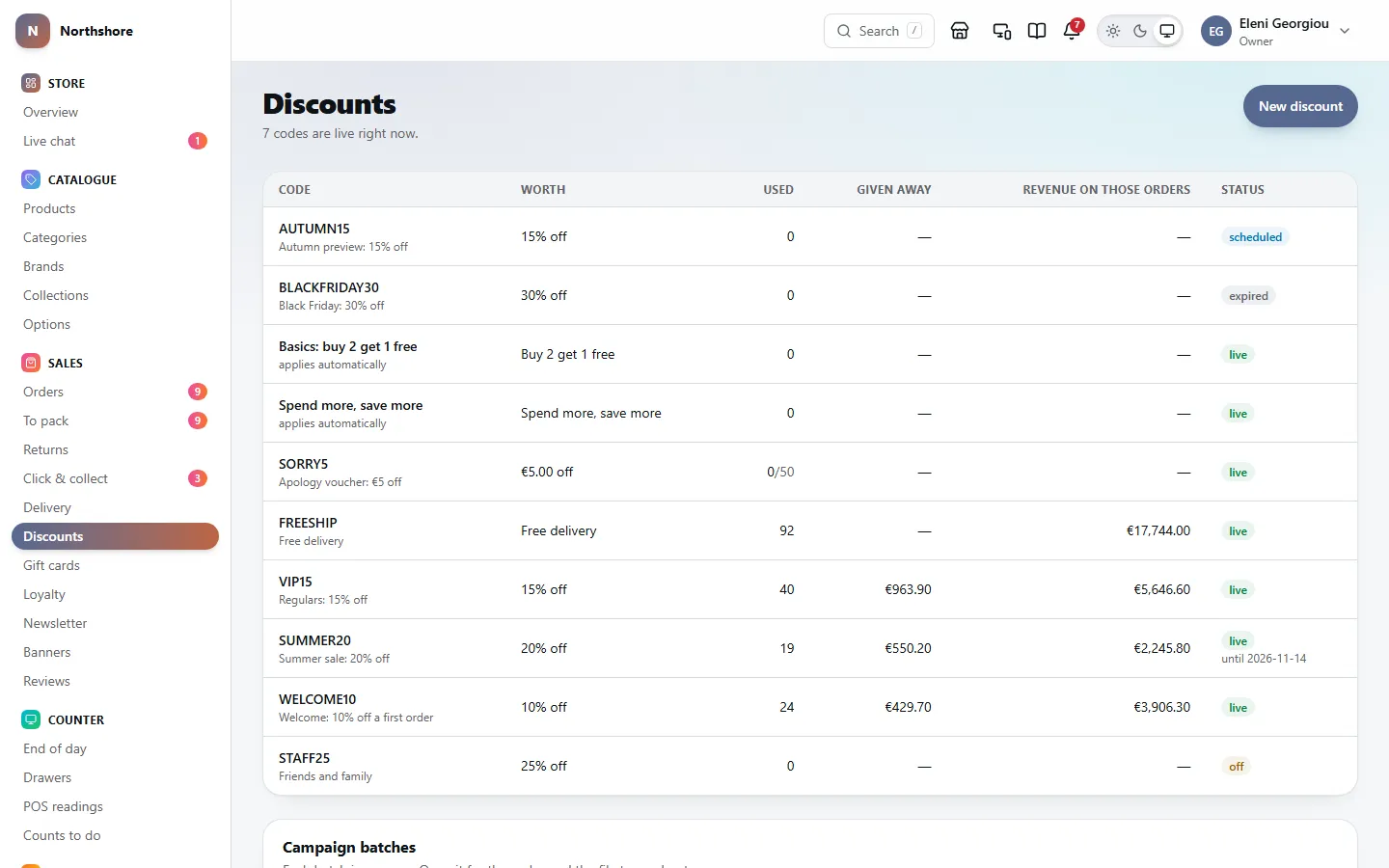
The Discounts screen lists your discounts 25 to a page — switched-on ones first, then newest first. Codes made in a batch are not listed one by one; they appear as their batch further down. The line under the title says how many on the page you are looking at are live right now.
- Code — what the customer types, with the discount’s name underneath. A discount with no code says applies automatically instead.
- Worth — for example “10% off”, “€5.00 off”, “Free delivery”, “Buy 2 get 1 free” or “Spend more, save more”.
- Used — how many times it has been used, and the limit after a slash if it has one.
- Given away — the total taken off orders by this discount.
- Revenue on those orders — what the orders that used it were worth. Cancelled orders are not counted.
- Status — live, scheduled (its start date has not arrived), expired (its end date has passed), used up (it has reached its total uses) or off (switched off by hand). A live discount with an end date shows until and the date.
Click a row to open the discount. Below the list there is a Campaign batches table once you have made a batch of one-use codes, and the Codes for a campaign box for making one.
Codes only work while Coupons is on in Features. With it off, the basket and the checkout have no box for a code, any code a customer manages to enter is refused, and a yellow note at the top of Discounts says so. A code a customer saved on their basket before you switched it off is dropped the next time the basket is priced: they are told once that the shop is not taking codes, and the code does not come back when you switch Coupons on again. You can still make and change codes while it is off, ready for when you switch it back on. Discounts set to applies automatically need no code, so they keep working either way.
Tip: Compare Given away with Revenue on those orders before running a promotion again. A code used many times is not necessarily one that paid for itself.
Create a discount code
Needs the permission Manage discounts.
- Open Discounts and click New discount.
- Under What it does, type a Name for yourself, for example “Summer sale”.
- Type the Code customers will enter at checkout, for example SUMMER25. It is saved in capital letters, and no two discounts can share a code.
- Choose the Kind of discount (see below) and fill in its value.
- Under What it applies to, leave everything off for the whole basket, or switch on the categories or collections it is for.
- Under Limits, set a Minimum spend, Total uses, Uses per customer, Starts and Ends, and choose Who it is for.
- Switch First order only or Can be used with other discounts on if you want them.
- Leave Live on in the Status box if it should work as soon as it is saved, then click Create discount.
After saving you are taken to the discount’s own page, where you can change it at any time.
Take care: A code with no Ends date and no Total uses never stops working. Once it has been shared, anybody can use it until you switch it off.
The kinds of discount
Needs the permission Manage discounts.
The Kind box on a discount offers five choices:
- Percentage off — type a Percentage between 0 and 100. It comes off the eligible lines.
- Amount off — type an Amount in euro. A fixed sum comes off the order.
- Free delivery — there is no value to type; delivery costs nothing.
- Buy X get Y free — fill in Buy this many and Get this many free (each 1 to 99). The free items are always the cheapest qualifying ones in the basket.
- Spend more, save more — build bands. For each band, type a Spend at least amount and a Save this percentage. Click Add a band for another, or Remove to take one away (the last band cannot be removed). Only the highest band the basket reaches applies; bands never add up.
For Spend more, save more, two bands cannot start at the same spend, and each higher band must be worth more than the one below it, or the discount will not save.
Choose what a discount applies to, and set its limits
Needs the permission Manage discounts.
The What it applies to box narrows a discount to part of your range. Switch on any categories or collections in the two lists. With nothing switched on, it applies to everything in the basket. When something is chosen, the percentage comes off those lines only, not the whole basket.
Take care: A Minimum spend always counts the whole basket, even when the discount is narrowed to some categories. A customer can reach the minimum with other items and still get the discount on the chosen ones.
The Limits box holds everything that stops a discount costing more than you meant:
- Minimum spend — leave empty for no minimum.
- Total uses — across all customers. Empty means unlimited. It cannot be zero.
- Uses per customer — empty means unlimited.
- Starts and Ends — dates and times in the shop’s time zone. It cannot end before it starts.
- Who it is for — Everybody, Repeat buyers, New this month, Lapsed, Marketing consent or Guests. This is checked when the customer checks out, not when you make the code, so somebody who stops being “lapsed” stops qualifying.
- First order only — for a welcome code. Anybody who has bought before cannot use it.
- Can be used with other discounts — off by default. See the next section for how discounts combine.
Automatic discounts, and using more than one at once
Needs the permission Manage discounts.
Switch on Applies without a code to make a discount everybody gets without typing anything. The Code box disappears and a Priority box appears in Limits.
- A customer can enter one code per order.
- If the code they enter is not marked Can be used with other discounts, no automatic discounts apply alongside it.
- If the code is combinable, only automatic discounts that are also marked combinable are added to it.
- With no code entered, every automatic discount that qualifies applies, in Priority order — higher numbers first. Discounts with the same priority go in the order they were made.
- Each discount is worked out on the original basket total, not on what is left after another one, and the total discount can never be more than the basket.
Tip: An automatic discount is effectively a price cut for everybody. Give it an end date so it does not run on after the sale. Switching Coupons off in Features does not stop it — to stop one, switch that discount off.
Change, switch off or delete a discount
Needs the permission Manage discounts.
Open the discount from Discounts. The same form you used to create it is shown; change anything and click Save.
Under the form, Where it has been used shows Times used, the total Given away, and one line per use with the date, the amount taken off and a View order link.
- To stop it at once, click Switch it off in the Stop this code box. It stops working immediately, for everybody, including anyone part way through a checkout.
- To bring it back, click Switch it back on.
A discount that has never been used can be removed: click Delete, then Delete it to confirm (or Keep it to back out).
Take care: Deleting cannot be undone. A discount that has been used on any order cannot be deleted at all, because those orders need to keep their discount — switch it off instead. Orders already placed always keep the discount they were given.
Generate a batch of one-use codes
Needs the permission Manage discounts.
A batch is a set of unique codes, each usable once by one customer — for a mailing, an influencer or an apology. Unlike one shared code, a batch tells you who used it and cannot be passed around.
- Open Discounts and click Generate a batch in the Codes for a campaign box at the bottom.
- Type a Campaign name, for example “Newsletter October”.
- Enter How many codes to make, from 1 to 5,000 at a time.
- Optionally type a Prefix so the codes are recognisable, for example NEWS gives codes like NEWS-A3K9PQR2. Only letters and numbers are kept.
- Choose the Kind — Percentage off, Amount off or Free delivery — and type the Percentage or Amount.
- Optionally set a Minimum spend and an Ends date. An end date is strongly recommended.
- Click Generate.
Every code in a batch is switched on, limited to one use, and limited to one use per customer. You are taken straight to the batch’s page.
Download a batch’s codes, or switch the batch off
Needs the permission Manage discounts.
Open a batch from the Campaign batches table on Discounts. Its page shows how many are Used, how many are Still switched on, the amount Given away and the Revenue on those orders.
- Click Download the codes for a spreadsheet file of every code in the batch, ready for your mailing.
- The Codes list shows each code marked used, unused or off. Used codes are listed first, and only 100 are shown on screen — the file always has them all.
- Click a code to open it as an ordinary discount, where you can switch just that one off.
- Click Switch the batch off to stop every code in it working immediately — for example when a code turns up on a voucher website. Orders already placed keep their discount.
- Click Switch it back on to revive every code in the batch that has not been used.
Gift cards and what the shop owes on them
Needs the permission Manage discounts.
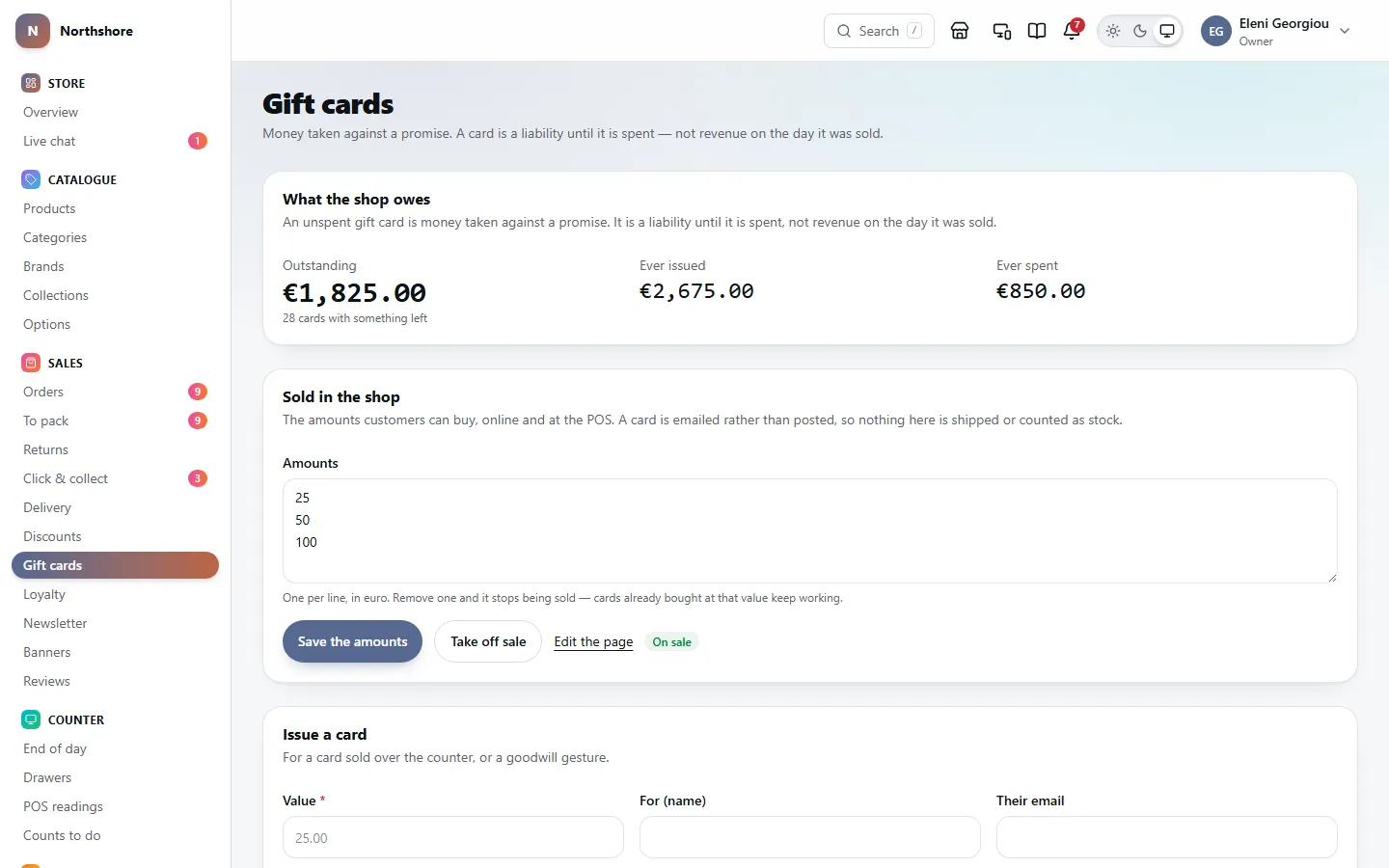
Gift cards are an add-on: the Gift cards screen only appears while the Gift cards add-on is added on Add-ons, and your plan includes it. Anybody who can manage discounts can look at it; issuing cards, changing balances and choosing what is sold needs the separate gift card permission.
What the shop owes shows the Outstanding balance across all cards with money left on them, plus everything Ever issued and Ever spent. An unspent card is money owed to a customer, not takings.
The Cards list shows every card, newest first, 25 to a page — use Next and Previous at the bottom to move between pages. Each row shows the code, who it is for, their email, the order it was bought on, how much has been spent, the balance left and what it started at. A card marked Spent has nothing left; Cancelled means it was cancelled by staff.
Tip: To find a card, type the whole code, or part of the name or email it was issued to, in the search box above the list and click Search. Clear goes back to the full list.
Sell gift cards in the shop
Needs the permission Manage gift cards.
The Sold in the shop box sets the values customers can buy, online and at the POS. A gift card is emailed rather than posted, so it is never shipped or counted as stock.
- Open Gift cards.
- In Amounts, type one value per line in euro, for example 25, 50 and 100.
- Click Save the amounts.
- Click Put on sale to make the gift card available, or Take off sale to stop selling it. The badge beside the button says On sale or Not on sale.
- Click Edit the page to change the gift card’s product page — its wording and picture — in the normal product editor.
Removing an amount stops it being sold; cards already bought at that value keep working. Saving an empty list takes gift cards off sale.
Tip: When a customer buys a gift card, it is emailed to the person it is for. You can change that email’s wording in Emails.
Issue a gift card by hand
Needs the permission Manage gift cards.
Use Issue a card for a card sold over the counter or given as a goodwill gesture.
- Open Gift cards.
- In Issue a card, type the Value, for example 25.00.
- Optionally fill in For (name), Their email and a Message.
- Click Issue the card.
- The green Card issued box shows the code. If you typed Their email, it also says the card has been emailed to that address; if not, write the code down or hand it over yourself.
With an email address, the card is sent on the same email as a card bought online — the code, its value and your Message, in quotes. You can change that email’s wording in Emails. An address that does not look right is refused, and no card is issued until you correct it or leave it empty.
Take care: The new code is shown once in that box and is not repeated in a message or in the activity log.
Change a gift card’s balance
Needs the permission Manage gift cards.
- Find the card in the Cards list on Gift cards and click Change the balance.
- Switch on Take it off to reduce the balance, or leave it off to add to it.
- Type the Amount, for example 5.00.
- Type Why — a reason is required.
- Click Change the balance. A message confirms the new balance.
A balance cannot go below zero, and cannot be raised above what the card was first issued with. To give somebody more value than that, issue a new card.
Cancel a gift card
Needs the permission Manage gift cards.
- Find the card on Gift cards and click Cancel the card.
- Optionally type Why, for example “Reported lost”. Without one, it is recorded as cancelled by staff.
- Click Cancel the card in the box to confirm.
Take care: A cancelled card can no longer be spent, and there is no way to un-cancel it. It keeps its history, and whatever balance was left is recorded as written off.
Loyalty points and what the shop owes
Needs the permission Manage discounts.
Loyalty points are an add-on: the Loyalty screen only appears while the Loyalty points add-on is on, from Add-ons. The line under the title shows how many points a customer earns per euro and how many points take a euro off. Change those rates in Loyalty settings.
What the shop owes shows the points still Outstanding, what they are worth at your redemption rate, and how many accounts have points, plus the points Ever earned and Ever spent.
Accounts lists every account, largest balance first, 25 to a page: their name or phone number, email, points ever earned, their current balance and what that balance is worth. A balance in red is below zero — points owed back after a refund.
To find somebody, type their phone number, email, or first or last name in the search box above the list and click Search. Clear goes back to the full list.
Tip: A customer’s account starts by itself the first time they buy with a phone number on the order. Spending points does not reduce their ever earned figure.
Start a loyalty account for a customer
Needs the permission Manage loyalty points.
For somebody joining at the counter. A phone number is all that is needed.
- Open Loyalty.
- In Start an account, type their Phone number.
- Click Start it.
Add or take off loyalty points
Needs the permission Manage loyalty points.
- Find the customer under Accounts on Loyalty and click Change the balance.
- Switch on Take them off to remove points, or leave it off to add them.
- Type the number of Points — a whole number.
- Type Why — a reason is required.
- Click Change the balance.
You cannot take off more points than the customer has. Points you add by hand are a real cost to the shop, in the same way as issuing a gift card.
The newsletter screen: your list and its health
Needs the permission Manage campaigns.
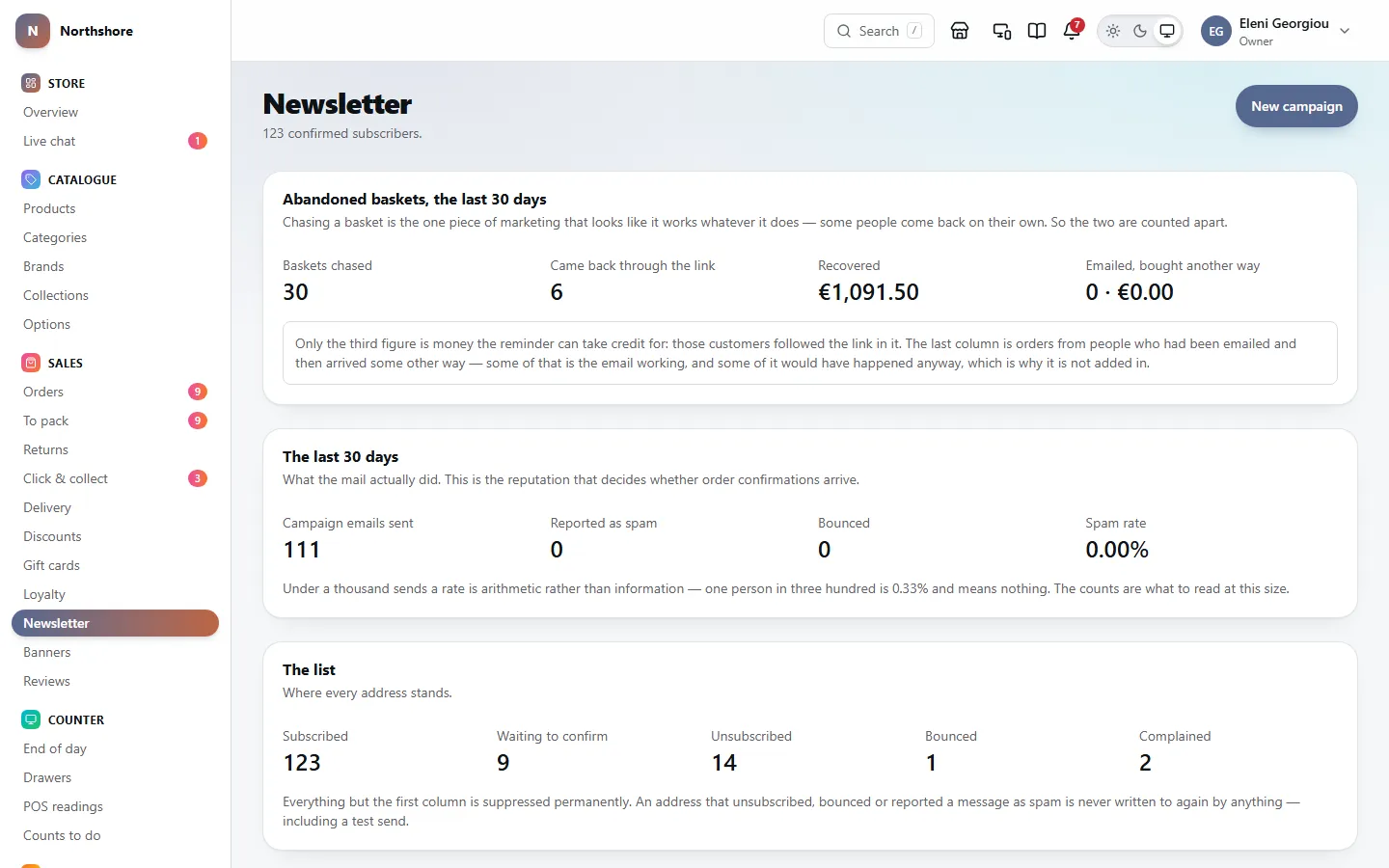
Newsletter shows your confirmed subscribers, how well your emails are arriving, and every campaign you have written.
- The last 30 days — Campaign emails sent, Reported as spam, Bounced and the Spam rate. Above 0.1% the big email providers start holding back your mail, including order confirmations and password resets. Under a thousand sends, read the counts rather than the rate.
- The list — how many addresses are Subscribed, Waiting to confirm, Unsubscribed, Bounced and Complained. Only the first column is ever written to.
- The campaigns table — Campaign, Sent to, Recipients, Opened, Clicked, Left (unsubscribed), Revenue and Status (draft, scheduled, sending or sent). Click a row to open it.
A yellow warning appears when more people are waiting to confirm than are subscribed. That usually means the confirmation email is not arriving — check Email delivery and send yourself a test.
Only people who signed up and confirmed by clicking the link in the confirmation email are on the list. Anybody who unsubscribed, bounced or reported a message as spam is never emailed again by any campaign, including a test.
Abandoned basket reminders
Needs the permission Manage campaigns.
The shop can email people who left something in their basket, with the Abandoned baskets add-on. Add it on Add-ons, set the timing and any discount code on its page, and change the email’s wording in Emails. While Coupons is off the reminders go out without their code.
The Abandoned baskets, the last 30 days box on Newsletter shows the results:
- Baskets chased — how many reminders went out.
- Came back through the link — orders from people who followed the link in the reminder.
- Recovered — what those orders were worth. This is the only figure the reminder can take full credit for.
- Emailed, bought another way — orders from people who were reminded but came back some other way. Some of that would have happened anyway, so it is not added in.
Write a newsletter campaign
Needs the permission Manage campaigns.
- Open Newsletter and click New campaign.
- Type a Name for yourself, and the Subject readers will see in their inbox.
- Write the Body in HTML. The shop’s branded layout, the unsubscribe footer and click tracking are added automatically — do not write them yourself.
- Under Who it goes to, pick an audience. The number of people in each is shown beside its name.
- Optionally fill in Send at to schedule it (see below).
- Click Save draft.
Saving never sends anything. Once the draft is saved, the Send yourself a copy and Send it boxes appear below it.
To get rid of a draft, click Delete draft at the bottom of its page, then Delete it to confirm. A scheduled draft deleted this way is not sent. A campaign that has been sent cannot be deleted, because it is the record of what went to whom.
The audiences are:
- Everyone subscribed — every confirmed subscriber who has not left.
- Customers — subscribers who have bought at least once.
- Best customers — the top fifth by lifetime spend among those who have bought.
- Lapsed customers — bought before, but nothing in the last six months.
- Never bought — subscribed but never ordered.
- Bought from a category — subscribers who have bought from the category you pick at any time. Type in the box to find the category; every category on the shop is there. The number of people is counted once you pick one.
Tip: Only people who have agreed to marketing are ever included, whichever audience you choose.
Test, schedule and send a campaign
Needs the permission Manage campaigns.
- Open the saved campaign from Newsletter.
- In Send yourself a copy, type a Test address and click Send test. Check it on a phone as well as a computer.
- When you are happy, click Send to … in the Send it box. It shows how many people it will go to.
- Read the warning, then click Yes, send to … to send, or Cancel.
The test address must be a confirmed subscriber — the same rules apply to a test as to a real send. If it is not, nothing is sent; subscribe the address through the shop first.
To schedule instead, fill in Send at and click Save draft. The campaign shows as scheduled and goes out on its own shortly after that time. Clear Send at and save again to cancel the schedule.
A campaign is sent in batches in the background, so it can take a while for a large list. While it goes out, its page shows how many have been sent and how many are left. You can close the browser in the meantime.
Take care: Sending cannot be undone or stopped once the first batch has gone, and it goes to real customers. A campaign needs a subject and a body, cannot go to an audience of nobody, and can only be sent once. After sending it can no longer be edited.
Read a campaign’s results
Needs the permission Manage campaigns.
Once a campaign has been sent, its page opens with What happened: Sent, Opened, Clicked, Revenue (orders placed within 7 days of a click), Clicked after opening, Unsubscribed and Failed.
- The open rate is unreliable both ways: some email apps block the tracking picture, and Apple Mail opens it for everybody. Compare it against your own past campaigns.
- Clicked after opening is the most honest figure for comparing campaigns.
- A warning appears if more than one person in a hundred unsubscribed.
- Addresses that failed lists the first few addresses that could not be delivered, and why.
Take addresses off the mailing list
Needs the permission Manage campaigns.
Addresses the mail server rejects outright are removed automatically. Bounces and spam complaints that arrive later as emails have to be entered by hand.
- Open Newsletter and find Take addresses off the list.
- Paste the Addresses, one per line.
- Choose Bounced — the address does not work or Complained — reported as spam.
- Click Suppress.
Take care: This cannot be undone from the dashboard. An address suppressed by mistake can only come back by subscribing again through the shop.
The announcement ticker
Needs the permission Manage campaigns.
The ticker is a line of text scrolling across the top of every page of the shop, above the header. Customers cannot close it, so keep it to short, useful lines such as a delivery threshold or opening news.
- Open Banners.
- In Announcement ticker, type up to six Messages, one per line. Text only — links are not possible.
- Click Save. Leave the box empty and save to remove the ticker.
Tip: The ticker is part of every shop, not of the Popup banners add-on. When Motion is off in Branding, it sits still in the centre instead of scrolling.
Make a banner
On Banners, click New banner. A banner interrupts people who came to shop, so give it one thing to say.
- What it is: a Name for you, and its placement (a popup, a bar or a slide-in).
- What it says: a Heading and Body, an optional image, and a button with its Button label and Button link. Tick Ask for an email address to collect sign-ups, or give a Discount code to hand out.
- Who sees it: Only on these pages, Never on these pages (checkout is a good one to leave out), referrers and countries. A box left empty is no restriction.
- When it appears: after so many seconds, so far down the page or so many pages into a visit, and how many days before somebody who closed it sees it again.
Tip: Its start and end dates make it scheduled until it begins and ended after. It still has to be switched on.
See your banners and how they perform
Needs the permission Manage campaigns.
Banners are popups, bars and slide-ins shown on the shop. The table on Banners lists each one with its Placement, how many times it was Shown, the percentage who Clicked, how many Converted, and its Status: live, scheduled (switched on, but its start date has not arrived), ended (switched on, but its end date has passed) or off.
Converted only counts for a banner that asks for an email address or gives a discount code; otherwise it shows a dash.
Take care: Popup banners are an add-on: without it, from Add-ons, a warning says so and none of them appear on the shop, whatever their own switch says.
Create or change a banner
Needs the permission Manage campaigns.
- Open Banners and click New banner, or click an existing banner to change it.
- Under What it is, give it a Name and choose where it appears: Centred popup, Bar across the top, Slides in from the corner or Covers the page.
- Under What it says, fill in the Heading, Body, an optional Image URL, and a Button label and Button link (a path like /sale, or a full https:// address).
- Optionally switch on Ask for an email address to collect newsletter signups, and type a Discount code to show after somebody signs up. While Coupons is off in Features, the banner still runs but does not show the code.
- Set Who sees it, When it appears and Scheduling (see below).
- Switch on Switched on when it is ready, then click Create banner or Save banner.
A new banner starts switched off, so it never goes live while you are still writing it. Signups through a banner get the same confirmation email as the footer form.
The top of an existing banner’s page shows What it has done: Shown, Clicked and Converted.
Take care: Covers the page on a phone can harm your Google ranking. Unless it is legally required, such as an age check, show it to Everything else (computers) only.
Choose who sees a banner, and when
Needs the permission Manage campaigns.
In Who sees it, any box left empty means no restriction:
- Only on these pages and Never on these pages — one path per line, such as /sale, /products/* or /categories/**. New banners exclude /checkout.
- Only from these referrers — part of the address of the site they came from, such as google. or instagram.
- Only in these countries — switch on the countries, by name, grouped by region. This only works if your hosting tells the shop the visitor’s country; without that, a banner with countries set is shown to nobody.
- Devices — Phones or Everything else.
- Visitors — First visit or Been here before.
In When it appears:
- After this many seconds, After scrolling this far (%) and After this many pages this visit.
- When the pointer leaves towards the top — computers only.
- Do not show again for (days) — after somebody closes it. 0 means never show it to them again.
With none of the timing boxes filled in, the banner appears the moment the page loads — right for a top bar, wrong for most popups.
In Scheduling, set Starts and Ends (empty means straight away and until switched off). When several banners could show, the one with the lowest Order number wins; only one is shown at a time.
Switch off or delete a banner
Needs the permission Manage campaigns.
To take a banner off the shop but keep it, open it, switch Switched on off and click Save banner.
- To delete it, click Delete this banner at the bottom of its page.
- Click Delete it to confirm, or Keep it to change your mind.
Take care: Deleting cannot be undone, and the banner’s performance figures go with it. Switching it off keeps both.
Publish or turn down reviews
Needs the permission Moderate reviews.
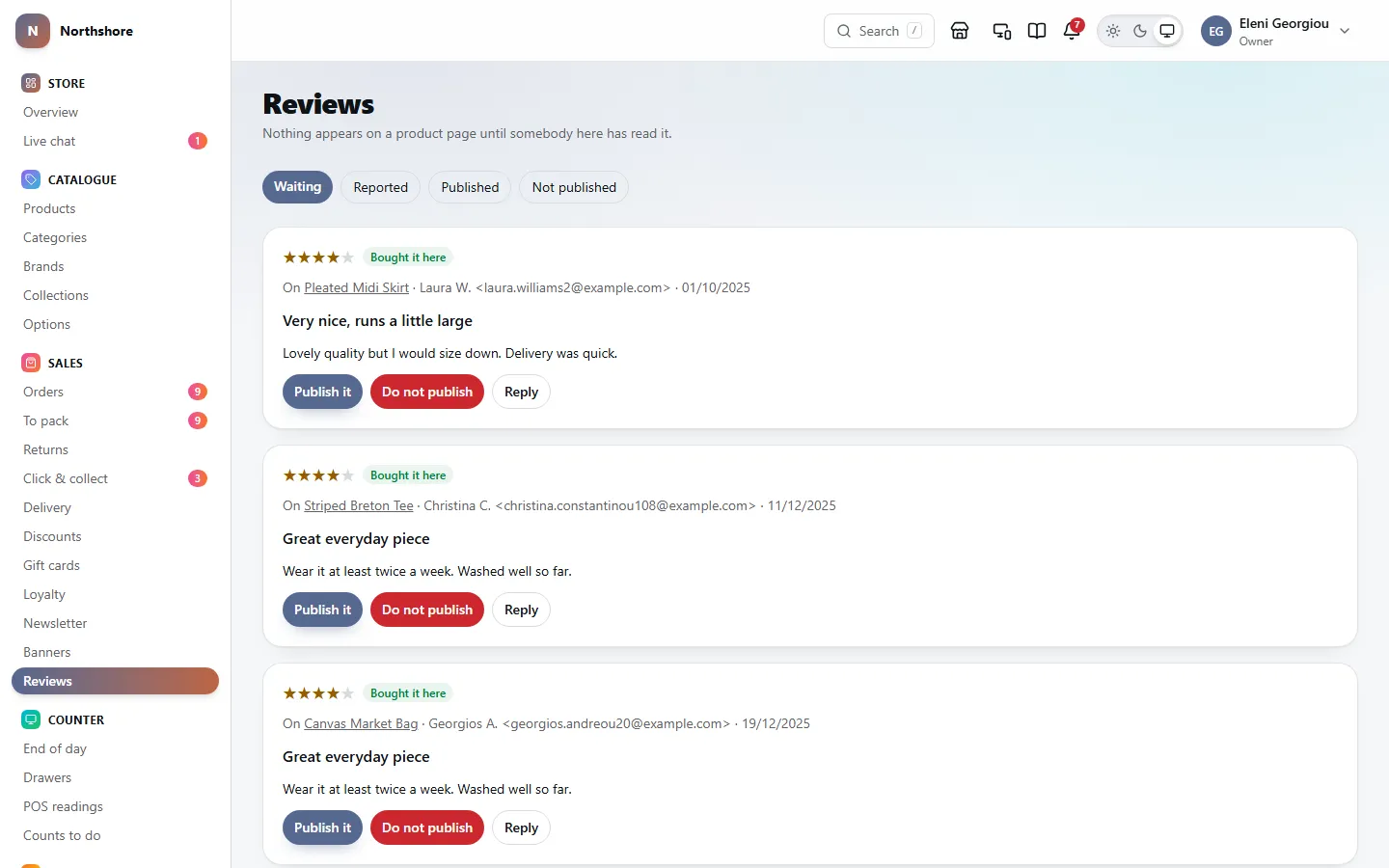
A review does not appear on a product page until somebody publishes it here — unless Publish reviews without reading them is switched on in Review settings. Reviews has four tabs: Waiting, Reported, Published and Not published.
Each review shows its stars, the product (click it to open the product), the reviewer’s name and email, the date, the title and text, and any photos. Bought it here means the reviewer bought the product from you. Reported shows how many times customers have complained about it.
- Open Reviews. The Waiting tab opens first.
- Read the review and click Publish it to show it on the product page, or Do not publish to turn it down.
The reviewer is emailed either way, if they left an address. You can change your mind later: a published review can be taken down with Do not publish, and a turned-down one can be published — the reviewer is emailed again each time.
Take care: A reported review stays on the product page until you decide. Check the Reported tab regularly.
Tip: Click a photo to see it full size. Customers signed in to an account can add photos while writing a review; a photo goes up with its review, so read it as carefully as the words. Whether customers can attach photos, whether only buyers can review, and how soon after delivery they are invited to, are set in Review settings. Photos are only taken and shown while the Review photos add-on is on, from Add-ons.
Reply to a review
Needs the permission Moderate reviews.
- Find the review on Reviews and click Reply (or Edit reply if there already is one).
- Type Your reply.
- Click Save reply.
The reply is shown under the review on the product page, in the shop’s name. To remove a reply, empty the box and save.
Answer customers’ questions
Needs the permission Moderate reviews.
Questions collects what shoppers ask on product pages, oldest first. It has three tabs: Waiting, Answered and Removed. A question is never shown on the shop until it has an answer. Questions are an add-on: the box on product pages, and this screen, are there while the Product questions add-on is on, from Add-ons.
- Open Questions.
- Read the question. Click See the product to open the product page on the shop.
- Type Your answer.
- Leave Show on the product page on to publish the question and answer with the asker’s first name only, or switch it off to answer only the person who asked.
- Click Answer.
The person who asked is emailed the answer either way. To change an answer, edit it and click Update answer — they are emailed the new one.
To get rid of a question without answering it, click Remove without answering. Nobody is emailed.