

How customers find their way around the shop: the category tree and the menu built from it, brands, collections, the shared list of sizes and colours, and the media library.
The category tree
Needs the permission View products.
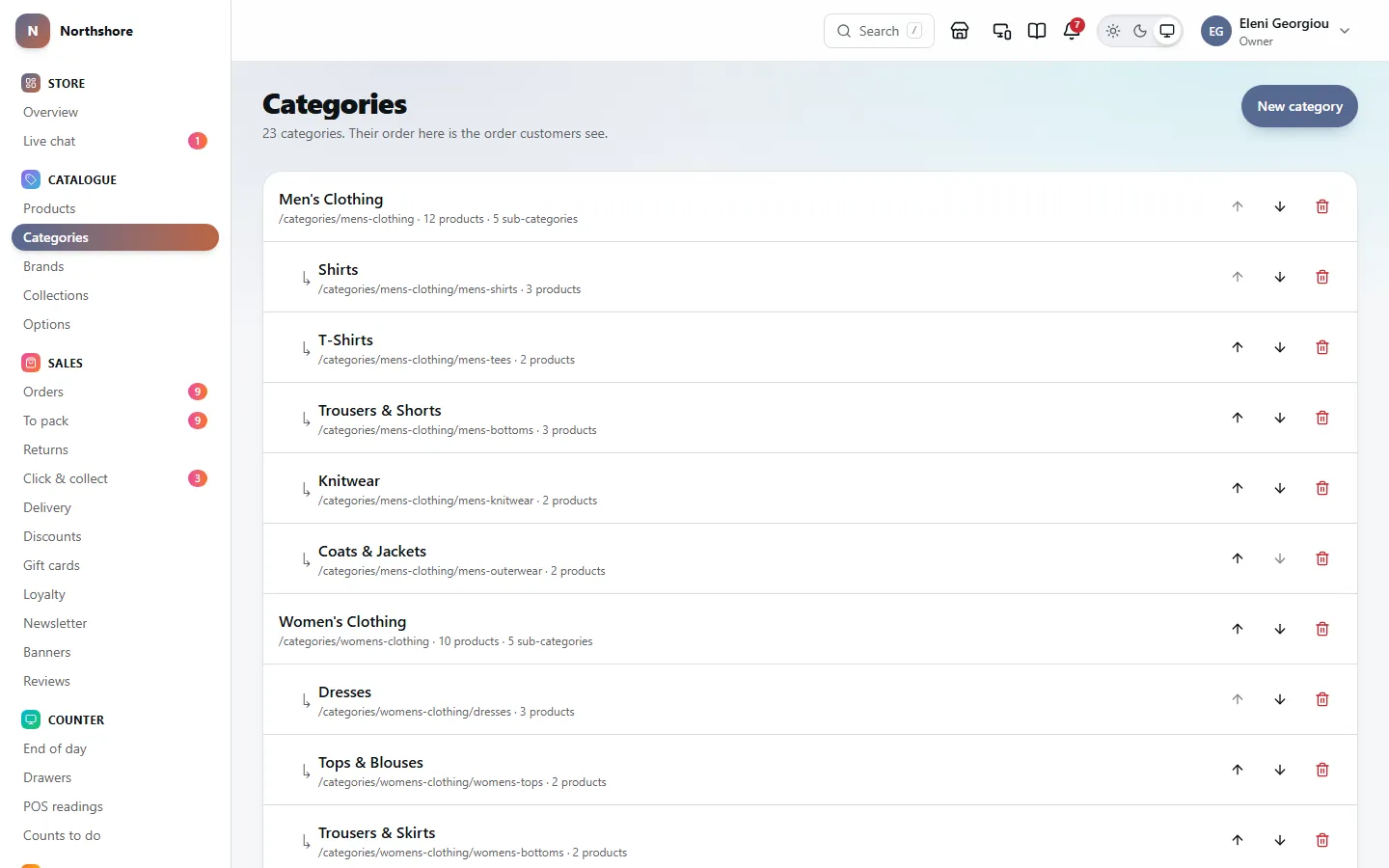
Categories are how customers browse the shop, such as Women › Dresses › Maxi Dresses. The Categories screen shows the whole tree, with sub-categories indented under their parent. The order here is the order customers see.
- Under each name you can see its web address, how many products are in it, and how many sub-categories it has.
- Hidden marks a category that is switched off on the shop.
- The tree can go up to four levels deep.
- A product can be in as many categories as you like. The one chosen as its Primary category decides its breadcrumbs and its main web address. See Brand, categories, collections and tags.
Anyone who can see products can look at categories. Adding, changing, reordering and deleting them needs the Manage taxonomy permission.
Add a category
Needs the permission Manage taxonomy.
- Open Categories and click New category.
- Type the Name, for example Dresses.
- Leave URL slug empty to have the web address made from the name, or type your own.
- Write a Description if you like. It is shown at the top of the category page and used for its search-engine description.
- Click Upload under Category image to add a picture. It is used on category tiles and when the page is shared.
- Choose a Parent category to put it under another one, or leave it on No parent — top level.
- Leave Visible on the storefront on, unless you want to prepare it before customers see it.
- Fill in Google product category if you advertise on Google Shopping (see below).
- Set a Low-stock warning level under Stock if you like (see below).
- Click Create category.
Parents that are already at the deepest level are greyed out with not allowed beside them, because a category under them would be a fifth level.
Google product category is the number of the matching category in Google’s own product list, for example 1604 for clothing. It helps Google Merchant Center sort these products correctly. Leave it empty if you do not use Google Shopping.
Low-stock warning level is how few must be left before a product in this category counts as running low, for example 2 for accessories and 10 for basics. It applies to products whose Primary category is this one. Leave it empty to use the shop’s default. A Low at level set on a variant still wins.
Edit, move or hide a category
Needs the permission Manage taxonomy.
- Open Categories and click the category’s name.
- Change what you need: the name, web address, description, picture, parent, visibility, Google category or Low-stock warning level.
- Click Save category.
- To move a category, choose a different Parent category. Choices that would put a category inside itself, or go deeper than four levels, are greyed out.
- Switching off Visible on the storefront hides the category from the shop’s navigation, together with every category inside it. Its products stay on sale and can still be found in other ways.
- To change the picture, click Replace. Remove takes it off; the file stays in the media library.
- View on storefront at the top opens the category on the shop. It only appears while the category is visible.
A category’s web address includes the addresses of the categories above it. Changing its URL slug, or moving it to a new parent, therefore changes the address of the category and of everything beneath it. The shop writes a redirect for every one of them automatically, so old links and search results still arrive at the right page. The message after saving says how many addresses changed.
Tip: Changing only the Name does not change the web address. Change the URL slug too if you want the address to match the new name.
You can see and edit every redirect on the Redirects screen.
Change the order of categories
Needs the permission Manage taxonomy.
Use the up and down arrows at the end of each row on Categories. A category only moves among the others with the same parent; its sub-categories move with it. The new order is saved straight away, and the shop’s menu and category lists follow it.
Tip: To move a category under a different parent, open it and change its Parent category instead.
Delete a category
Needs the permission Manage taxonomy.
- Click the red bin button on the category’s row in Categories, or open the category and click Delete category in the Danger zone.
- Read what will happen. If the category has products or sub-categories, type its name to confirm.
- Click Delete category.
- Its sub-categories move up a level, to where the deleted category was. They are not deleted.
- Its products lose this category. The products themselves are not touched.
- Its web address stops working. Nothing redirects, because there is no new address.
Take care: Deleting a category cannot be undone. If you only want to take it off the shop for a while, switch off Visible on the storefront instead.
How the shop’s menu is built
Needs the permission View products.
Until someone builds a main menu by hand, the shop builds its main menu from the category tree:
- Every visible top-level category becomes an item along the top of the menu, in the order shown on Categories.
- Its sub-categories appear under it, up to four levels deep.
- A hidden category is left out, and so is everything inside it, even a sub-category that is visible itself. Hiding a category hides its whole branch from the menu.
- Reordering, adding or renaming categories changes the menu straight away.
Tip: To show a sub-category of a hidden category in the menu anyway, build the main menu by hand and add a link to it. Its page is still there at its usual address, and it stays in the list of pages the shop gives search engines. The hidden category itself is left out of that list.
As soon as a main menu has been built on the Navigation screen, the shop uses that instead and the category tree no longer shapes the menu. Building a menu by hand lets you add links to collections, pages and sales, labels and pictures. See Website content.
Brands
Needs the permission View products.
The Brands screen lists every brand with its logo, web address and number of products. The order here is the order brands appear in the shop’s filters. Google Merchant Center and Meta both reject clothing without a brand, so it is worth setting brands up before you list products.
- To add a brand, type its name into Name under Add a brand and click Add brand.
- To change the order, use the up and down arrows at the end of each row. The new order is saved straight away.
Adding, changing, reordering and deleting brands needs the Manage taxonomy permission.
Edit a brand
Needs the permission Manage taxonomy.
- Open Brands and click the brand’s name.
- Change the Name, URL slug or Description. The description is shown on the brand page and used for its search-engine description.
- Click Upload under Logo to add one, or Replace to change it. A PNG with a transparent background works best.
- Switch off Visible on the storefront to take the brand out of the shop’s brand filters. Its products stay on sale.
- Click Save brand.
If you change the URL slug, the old address automatically sends visitors to the new one.
Delete a brand
Needs the permission Manage taxonomy.
- On Brands, click the red bin button on the brand’s row.
- Click Delete brand to confirm.
A brand that any product still uses cannot be deleted. Give those products another brand first; the brand’s own page tells you how many there are. You can find them by choosing the brand in the Brand filter on Products, then change them there.
Take care: Deleting a brand cannot be undone.
Collections
Needs the permission View products.
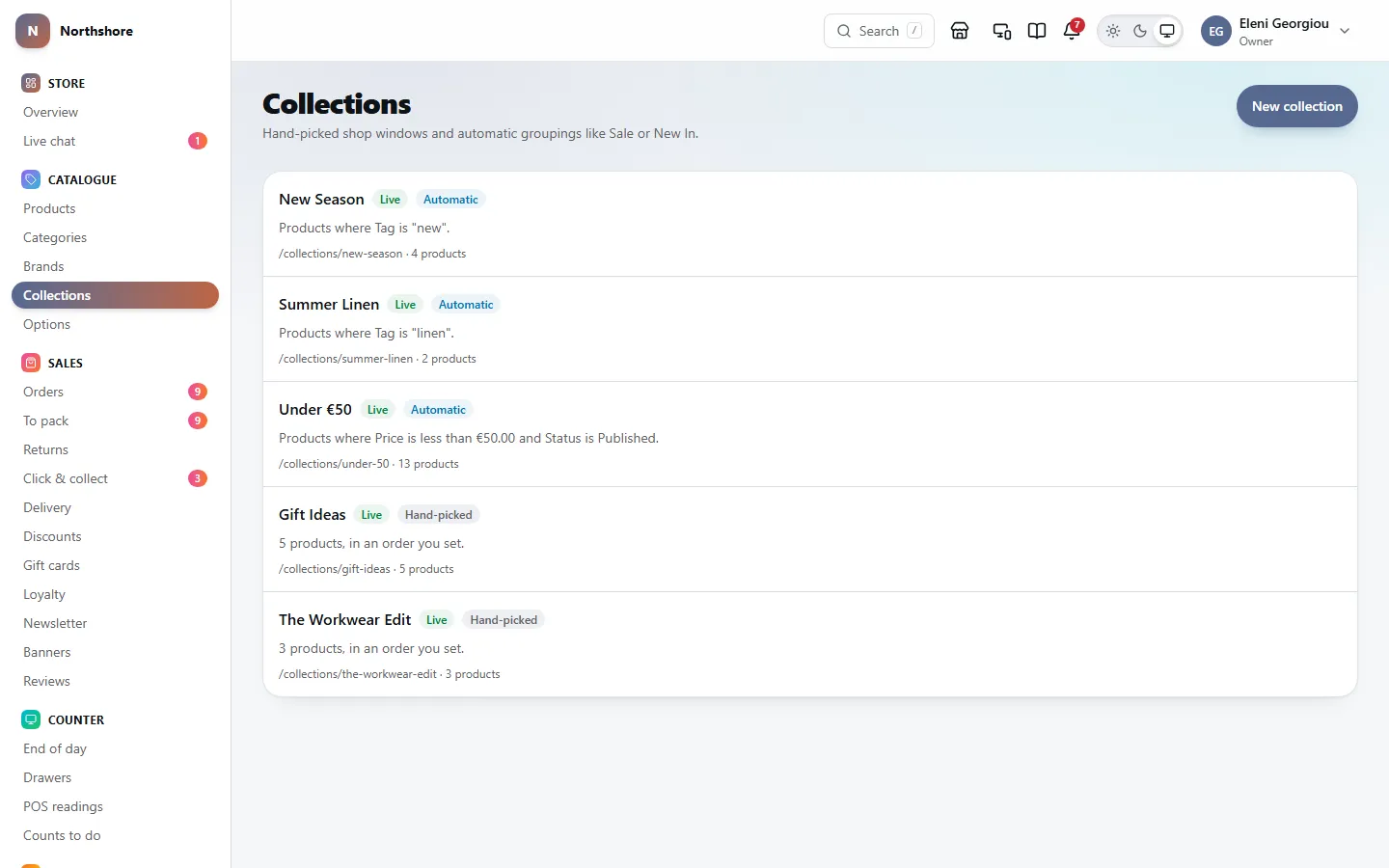
A collection groups products for a campaign, a season or a sale, such as Summer Linen or New In, separately from the category tree. Each one has its own page on the shop. There are two kinds:
- Hand-picked: you choose the products and the order they appear in.
- Automatic: you describe the products with rules, such as tag is sale, and the collection keeps itself up to date as products change.
The Collections screen lists them all, with a badge for each one’s state. The same badge is shown at the top of the collection’s own page:
- Live: on the shop now.
- Scheduled: will appear when its start time comes.
- Ended: its end time has passed.
- Hidden: switched off.
Under each name you can see the rules or the number of products, its web address and any dates. Creating and changing collections needs the Manage taxonomy permission.
Add a collection
Needs the permission Manage taxonomy.
- Open Collections and click New collection.
- Type the Name and, if you like, a Description.
- Under How products get in, choose Hand-picked or Automatic. For automatic, set up the rules (see below).
- Leave Visible on the storefront on, and set a Schedule if it is for a limited time.
- Click Create collection. The collection’s own page opens, where you can add products, a banner image and change its web address.
The web address is made from the name. You can change it later with URL slug; the old address then sends visitors to the new one.
Set the rules for an automatic collection
Needs the permission Manage taxonomy.
Each rule is a field, a condition and a value, for example Tag is sale. Choose all rules if a product has to match every rule, or any rule if matching one is enough.
- Tag is, or is not, a tag. Capital letters do not matter.
- Title contains, does not contain, or is a word or phrase.
- Brand is, or is not, a brand name.
- Category is, or is not, a category name. The product must be in that category itself.
- Price is less than, greater than, or equal to an amount in euros, typed as you would say it: 50 means €50.00.
- Status is, or is not, PUBLISHED, DRAFT or ARCHIVED.
- Added within (days) is less than a number of days, for a New In collection.
- Pick the field, then the condition, then type the value.
- Click Add rule for another rule. The bin button removes one.
- Read What this collection will contain, which sums up the rules in a sentence.
- Click Save collection. The message says how many products match.
- Membership is worked out again whenever the collection or a product is saved, so a product tagged sale joins the Sale collection at once.
- A rule with an empty value is ignored. A collection with no usable rules stays empty.
- Recalculate, above the product list, works the membership out again by hand if you think it is out of date.
Take care: Switching a hand-picked collection to Automatic and saving takes out every product that does not match the rules, and adds every one that does. The products you picked by hand are not remembered if you switch back.
Add, order and remove products in a hand-picked collection
Needs the permission Manage taxonomy.
- Open the collection.
- Under Add a product, start typing a title, stock code or barcode.
- Click a product in the results to add it. Products already in the collection show Already in.
- Drag products by their handle, or use the up and down arrows, to set the order customers see.
- Click × beside a product to take it out of the collection.
Each change is saved straight away. You can also add a product to a hand-picked collection from the product’s own page, or many at once from the products list. When you save the collection’s details, the message says how many products are in it.
If Some of these are not published appears, a draft or archived product is in the collection. It stays in, but customers will not see it until it is published.
Schedule, banner and visibility
Needs the permission Manage taxonomy.
- Goes live: the collection is hidden from the shop until this moment.
- Ends: the collection disappears after this moment. Nothing is deleted.
- Leave both empty for a collection that is always on.
- Visible on the storefront: switch it off to hide the collection whatever its dates say.
- Banner image: the picture at the top of the collection page. Click Upload or Replace. You can add it once the collection has been created.
A sale starts the moment its time comes; you do not need to do anything. Click Save collection after changing any of these. When the collection is live, View on storefront at the top of its page opens it on the shop.
Delete a collection
Needs the permission Manage taxonomy.
- Open the collection and scroll to the Danger zone.
- Click Delete collection, then Delete collection again to confirm.
Only the grouping goes. The products in it are not affected. The collection’s web address stops working, so remove any menu links or banners that point to it.
Take care: Deleting a collection cannot be undone. To end a sale but keep the collection for next time, set an Ends date or switch off Visible on the storefront instead.
Search appearance for categories, brands and collections
Needs the permission Manage taxonomy.
Each category, brand and collection page has a Search appearance card that works exactly like the one on a product. The text is written for you automatically; you only need to change it if you want something different.
- Page title and Meta description: leave empty to use the automatic text.
- Canonical URL: usually empty.
- Hide from search engines: keeps the page out of Google.
- Sharing image: the picture used when the link is shared. Left empty, the category picture, brand logo or collection banner is used.
Click Save search settings to save the card. It is separate from the main save button. Use generated text goes back to the automatic text. See How the product looks in search results for more.
Options: the shop’s sizes, colours and fits
Needs the permission View products.
The Options screen is the shop’s shared list of the things products are sold in, such as Colour, Size and Fit, with their values. When you add sizes or colours to a product, you pick them from this list, so Navy is always spelled the same way and the shop’s filters work properly.
Each option is shown as a card with its values and how many products use it, or Unused.
The cards are in the order the product page offers them under Add an option from the library. To change it, use the up and down arrows at the side of a card, for example to put Colour and Size before Sleeve length. The new order is saved straight away. Moving options needs the Manage taxonomy permission.
Every option in this library becomes a filter on the shop’s product lists, as long as the products on that list have at least two of its values to choose between. An option that is only on products, and not in the library, is not a filter. The filters are in the same order as the cards here, then Price, then Brand. Products whose option is spelled differently, such as Color and Colour, share one filter, which uses the library’s name. Sizes are listed smallest first and colours show their swatch, so it is worth setting the colours here.
If your products already have sizes and colours typed into them, you do not need to type the list again. Click Build from existing products. It adds every option and value it finds to the library and links the products to them. Spellings that mean the same thing become one entry, the way a product import matches them: products with Colour, Color or Colours all link to one option, and cream and Cream to one value. An option or value the library already has is used; a new one is named the way most of your products spell it. Nothing on a product is renamed or removed, so it is safe to click more than once.
Some products may have the same option twice, spelled two ways: a Colour picked from the library and an older Color of their own, each with the colours of some of the sizes. The shop then shows two rows of colour buttons, and the colour filter misses some of the sizes. Click Merge duplicate options to fix them all at once. It first tells you how many it will merge and on how many products, and which it will leave alone. Click Merge to go ahead. Each size keeps its colour, now under the library’s option, its name (such as Cream / M) is rebuilt, and the duplicate option is removed. Colours the library does not have yet are added to it.
A pair is left alone if merging would give a size two different colours, or make two sizes the same — for example two Cream / M, each with its own price and stock — or if each is linked to a different option in the library. Sort those out on the product, then click the button again. It needs the Manage taxonomy permission and is safe to click more than once. Importing a product file again does the same merge for the products in the file.
A product import uses this list too. Each size and colour in the file is matched to the library’s, even when it is spelled differently (Color and Colour, cream and Cream), and the product is linked to it and gets its colour swatch. Anything the library does not have is added to the end of it, and a new colour option has These values are colours switched on, so look over the new values after a large import.
Adding and changing options needs the Manage taxonomy permission.
Add an option and its values
Needs the permission Manage taxonomy.
- Open Options and click New option. If the library is empty, click Start one by hand.
- Type the Name customers will see, such as Colour or Size.
- If the values are colours, switch on These values are colours. Each value then gets a colour picker, so the shop can show a coloured dot instead of a word.
- Type a value into the box under Values and press Enter or click Add. You can paste a whole list at once, separated by commas.
- Use the up and down arrows to put the values in the order customers should see. Sizes are not alphabetical, so this order matters.
- Click Create option.
To set a colour, click the square beside the value and pick the colour. Clear removes it.
Rename, reorder or remove values
Needs the permission Manage taxonomy.
- Open Options and click the option.
- Change the name, the values, their order or their colours.
- Click Save option.
- Renaming a value renames it on every product that uses it, and their variant names are updated to match. A yellow notice tells you how many products will change before you save.
- Combinations you removed from a product stay removed after a rename, of the value or of the option.
- If a product already sells something under the new name, it keeps both and you are told after saving. Nothing is merged.
- Removing a value from the library does not remove it from products. They keep selling it; it just disappears from the list you pick from.
Remove an option from the library
Needs the permission Manage taxonomy.
- Open the option.
- Click Remove from library, then Remove from library again to confirm.
Products keep the option, its values and every variant, and customers can still choose it on the product page. They just stop following the library, the option no longer appears when adding options to a product, and it is no longer a filter in the shop. To bring the filter back, add the option again or click Build from existing products.
The media library
Needs the permission Manage media.
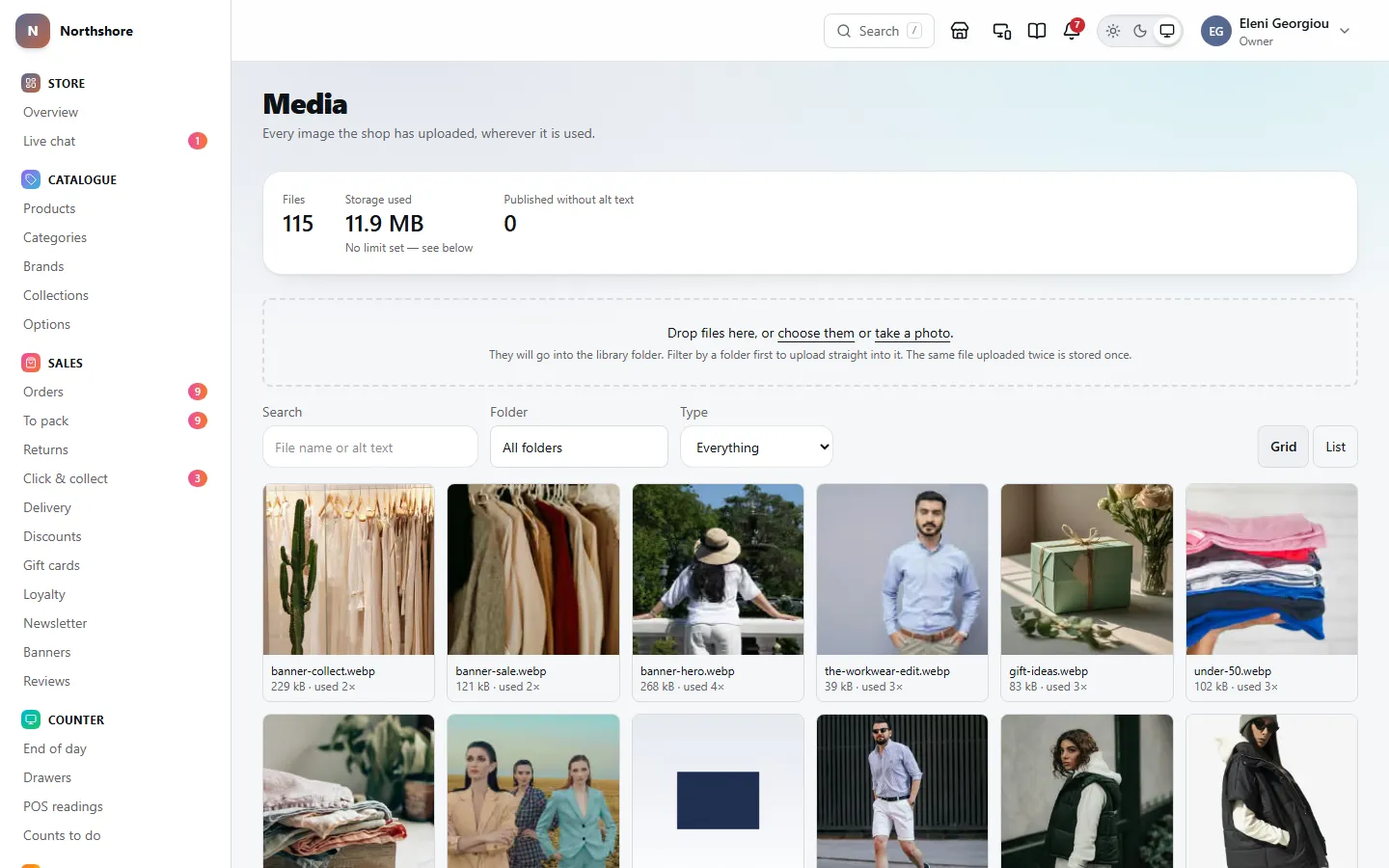
The Media screen holds every picture the shop has uploaded: product photos, category pictures, brand logos, banners and anything uploaded straight into it. It needs the Manage media permission.
Across the top you can see:
- Files: how many there are.
- Storage used: how much space they take up, and the limit if you have set one.
- Published without alt text: how many pictures customers can see that have no description. Choose Missing alt text in the Type filter to work through them.
Your hosting plan decides how much storage you have, and the shop cannot find that out by itself. Type it into Limit (MB) under Storage limit at the bottom of the page and save. A bar then shows how full it is, and Running out of room appears at 80%.
Upload pictures
Needs the permission Manage media.
- Open Media.
- Drag files onto the dashed box, or click choose them. On a phone or tablet, take a photo opens the camera.
- Wait until each file shows Done.
A file that cannot be uploaded, for example one that is too large or not a picture, shows the reason in red beside its name instead. The message at the bottom of the screen says how many of the files could not be uploaded, so you know how many to look for.
- JPEG, PNG, WebP, AVIF and GIF pictures are accepted, up to 20 MB each.
- Files go into the folder you are looking at. With All folders chosen, they go into the library folder. Choose a folder in the Folder filter first to upload straight into it.
- The same file uploaded twice is only stored once.
Tip: To add photos to a product, upload them on the product’s own page instead. They are added to the library too.
Find a picture, add alt text, or move it to a folder
Needs the permission Manage media.
- Search: type part of a file name or alt text and press Enter.
- Folder: show one folder only. The number beside each is how many files it holds.
- Type: Photographs, Logos and vectors, Everything else, or Missing alt text.
- grid and list switch between thumbnails and a table showing alt text, folder, size, how many times each is used and when it was added.
- Show more, at the bottom, loads the next batch.
- Click a picture to open its details below the grid.
- Type a description into Alt text. Say what the garment is, not image of a coat.
- To file it, type a folder name into Folder, or pick an existing one from the suggestions.
- Click Save.
- Rebuild sizes makes the smaller versions of the picture again from the original, if it looks wrong on the shop.
- Open original shows the file as it was uploaded, in a new tab.
- Close hides the details.
Tip: Alt text belongs to the file, so changing it here changes it everywhere the picture is used.
Delete a picture
Needs the permission Manage media.
A picture that is still in use cannot be deleted. Under Where it is used, click Show to see every place it is used, take it off those first, then come back.
- Products, categories, brands and collections, and colour swatches on a product or in the Options library.
- A Sharing image chosen in the search settings of a product, category, brand, collection or page.
- The logo, dark logo, favicon or sharing image in the shop’s branding. The logo is also the one on emails and documents.
- Homepage sections, both the draft you are editing and what the shop shows now, pictures in a page, banners, menu pictures, email templates and campaigns not yet sent.
- Photos customers attached to a review or a return.
- Click the picture to open its details.
- Check Where it is used says Nowhere.
- Click Delete permanently and confirm.
Take care: The file is removed from storage for good. There is no bin to get it back from.