

Inviting your team, choosing what each person can do with roles and permissions, keeping your own account safe, and reading the audit log.
See who is on the team
Needs the permission View staff.
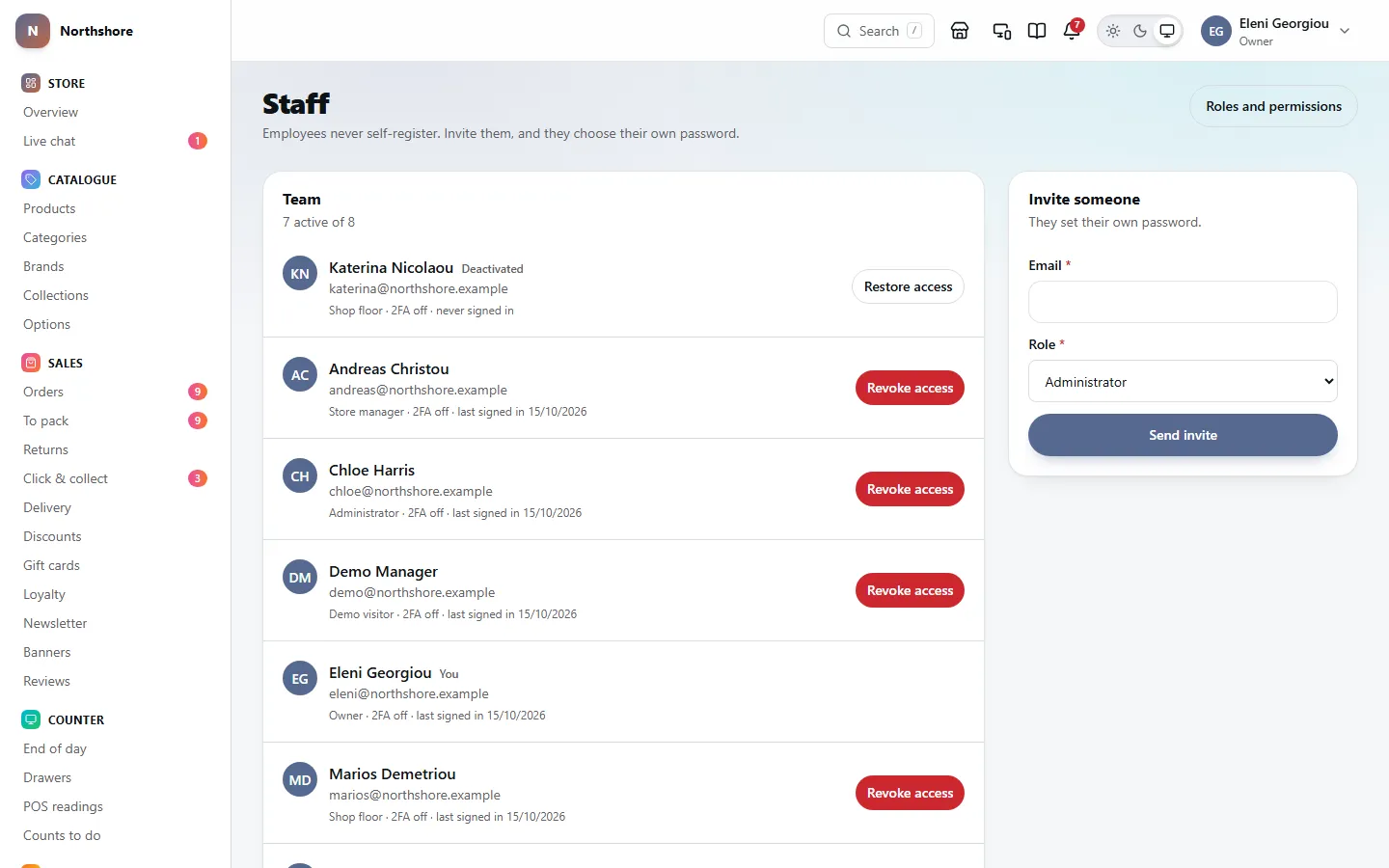
Staff, under People in the menu, lists everyone with an account. Active people come first, then anyone whose access has been revoked. The Team card says how many are active out of the total.
Each row shows the person’s name, email, role, whether two-factor authentication is on or off, and when they last signed in (or never signed in). People whose access is revoked are marked Deactivated, and your own row is marked You.
Click a name to open that person’s page. If you can only view staff, a Read only card explains that changes need the Manage staff permission.
Below the team, Pending invitations lists everyone who has been invited and has not joined yet. It only appears while there is at least one.
Staff never sign themselves up. Everyone is invited, and chooses their own password.
Invite a staff member
Needs the permission Manage staff.
- Open Staff.
- In Invite someone, enter their Email.
- Pick a Role. You can change it later.
- Click Send invite.
They receive an email with a link that works for seven days. They choose their name and password, and then sign in. They do not appear in the team list until they have accepted; until then they are under Pending invitations. See Join from an invitation.
- If the email does not arrive, check that the shop can send email in Email settings, and ask them to check their spam folder. Then click Resend under Pending invitations.
- You can invite someone whose access was revoked. When they accept, their account becomes active again with the role in the new invitation.
- You cannot invite someone who already has an active staff account.
- You cannot invite an address that already belongs to a customer account with the shop. The message says That email address belongs to a customer account. Invite them with a different address. One account cannot be both a customer’s and a member of staff’s, so ask them for another address, such as a work one.
Tip: Every new member gets a badge number for the POS automatically when they accept.
Resend or cancel an invitation
Needs the permission Manage staff.
Pending invitations on Staff lists each invitation nobody has accepted yet: the email address, the role, when it was sent and when it expires. An invitation past its date is marked Expired and stays on the list until you resend or cancel it.
- Click Resend to send a new email with a new link that works for another seven days. The link in the earlier email stops working.
- Click Cancel, then Cancel invitation to confirm, to withdraw it — for example if it went to the wrong address. The link stops working straight away. To let them join later, invite them again.
Sending, resending and cancelling an invitation are all recorded in the audit log.
A staff member’s page
Needs the permission View staff.
Click a name on Staff to open their page. The Account card shows whether they are Active or Access revoked, whether two-factor is on, and their Role, Job title, Last signed in and Joined date. This is you appears on your own page.
Below it are the Badge number, and for people who can manage staff, the Name and job title, Role, Locations and Activity cards. Each is explained below.
Change someone’s name or job title
Needs the permission Manage staff.
- Open Staff and click the person’s name.
- In Name and job title, change First name, Last name or Job title. Leave Job title empty for none.
- Click Save.
The job title is only a label shown on their page. What they can do is decided by their role. The change is recorded in the audit log.
Tip: Everyone can change their own name on their Profile. Nobody’s email address can be changed, because it is what they sign in with. To use a different address, invite it and revoke the old account.
Change someone’s role
Needs the permission Manage staff.
- Open Staff and click the person’s name.
- In the Role card, choose the new role.
- Click Change role.
The change applies straight away, on the next page they open. They do not need to sign out and in again. The change is recorded in the audit log.
Take care: You cannot move yourself out of the Owner role. Another owner has to do it. The last active owner cannot be moved to another role at all, because nobody would be left who could give the access back.
Badge numbers for the POS
Needs the permission View staff.
A badge number is what someone scans or types at a POS register to say they are the one serving, so the sale goes under their name. It is not a password: after it, the POS asks for their own till PIN, which they set in the dashboard under Security. Signing in to the POS or the dashboard still needs an email and password.
- Open the person’s page from Staff.
- In Badge number, click Show to see it. Click Hide to cover it again.
If someone has no badge number, the card warns that they cannot sign on at a POS register that only takes badges. Someone who can manage staff can click Issue a badge number.
If a badge is lost, click Issue a new one and confirm with Issue a new number. The new number is shown straight away so you can tell them.
To make them a badge to wear, click Print a badge. Choose a QR code or a barcode: a barcode is read by every scanner, a QR code needs a 2D scanner, which most new ones are. The preview shows the badge with your shop’s name, their name, their job title and their number. Click Print: it prints at the size of a bank card (85.6 × 54 mm), to fit a standard badge holder.
Take care: The old number stops working immediately. Any printed badge with the old number has to be replaced.
Choose where someone can pack from
Needs the permission Manage staff.
If the shop works from more than one place, you can keep someone to the locations they work at. They can then only adjust, move and shelve stock there, hand over click-and-collect orders collected there, and use the registers there.
- Open the person’s page from Staff.
- In Locations, switch on each location they work from.
- Click Save.
Tip: Nothing switched on means every location. You only need this card to narrow it down.
See what someone has done
Needs the permission Manage staff.
The Activity card on a staff member’s page lists the changes they have made and every attempt to sign in to their account, newest first. It cannot be edited or deleted.
- When — the date and time.
- What — what they did. Sign-ins are marked Sign-in or Failed. Under a change, Changed lists which fields were changed, without the values.
- Where from — the network address and rough town, where known.
Use Previous and Next to page through, 20 at a time. The card shows the most recent 200 entries. For older ones, use the audit log.
Revoke someone’s access
Needs the permission Manage staff.
When someone leaves, revoke their access. Their account and history are kept, so their past orders and changes still show their name.
- Open Staff.
- Click Revoke access on their row.
- Read the message and click Revoke access again to confirm.
They are signed out everywhere immediately, on the dashboard and the POS, and cannot sign back in. The change is recorded in the audit log.
Take care: You cannot revoke your own access, so the button does not appear on your own row. If you are leaving, ask someone else who manages staff. The last active owner cannot be revoked at all.
Restore someone’s access
Needs the permission Manage staff.
- Open Staff.
- Find the person marked Deactivated and click Restore access.
They can sign in again straight away with their old password and the same role.
Reset someone’s two-factor authentication
Needs the permission Manage staff.
Use this when someone has lost their phone and their recovery codes and cannot sign in.
- Make sure it really is them asking, for example in person or by phoning a number you already have.
- Open Staff and click Reset 2FA on their row. The button only appears for people who have two-factor turned on, and never on your own row.
- Type their email address in the box to confirm.
- Click Reset two-factor.
Their authenticator app and recovery codes stop working, they are signed out everywhere, and the next time they sign in they set up two-factor again (if their role requires it). The reset is recorded in the audit log.
Take care: You cannot reset your own two-factor authentication. Use one of your recovery codes, or ask another person who can manage staff.
What roles and permissions are
Needs the permission Manage roles.
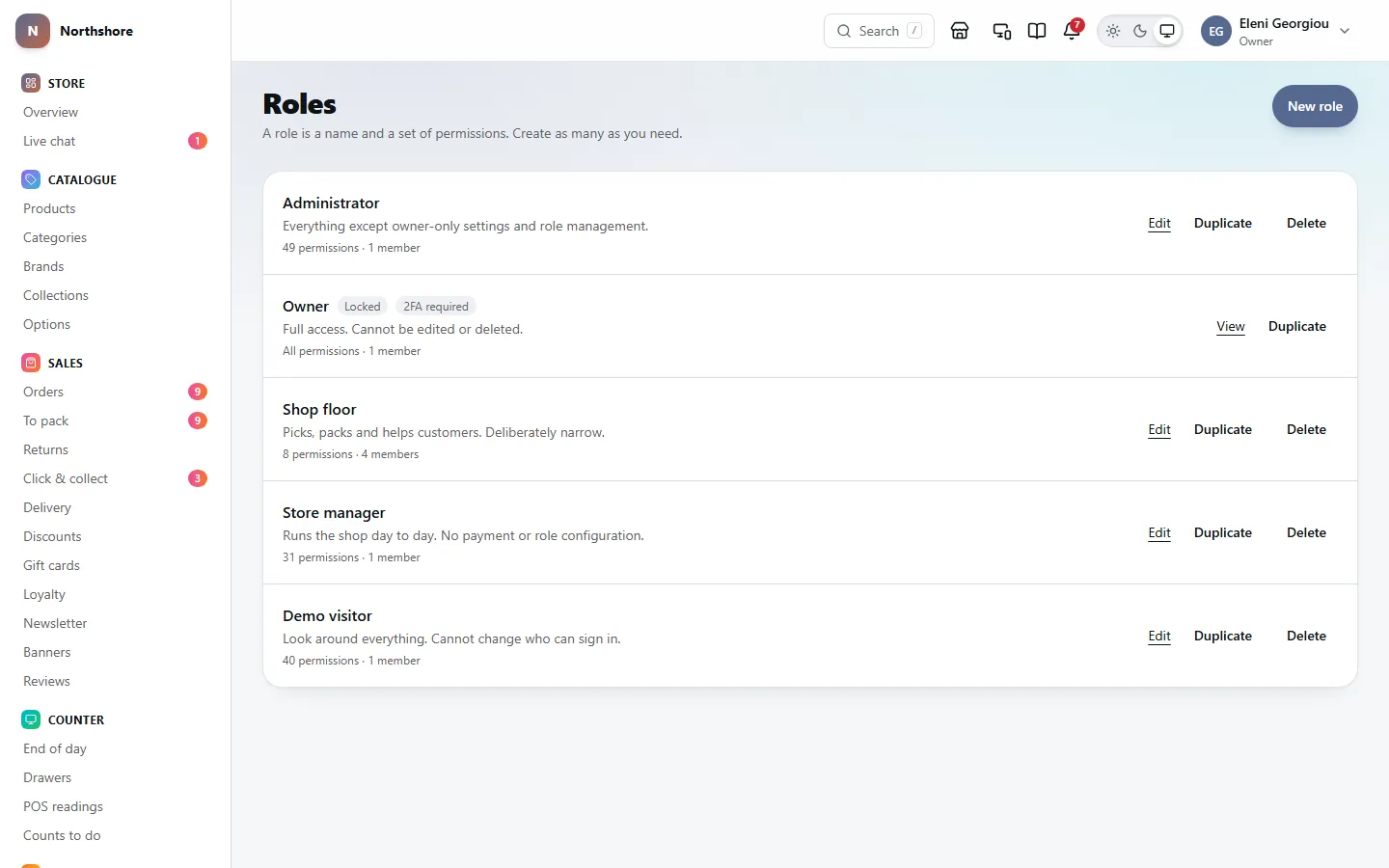
A permission is one thing someone is allowed to see or do, such as View orders or Refund orders. A role is a name with a set of permissions, such as Shop floor. Everyone has exactly one role, and gets exactly the permissions it holds.
Open Roles from the Roles and permissions button at the top of Staff. Each role shows its description, how many permissions it has, how many people hold it, and labels for Locked (the Owner role) and 2FA required.
If you have two-factor authentication turned on, you are asked for a code before the Roles screen opens. See Confirm it is you.
A change to a role applies to everyone who holds it on their next page. Nobody has to sign out.
The built-in roles
Needs the permission Manage roles.
Every shop starts with four roles:
- Owner — every permission, including any added in future. It can never be edited or deleted, it always requires two-factor authentication, and it is never held back by sign-in hours or addresses. This is what stops a shop locking itself out.
- Administrator — everything except managing roles and managing backups.
- Store manager — runs the shop day to day: the dashboard and the POS, catalogue, stock, orders, viewing customers, live chat, marketing, website content, sales reports and viewing staff. No settings, payments, finance reports or roles.
- Shop floor — deliberately narrow: the dashboard and the POS, changing prices and giving discounts at the POS, viewing and packing orders, viewing stock and products, and answering live chat. It cannot give refunds, at the POS or here.
Apart from Owner, you can edit the built-in roles or delete them once nobody holds them, just like your own roles.
Tip: Want floor staff to take returns at the POS? Give the Shop floor role Refund orders, under Orders. Without it the POS tells them to ask somebody who can to take over.
What each group of permissions covers
Needs the permission Manage roles.
In the role editor, permissions are grouped by area. Each one has a short description on screen. In plain words:
- Where they work — whether the person can use the dashboard, the POS, or both. Without Use the dashboard they cannot sign in here at all, whatever else they have.
- Catalogue — viewing, adding and editing products, deleting products, categories, brands and collections, and changing prices.
- Inventory — viewing stock, correcting and moving stock, buying stock from suppliers, and managing locations.
- Orders — viewing, packing and shipping, editing, cancelling and refunding orders. Refund orders covers refunds at the POS too, and Fulfil orders covers marking a click and collect order ready there.
- POS — Change prices and give discounts at the POS: selling a line for a different price, or taking money off the whole sale. Their name and the reason go on the order.
- Customers — viewing and editing customers, exporting the customer list, signing in as a customer to help them, erasing a customer’s data on request, and answering live chat.
- Marketing — discounts, newsletters and banners, moderating reviews, gift cards and loyalty points.
- Content — website pages, the homepage, menus and the media library.
- Reports — sales reports, finance reports (profit, margin and tax) and exporting report data.
- Settings — the business profile, store settings, branding, tax, shipping, payments, legal pages and switching features on or off.
- Staff — viewing staff, managing staff (inviting, changing roles, revoking access) and managing roles.
- Integrations — analytics, advertising and catalogue feeds, and importing data.
- System — reading the audit log, the Health and Errors screens with their alert emails, and Manage backups, which no dashboard screen uses yet.
Permissions marked Sensitive can delete things, move money or show customers’ personal details. Give them only to people who need them.
At the POS, what someone may do is decided by the role of the person serving — the one who scanned their badge or tapped their name — not by the account that signed the POS in. See Who can use the POS.
Create a role
Needs the permission Manage roles.
- Open Roles and click New role.
- Under Details, enter a Role name and, if you like, a Description of what it is for.
- Switch on Require two-factor authentication if the role can refund, export customer data or change payment settings.
- Optionally fill in Where and when they may sign in (see below).
- Switch on each permission the role should have. Use Select all or Clear beside a group to change the whole group at once.
- Click Create role at the bottom. The bar there also shows how many permissions are selected. The new role’s page opens, so you can carry on changing it.
- Switching on a Sensitive permission asks you to switch it a second time to confirm, so you cannot grant one by accident.
- Select all never switches on sensitive permissions. Switch those on one at a time.
- Two roles cannot have the same name.
Tip: Most roles are easier to make by copying an existing one. See below.
Copy a role
Needs the permission Manage roles.
- Open Roles and click Duplicate beside the role to copy.
- Type a Name for the copy.
- Click Copy and edit. The copy opens so you can change it.
The copy gets the same permissions, description, Require two-factor authentication setting and Where and when they may sign in limits. Nobody is moved onto it. Copying the Owner role gives the copy every permission as an ordinary list, so you can take some away, and two-factor switched on. It never becomes a second owner.
Change a role’s permissions
Needs the permission Manage roles.
- Open Roles and click Edit beside the role.
- Change the name, description, switches or permissions.
- Click Save role.
A message says how many staff members hold the role. The change applies to all of them on their next page. Every change, including which permissions were added or taken away, is recorded in the audit log.
The Owner role shows View instead of Edit, and cannot be changed.
Require two-factor authentication for a role
Needs the permission Manage roles.
Switch on Require two-factor authentication on a role, then click Save role. Everyone who holds it has to set up an authenticator app the next time they sign in, before they can use the dashboard.
Tip: Turn this on for any role that can refund orders, export customer data, change payment settings or manage staff.
Limit where and when a role can sign in
Needs the permission Manage roles.
Under Where and when they may sign in on a role you can set three optional limits. Leave a field empty for no limit. The Owner role is never limited by any of these.
- Only from these addresses — the internet addresses people may sign in from, one per line. A single address or a range both work. Ask your internet provider for the shop’s fixed address. A home connection usually changes, which would lock people out.
- Not before and And not after — the hours, in shop time, when people may sign in. The window can cross midnight, for example 22:00 to 06:00.
- Sessions at once — how many places someone can be signed in at the same time. Signing in beyond the limit ends their oldest session, never the new one.
These are checked when someone signs in. If they are refused, the sign-in page tells them why.
Take care: An address that is mistyped or out of date locks everyone with that role out. Check the address before you save.
Delete a role
Needs the permission Manage roles.
- Move everyone who holds the role to another role first. See Change someone’s role.
- Open Roles and click Delete beside the role.
- Click Delete role to confirm.
Take care: This cannot be undone. A role that people still hold cannot be deleted. The Owner role can never be deleted.
Your security page
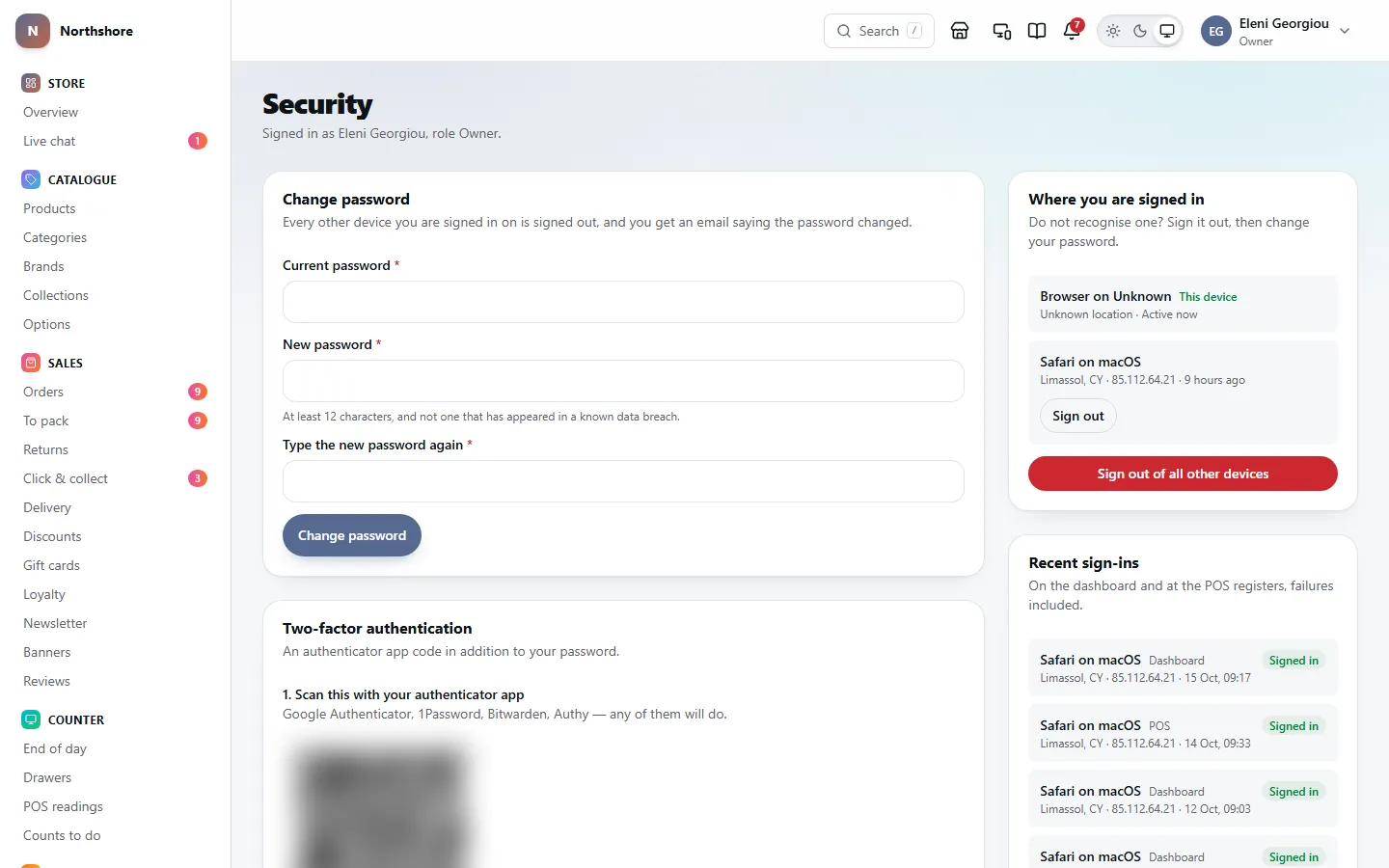
Everyone has their own Security page, for their own account only. Open it from Settings → Security, or from Manage security on your Profile.
It has four parts: Change password, Two-factor authentication, Where you are signed in, and Recent sign-ins.
Turn on two-factor authentication
Two-factor authentication means someone who learns your password still cannot get in without your phone. Even if your role does not require it, it is worth turning on.
- Open Security.
- Under Two-factor authentication, scan the QR code with an authenticator app such as Google Authenticator, 1Password, Bitwarden or Authy. If you cannot scan, click Show and type the key in by hand.
- Type the six-digit code from the app into Authentication code.
- Click Turn on two-factor authentication.
- Save the recovery codes that appear with Copy to clipboard or Download.
Take care: The recovery codes are shown only once. Keep them somewhere safe that is not your phone.
Once it is on, there is no button to turn it off yourself. If you change phones, ask someone who manages staff to reset it, then set it up again on the new phone.
Make a new set of recovery codes
With two-factor on, Security says how many unused recovery codes you have left. When you are down to two or fewer, a warning pops up.
- Open Security.
- Click Generate new recovery codes.
- Save the new codes with Copy to clipboard or Download.
Take care: Making a new set stops all your old codes working, including any you have printed.
If you lose your phone
- Sign in with your password, and type one of your recovery codes where the code from your app would go.
- On Security, click Generate new recovery codes and save them.
- Under Where you are signed in, sign out any device you do not recognise.
- Ask someone who manages staff to reset your two-factor authentication, so you can set it up on your new phone.
No recovery codes? Ask someone who manages staff to reset it for you. See Reset someone’s two-factor authentication.
Change your password
- Open Security.
- Under Change password, type your Current password.
- Type the new one in New password, and again in Type the new password again. It must be at least 12 characters, and it is refused if it has appeared in a known data breach.
- Click Change password.
You stay signed in on this device. Every other device and POS where you were signed in is signed out, and you receive an email saying the password was changed. The change is recorded in the audit log, without the password.
Tip: Do not know your current password? Sign out and use Forgotten your password? on the sign-in page instead. See Forgotten your password.
See and sign out your devices
Where you are signed in on Security lists every device and browser where you are signed in, with the rough location, the network address and when it was last used. The one you are using is marked This device.
- Click Sign out beside a device to end that session.
- Click Sign out of all other devices to end every session except this one. Do this if you have lost a phone or forgot to sign out on a shared computer.
Take care: If you see a device you do not recognise, sign it out and then change your password straight away.
Check your recent sign-ins
Recent sign-ins on Security shows your last ten sign-in attempts, on the dashboard and at the POS registers, with the device, place and whether it worked. Failed attempts show the reason, such as Wrong password.
Tip: Failed sign-ins you did not make mean someone may be trying your password. Change it, and turn on two-factor authentication if it is not on already.
Confirm it is you
A few screens can move money, change who has access, or let customer data leave the shop. If you have two-factor authentication on, opening one of them shows Confirm it is you first, so someone using your signed-in computer cannot do these things.
- Managing roles.
- Payment settings.
- Integrations, and the settings for customers signing in with Google, Apple or Facebook.
- Exporting the customer list, signing in as a customer, and erasing a customer’s data.
- Type the six-digit code from your authenticator app into Confirm with your authenticator.
- Click Confirm. You are taken on to the screen you were opening.
You will not be asked again for fifteen minutes. Signing in with your code also counts. To give up, click Back to the dashboard.
Take care: If the screen warns No recovery codes left, make a new set on Security now. Without them, losing your phone means asking someone else to reset your two-factor.
The audit log
Needs the permission View audit log.
The audit log records every change anybody made in the dashboard: who did it, when, from which address, and what changed from what to what. Nothing in it can be edited or deleted. Open it from Audit log under People in the menu, or from Settings.
Each entry shows what was done, who did it and when, the kind of record and its reference, and the address it came from. Below that, each changed field shows the old value crossed out and the new value beside it. Some values, such as passwords and secrets, show only changed — the value is not recorded. Up to twelve fields are shown, with a count of any more.
Entries made by the shop itself are marked Automatically. Entries by someone whose account no longer exists are marked as such.
Search and filter the audit log
Needs the permission View audit log.
- In Search, type who did it, or part of a record’s reference.
- In Action, pick one kind of change, or leave it on Everything. The list uses the same names as the entries, such as Role update.
- Use From and To to limit the dates. To includes the whole of that day.
- Click Apply.
Use the page numbers at the bottom to see older entries. To see one person’s activity on its own, open their page from Staff.
Download the audit log
Needs the permission View audit log.
- Set the filters you want on the audit log and click Apply.
- Click Export these. A spreadsheet file (CSV) downloads with the matching entries.
Take care: One download holds at most 5,000 entries, the newest first. When more than that match, a note above the entries says so, and the last line of the file says how many were left out. Narrow the dates and download in parts.
Everyone’s sign-in history
Needs the permission View audit log.
Click Sign-in history at the top of the audit log to see every sign-in attempt, by staff on the dashboard and at the POS registers and by customers on the website, successful or not. Click Changes to go back to the audit log.
- Type part of an address in Email.
- Pick an Outcome: Everything, Succeeded or Failed.
- Pick Where: Everywhere, Back office, POS or Shop (the website).
- Click Apply.
Each row shows when it happened, the email typed, the outcome (Signed in, or the reason it failed, such as Wrong password, No such account or Refused — outside permitted hours), where (Back office, POS or Shop), and the network address with a rough town.
The description at the top says how long these records are kept. That is set in Privacy and data.
Warnings about repeated failed sign-ins
Needs the permission View audit log.
If one network address has failed to sign in many times in the last day, Sign-in history shows a warning at the top listing up to five such addresses, how many failures each had, and how many different accounts were tried.
One account tried a few times is usually someone who forgot their password. More than two accounts tried from one address usually means someone is working through a list of email addresses.
Tip: If a staff email appears in those attempts, ask that person to check Security, turn on two-factor authentication and choose a new password.