

Getting paid orders packed and sent, handing click and collect orders over the counter, dealing with returns, and setting where you deliver and what it costs.
See what needs packing
Needs the permission Fulfil orders.
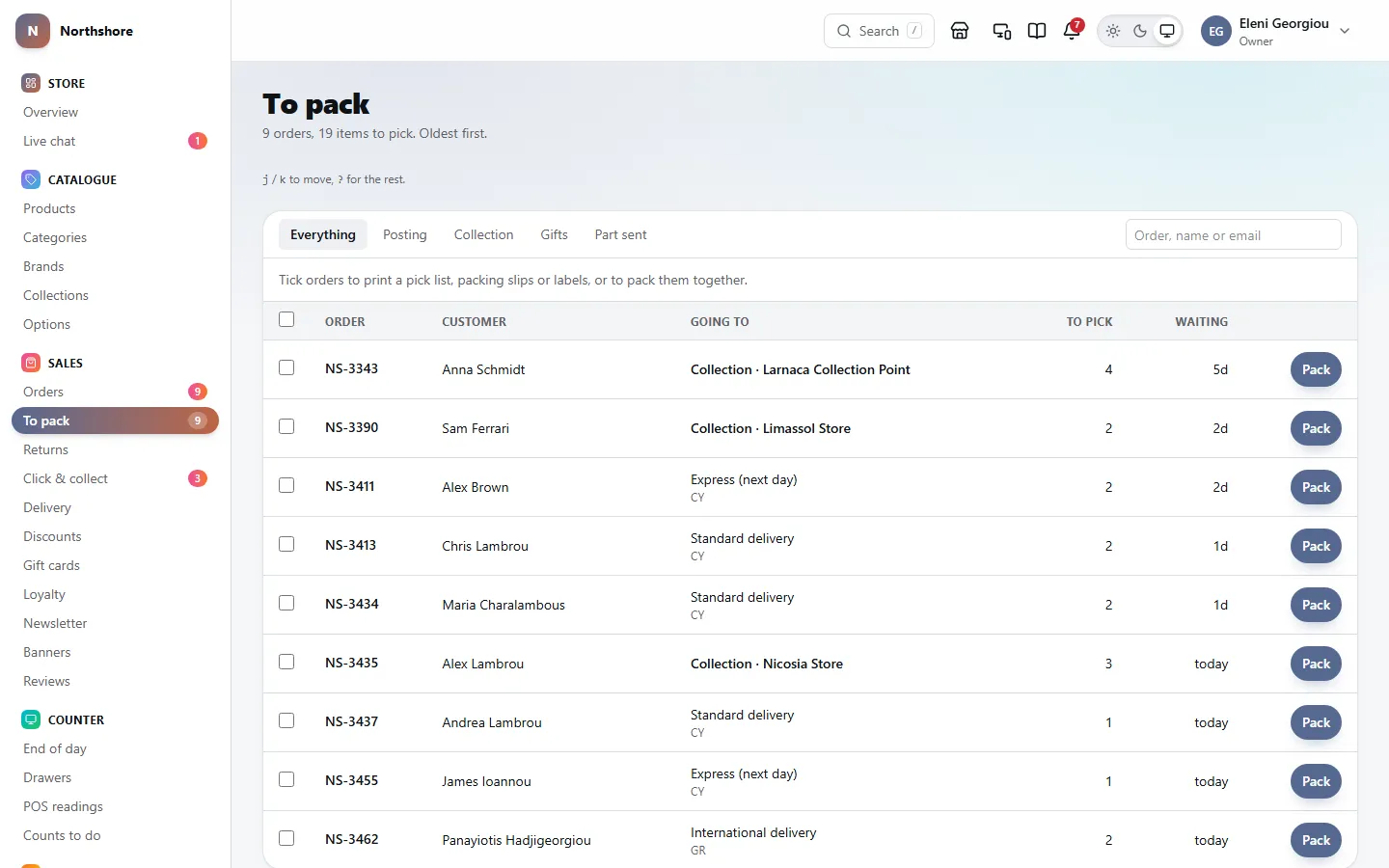
To pack lists every order that is ready to go out and still has something in it to pack — paid orders, and cash on delivery orders. The oldest is at the top, because that customer has waited longest.
The heading tells you how many orders and how many items are waiting. Each row shows:
- Order — the reference, with a gift or gift · wrap badge for a present and part sent if some of it has already gone.
- Customer.
- Going to — the delivery method and country, or Collection and the shop for click and collect.
- To pick — how many items are left to pack.
- Waiting — how long since it was placed: today, or a number of days.
The tabs split the queue: Everything, Posting (being delivered), Collection (click and collect), Gifts and Part sent. To find one order, type its reference or the customer’s name or email in the search box at the top right and press Enter.
Click Pack on a row to pack it with a scanner, or click the reference to open the order. The keyboard shortcuts from the order list work here too — see Work through orders with the keyboard.
Tip: An order that is not paid for yet, and is not cash on delivery, never appears here. If you are expecting one, look for it on Orders.
Print pick lists, slips and labels for many orders
Needs the permission Fulfil orders.
Tick orders in To pack to work on them together. The tick box in the heading selects every order shown. A bar at the top then says how many orders and items you have chosen.
- Pick list — one sheet of everything to fetch from the shelves for the orders you chose.
- Packing slips — one slip per order, in one file, in the same order as the list.
- Labels — one parcel label per order, in one file. Choose Labels on A6 for a label printer or Labels on A4 for plain paper in the box beside it first.
- Mark packed — records everything outstanding on each chosen order as packed, with no tracking number.
- Clear — untick everything.
The printouts open in a new tab, so you keep your place in the queue.
If Mark packed cannot pack one of the orders, the message names it. Open it to see why; the others are still packed.
Tip: Print the pick list, walk the shelves once, then pack order by order with the scanner. That is quicker than fetching each order separately.
Pack with a scanner
Needs the permission Fulfil orders.
Packing by scanning checks that the right things go in the box. The screen shows no prices at all, so anyone at the packing bench can use it.
- Click Pack on the order in To pack, or Pack with a scanner in the ⋯ menu on the order list.
- Scan each item’s barcode as it goes in the box. You can also type the barcode or SKU and press Enter.
- Watch the message under the box: a green tick with the item’s name means it counted.
- When everything is scanned, optionally type the Carrier, the Tracking number and the courier’s Tracking link.
- Click Pack followed by the order reference.
- Already have all … Put it back. — you scanned one too many of that item.
- … is not on this order. — the wrong item. Take it out.
- In this parcel lists every item with how many have been scanned. A tick means that line is complete.
- Items marked gift wrap need wrapping before they go in.
The pack button only works once every item has been scanned. When it is done you are taken back to To pack, and the order’s timeline says it was checked by scan.
On a phone or tablet, Scan with camera uses the device’s camera instead of a scanner. The browser asks for permission the first time.
Take care: An item with no barcode and no SKU is marked nothing to scan, and the order cannot be checked by scanning. Pack it from the order page instead.
Click Packing slip on the same screen to print the slip for the box.
Tip: Leave Tracking link empty when the courier has a tracking link set on Delivery: the shipped email builds the link from the tracking number. Type the Carrier exactly as it is named there.
Pack from the order page, or send part of an order
Needs the permission Fulfil orders.
Pack from the order itself when you are not scanning, or when only part of the order is going now.
- Open the order.
- Under What next, click Pack items.
- Every outstanding item is filled in. To send part of the order now and the rest later, lower the numbers.
- Type the Carrier: the name of the courier, the same way each time. Leave it empty if you are handing it over in person.
- Type the Tracking number.
- Optionally paste the courier’s Tracking link, so the customer’s email links straight to it.
- Click Pack.
If everything is now packed, the order becomes Packed. If you sent only part of it, it goes back to Being prepared and shows part sent in To pack until the rest goes.
Tip: Packing does not tell the customer anything. They are emailed when you mark the order shipped. If something went in the box by mistake, Unpack puts the order back on the packing list — see Unpack an order.
Labels and tracking through Sendcloud
Needs the permission Manage shipping.
With the Sendcloud add-on, parcels go with any carrier in your Sendcloud account — DHL, DPD, GLS, UPS, PostNL, Colissimo, Correos, InPost and more — and their labels are booked and printed from here. Add it under Add-ons, then connect it on Sendcloud.
- In Sendcloud, go to Settings, Integrations, and add a Sendcloud API integration. Copy its public and secret key into Sendcloud and press Save and check.
- In the same integration in Sendcloud, switch on Webhook feedback enabled and paste the webhook address shown on the page. This is what moves orders along as the carrier scans the parcel.
- On Delivery, open each delivery rate and choose its Sendcloud shipping method, for example PostNL Standard for “Standard delivery”. Orders placed with that rate are booked with that method.
With Book the label when a parcel is packed on, packing an order books its label straight away: the packing screen says so, and Print label under Parcels on the order opens it. For an order packed before Sendcloud was connected, or whose delivery rate has no Sendcloud method, choose one under Parcels and press Book Sendcloud label.
The tracking number goes on the order. When the carrier scans the parcel, the order moves to Shipped and the customer is emailed their tracking; when it is delivered, the order moves to Delivered. A parcel whose tracking you typed in yourself is left alone.
- Charge what Sendcloud charges — on a delivery rate linked to a Sendcloud shipping method, the price at checkout comes from Sendcloud for each basket, with the rate’s surcharge on top. The rate’s own amount is charged when Sendcloud cannot price it.
- Pick-up points — a shipping method that goes to a pick-up point or locker (marked “pick-up point” in the list) asks the customer to choose one at checkout, near their postcode, with opening hours. The order shows where they will collect it, and the label is booked to that point.
- Return labels — choose a Return shipping method on Sendcloud. An approved return then has Book return label on its page; download the label to send to the customer.
- A return label with every parcel — turn on Send a return label with every parcel on Sendcloud, and every order gets a prepaid return label when it ships: a link in the shipped email, and on the customer’s order page while they can return it. A return they start uses that label, and its tracking marks the return on its way and arrived. Choose a return method charged when the label is first scanned, or you pay for every label, used or not.
Tip: A parcel leaving the EU is booked with its customs declaration, from each product’s HS code and country of origin. Fill those in on the products you send outside the EU.
Parcel labels, couriers and tracking
Needs the permission Fulfil orders.
The Parcel label the shop prints is its own address label. Use it for parcels taken to the post office or handed to a courier on a standing arrangement.
The sender in the corner of the label is where the parcel leaves from, because it is also where a courier brings back a parcel it cannot deliver. It is, in order: the location the order was packed at, when one was recorded when packing; otherwise your return address from Returns settings, or the main shop when none is typed; and only when there is none of those, the registered address from the Business profile. The name above it is the Trading name from the Business profile — the name your customers and the courier know — or the Shop name from Store if the trading name is empty. The legal name is not on the label.
The Commercial invoice for a parcel leaving the EU names the business at its registered address as the Exporter, because that is who customs knows by the EORI and VAT numbers printed beside it. When the parcel leaves from somewhere else, a Shipped from line underneath gives the same address as the label, so the paper matches the box.
- On the order, choose the Paper — Label (A6) for a label printer or label sheets, Plain paper (A4) for ordinary paper — and the number of Boxes, then click Parcel label.
- For an order going in more than one box, set Boxes to how many. You get one label per box in one file, each numbered “1 of 3”, “2 of 3” and so on, so the customer knows to expect the rest.
- From To pack, the box beside Labels chooses A6 or A4 for every label at once.
If your courier gives you its own label when you book the collection, use theirs on the parcel and type its tracking number into the order when you pack it.
- The carrier, tracking number and tracking link go in when you pack — from Pack items on the order, or on the scanning screen.
- Staff can find an order by its tracking number in the search on Orders, which helps when a customer rings about a parcel.
- The shipped email turns the tracking number into a Track your parcel button when there is a link: the one typed when packing, or else the courier’s tracking link from Delivery. With neither, the customer is given the number to type in on the courier’s website themselves.
To set a courier’s tracking link once, so nobody has to paste one for every parcel:
- Open Delivery and find Tracking links at the bottom.
- Every courier named on a delivery method is listed. Beside it, paste the courier’s tracking page with {tracking} where the number goes, for example https://courier.example/track?number={tracking}.
- For a courier not named on a method, click Add a courier and type its name as you type it when packing.
- Click Save tracking links.
The link is matched on the courier name typed when the parcel is packed, ignoring capitals, so type the Carrier the same way each time. Clear a link and save to stop using it.
Which courier each delivery method uses is set on the method itself — see Add a delivery method.
Mark an order shipped
Needs the permission Fulfil orders.
When the parcel leaves the shop, mark it shipped. This is what emails the customer that it is on its way.
- Open the order, or use the ⋯ menu on the order list.
- Click Mark shipped.
Later, Mark delivered records that it arrived, and also emails the customer. A parcel has to be shipped before it can be marked delivered.
Take care: Once an order is shipped it can no longer be cancelled. If it comes back, it is a return.
Click and collect
Needs the permission Fulfil orders.
Click & collect shows every order a customer is coming to fetch from one of your shops, grouped by what needs doing.
- Not collected — the hold period has run out and nobody came. Nothing has been cancelled or restocked; you decide.
- To prepare — paid for. Pick it, bag it, and mark it ready.
- Ready to collect — on the shelf, and the customer has been told. Each shows how many days are left, or last day.
- Awaiting payment — ordered but not paid. Nothing to pick yet.
Each order shows the customer’s name, email and phone, which shop, how many items, the total, and since when it has been ready. Handed over recently at the bottom lists the last ten collections, with what was checked at the counter.
If you are attached to particular shops on your staff record, you only see their orders. Ask an owner to change that if you need to see another shop.
This screen only exists when click and collect is switched on in Features. How long you hold orders, reminders and what the counter has to check are set in Click and collect settings.
Get a collection order ready
Needs the permission Fulfil orders.
- Find the order under To prepare.
- Pick the items and bag them. To record exactly what went in, click Pack items; it opens the order with the packing box ready.
- Put it on the collection shelf.
- Click Mark ready.
Mark ready packs anything not already packed, and emails the customer to come and get it, with your collection instructions. The hold period starts counting from now.
Take care: Only press Mark ready once the bag is actually on the shelf. It can only be done once, and the customer may set off as soon as the email arrives.
If you have set a reminder, the customer is sent one reminder a set number of days later, as long as that is still inside the hold period.
Hand an order over at the counter
Needs the permission Fulfil orders.
- Find the order under Ready to collect or Not collected.
- Click Hand over.
- Check who the person is, as the prompt asks.
- Type what you checked, for example "Driving licence" or "Order email on their phone".
- Click Handed over.
The order becomes Delivered, and the return window starts from today. What you typed is kept on the order and in Handed over recently: it is the only record that the right person got it.
If your shop requires it, you cannot finish without saying what you checked.
Take care: An order that has not been paid for cannot be handed over. Take payment first. The same goes for an order that was never marked ready, has been cancelled, or was already collected.
Orders nobody collects
Needs the permission Fulfil orders.
When the hold period runs out, the order moves to Not collected and the customer is emailed that you are still holding it. Nothing is cancelled, refunded or put back on sale automatically.
What to do next is your call:
- Ring or email the customer — their phone and email are on the row.
- If they still want it, hand it over as usual when they come.
- If not, open the order and cancel it. That refunds them and, with Put the stock back on, returns the goods to sale. See Cancel an order.
See returns
Needs the permission View orders.
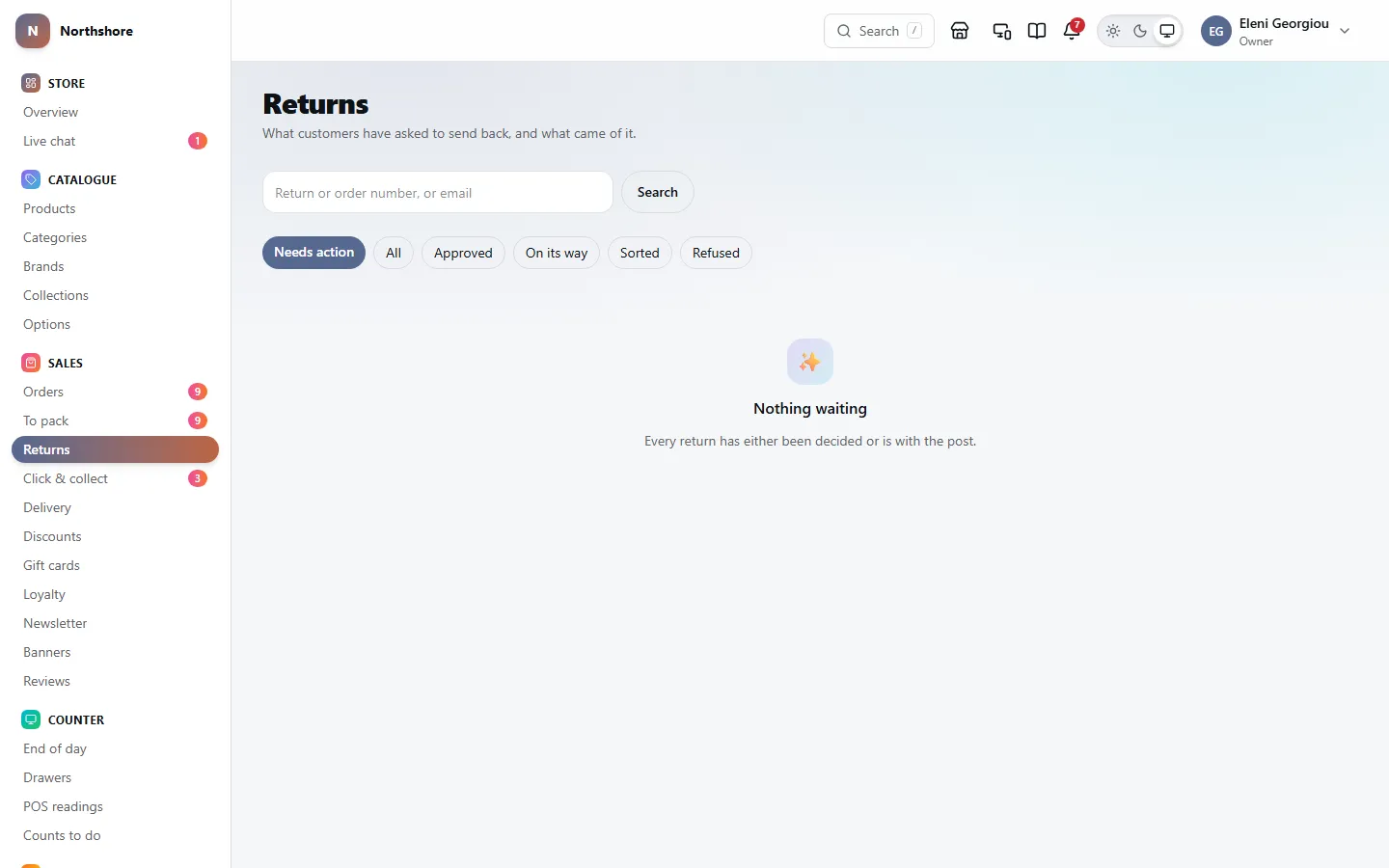
Returns lists what customers have asked to send back. It opens on Needs action: returns waiting for your decision, and returns that have arrived and need inspecting.
- Needs action, All, Approved, On its way, Sorted and Refused — the tabs.
- Each row shows the return reference, the order, the customer, how many items, the status and how long it has been waiting. A wait of three days or more on something waiting for you turns red.
- right of withdrawal beside a reference means every reason given is a change of mind, so the customer is using their legal right to return it.
The statuses are Waiting for a decision, Approved, On its way, Arrived — inspect it, Sorted, Refused and Cancelled.
To find one return, type its reference, the order reference or the customer’s email in the search box at the top and press Search. The search looks inside the tab you are on; switch to All if a return you expect is not there.
Click a row to open the return, or the order reference to open the order. On the return, Open the order takes you there too.
How returns work for customers — the window, who pays postage, whether you approve first, and the return address — is set in Returns settings.
Approve or refuse a return
Needs the permission Refund orders.
Open the return. What is coming back lists each item, the reason the customer chose, what they wrote and any photographs they sent. Click a photograph to see it full size.
Boxes at the top may tell you more: that it is a returned present, that it is a right of withdrawal, or that something is reported faulty, damaged or wrong — those have no fourteen-day limit and the shop pays the return postage.
To approve it:
- Under This return is waiting for you, optionally add a Note for staff.
- Click Approve it.
The customer is emailed to post it back. Approving does not refund anything yet; that happens when it arrives and you have looked at it.
To refuse it:
- Click Refuse it.
- In Why you are refusing it, explain to the customer, and say what they could do instead.
- Optionally add a Note for staff.
- Click Refuse this return.
Take care: The customer reads your reason word for word. Inside the fourteen-day window, a change-of-mind return can only be refused if the goods come back in a state that goes beyond having been examined.
Deciding commits the shop to a refund, so it needs permission to refund. Without it you can see the return but not decide.
Tip: If Approve returns before anything is posted is off in Returns settings, returns arrive already approved and skip this step.
When a return arrives
Needs the permission Refund orders.
An approved return waits under When it turns up.
- If the customer gives you a tracking number, type the Carrier and Tracking number and click Record tracking. The return shows On its way.
- When the parcel reaches you, click It has arrived. The return moves to Arrived — inspect it and back under Needs action.
If the customer changes their mind before posting it, click Cancel return at the top of the return and confirm. That works while it is Waiting for a decision or Approved, but not once it is on its way. Nothing is refunded, the order is left as it is, and the customer is not emailed, so tell them if they are expecting to send it. A cancelled return cannot be reopened.
The record at the bottom of the return keeps the dates: requested, delivered, approved and arrived, who paid the return postage, the tracking and the staff note.
Inspect a return and refund it
Needs the permission Refund orders.
Once it has arrived, open the return and look at what came back. What came back has one part for each item.
- For each item, choose What happens: Refund it, Exchange it or Refuse it.
- Set How many accepted if only some came back in a fit state.
- For a refunded item, leave Back on the shelf on if it can be sold again; switch it off if not. The switch only appears for Refund it, because only refunded items go back into stock.
- Add a Note. For a refused item, say what was wrong with it — that is your record if the customer disputes it.
- Optionally add a Note for the record for the whole return.
- Read the breakdown and the box above the button. They tell you how much will be refunded, whether the delivery charge, gift wrapping and cash on delivery fee go back too, and how.
- Click Finish this return.
- Each refunded item refunds for what the customer actually paid for it, after any discount. The amount is shown under each item.
- All the refunded items go back together in one payment, the same way the order was paid. For cash or the card machine nothing moves by itself: give the money back in the shop, or refund it on the machine.
- The delivery charge, any gift wrapping and any cash on delivery fee are kept, except when the whole order comes back. Then the refund includes them. When the customer asked to return it within 14 days of delivery: the cost of your cheapest standard delivery (someone who paid for express gets the standard cost back), and all of the gift wrapping and the cash on delivery fee. When everything came back faulty, damaged, wrong or not as described: all of each, express included, whenever it comes back. This is the law on cancelling a distance sale — every payment is reimbursed — and you cannot switch it off. The breakdown above the button lists each one and why, for example plus gift wrapping €3.00 — the whole order came back within the 14-day cancellation period, or what is kept, for example Delivery, gift wrapping and the cash on delivery fee kept: only part of the order came back.
- The 14 days count from delivery to the day the customer asked, not to the day the parcel arrived back, and are always 14 even when your own returns window is longer. Items that were emailed rather than posted, such as e-gift cards, do not count towards the whole order. Gift wrapping is never part of an item’s price, even when the shop wraps item by item, so it is refunded only with the whole order and never twice. None of them is refunded twice, and never more than the customer paid. A cash on delivery fee goes back the same way as the rest of that refund: in cash at the shop.
- Return postage is separate, and is never refunded here: who pays it is set in Returns settings.
- Exchange it records that you are swapping the item. It refunds nothing and does not put anything back in stock or create a new order; send the replacement yourself, and if the returned one can be sold again, add it back on Stock.
- Refuse it refunds nothing and changes no stock; the item goes back to the customer.
- To accept none of an item, choose Refuse it, not a quantity of zero.
The customer is emailed the outcome, and the return becomes Sorted. Each item then shows what happened to it. When delivery, gift wrapping or the cash on delivery fee was refunded, the email, the refund on the order’s timeline and the credit note all say how much of the refund each was.
Take care: Finishing a return cannot be undone from here, and the refund goes out straight away. If nothing is refunded the customer is still told the return was dealt with, so make sure the notes say why.
A present sent back by the person who received it
Needs the permission Refund orders.
A return started from a gift return slip says A returned present at the top, with the name and email of the person who received it and whether they would like a gift card or an exchange.
- Every email about this return goes to them, not to the person who bought it.
- When you inspect it, the choice for each item is Gift card for its value instead of a refund.
- Finishing it puts the value on a new gift card and emails them the code. Nothing goes back to the buyer’s card, and the buyer is not told.
- The delivery charge is not added to the gift card, even when everything comes back: the person returning it did not pay for delivery.
Set where you deliver
Needs the permission Manage shipping.
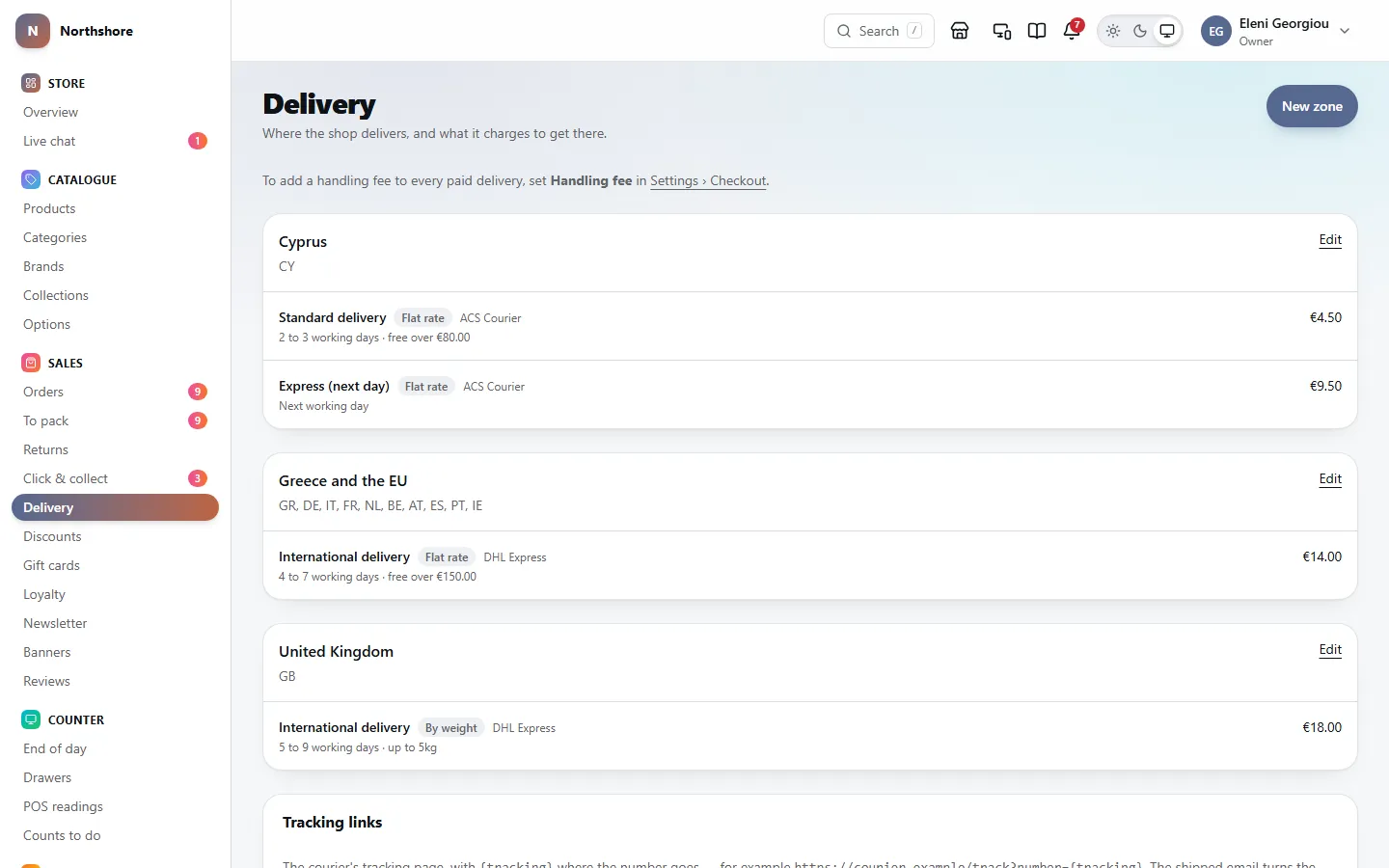
Delivery lists your zones. A zone is a group of countries that share delivery prices, and each zone has one or more delivery methods.
A customer whose country is in no zone, or in a zone with no methods, is told at checkout that you do not deliver to them. The screen warns you about any switched-on zone with no method.
- Click New zone.
- Type a Name, for example "Cyprus" or "Rest of the EU".
- Under Countries, switch on each country the zone covers. They are grouped by region, and All on or All off sets a whole region at once; Find a country finds one by name.
- Leave Postcodes empty for whole countries, or type postcode beginnings to cover only part of one.
- Choose Who pays import duty. This only matters outside the EU.
- Leave Delivering here on.
- Click Create zone.
- Add at least one delivery method to it.
To change a zone, click its name or Edit, change it, and click Save zone.
- Who pays import duty — The customer, on delivery (DAP), or The shop, collected at checkout (DDP). Get this wrong and a customer receives an unexpected bill from the courier.
- Order — lower comes first. Only matters when two zones cover the same country; whichever comes first wins. A zone with postcodes beats one without.
- Delivering here — switch off to stop delivering to these countries for a while without losing the zone.
If a country is in two zones, a warning on the zone tells you which.
Tip: A handling fee, added to every delivery except free ones, is set under Handling fee in Checkout settings. When there is one, Delivery says how much and links there.
Make a delivery zone
New zone makes a group of countries that share delivery prices. Its methods and prices are added on the zone’s own page once it is made.
- Name: what you call it, such as "EU" or "Scottish Highlands".
- Countries: the countries it covers.
- Postcodes: leave empty for the whole country. A prefix or a wildcard narrows it, such as IV* for the Scottish Highlands. A zone with postcodes beats one without.
- Who pays import duty: only matters outside the EU. Getting it wrong means a customer receiving a bill from the courier they did not expect.
- Order: lower comes first, where two zones cover the same country.
Add a delivery method
Needs the permission Manage shipping.
- Open the zone from Delivery.
- Under Delivery methods, click Add method.
- Type a Name, as customers will see it at checkout, for example "Courier to your door".
- Choose How it is priced.
- Optionally type a Description, shown under the name at checkout.
- Type the Amount.
- Fill in any other fields you need — see below.
- Click Add.
How it is priced:
- Flat rate — the same price whatever is in the basket.
- By weight — one method for each weight band. Add a method per band and set From weight (g) and To weight (g).
- By order value — one method for each value band. Add a method per band and set From order value and To order value.
- Per item — the amount is multiplied by the number of items.
- Free — costs nothing.
The other fields:
- Surcharge — added on top for this method only, such as an express fee.
- Free over — see Offer free delivery.
- From/To weight and From/To order value — a basket outside these limits does not see this method at all.
- Fastest (days) and Slowest (days) — the delivery estimate shown to customers.
- Carrier — who actually delivers it: the name of the courier.
- Order — lower is shown first at checkout.
- Offered at checkout — switch off to hide the method without deleting it.
To change a method, click Edit beside it, change it, and click Save. To delete one, click Remove and confirm. Orders already placed keep the price they were charged.
Offer free delivery
Needs the permission Manage shipping.
There are two ways: a method whose How it is priced is Free, or a threshold on a paid method.
- Open the zone and click Edit on the method.
- Type an amount in Free over, for example 50.
- Click Save.
Once the basket reaches that amount, the method is free — surcharge and handling fee included.
Under Who and what it applies to (optional) you can narrow the offer:
- Only these categories count and Only these collections count — tick some, and only those goods count towards the threshold. "Free delivery on €50 of outerwear" means €50 of coats, not a coat in a €50 basket.
- Only for — Everybody, Repeat customers, New customers, Lapsed customers or Subscribed to marketing. A shopper who is not signed in counts as nobody in particular, so they do not get a group offer.
Remove a delivery zone
Needs the permission Manage shipping.
- Open the zone from Delivery.
- At the bottom, under Remove this zone, click Remove zone.
- Click Remove it to confirm, or Keep it.
The delivery methods inside it go too. Customers in those countries are told you do not deliver to them, unless another zone covers them.
Take care: Removing a zone cannot be undone. To stop delivering somewhere for a while, switch Delivering here off instead.