

Bring products, customers, stock, photographs and order history in from another shop — checking every row before anything is written — and take any of it back out as a file, once or on a schedule.
Before you import: what to bring in, and in what order
Needs the permission Import data.
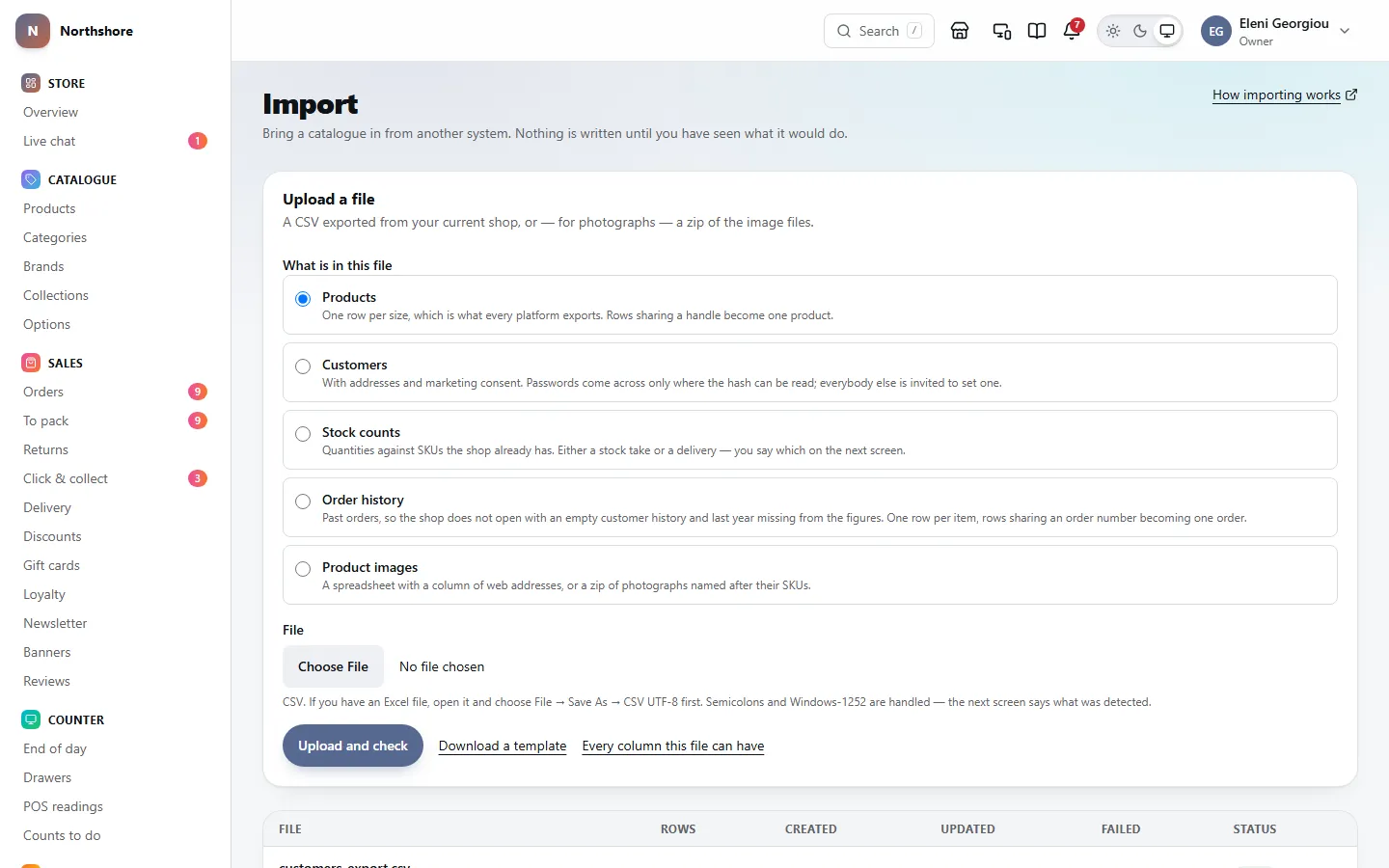
The Import screen brings data in from a spreadsheet exported from your old shop. It is under Settings, and needs the Import data permission. Importing is an add-on: the screen is there while the Catalogue import add-on is on, from Add-ons.
Each kind of import also needs the permission for what it changes, because importing a file is the same as making every one of those changes by hand:
- Products and Product images — Manage products.
- Customers — Manage customers. Inviting imported customers to set a password needs it too.
- Stock counts — Adjust stock.
- Order history — Edit orders.
Under What is in this file you only see the kinds your role allows. Opening, undoing or stopping somebody else’s import needs the same permission as running it.
Import in this order, because later imports match against what earlier ones created:
Take care: Products and stock counts need a location first: the shop, warehouse or room where the stock is kept. Until the shop has one, Import asks you to add it under Locations and takes you back afterwards. Without one, every product would show 0 in stock.
- Products — everything else refers to garments by their SKU.
- Customers — before orders, so order history attaches to real accounts.
- Stock counts — after products. A stock row for a SKU the shop does not have fails rather than creating a product.
- Product images — after products, for the same reason. A product file with photograph addresses in it can bring them along by itself.
- Order history — last, so the lines link to your products and the orders to your customers.
Every import goes through the same four steps: upload the file, check which column is which, look at the dry run, then agree to it. Nothing is written until the last step, and every import can be undone afterwards.
Tip: Each kind of import has a Download a template link beside the upload button: a ready-made spreadsheet with the right column names and a few example rows that show how to fill it in.
Step 1: Upload a file
Needs the permission Import data.
- Open Import.
- Under What is in this file, choose Products, Customers, Stock counts, Order history or Product images. Only the kinds your role may import are listed.
- Under File, choose the file from your computer.
- Choose Upload and check. A bar shows the upload; when it finishes, the import’s own page opens.
- Spreadsheets must be CSV. If you have an Excel file, open it and choose File → Save As → CSV UTF-8 first. Files separated by semicolons, and older Windows encodings, are read correctly — the next screen says what was found.
- A spreadsheet can be up to 10 MB.
- For Product images you can upload a CSV, or a zip of photographs of up to 100 MB. For bigger collections, split them into several zips.
- A file that cannot be read is refused straight away, with the reason.
Step 2: Check which column is which
Needs the permission Import data.
After the upload, Which column is which shows every field the shop can take, each with the column from your file that it will be read from. The system guesses from the column names — your job is to correct the guesses.
- Look over each field. Fields marked with * are required.
- To change one, open its list and pick the right column, or — not in this file — to leave that field out.
- Pay most attention to anything with a price in it, and to dates.
- Answer any questions under the mapping (for example What the numbers mean for stock). Each choice explains itself.
- Look at The first few rows at the bottom. If accents or columns look wrong there, they will be wrong in the shop.
- Choose Check the file, at the bottom.
- Yellow messages above the mapping point out things about the file itself — how it was read, or how SKUs were worked out from photograph names.
- If you have imported a file with exactly the same column names before, the columns are set up the way you chose last time, and a message says so.
Take care: A wrong mapping can produce thousands of plausible-looking products with, say, the cost price in the selling price. Check the prices before you go on.
Step 3: Read the dry run
Needs the permission Import data.
Check the file reads every row and works out what would happen, without writing anything. The page then moves to What it would do, just above the button, with four numbers:
- Create — new records it would add.
- Update — records already in the shop that it would change.
- Skip — rows it recognised that change nothing, such as a photograph already attached, or a customer you chose to leave alone.
- Fail — rows it cannot use.
If any rows fail, Rows that could not be read lists the first 50 with the Row, Column and Problem. Row numbers count the header as row 1, so they match the numbers down the side in Excel. Choose Download the full report for every failure in a spreadsheet you can open next to your file.
Yellow warnings also appear if something looks wrong overall — for example, no row would create or update anything (usually a column mapped to the wrong field), or every row was recognised and nothing would change (usually a file that has already been imported).
Tip: You can change the mapping and choose Check the file again as many times as you like until you start the import. To fix the file itself, correct it on your computer and upload it again as a new import.
Step 4: Run the import
Needs the permission Import data.
- Under Import it, just above Check the file again, choose Import … rows…. The button gives the number of rows that will be created or updated.
- Read the message — how many will be created and how many updated.
- Choose Yes, import … rows to start, or Cancel to go back.
- The import starts straight away. Under Importing, a bar shows how many rows have been written and moves by itself. It runs in the background, so you can close the page.
- When it finishes, a green message gives the numbers created, updated, skipped and failed, and What it did shows them too.
- Nothing is ever deleted by an import. A product or customer missing from the file is left as it is.
- The uploaded file is deleted once the import is finished, so the preview of its rows disappears.
Take care: If a fifth or more of the rows failed, a red message warns you before you import. That usually means the file is not what it seems, and importing the rest would leave a gap you cannot see afterwards. Download the report and look before going on.
Stop an import that is running
Needs the permission Import data.
While an import is running, its page shows Stop it.
- Open the import from Import.
- Choose Stop this import.
It stops after the batch of rows it is working on. What has already been written stays, and the import shows as stopped. To take back what it did, undo it.
Undo an import
Needs the permission Import data.
A finished or stopped import that wrote anything has an Undo it card. Undoing takes away what the import created and puts back what it changed.
- Open the import from Import.
- Choose Undo this import….
- Read the message, then choose Yes, undo … rows — or Keep it to leave it.
- Products and sizes it created are taken out of the catalogue. Prices and other values it changed go back to what they were.
- Stock changes are reversed with a stock movement of their own, so the history shows both.
- Customers it created are removed — except anybody who has placed an order since.
- Orders it imported are deleted, and the reports for those days are worked out again.
- Photographs are taken off the products.
- Anything edited by hand since the import cannot be put back. The message at the end says how many rows could not be undone.
- The import then shows as undone. Its record is kept, so it is always clear what happened and when.
Take care: Undoing an order history import permanently deletes the imported orders. Undo a product import’s photographs separately — they are an import of their own.
The list of imports
Needs the permission Import data.
Below the upload form, Import lists the last 50 imports, newest first, with the File (and what kind of import it was), the Rows in it and how many were Created, Updated and Failed. Choose a file name to open its page.
The Status says where each one is:
- uploaded — waiting for you to check the columns.
- checking — the dry run is being worked out.
- checked — the dry run is done, waiting for you to import it.
- running — writing in the background.
- done — finished.
- stopped — somebody stopped it, or it could not finish.
- undone — it has been undone.
Import products
Needs the permission Import data.
A product file has one row per size, which is how every shop platform exports. Rows that share a Handle become one product with several sizes. Product title, SKU and Price are required.
- A WooCommerce product export works as it is. Its separate rows for the garment and for each size are joined up for you, and its sale and regular prices are read the right way round.
- Category can hold several categories, each written as a path, such as “Men > Bags > Bumbags, Men”. Each path is looked for in your own categories, step by step, and only the missing ones are created. Names match even with a different capital letter, a plural or an apostrophe, so “Womens” finds your Women.
- A product goes into every category on its path — Men, Bags and Bumbags — so it shows wherever a customer browses. The deepest one becomes its main category if it does not have one.
- Brands are matched by name and created if they are missing.
- Stock goes to the location that fills online orders. Leave the column as — not in this file — to import the catalogue without touching stock. A product with a stock figure fails if the shop has no location to put it at.
- Size and colour columns become the product’s options, which the size and colour buttons in the shop are built from.
- Each option and value is looked for in your Options library first, and the product is linked to it, so it uses the library’s spelling and colour swatch. Names match even with a different capital letter, a plural, or the British or American spelling, so “Color › cream” finds your Colour › Cream. Only options and values the library does not have are added to it, at the end of its list.
Importing the same file again is safe, and repairs older imports. Each row is matched to the size with the same SKU:
- The size’s price, sale price, cost price and barcode are updated from the file, and its stock is set to the file’s figure if the stock column is mapped.
- Its Weight (grams) is updated too when the file gives one. A row with no weight leaves the size’s weight as it is.
- The product’s own title, brand and other details are never changed by a re-import. A description, page title, meta description, country of origin or tariff code is only filled in where the product’s is empty.
- Missing size options and categories are filled in, and products an earlier import put in one wrongly named category are moved into the proper ones. A product somebody has already filed by hand is left where it is.
- Sizes and colours an earlier import gave a product as its own are linked to the Options library and spelled the library’s way. A value somebody has since changed by hand to something else is left as it is.
- A product that has ended up with the same option twice, spelled two ways — a Colour from the library and an older Color of its own, each holding the colours of some sizes — has the two merged into the library’s one. Every size keeps its colour, colours the library does not have yet are added to it, the sizes’ names (such as Cream / M) are rebuilt, and the duplicate option is removed. Sizes and colours you removed from the product stay removed.
- The two are left as they are, for you to sort out on the product, if merging would give one size two different colours, or make two sizes the same — for example two Cream / M, each with its own price and stock — or if each is linked to a different option in the library. Importing again changes nothing once they are merged.
- A size that had been deleted comes back, because the file says the shop sells it.
Take care: Because prices come from the file, re-importing an old export puts old prices back on every size in it. Change prices on the products themselves afterwards, or import a file with the current ones.
Bring the photographs in with the products
Needs the permission Import data.
If a product file has a column of photograph addresses (a WooCommerce export does), the mapping screen asks The photographs in the file:
- Import them too (the usual choice) — once the products are in, the photographs are fetched from those addresses and attached, each one once, in the order the file lists them.
- Products only — leave them for now. You can import them later from the same file, as Product images.
The photographs are brought in as a separate import, so either can be undone without the other. The product import’s page links to it with See the photograph import, and the photograph import links back with See the product import. The dry run does not download the photographs; a link that no longer works fails its own row and the rest carry on.
Import customers
Needs the permission Import data.
A customer file needs an Email for each person, and can also carry names, a phone number, an address, marketing consent and the customer’s number in the old system.
The mapping screen asks what to do about People who are already here, matched on email address:
- Leave them alone (the usual choice) — anybody already in the shop is left exactly as they are.
- Fill in the blanks — fields that are empty here are filled from the file; everything else is left untouched.
- Marketing consent is never assumed. A blank, missing or unclear consent value is imported as not consented, and an import never turns consent on for somebody already here — a customer who unsubscribed stays unsubscribed.
- Where the old shop’s password can be read, it comes across and the customer signs in as before. Where it cannot, no password is set and the customer is invited to choose one.
- No password is ever made up or emailed.
Invite imported customers to set a password
Needs the permission Import data.
When a customer import finishes and some accounts came without a password, its page shows Invite them to set a password.
- Send yourself a test of the invitation email first, from Email delivery. For most of these people it will be the first message from your shop.
- Open the customer import from Import.
- Choose Invite … customers….
- Choose Yes, invite … to send, or Not yet to wait.
Each customer gets a link to choose a password, which works for a week. The emails go out in batches rather than all at once, so mail providers do not treat them as spam.
Take care: Once the invitations are queued they will be sent. Check the email first.
Import stock counts
Needs the permission Import data.
A stock file gives quantities for SKUs the shop already has. SKU and Quantity are required; Location and Note are optional.
On the mapping screen you must say What the numbers mean:
- These are counts — this is what is on the shelf — a stock take. Each number replaces what the system thinks it has, and the difference is recorded as a stock movement. Importing the same file twice gives the same answer.
- These are changes — add them to what is there — a delivery or a write-off. Each number is added to the current count, and a negative number takes stock away. Importing the same file twice counts it twice.
- Location is matched to an active location by its name, as it appears on Locations. Leave it out and stock goes to the location that fills online orders.
- A blank quantity fails rather than being read as zero — in a stock take, a blank usually means “not counted”.
- A row that would take stock below zero fails, with the current figure in the reason.
- A row that changes nothing is skipped, with the reason.
Take care: Choosing the wrong meaning can empty the shop or double it, and it does not show until somebody counts the shelves. Read the choice twice.
Import product photographs
Needs the permission Import data.
Choose Product images and upload either a spreadsheet with a column of web addresses, or a zip of the photograph files.
- Image — the web address, or for a zip, the file name inside it.
- SKU — attaches the photograph to one size or colour, so the shop can switch photographs when a customer picks it.
- Handle — attaches it to the garment as a whole. Each row needs a SKU or a handle.
- Alt text — what the photograph shows, for people who cannot see it and for search engines.
- Position — lowest first. The first photograph is the one shown in listings.
In a zip, the SKU is read from each file’s name. Name them like this:
- NAVY-COAT-M/1.jpg, NAVY-COAT-M/2.jpg — a folder for each garment, with numbered photographs inside. The clearest way.
- NAVY-COAT-M_2.jpg or NAVY-COAT-M (2).jpg — that garment, photograph 2.
- NAVY-COAT-M.jpg — that garment, added after any photographs it already has.
A number after a hyphen is treated as part of the SKU, because clothing codes end in sizes: ATE-CANVAS-40.jpg is size 40, not the fortieth photograph. If your photographs are numbered that way instead, map SKU to the SKU without trailing number column on the mapping screen — both readings are in the preview so you can compare.
- JPG, JPEG, PNG, WebP, AVIF and GIF files are used. Anything else in the zip is left out, and a message says how many.
- A photograph already on that product from an earlier import is skipped.
- A web address that does not work fails only its own row.
Import order history
Needs the permission Import data.
Importing past orders means your customers keep their history and your reports include last year. The file has one row per item, with the order’s details repeated on each of its lines; rows with the same Order number become one order. Order number, Date placed, Email, Item name, Item quantity and Item price each are required.
- No stock moves. Those garments left the shelf on the old system.
- The old order number is kept alongside the new one and can be searched for, because customers quote the number on their receipt.
- A payment status the importer does not recognise is read as unpaid, so it does not count as a sale.
- Payments are recorded as taken outside this system. Cash on delivery is recognised as such.
- The reports for the days the orders cover are worked out again automatically.
- Importing the same file again skips lines that are already there.
Tip: Import products and customers first, so the order lines link to your products and the orders to your customers’ accounts.
Export your data
Needs the permission View products.
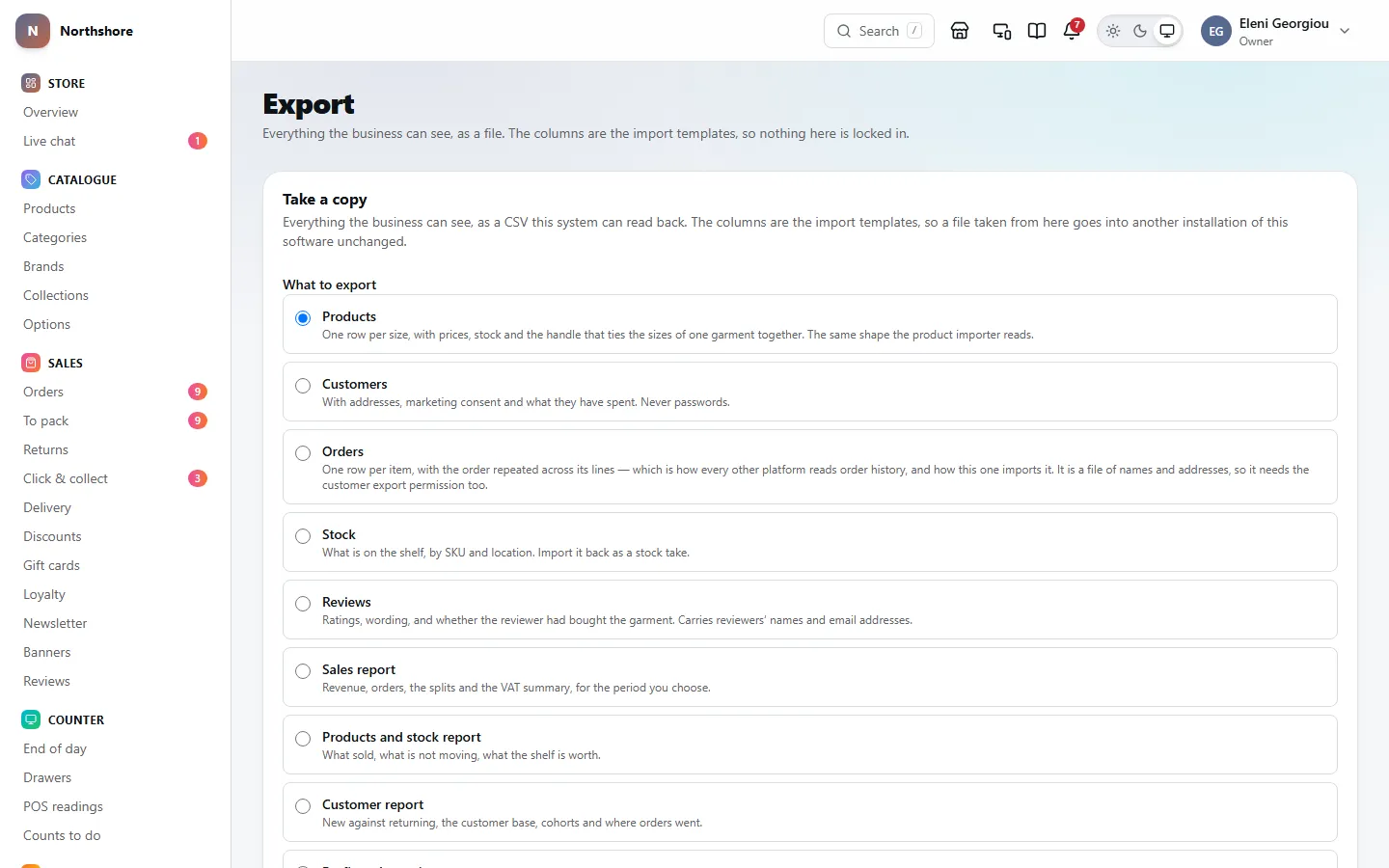
Export, under Settings, takes a copy of the shop’s data as a file. The columns are the same as the import templates, so a file taken from here can be imported straight back into this system — or into another one.
- Open Export.
- Under What to export, choose what you want.
- To limit it to certain dates, fill in From and To. Leave both blank for everything. The To day is included in full.
- For a report, choose As: CSV for a spreadsheet, or PDF for a branded document to send to somebody. Lists are always CSV.
- Choose Build the file.
- The file is built in the background. Reload the page after a moment and choose Download beside it under Recent exports.
What you can export:
- Products — one row per size, with prices, stock and the handle that ties a garment’s sizes together.
- Customers — with addresses, marketing consent and what they have spent. Never passwords.
- Orders — one row per item, with the order repeated across its lines.
- Stock — what is on the shelf, by SKU and location. It can be imported back as a stock take.
- Reviews — ratings, wording, and whether the reviewer had bought the garment.
- Sales report, Products and stock report, Customer report and Profit and margin report — the built-in reports.
- Any saved report you are allowed to run, listed by its name.
Who can export what
Needs the permission View products.
Taking a copy of a list is a separate permission from looking at it. Looking up a customer while you deal with their order is not the same as taking every customer the shop has ever had home on a laptop. Anything with people’s contact details in it needs Export customers.
- Products — View products.
- Stock — View stock.
- Customers — Export customers.
- Orders — View orders and Export customers.
- Reviews — View products and Export customers.
- The sales, products and customer reports — View sales reports and Export reports. The profit and margin report — View finance reports and Export reports.
- Saved reports — Export reports, and you must be able to open the report: it is shared or it is yours, and it has no column your role cannot see.
Anything you are not allowed to export is greyed out, with a note saying which permission it needs. Opening the Export screen at all needs View products or Export reports, and the Export card on Settings shows for either — so somebody who only works with reports can still find it to collect their files.
The same permissions are checked again when somebody chooses Download. A link forwarded to somebody without them does not work for them, even if they are signed in.
Anything that needs Export customers — the customer, order and review lists — also asks you to prove it is you. If you have two-factor sign-in set up and have not confirmed in the last fifteen minutes, Build the file takes you to Confirm it is you first. Type the code from your authenticator app, and you are sent back to the page you came from; choose Build the file again. Download on one of those files asks the same way, then returns you to Export.
Tip: One confirmation lasts fifteen minutes, so you can build and download several customer files in a row without being asked again. See Confirm it is you for how it works.
Download and keep track of exports
Needs the permission View products.
Recent exports lists the last 25 files anybody asked for, with What, the dates it is Covering, the number of Rows, when it was Asked for (and, for scheduled ones, where it was sent) and its Status.
Reports you asked for with Export CSV or Export PDF on a report’s own screen are listed here too — this is where you download them. A saved report is listed by its name. Somebody else’s private report is listed as Somebody’s private saved report.
- Download — the file is ready. A report taken as a PDF has PDF beside its name, and downloads as a PDF.
- queued or running — still being built. Reload the page in a moment.
- failed — it could not be built. The reason is shown underneath.
- expired — the link was more than 7 days old, so the file has been deleted.
Take care: Download links work for 7 days, then the file is deleted for good. The record of who took a copy, and when, is kept.
Send exports on a schedule
Needs the permission Manage store settings.
Send them regularly emails a link to a fresh export every day, week or month — for keeping your own records, or a backup that you hold yourself. It is off until somebody turns it on, and changing it needs the Manage store settings permission. Without it you can see how the schedule is set, but every choice is greyed out and there is no Save button.
- Open Export and go to Send them regularly.
- Turn on Email an export on a schedule.
- Under What to send, tick each list or report. Anything you are not allowed to export cannot be ticked.
- Choose Reports as PDF or CSV. Lists always go as CSV.
- Choose How often: Every day, Every week or Every month.
- Fill in Send the link to with the email address.
- Choose Save. The first one goes within the hour.
- Only a link is emailed, never the file. The email names what it is — a saved report by its own name. The link expires after 7 days like any other export, and opening it needs somebody signed in with permission for that data.
- Lists go out whole, with no date limit. A built-in report covers the period it is sent for: yesterday for a daily one, this week for a weekly one, this month for a monthly one. A saved report uses its own dates.
- The schedule runs with the permissions of whoever last saved it. If that person loses the permission, or their account is deactivated, the exports they could no longer take stop. Somebody else saving the schedule takes it over.
- To stop it, turn Email an export on a schedule off and choose Save.
Take care: While it is on, a copy of the chosen data leaves the shop on every run, to that address, until somebody turns it off. Choose the address carefully — it may outlive whoever set it up.
Take everything with you
Needs the permission View products.
To take a full copy of the shop — to move to another system, or simply to have one — export each of Products, Customers, Orders, Stock and Reviews with no dates filled in. Those files are the shop, in a form any other platform can read, and this one can read back.
- Passwords are never exported, for anybody. Customers set a new password at the other end.
- Photographs are not in the files themselves. The product export carries the web address of each one, and an importer that reads addresses — including this one — will fetch them from there. If you are closing the shop, fetch the photographs before you do.