

Finding orders, reading what happened to one, and everything you can do to it: taking cash on delivery, refunding, cancelling, correcting it, and printing its paperwork.
Find an order
Needs the permission View orders.
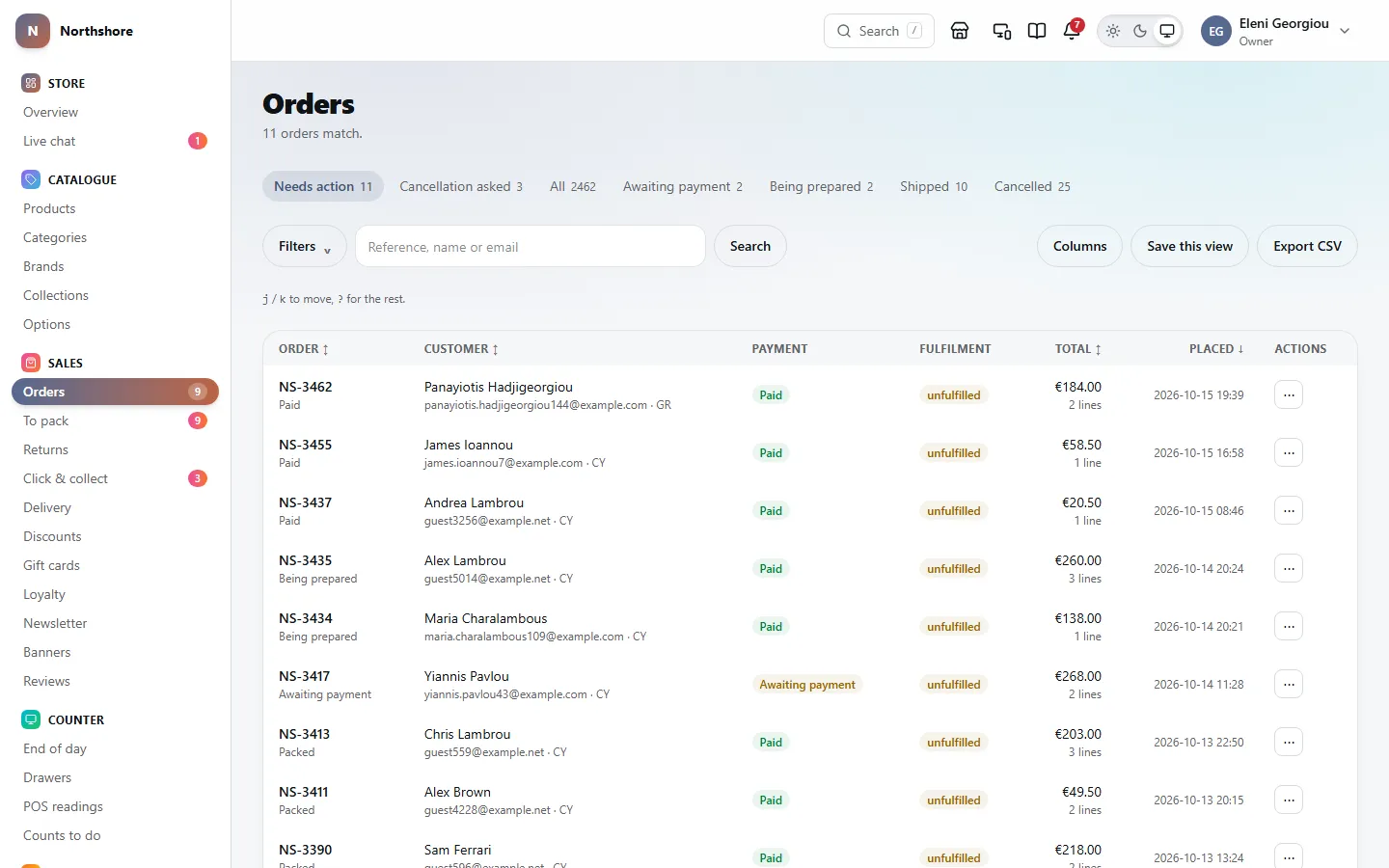
Orders lists every order, from the website and from the POS. It opens on Needs action, the orders somebody has to do something about.
- Needs action — paid but not fully packed, a card payment that failed, or still awaiting payment. Cancelled, refunded and completed orders never appear here.
- Cancellation asked — the customer has asked for the order to be called off and is waiting for your answer. See Answer a cancellation request.
- All — everything.
- Awaiting payment, Being prepared, Shipped and Cancelled — orders in that state.
The number beside each tab is how many orders are in it.
- Type in the box that says Reference, name or email.
- Press Search or Enter.
The search also finds an order by the delivery postcode, by a parcel tracking number, and by the number the order had on your old system if it was imported. A customer quoting the number on an old receipt can still be found.
Tip: The search only looks inside the tab you are on. If an order you know exists does not appear, switch to All.
Click anywhere on a row to open the order. There are 25 orders to a page; use Previous and Next at the bottom to move between pages.
Narrow the list with filters
Needs the permission View orders.
- Click Filters above the list.
- Fill in any of the fields below. Leave the rest empty.
- Click Apply.
- Placed from and Placed to — a date range. Both days are included.
- Paid by — Card (Stripe), Cash on delivery, Gift card, Recorded by hand or Viva.
- Payment — Paid, Awaiting payment, Authorised, Partly refunded, Refunded, Failed, Cancelled, Partly charged back or Charged back.
- Fulfilment — Not packed, Part packed, Packed or Returned.
- Worth at least and Worth at most — the order total, in euro.
The filters work together with the tab you are on and with the search. A number beside Filters shows how many are in use, and the panel stays open while any are set, so you can always see why the list is short.
Click Clear filters to remove them all.
Tip: Everything you set ends up in the address bar. Copy the address and send it to a colleague, and they see the same list.
Choose columns, sort, and save a view
Needs the permission View orders.
The list shows Order, Customer, Payment, Fulfilment, Total, Placed and Actions.
- Click Columns and click a column name to hide or show it. Order and Actions cannot be hidden.
- Click the heading of Order, Customer, Total or Placed to sort by it. Click again to reverse. Customer sorts by surname.
Under each order reference you see its status. A gift or gift · wrap badge means the customer asked for it to be sent as a present. Under the customer you see their email and country, and cash on delivery appears under the payment when that is how it is being paid.
If you use the same filters every day, save them:
- Set up the list the way you want it: tab, search, filters, sort and columns.
- Click Save this view.
- Type a name in Name this view, for example "Unpaid, oldest first".
- Click Save.
Saved views appear as buttons under the filters, after Saved:. Click one to bring that list back. Click the × beside it to delete it.
- Your saved views are yours. Other staff do not see them.
- Saving with a name you have already used replaces that view.
- You can keep up to 12 saved views on this screen.
Export orders to a spreadsheet
Needs the permission Export reports.
Export CSV downloads the orders you are looking at as a file that opens in Excel or any spreadsheet program.
- Set the tab, search and filters to show exactly the orders you want.
- Click Export CSV.
The file has the reference, date placed, customer, email, country, status, payment, fulfilment, number of lines and total for every matching order, not only the page on screen.
Take care: An export stops at 10,000 orders. If it does, the last line of the file says so. Narrow the dates and export again in parts.
You only see Export CSV if your role is allowed to export. A file of customer names and addresses can leave the building, so it is a separate permission from looking at orders.
Act on an order without opening it
Needs the permission View orders.
The ⋯ button at the end of each row opens a menu of what can be done to that order right now. Only the actions that make sense for that order, and that your role allows, are listed.
- Pack with a scanner — opens the scanning screen for it. See Pack with a scanner.
- Mark packed — records everything still outstanding as packed, without a tracking number.
- Mark shipped — records that the parcel has gone. The customer is emailed.
- Print packing slip and Print parcel label — open in a new tab, ready to print.
- Print invoice — only once the order has been paid.
- Refund… and Cancel… — these open the order, because both need a decision about amounts, stock and reasons.
Work through orders with the keyboard
Needs the permission View orders.
On Orders and To pack you can move down the list without the mouse. Press ? to show the list of keys on screen.
- j or the down arrow — next order.
- k or the up arrow — previous order.
- Enter — open the order.
- p — pack it with a scanner.
- s — print its packing slip, in a new tab.
- b — print its parcel label, in a new tab.
- / — jump to the search box.
- Esc — leave the search box, or close the list of keys.
Tip: The shortcuts do nothing while you are typing in a box, so they never get in the way of a search.
Read an order
Needs the permission View orders.
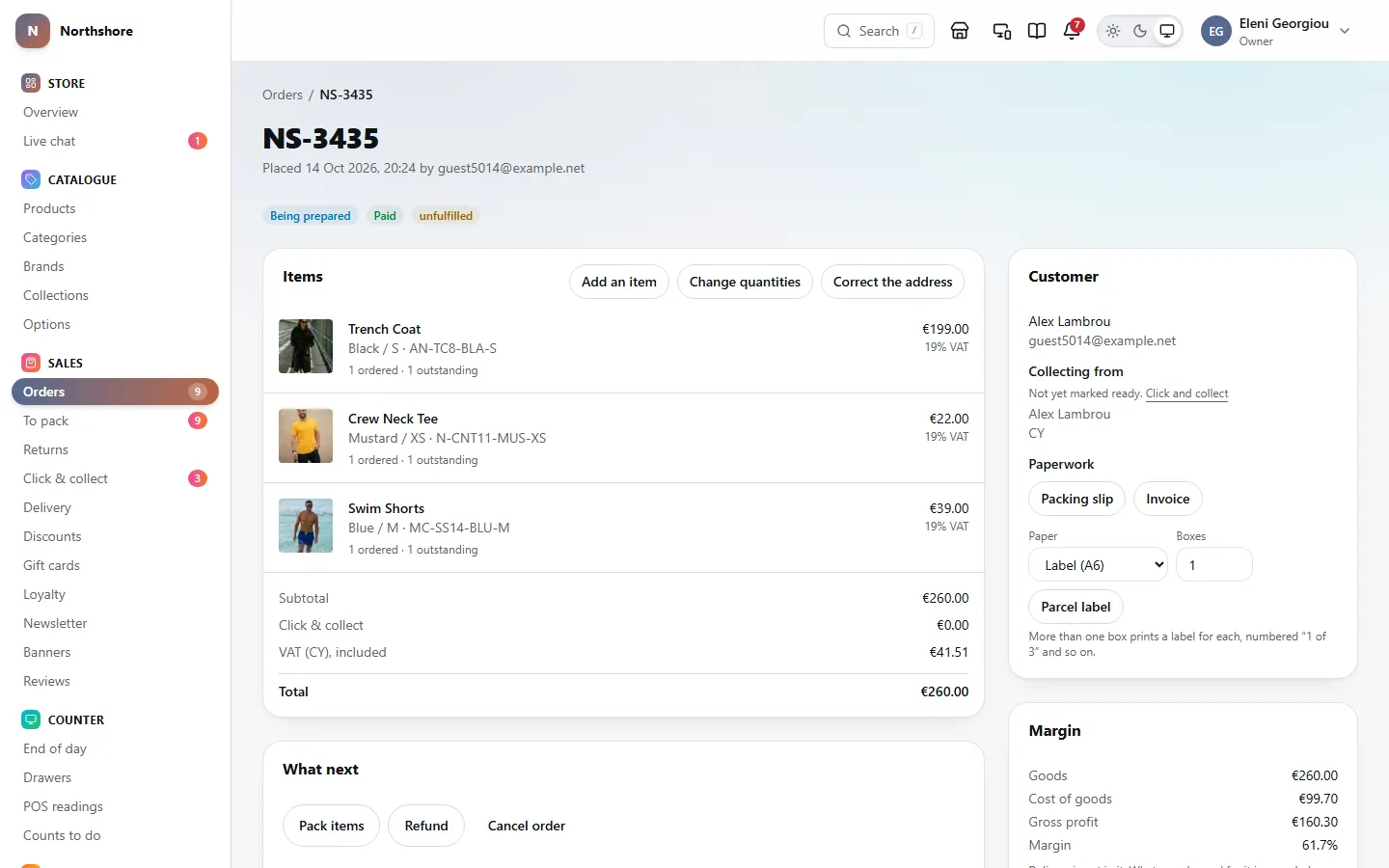
An order page has everything about one order on one screen. The heading is the order reference, with when it was placed and who by. If it was imported, it also says what number it had on your previous system.
Under the heading, badges show its status, its payment state and its packing state. You may also see cash on delivery, imported history (an old order brought over from your previous system, with no payment or parcel to manage), or the shop, POS and person who served it for a POS sale.
- Items — each line with its picture, variant and SKU, how many were ordered, packed, refunded and are still outstanding, and its price and VAT rate. Below are the subtotal, any discount and its code, delivery, VAT, anything refunded, anything Charged back by the customer’s bank, and the total.
- What next — the buttons for what can happen to the order now, and the box for internal notes.
- Customer — name, email, phone, and where it is going. For a click and collect order it says Collecting from and whether it is on the shelf or has been handed over.
- Gift — shown for a present. See Gift orders.
- Paperwork — buttons to print documents. See Print invoices and other paperwork.
- Customer note — anything the customer typed at checkout.
- Margin — what the shop made on the goods. Only shown to people allowed to see finance reports, and only when costs have been recorded for the products.
- Payment — each payment tried, how, its state, the card type and last four digits, and why a failed one failed.
- Timeline — everything that has happened, newest first.
Each timeline entry says when it happened and who did it: by staff, by the customer, automatic, or from the card processor (something Stripe told the shop).
Tip: There is no button to resend an order email. If a customer has lost one, the timeline tells you what was sent and when.
What the statuses mean
Needs the permission View orders.
Every order has three separate things you can see as badges: where it is, whether it has been paid for, and how much of it has been packed.
Where the order is:
- Awaiting payment — placed but not paid. Normal for cash on delivery until the courier collects.
- Paid — the money has arrived. Ready to pack.
- Being prepared — picking has started, or part of it has gone and the rest is still to come.
- Packed — everything is in the box.
- Shipped — the parcel has left. The customer has been emailed.
- Delivered — it reached the customer, or was handed over at the counter.
- Completed — finished.
- Cancelled — called off. Nothing more can happen to it.
- Refunded — all the money has gone back. Nothing more can happen to it.
Whether it has been paid for:
- Paid — the money has arrived and the shop still has all of it.
- Awaiting payment — not paid yet.
- Authorised — the card has been approved but the money has not been taken yet.
- Failed — the card payment did not go through. The customer can try again.
- Partly refunded — some of the money has been given back.
- Refunded — all of the money has been given back.
- Partly charged back — the customer’s bank took part of the money back after a dispute you lost. The rest is still yours.
- Charged back — the customer’s bank took back everything that was left after a dispute you lost. Nobody in the shop gave it back, and the goods are usually still with the customer.
- Cancelled — the payment was called off before any money moved.
Packing: unfulfilled (nothing packed), partial (some packed), fulfilled (everything packed) or returned.
Take care: A cancelled, refunded or completed order cannot be changed back. An order cannot be cancelled once it has shipped; a parcel that comes back is a return.
Tip: The order status follows the packing on its own. Packing the last item makes the order Packed; packing only part of it puts it back to Being prepared. Unpack takes a packed order back to Being prepared — see Unpack an order.
Card payments through Stripe
Needs the permission View orders.
When a customer pays by card on the website, Stripe takes the payment and tells the shop. The order turns Paid by itself and appears in To pack. You do not need to do anything.
The Payment card on the order shows stripe, the state of the payment, and the card brand and last four digits.
- A refund you make from the order goes back to the card automatically. See Refund an order.
- If somebody refunds a payment in Stripe’s own dashboard instead, the shop notices: the refund is added to the order and the timeline says Refunded … from the payment provider’s own dashboard. The payment state changes to partially refunded or refunded.
- If a customer disputes a payment with their bank (a chargeback), the timeline shows Disputed: with the reason, the amount the bank has taken back and the deadline to respond. See below for who is told.
Take care: A refund made in Stripe’s dashboard only moves the money. It does not mark any item as refunded or put stock back. Refund from the order page whenever you can, so the stock and the paperwork stay right.
A dispute has a deadline, so the shop tells people straight away. Everybody whose role has Refund orders and can use the dashboard is told:
- by email, with the order reference, the amount, the bank’s reason, the deadline and an Open the order button. If nobody has that permission, the email goes to your support address instead;
- in the notification bell, as Payment disputes. Clicking it opens the order with the nearest deadline. It leaves the bell when Stripe says the dispute is over, or when the deadline passes;
- on their phone, if they have phone notifications set up and Payment disputes switched on.
Once the email has gone, the timeline also shows Dispute alert emailed to and how many people. Each dispute is only alerted once, even if Stripe reports it again.
- Open the order and gather what shows it was genuine and arrived: the invoice, the tracking, any messages with the customer.
- In Stripe’s dashboard, go to Payments, then Disputes, and open the dispute.
- Add your evidence and submit it before the deadline.
Take care: If nobody answers a dispute before the deadline, the bank decides for the customer. You lose the money and Stripe’s dispute fee as well.
When the bank decides, Stripe tells the shop and the timeline says so. Either way the dispute leaves the bell.
- Dispute won — the bank sided with the shop and the money comes back to you. Nothing on the order changes.
- Dispute lost — the bank sided with the customer. The timeline also says Charged back: with the amount the bank took, and the order’s payment becomes Charged back, or Partly charged back if the dispute was for less than the whole payment. The order shows the amount under Charged back by the customer’s bank.
A lost dispute is counted as money gone, not money kept. The order is no longer shown as paid for that amount, the reports take it off your sales the same way as a refund (see How the figures are counted), and it cannot be refunded a second time — the customer already has it.
Take care: Nothing else happens by itself after a lost dispute. No refund is sent through Stripe, because the bank has already taken the money, and no stock is put back, because the goods are usually still with the customer. If the goods do come back, refund nothing — put them back on the shelf with a stock adjustment. Whether to contact the customer about it is up to you.
Tip: This needs charge.dispute.closed in your Stripe webhook. If your webhook was set up before it was on the list, add it — see Tell Stripe where to send its messages. Without it the shop is never told the result, and a dispute stays in the bell until its deadline.
Failed and unfinished card payments
Needs the permission View orders.
An order is created the moment the customer reaches the card form, so the items are held for them while they type. Two things can then go wrong.
The card is declined. The payment shows failed, in red, with the reason the bank gave. The order stays Awaiting payment and the items stay held, so the customer can try another card without filling their basket again. These orders appear under Needs action.
Tip: If a single order has three declined cards, an alert is emailed to the shop’s support address. That is either a customer in trouble or somebody trying stolen cards — look before you ship anything.
The customer gives up. A card order that is still unpaid after a set number of hours (two, unless you change it) is cancelled automatically. The payment is cancelled at Stripe first, then the stock, any gift card balance, points and discount use are given back. The timeline shows it as automatic.
- If Stripe says the customer did pay after all, the order is marked paid instead of being cancelled.
- If a payment arrives after the order has been cancelled, it is refunded in full automatically and the timeline says why.
- Cash on delivery orders are never cancelled this way.
Change how many hours to wait, between 1 and 72, under Unpaid card orders in Order settings.
Cash on delivery
Needs the permission Edit orders.
A cash on delivery order stays Awaiting payment until the money is collected at the door. You can still pack it and ship it: it appears in To pack like a paid order.
When the courier pays you the cash:
- Open the order.
- Under What next, click Record cash collected.
The order is marked paid and the timeline records the amount and who recorded it.
Take care: Only press this when the money is actually in your hands. It is the one payment the system cannot check for itself.
Tip: To find every order the courier still has to collect money for, filter Orders by Paid by: Cash on delivery and Payment: Awaiting payment.
Mark an order shipped, delivered or completed
Needs the permission Fulfil orders.
The What next card shows a Mark … button for each step the order can take next, such as Mark shipped, Mark delivered, Mark completed or Mark being prepared.
- Mark shipped and Mark delivered email the customer.
- An order has to be packed before it can be shipped, and shipped before it can be delivered. The only exception is click and collect, where handing it over counts as delivery.
- Mark being prepared on a packed order only appears when something has been added since it was packed. To take a fully packed order back out of the box, use Unpack instead.
Packing has its own button, Pack items, because it records what went in the box. See Pack from the order page.
If your role cannot fulfil orders, the buttons are greyed out.
Unpack an order
Needs the permission Fulfil orders.
If a packed order has to come back out of the box before it is sent — the wrong size went in, or the customer wants to change something — unpack it. It goes back to Being prepared and onto To pack, and the edit buttons on the Items card come back.
- Open the order. It shows Packed.
- Under What next, click Unpack.
- Optionally type a Reason; it goes in the timeline.
- Click Unpack.
- The timeline says Unpacked and how many items went back on the packing list.
- Any carrier and tracking number typed when it was packed are removed. Type the new ones when you pack it again.
- The stock stays set aside for the order. Packing it again does not take the items off the shelf a second time.
Unpack is only offered while the order is Packed. Once it is shipped, a parcel that comes back is a return. A click and collect order the customer has already been told is ready cannot be unpacked; hand it over or cancel it.
Refund an order
Needs the permission Refund orders.
You can refund all of an order or part of it, line by line or as an amount. Refund appears under What next once the order has been paid.
- Open the order.
- Click Refund.
- For each item being refunded, type how many in the box beside it. The line shows how many can still be refunded and what each one refunds for.
- Switch on Restock beside an item if it is going back on the shelf. Leave it off for damaged goods.
- Or, for something that is not an item, such as the delivery charge or a goodwill gesture, type it in Or refund an amount.
- Type a Reason. It is required, and it goes in the timeline.
- Add a Note (internal) if you want to; only staff see it.
- Click Refund.
An item refunds for what the customer actually paid for it, after any discount, not its full price. The dialog shows both when they differ. Each one refunds an equal share, rounded to the cent, and the last of an item refunds exactly what is left of what was paid for it, so three that cost €10.00 together refund €3.33, €3.33 and €3.34. When that makes all of them together differ from the share times the count, the dialog says what all of them come to.
A refund from the order never adds the delivery charge, gift wrapping or cash on delivery fee by itself. When a whole order is posted back, refund it through Returns instead: a return works out whether they are owed too — the whole order back within 14 days of delivery, or faulty — and adds them to the same refund. See Inspect a return and refund it. Refunds that included them say so on the timeline, for example Refunded 59.50, including 4.50 delivery, 3.00 gift wrapping and 2.00 cash on delivery fee, and the credit note lists each one with its VAT.
Where the money goes depends on how the order was paid:
- Card on the website — the money goes back to the card straight away. It can take a few working days to reach the customer’s account.
- Cash (cash on delivery, or cash at the POS) — nothing moves by itself. The refund is recorded and you give the cash back at the shop. The dialog warns you.
- The shop’s card machine — nothing moves by itself. Refund it on the machine as well.
- Gift card — the money goes back on the gift card that paid, straight away.
The refund email says where the money went: back on their gift card (by its last four characters), waiting in cash at the shop, back on the card they paid with, or on its way to their bank. When the refund included the delivery charge, gift wrapping or the cash on delivery fee it says that too, for example including €4.50 delivery and €3.00 gift wrapping.
The customer is emailed. When everything has been refunded the order becomes Refunded; otherwise its payment shows partially refunded. A Credit note button appears under Paperwork once any item has been refunded.
Take care: A refund cannot be undone. You cannot refund more than has been paid and not yet refunded or charged back, and an order nobody has paid for cannot be refunded — cancel it instead.
Tip: If you fill in both items and an amount, the amount is what gets refunded, and the items you chose are still marked as refunded.
Cancel an order
Needs the permission Cancel orders.
Cancel an order that will not be sent. You can cancel at any point until it ships.
- Open the order.
- Under What next, click Cancel order.
- Choose a Reason from the list.
- Leave Put the stock back on, unless the goods were damaged or never existed.
- Click Cancel the order. Click Keep it if you change your mind.
If the order was paid for, everything still held is refunded — the goods, the delivery, any gift wrapping and any cash on delivery fee — the same way as a refund. The timeline and the credit note say how much of it was each. The customer is emailed that it was cancelled.
Take care: A cancelled order cannot be reinstated. If the customer still wants the goods, they need to order again.
The reasons in the list are your shop’s own. Change them under Cancellation reasons in Order settings; keep them short, because they appear in reports.
Answer a customer who asks to cancel
Needs the permission Refund orders.
Customers cannot cancel an order themselves; they ask, and you decide. Their requests are in the Cancellation asked tab on Orders. On the order, a card at the top says This customer has asked you to cancel, with what they wrote.
A customer can also withdraw from the contract with Withdraw from contract here, on their order page or at the foot of every page of the shop, without an account, as EU law asks. The words on that button, and the heading of the page it opens, are set in Settings → Orders under Withdrawal button: keep the wording if you sell to consumers in the EU, where the law asks for it or words as clear in your customers’ language; outside the EU you can say, for example, Cancel order. Before the order is sent, that arrives here as a cancellation request saying Withdrawal from the contract, even once it is packed. After it is sent, it arrives as a change-of-mind return. Either way the customer is emailed a confirmation with the date and time, and the order timeline records it. A withdrawal within the withdrawal period cannot be refused: agree to it.
To agree:
- Optionally type Anything to say back. It is shown on their order page.
- Optionally add a Note for staff.
- Click Cancel the order.
This cancels the order, refunds everything outstanding including delivery, gift wrapping and any cash on delivery fee, and puts the stock back on sale. The customer gets the usual cancellation email.
To say no:
- Click Decline the request.
- In Why it cannot be cancelled, tell them what they can do instead — for example refuse the parcel at the door, or send it back for a refund.
- Optionally add a Note for staff.
- Click Decline the request.
Take care: Approving cannot be undone. The customer reads your reason for declining word for word, so write it for them.
Staff without permission to refund can see the request but not answer it.
Take an order on the phone or by email
Needs the permission Edit orders.
For a customer who rings, emails or orders for their business. The order starts as a draft: it holds no stock and takes no money, so it can wait while they decide.
- On Orders, press New order.
- Type the customer’s email address and press Start the order. Someone new? Press Or add a new customer first (see Add a customer).
- Under Items, type a product name or SKU in Add an item and pick it. Change the Quantity as needed.
- To sell at a price you agreed, type it in Price each and say why in Why the price is changed. The reason is kept on the order.
- To take something off the whole order, choose Per cent off or Amount off under Discount, and say why.
- Under Delivery, check the address, then choose one of the shop’s rates for it or type An amount agreed. Choose Nothing to send if they are collecting it.
- Check the total on the right: delivery and VAT are worked out as the website would.
Then place it:
- Send the payment link — the order is placed, its stock is reserved, and the customer is emailed a link to pay by card. When they pay it goes on like any web order.
- Paid in cash or Paid by bank transfer — only once the money is in. The order is confirmed straight away. You need Refund orders on your role to do this.
Save the draft keeps it for later: open it again from Drafts on the Orders screen. A draft nobody places is put away after the days set in Orders settings, and an order sent a link and never paid is cancelled after the same time, its stock given back.
Correct an order before it is packed
Needs the permission Edit orders.
While an order is Awaiting payment, Paid or Being prepared, three buttons sit on the Items card. Once it is packed or sent they are replaced by a note saying why it can no longer be changed. A packed order that has not been sent can be unpacked first — see Unpack an order.
Add an item
- Click Add an item.
- Type part of the product name, variant or SKU in What to add, and click the right result. Each result shows how many are available.
- Set How many.
- Leave Price each empty for today’s price, or type a different one.
- Type Why; it goes in the timeline.
- Click Add to the order.
The order’s discount code is not applied to an added item.
Change quantities
- Click Change quantities.
- Change the numbers. Set one to zero to remove the line.
- Type Why.
- Click Save.
You cannot go below what has already been packed or refunded.
Correct the address
- Click Correct the address.
- Fix the name, company, address lines, town, region, postcode or phone.
- Type Why.
- Click Save address.
Take care: The country cannot be changed. If the order needs to go to another country, cancel it and ask the customer to order again.
Each change recalculates the VAT and the total, and holds or releases stock to match. No money moves. If the total has changed, the message tells you the difference and a card appears on the order to settle it — see Settle a changed total.
Settle a changed total
Needs the permission Refund orders.
After an edit, the order may cost more or less than the customer paid. A card appears under the items until the difference is settled.
Still to collect — the customer owes more. Either:
- Send them the payment link. Copy copies it so you can paste it anywhere; Email it to them sends it in the shop’s own email. The link charges only the amount outstanding and stops working once the order is settled.
- Or, if they paid you another way, fill in Or record what you took: the Amount, How (cash, card machine, bank transfer or other) and a Note, then click Record it.
Owed back — the customer paid more than the order now costs. Add a Note if you like and click Refund with the amount. It goes back the same way the order was paid.
Editing an order that has not been paid yet stops the card payment the customer may have open, so they cannot pay the old amount. If they try, they are asked to reload the page, which shows the new total. If they paid the old amount just before your edit, the order is marked paid, the timeline says how much is owed back, and the notification bell lists it under Money owed back until it is refunded.
Take care: Neither option charges the customer’s card without them. Take what is owed before you send the parcel.
Staff who cannot handle refunds see the card but not the buttons.
Print invoices and other paperwork
Needs the permission View orders.
The Paperwork part of the Customer card has a button for each document. Each opens as a PDF in a new tab, ready to print.
Anybody who can see orders gets these two:
- Invoice — the VAT invoice for the order as it stands now.
- Credit note — appears once any item has been refunded, and covers what was refunded.
People whose role has Fulfil orders also get the packing paperwork:
- Packing slip — goes in the box. It lists the items and the gift message, if there is one, and never shows prices.
- Parcel label — the delivery address. Choose the Paper — Label (A6) for a label printer or label sheets, Plain paper (A4) to print on ordinary paper and tape on — and how many Boxes the order is going in. With more than one box you get a label for each, numbered “1 of 3”, “2 of 3” and so on, in one file.
- Commercial invoice — only for parcels leaving the EU, where customs need one.
If customs details are missing for a parcel leaving the EU, a Customs details missing box lists what to fill in. Fix those before you seal the parcel.
What appears on invoices, and whether your logo is shown, is set in Documents. Customs details are in Customs.
Tip: You can also print the slip, label and invoice from the ⋯ menu on the order list, or many at once from To pack.
Leave a note on an order
Needs the permission View orders.
Use an internal note for anything the next person should know: a phone call, a promise made, a problem with the parcel.
- Open the order.
- Type in Internal note, at the bottom of What next.
- Click Add note.
The note goes in the timeline. Only staff see it; it never appears on a packing slip or in an email.
Take care: There is no way to edit or remove a note once it has been added.
Gift orders
Needs the permission View orders.
When a customer sends an order as a present, it has a gift badge on the order list and in To pack — gift · wrap if wrapping was asked for.
On the order, the Gift part of the Customer card tells you how many items to wrap and whether wrapping was charged for, who it is addressed to, and the gift message.
- The gift message is printed on the packing slip for you.
- On the scanning screen, items to wrap are marked gift wrap.
- The packing slip never shows prices, so it is safe to put in a present.