

Setting up POS registers, and checking from the dashboard what each shop took, whether every cash drawer balanced, the sealed Z readings with their VAT, and the stock counts the counter has asked for.
The counter screens at a glance
Needs the permission View finance reports.
The Counter part of the menu has four screens for keeping an eye on your shop POS registers from the back office:
- End of day — what one shop took on one day, and whether every drawer balanced.
- Drawers — every POS session, with the cash expected and the cash counted.
- POS readings — every Z reading, checked to make sure none is missing or changed.
- Counts to do — stock the counter sold but the system could not find on the shelf.
The first three screens only look. Opening and counting a drawer, and taking a Z reading, are done at the POS by the person holding the cash — see Cash, the drawer and end of day. Closing a count in Counts to do does change the stock — see Close a count.
The first three need the View finance reports permission. Counts to do needs View stock to look and Adjust stock to close one.
Take care: All four screens only exist while your shop has the POS add-on, on Add-ons. Remove it and they disappear from the menu and stop opening.
Set up POS registers
Needs the permission Manage locations.
Every counter screen is a POS register, and every POS register belongs to a location. The location decides which stock the POS sells and which shop its sales belong to. Add one POS register for each screen on your counter, so you can always tell which POS register took a sale.
- Open Locations and click the shop.
- Scroll to the Point of sale card.
- Type a name in Add a POS register, such as “POS 1”, and click Add POS register. Names must be different within one location.
Each POS register then has its own settings. Change any of them and click Save under that POS register:
- Name — up to 40 characters.
- Badge scan only — hides the list of staff names on the POS. Staff scan their badge to say who is serving, so nobody can put someone else’s name on a sale. Badges are set up on each staff member — see Badge numbers for the POS.
- In service — switch off to stop the POS working without losing the record of what it sold. It shows Out of service.
- Receipt printer — the paper the POS’s printer takes: an 80 mm roll, a 58 mm roll, or A4/Letter. With a printer set, the receipt prints by itself after each sale, on the printer that computer’s browser last used. Choose None to have a Receipt button open the receipt instead.
Each POS register also shows when it was last signed in, or Never signed in.
Nothing needs pairing from the dashboard. The first time someone signs in on a new screen, the POS asks which POS register it is, and remembers. Staff need the Use the POS permission to sign in — see Who can use the POS. Choosing the POS on a new screen is explained in Tell a new device which POS register it is.
Tip: A POS register can go on any location — a warehouse with a trade counter, or a pickup point that takes payment. End of day lists every shop, and any other location that has a POS register.
To remove a POS register, click Remove under it and confirm with Remove POS register. Any screen set up as that POS register asks which POS register it is the next time someone signs in.
Take care: A POS register that has taken any sales cannot be removed. Switch In service off instead.
Check a shop’s end of day
Needs the permission View finance reports.
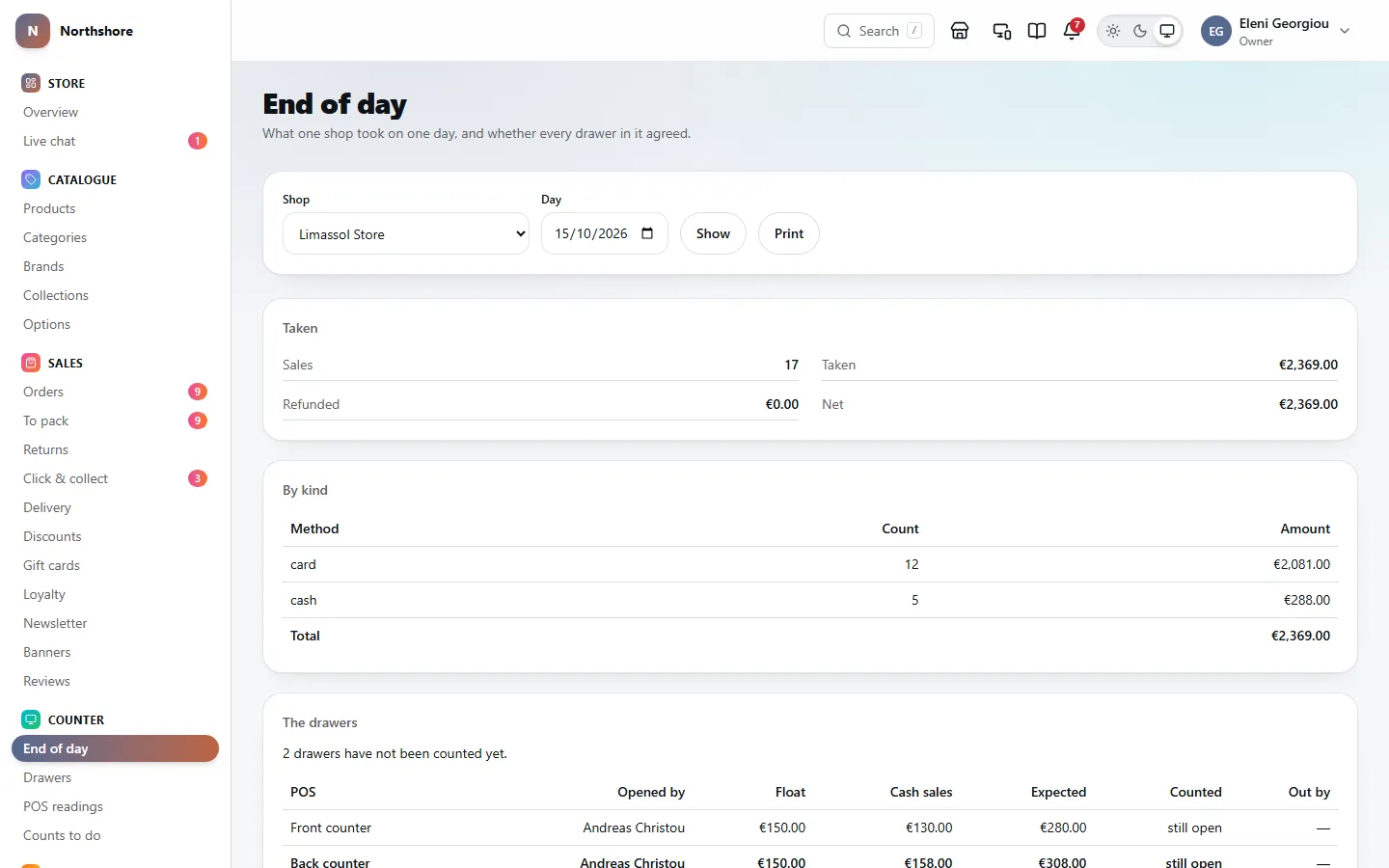
End of day shows what one shop took on one day at its POS registers, and whether every drawer agreed. It is the page to read before you bank the takings. Online orders are not included.
- Open End of day. It opens on today at your first shop.
- Choose the Shop and the Day. The list has every shop, and any other location that has a POS register.
- Click Show.
The report has these parts:
- Taken — the number of Sales, the amount Taken, what was Refunded, and the Net.
- By kind — how it was paid: cash, card, gift card and so on, with a count and amount for each.
- The drawers — each drawer opened that day: the POS, who Opened it, the Float, Cash sales, the cash Expected, the cash Counted, and how far it was Out by — balanced, or an amount over or short. A drawer nobody has counted yet says still open.
- What they said about it — any note staff wrote when counting a drawer.
- What was sold — every item sold with its SKU, how many, the value, and how many came Back. Only the 40 biggest lines by value are listed; the note says how many more there were.
A sentence under the drawers points out three kinds of problem:
- Drawers that have not been counted yet.
- How far over or short the drawers are across the whole day.
- Cash taken while no drawer was open, which belongs to none of the counts.
If nothing was sold and no drawer was opened, it says Nothing happened that day. If there are no shops and no location has a POS register, it says No POS registers yet.
Tip: There is no separate X reading. To see how today is going without closing anything, open End of day for today — a drawer still in use shows still open, with what is expected in it so far.
Print the end of day
Needs the permission View finance reports.
- Open End of day and show the shop and day you want.
- Click Print. A PDF of the same report opens in a new tab, ready to print or save.
The end of day is not sealed or numbered. It is put together from the drawers and sales each time you open it. The record to keep for an inspection is the Z reading for each drawer — see Read the Z readings.
Check every drawer
Needs the permission View finance reports.
Drawers lists every POS session — each time a drawer was opened with a float — across all your shops, newest first, up to 200 at a time.
- Choose a Shop and a POS, or leave them on Everywhere and Every POS register.
- Set From and To dates if you want a period.
- Under Show, choose Only ones that did not balance to see just the problems.
- Click Apply.
Each row shows when it was Opened, the POS and shop, Who opened it (and who counted it, if someone else did), the Float, the cash Expected, the cash Counted, how far it was Out by, and the number of the Z Reading taken when it was counted.
- A drawer out by more than 5.00 is shown in red; smaller differences in amber.
- A drawer nobody has counted yet shows Still open, and a warning at the top says how many there are. Its expected figure only appears once it is counted.
- Notes staff wrote when counting are listed under the table, under What they said about it.
- Under the table, a line gives the total over or short across all the drawers shown.
The POS list includes POS registers you have taken out of service, marked (out of service), so you can still find everything they did.
From and To are days in your shop’s time zone, set in Localisation — the same days End of day uses. A drawer opened just after midnight belongs to the new day.
Understand cash over and short
Needs the permission View finance reports.
When a drawer is counted at the POS, the system compares what was counted with what should be there:
- Expected = the opening float, plus cash sales, plus money paid in, minus money paid out, minus cash refunds.
- Counted = what the member of staff counted in the drawer.
- Over means there was more cash than expected; short means less. balanced means they matched.
The expected figure is fixed at the moment the drawer is counted, so the drawer, the end of day and the Z reading always agree, even if a sale is changed later.
Common reasons a drawer is out:
- Wrong change given.
- A cash sale rung up as card, or the other way round.
- Money taken out or put in without recording a pay-out or pay-in at the POS.
- A sale rung up while no drawer was open — the end of day lists this separately.
Nothing can be corrected from the dashboard. Read the note staff left, and talk to whoever counted the drawer.
Read the Z readings
Needs the permission View finance reports.
A Z reading is taken automatically every time a drawer is counted at a POS register. It totals everything since the previous reading on that POS register and is then sealed. Each POS register’s readings are numbered in order — Z0001, Z0002 and so on — and a number is never reused, so a missing one shows.
- Open POS readings.
- Choose a Shop and POS, and From and To dates if you like. The dates are trading days. POS registers taken out of service are still in the list, marked (out of service).
- Click Apply.
- Click a reading’s number to open it as a PDF in a new tab.
Each row shows the Reading number, the POS and shop, the trading Day, Net sales, the Grand total, how the Drawer came out, and Checks.
The Grand total is the POS’s total net sales since its first reading, and it never resets. Between two readings on the same POS register it should go up by exactly the net of the later one.
The PDF has these parts:
- Reading — the Z number, POS, who took it, when, the trading day and the period it covers.
- Sales — gross sales, refunds, net sales, discounts given, the number of sales, refunds and voided sales, and the average sale.
- Grand totals — the running totals before and after this reading.
- Taken by kind — cash, card and so on.
- VAT — see the next section.
- The drawer — float, cash sales, cash refunds, paid in, paid out, expected, counted, and over or short.
- Seal — a code that covers every figure on the reading and the reading before it.
A reprint is built from the figures stored on the night, so it is always the same as the original.
Tip: There is no X reading (a look without closing) in the dashboard. Use End of day for today to see how the drawers stand so far.
When a reading does not add up
Needs the permission View finance reports.
Every reading is checked against its seal and against the reading before it. The Checks column says Adds up when both are fine. Otherwise it says what is wrong, and a red warning at the top of the page counts the readings with a problem among those shown.
- A reading that does not follow the one before it means something between them has been changed or removed.
- A reading whose figures no longer match its seal has been changed since it was taken.
Take care: Neither should ever happen in normal use. Find out why before you use those figures for VAT or anything else, and keep the printed readings you already have.
VAT on counter sales
Needs the permission View finance reports.
The VAT for counter sales is on each Z reading, not on the end of day. Open a reading from POS readings and look at its VAT table.
There is one row per VAT rate, showing the Net, the VAT and the Gross sold at that rate, and the Refunded net and Refunded VAT given back. A Total row adds them up.
If a refund was given without naming the items, its rate cannot be known. A note under the table says how much, and that amount is in the refund total but not in the rates.
For VAT across all your sales by country and rate, see The VAT table on the sales report.
Counts to do
Needs the permission View stock.
When a POS register is offline it keeps selling and sends the sales in once it is back. If one of those sales sold more of an item than the system had on the shelf, the stock is taken down to zero and the rest is listed here for someone to go and count.
Counts to do lists each one with the item, its SKU, the shop, when it was raised and on which sale, how many are short, and what happened, for example “Offline sale … sold 3 with 1 on the shelf. 2 unaccounted for.”
Under each one, if you can close counts, it also says how many the stock shows at that shop right now — the figure closing the count will change.
Choose a Shop and click Apply to see just one shop, or leave it on Everywhere. When everything is done it says Nothing outstanding.
Close a count
Needs the permission Adjust stock.
Closing a count corrects the stock. You say how many are on the shelf, and the stock figure for that item at that shop is set to it.
- Go to the shelf at that shop and count the item. Count everything that is there, including any in the stockroom.
- Open Counts to do.
- In Counted on the shelf, type how many you found. Type 0 if there were none.
- In What the count found, say what happened, for example “Found 2 in the stockroom” or “Not there, written off”.
- Click Close it. The message says what the stock is now, and the count disappears from the list.
If your count matches the figure shown, nothing changes and the count is simply closed. If it is different, the difference is recorded as a Stock count correction in the item’s movement history, with your count and your note — see Check why stock changed.
Take care: Type the number on the shelf, not the number missing. If the stock says 0 and you find 2, type 2. Do not correct the stock on the stock screens as well, or it will be corrected twice.
A count can only be closed once. If someone else closes it first, you are told it has already been closed and nothing changes.
Anyone who can view stock can see the list. Closing needs the Adjust stock permission; without it, each count says so instead of showing the boxes.