

Every screen under Settings, field by field: who the business is, how the shop looks, how people pay, what they are emailed, which features are switched on, and what each choice changes for your customers.
Find your way around Settings
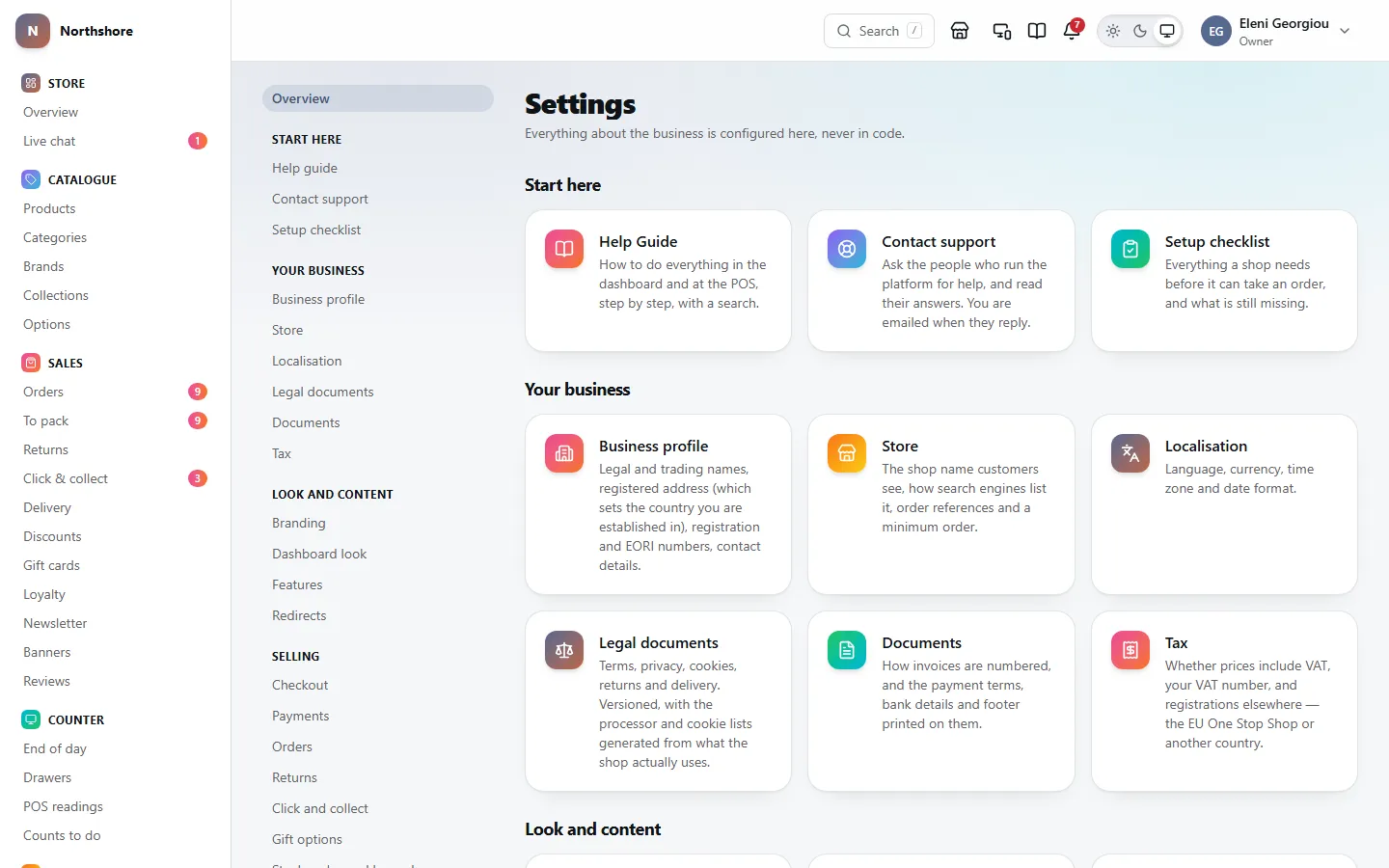
Everything about how the business is set up lives under Settings. Nothing has to be changed in code. The page is a grid of cards, one per screen, each with a short line saying what it is for and an Open link.
- The first card is the Help Guide — this guide. Everybody can open it, whatever their role.
- You only see the cards your role allows. If a colleague can see a screen you cannot, ask the owner to give your role that permission on Roles.
- Some cards only appear when their feature is switched on in Features. Click and collect, Live chat, Gift options, Loyalty and Reviews are hidden while their feature is off.
Once you open a screen, a list down the left side (across the top on a phone) takes you to every other settings screen you are allowed to see. Overview at the top of that list brings you back to the cards.
- Open a screen and change what you need.
- Press Save at the bottom. A short message confirms it, or explains what is wrong.
- Check the shop. Most changes reach customers straight away.
Tip: If two people edit the same settings screen at once, the second save is refused instead of quietly overwriting the first person. Reload the page to see their change, then make yours again.
Payments, Customer sign-in and Integrations hold keys that could do real damage in the wrong hands. If you use two-factor sign-in, you are asked for your code again before these screens open. It lasts about fifteen minutes.
Fill in the business profile
Needs the permission Manage business profile.
Business profile is who the shop legally is. Its details are the small print at the bottom of every invoice, credit note and receipt, so fill it in before you take your first order.
Under Identity:
- Legal name — exactly as registered. Printed at the bottom of invoices, credit notes and receipts, not at the top. Never in an email.
- Trading name — the name customers know the business by, if it is not the legal name. Parcel labels and invoices, credit notes and receipts are from this name, and your legal pages say “Legal name, trading as Trading name”. Emails and newsletters do not use it: they are sent in your Shop name from Store. Left empty, labels and invoices use the shop name, and everything else the legal name.
- Description — one or two sentences about the business, shown in the shop footer. Search engines also show it under your name while the description for search engines on Store is empty.
- Company registration number — printed at the bottom of invoices, credit notes and receipts, with the country of the registered address.
- VAT number — shown here but not typed here. It is kept on Tax, and the link beside it takes you there.
- EORI number — only needed if you send parcels outside the EU. A customs officer looks for it first, and a parcel without one can be held.
The Trading name is not the Shop name customers see on the shop, in emails and on packing slips — that is on Store. They can be the same or different: a company can trade as one name and call its shop another.
Under Registered address, enter the address on the company register: Address, Address line 2, Town or city, Region, Postcode and Country. It may not be where you trade from — your shops are set up separately under Store locations. It is printed as the registered office at the bottom of invoices; the address at the top is your main shop. Emails show your main shop’s address in their footer too, and this one only while no location is on the storefront.
Take care: The Country of the registered address is also where the business is established for VAT. It decides which country’s VAT the checkout charges until you register for the One Stop Shop, and where parcels are declared from. Tax shows it from here; this is the only place to change it.
Take care: Until the legal name, registered address and VAT number are all filled in, a yellow warning stays at the top of the page. Without them your invoices are not valid VAT invoices, and a business customer cannot reclaim the VAT.
Ask the platform for help
Contact support sends a question to the people who run the platform your shop is on. It is only there when your shop is hosted on the platform.
- Go to Settings → Contact support.
- Under Ask for help, say in a few words what it is about, then what happened: what you did, what you expected, and which order or product it is about.
- Press Send to support. The ticket opens, and is listed with its status.
- When support answers, you get an email and the answer is on the ticket. Reply there, or press It is sorted: close it.
Anyone on your staff can ask. Whoever runs the business sees every ticket the shop has opened; everyone else sees their own. Writing to a closed ticket opens it again.
Change your plan, card or billing
Needs the permission Manage business profile.
Plan and billing shows your plan, What you pay: the total a month and each part of it, monthly or yearly, with anything bought once that is on your next invoice. Below are what your plan includes and how much of it you have used: storage, bandwidth and emails, and staff accounts. It is only there when your shop is hosted on the platform.
- Go to Settings → Plan and billing.
- To add more of something, press Add or change extras, set how many packs you want and press Save. It is charged with your plan, from today for the part of the period that is left.
- To change plan, press Change plan.
- For your invoices, press Card and invoices. Every invoice from us is listed, paid or due. One that is due has View and pay, which opens it on Stripe’s page to pay it. Change card on Stripe takes you to Stripe’s billing page for your card, with a link back.
Going over storage, bandwidth or emails never stops your shop. You are emailed at 80% and 100%, and what was over at the end of the period is added to the next invoice as packs. Staff accounts are different: one more than your plan allows is refused until you add one. POS registers are never limited: with the POS add-on, add one for every counter.
Refer another shop
Needs the permission Manage business profile.
Refer a shop has your referral link, and a code to type at sign-up. When a business signs up with either and pays its first invoice, you each get free months, taken off your next invoices. It is only there when your shop is hosted on the platform.
Add the services your shop runs on
Needs the permission Manage store settings.
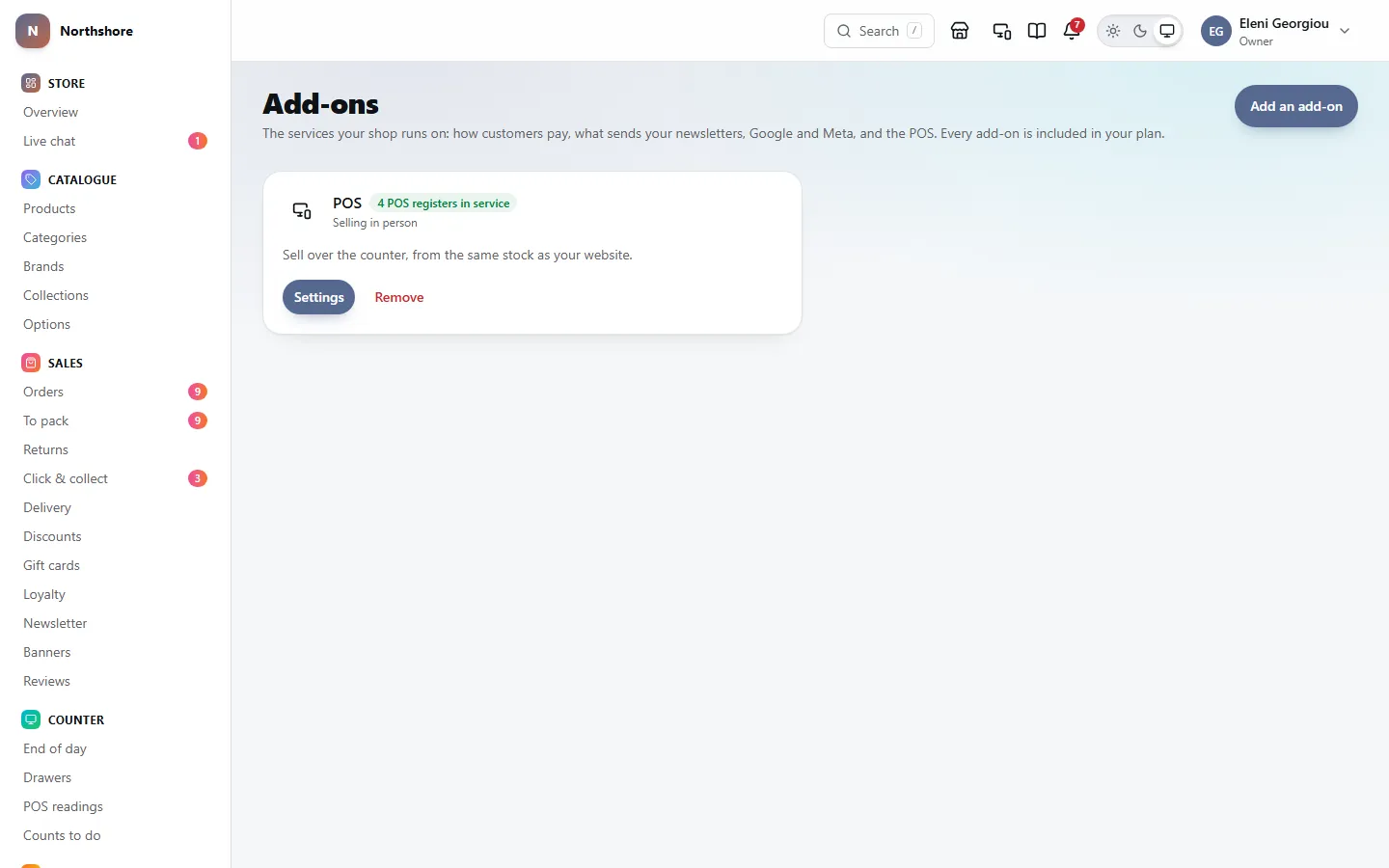
Add-ons are the services your shop runs on, each with its own settings: Stripe for card payments, Resend or Another email provider for newsletters and other marketing email, Google Analytics, Google Ads, Google Merchant Center and Meta for measuring and advertising, and the POS for selling over the counter. Some are features of the shop itself, such as Gift cards, Loyalty points, Live chat and Abandoned baskets. Your plan includes most of them; the others say what they cost, or which plans have them, with a way to change plan.
Some add-ons say Coming soon: they are on their way, and there is nothing to add yet. If an add-on is ever turned off for your shop, Add-ons says so and why.
The foot of your shop shows a small Powered by line, linking to us with your referral code, so a shop that signs up through it earns you the referral reward. The Remove the badge add-on takes it away; remove that add-on to have it back.
Your shop has one marketing email provider at a time. With Resend, its page asks only for your API key and the address to send from: Resend. With Another email provider, you type its server in under Newsletter and marketing emails on Email delivery. Either way, order and account emails keep going through your main mail server.
- Click Add-ons in the sidebar. It lists the add-ons your shop has, each with how it is doing: Taking card payments, Not set up yet, No POS registers yet.
- Click Add an add-on at the top of the page.
- Search for what you need — "card", "Google", "POS" — or look through the groups.
- Click Add on the one you want. You are taken straight to its settings to set it up.
Most add-ons connect an account of your own with the provider: your Stripe account, your Google Analytics property, your Meta business account. The card says so, with a link to open one if you have not got one yet.
To stop using one, click Remove on its card and confirm. It stops working for your shop straight away, but what you set up for it is kept: POS registers, keys and IDs are all there if you add it again. Stripe cannot be removed while it is the only way your customers can pay.
Tip: Who can add or remove each one follows its settings: Stripe needs Manage payments, the POS needs Manage feature flags, Google and Meta need Manage integrations, and the email providers need Manage store settings. The Add-ons page itself is in the sidebar for people with Manage store settings.
Find and add an add-on
Needs the permission Manage store settings.
Add an add-on lists every add-on there is, with its groups down the left (a row across the top on a phone). Search by what it does — "card", "newsletter", "till" — or pick a group to narrow the list.
- Included in your plan: click Add and you are taken to its settings.
- A price: an add-on bought on its own. Buy asks you to confirm the price, then adds it to your plan’s invoice, charged for what is left of the period. Buying needs Manage business settings as well as the add-on’s own permission.
- Coming soon: on its way, nothing to add yet.
- Added: already on your shop, with a link to its settings.
Tip: Removing a bought add-on from Add-ons stops its charge; what is left of the period comes off your next invoice.
See your storage, and buy more
Needs the permission Manage business profile.
Storage shows how much of your plan’s storage your images, exports, imports and other files use. It is only there when your shop is hosted on the platform; the media page shows the same bar.
- Go to Settings → Storage.
- Press Buy on the storage pack, then Buy it. The extra room is yours straight away.
Uploads never stop at the limit. Storage still over at the end of the period is added to the next invoice as packs, so buying one ahead only matters if you would rather know the cost now.
Mailboxes on your own domain
Needs the permission Manage business profile.
Mailboxes gives you real email addresses on your own domain, such as info@yourshop.com, to read and send from in webmail or any mail app. They are bought one at a time with your plan. It is only there when your shop is hosted on the platform, and you need a domain of your own first, on Domains.
- Go to Settings → Mailboxes.
- Press Buy a mailbox, then Buy it, unless your plan includes some.
- Under Set up a domain, choose your domain and press Set up mailboxes. On a domain bought here, everything is done for you. On any other, add the one record shown where its DNS is kept, then press Check now.
- When the domain says Ready, press New mailbox, choose the address and a password, and press Make it.
- On a domain from elsewhere, add the records shown last (two MX, SPF and DKIM), so email to it arrives in your mailboxes.
Sign in to webmail, or set up a mail app, with the mailbox’s full address and its password; the server and ports are on the page. Nobody here can see a mailbox’s password: press New password if it is forgotten.
Tip: On a domain bought here, email forwarding keeps working until you make the first mailbox: then email to the domain goes to the mailboxes instead, so make one for each forwarded address you use.
Deleting a mailbox deletes every email in it, for good, and the mailbox you paid for stays yours to make another. To stop paying for it, give it back on Plan and billing. Mailboxes change nothing about how your shop’s order emails are sent: that is Email delivery.
Open your shop at your own domain
Needs the permission Manage business profile.
Domains puts your shop at an address you own, like yourshop.com. Your free address keeps working, and sends visitors to your own once it is live. It is only there when your shop is hosted on the platform.
- Go to Settings → Domains and type your domain, like yourshop.com. Its www address is added with it.
- Under each one is a short list of DNS records. Sign in where you bought the domain (your DNS provider) and add each record exactly as shown: its type, its name and its value. The Copy buttons copy them exactly.
- Remove any other A or AAAA record for the same name, such as one for an old website.
- Back on Domains, click Check now. When both records are right, the domain gets its secure certificate within a few minutes, and the label changes to Live.
The first live domain becomes your main address: links in emails, the sitemap and search engines use it. Make it the main address chooses another. We email you when a domain goes live, and if it ever stops pointing at your shop.
Your dashboard and POS keep their own addresses; only the shop moves. Under your domains, When your shop moves to its own domain lists what changes elsewhere: the redirect addresses to add for Sign in with Google, Facebook or Apple if you use them, and verifying the domain in Google Search Console and Merchant Center. Do those before the domain goes live and nothing stops working.
Tip: DNS changes can take from a few minutes to a few hours to reach everyone. You do not need to keep clicking: we check every minute at first, then less often.
Send your shop’s email from your own domain
Needs the permission Manage business profile.
Once your shop’s main address is a domain of your own, its email can come from that domain too, like hello@yourshop.com, instead of your shop’s address on the platform’s. This is for email sent through the platform (see Choose how your emails are sent); your own mail server sends from whatever you set there.
- A domain bought here — nothing to do. The signing records are added for you, and within about an hour the domain’s card on Domains says your email comes from it.
- A domain you brought — its card shows Email from this domain with three CNAME records and a DMARC record. Add them where you added the others, exactly as shown. Keep a DMARC record you already have.
Until the records are seen, nothing changes: your email keeps coming from the platform’s address. Once they are, every email after that comes from your domain, signed so inboxes trust it.
Take care: If the card says the records could not be found, check each one is there exactly as shown. Some DNS providers add your domain to the end of a name by themselves; then type only the part before it.
Take a copy of everything in your shop
Needs the permission Manage business profile.
Export everything puts everything in your shop into one file: products, customers, stock and orders as spreadsheets, your pages and settings, and every photograph. It is only there when your shop is hosted on the platform.
- Go to Settings → Export everything. The page says what the file holds and what happens next.
- Press Make the export.
- Wait for the email with the download link, usually a few minutes. It goes to the shop’s owner.
- Download the file within a week. After that it is deleted.
The spreadsheets are in the columns Settings → Import reads, so the same file can fill a new shop: import products first, then customers, stock and orders. Passwords and keys you entered in settings are left out, so enter them again in the new shop.
Contact details, web address and social links
Needs the permission Manage business profile.
Under How customers reach you:
- Contact email — the business’s main address. It goes in the business details search engines read and on the commercial invoice for parcels leaving the EU, and is used wherever the support email is left empty. It is not printed on ordinary invoices.
- Support email — where customers are told to write: the footer, the contact page and emails. Leave it empty to use the contact email.
- Phone — the business’s number. Each shop in Store locations gives search engines its own phone and email when it has them, and this one only when it has not.
- WhatsApp — the number only. The shop shows it as a chat link.
- Shop web address — shown here but not typed here. It is the address the shop is actually running at, set by whoever runs the shop’s server, and every link to the shop — in emails, on packing slips, in page previews — is made from it. When the shop moves to a new address, the links follow it without anything to change here.
There used to be a Website box here. If you typed an address into it that is different from the real one, it is shown under Shop web address as no longer used. It is kept, not deleted, but nothing reads it.
Take care: If the shop’s web address is not set on the server, every email goes out without links to your terms, privacy policy and returns policy, and a yellow warning at the top of the page says so. Ask whoever runs the shop’s server to set it.
Under Social, paste the full address of each page you have: Facebook, Instagram, TikTok, YouTube and X. Leave a box empty and that link is not shown at all.
Choose the shop’s colours
Needs the permission Manage branding.
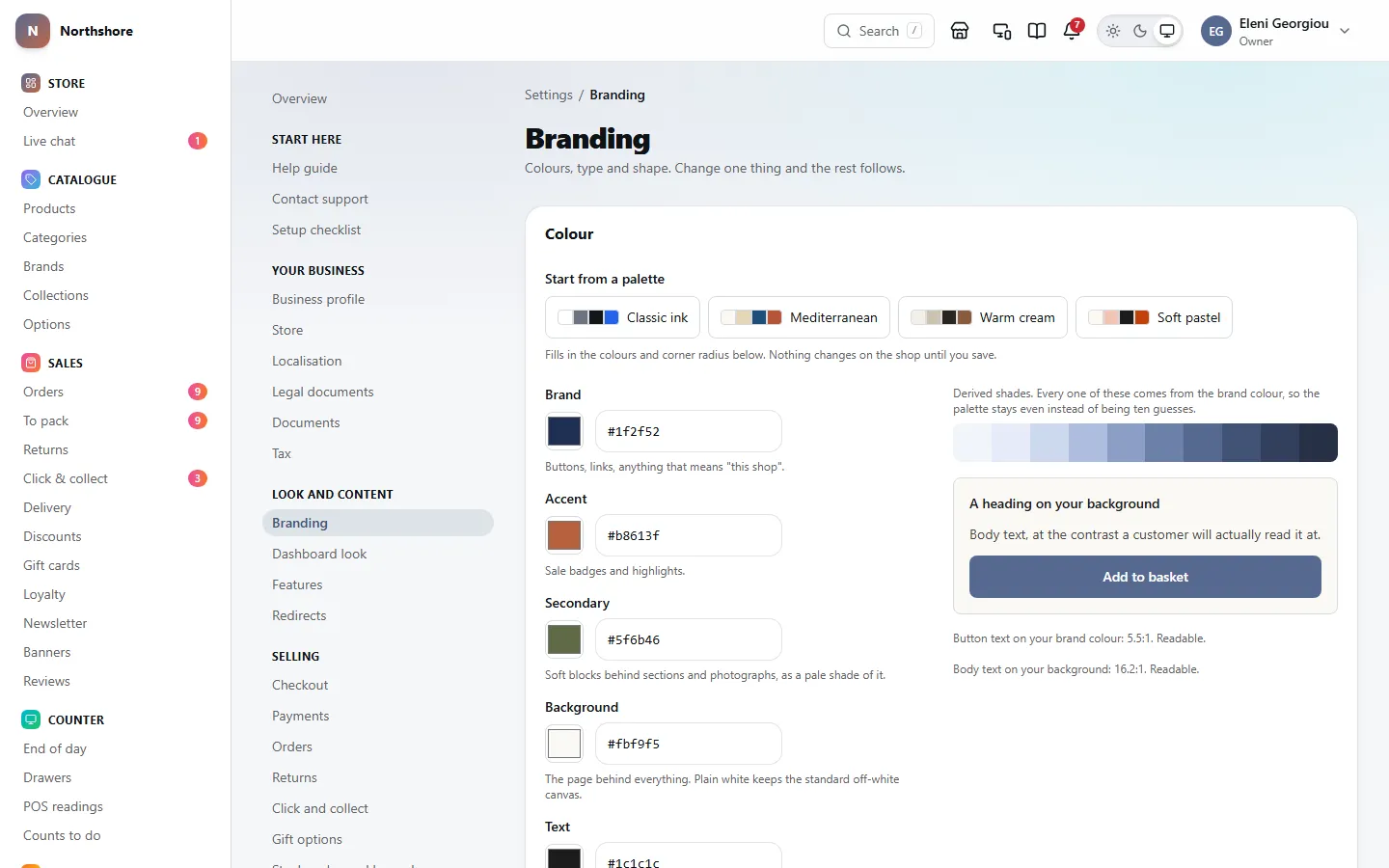
Branding decides how the shop looks. Colours, fonts, logo and corner shape set here are also used on your emails, invoices and other documents, so everything matches.
The Colour card starts with Start from a palette: Classic ink, Mediterranean, Warm cream and Soft pastel. Clicking one fills in all the colours and the corner radius below. Nothing changes on the shop until you save, and you can still adjust every value afterwards.
- Brand — buttons, links, anything that means “this shop”. The other shades of the shop are worked out from this one colour.
- Accent — sale badges and highlights.
- Secondary — the soft blocks behind sections and photographs, shown as a pale shade of it.
- Background — the page behind everything. Plain white keeps the standard off-white canvas.
- Text — the colour of the writing.
- Corner radius — 0 for square corners, 0.5rem for gently rounded.
Click the colour square to pick a colour, or paste a hex code (like #1f4e79) from your brand guide into the box beside it. On the right you see the shades made from your brand colour, a sample heading, some body text and an Add to basket button, all updating as you type.
Take care: Under the sample, two lines check that text is readable: Button text on your brand colour and Body text on your background. If either turns red, many customers will struggle to read it, and in the EU that is a legal problem as well as a design one. Choose a darker or lighter colour until both say Readable.
Fonts, theme, look and movement
Needs the permission Manage branding.
- Type — choose a font for Headings and one for Body text, from 19 in five groups: sans serif (Inter, Manrope, Roboto, Open Sans, Source Sans 3, Commissioner, Geologica), display (Inter Tight, Syne, Advent Pro), rounded (Comfortaa), serif (Noto Serif Display, Source Serif 4, EB Garamond, Literata, Alegreya, Brygada 1918, Roboto Slab) and monospace (JetBrains Mono). All of them have every European letter and Greek, and are served from the shop itself.
- Light and dark — Default theme is what a first-time visitor sees: Light, Dark, or Match their device. Visitors can still switch for themselves.
- Look — Classic, or Playful. Playful makes buttons into pills, rounds photographs more and puts soft blocks of the secondary colour behind sections.
- Motion — Off, Subtle or Lively. Subtle fades sections in and zooms photographs slowly. Lively adds a moving hero image, photographs that wipe open, a springy bag and the item flying into it.
Tip: Visitors whose phone or computer is set to reduce movement never see any motion, whatever you choose here.
The scrolling announcement line above the shop’s header is not set here. Change it on Banners.
How the dashboard and POS look
Needs the permission Manage branding.
Dashboard and POS look decides how your own tools look for everybody: this dashboard and the POS at the counter. Your storefront keeps its own design, set under Branding.
- Bright — rounded, colourful and lively. The look the dashboard comes with.
- Calm — soft and quiet: your brand colour alone, and nothing that moves.
- Classic — square corners, plain cards and no gradients.
- High contrast — strong borders and focus, for bright shop floors and anybody who needs them.
- Dark first — the bright look, opening in dark mode for anybody who has not chosen light or dark.
Turn on Change the style to make it yours: the main and accent colours (empty uses your branding), corners, how tightly the dashboard and the POS are laid out, the font, motion, and how colourful the sidebar is. The preview beside the choices shows exactly what everybody will see. Nothing changes until you save.
Tip: With Let staff choose a style for themselves on, each person can pick a ready-made style for their own device on their profile. The shop’s colours stay the same.
Upload the logo, favicon and sharing image
Needs the permission Manage branding.
The Images card has four pictures. Each has an Upload button, which becomes Replace once there is a picture, and a Remove button.
- Logo — shown in the shop header and on invoices. A PNG with a transparent background works best.
- Logo for dark backgrounds — a light version of your logo. The shop’s header shows it to visitors who are seeing the shop dark, whether they chose dark themselves or their device is set to it. Leave it empty and the ordinary Logo is shown in both.
- Favicon — the small icon in the browser tab. Use a square picture, at least 512 × 512 pixels.
- Sharing image — shown when somebody posts a link to your shop on social media. 1200 × 630 pixels works everywhere.
- Press Upload under the picture you want to set and choose the file.
- Wait for the bar to fill and the preview to appear.
- Press Save at the bottom of the page. The new picture is not live until you do.
Custom CSS
Needs the permission Manage branding.
The Custom CSS box is a last resort for whoever builds your website, to adjust a detail the settings above cannot. What is typed here changes the shop only — not your emails, invoices or PDFs.
Take care: If you restyle a button here, it will look different in an order confirmation email, because emails cannot use it. Use the colours and corner radius above wherever they will do the job.
When you save, anything that would load files from another website is removed, to keep your visitors’ details private.
Shop name and how search engines describe the shop
Needs the permission Manage store settings.
Under Name and description on Store:
- Shop name — the name customers see: the shop’s header and browser tab, packing slips, and every email — who it is from, the top and the footer. Leave it empty to use the Trading name from the Business profile. Parcel labels, invoices and receipts are from the trading name, and use this only while that is empty.
- Tagline — one short line, shown after the shop name in the homepage’s browser tab and search result title.
- Description for search engines — what Google shows under your name. Aim for about 155 characters; the box stops at 200. Leave it empty to use the description on the Business profile.
Tip: Whether prices include VAT, and where the business is established, used to be set here. They are on Tax now — see how prices are shown, and your VAT number.
How prices are shown, and your VAT number
Needs the permission Manage tax rules.
Tax keeps everything about VAT in one place, in the order you set it up.
- How prices are shown — Prices include VAT is on for a normal shop selling to the public in the EU, where the price on the label is what the customer pays. Off for a trade seller whose prices have VAT added on top. Press Save under it.
- Where the business is established — the Country of your registered address, shown here and changed on the Business profile. Its VAT is charged at home, and on orders to other EU countries whose own VAT you do not charge.
- VAT number — your VAT number in that country, with the country prefix, as it appears on your certificate, for example CY10000000X. Give the Registered since date and press Save VAT number. This is the only place it is kept: invoices, receipts, your legal pages and the business details search engines read all take it from here, and the Business profile shows it.
Take care: Prices include VAT changes the sums, not just the wording. Switching it after your prices are entered changes what every customer pays, so decide it once, before you load your catalogue.
Tip: Invoices dated before the Registered since date go out without the VAT number, because the business was not registered yet. If the business stops being VAT registered, press Remove under the number.
VAT by country
Needs the permission Manage tax rules.
VAT by country on Tax is your own table of VAT rates: a row for each country, with its Standard rate and any Reduced rate or Zero rated rate for products in those tax classes. It starts with the usual rates; you can change any of them.
- Charge its VAT — on, a customer in that country pays its VAT. Off, a customer elsewhere in the EU pays your own country’s VAT, and one outside the EU pays none (an export). Your own country is always charged. Countries covered by your One Stop Shop or IOSS registration say so and are charged through it.
- Change a rate and press Save on its row. The new rate applies from now: orders already placed keep the rate they were sold at.
- Add a country with its standard rate, for example the United Kingdom, Switzerland or Norway, then set its other rates and Charge its VAT on its row.
- Remove takes a country out of the table and stops charging its VAT. Your own country cannot be removed.
Take care: The rates and which countries you charge are yours to keep right: the checkout uses them as they are. When a country changes its rate, change it here. Check with your accountant which countries you must charge.
Record a VAT registration
Needs the permission Manage tax rules.
Below your own VAT number, Tax records any other VAT registration: the EU One Stop Shop (OSS), IOSS, or a registration in another country. With OSS or IOSS in force, the checkout charges each EU country’s own VAT from the first order. A registration in one country charges that country’s VAT, the same as switching on Charge its VAT for it in VAT by country.
- Under Record a registration, choose the Country. For OSS, that is usually the country the business is based in. Your ordinary VAT number in that country goes in the VAT number box above instead — this form refuses it, so it is only ever typed once.
- Type the VAT number as it appears on your registration letter. Spaces do not matter. You can leave it blank if you do not have it yet.
- Set Registered for the One Stop Shop (OSS) to Yes for an OSS registration, or No for an ordinary VAT registration in another country.
- Give the Registered from date.
- Press Record registration.
- Other registrations lists everything on record apart from your own VAT number, with the kind of registration, the VAT number and the dates. A green badge means it is in force today.
- A registration that starts in the future says starts and the date. The checkout only acts on it from that day, so you can record it as soon as the letter arrives.
- Recording the same country and kind again updates the one already there — use it to correct a VAT number or a date.
- Remove takes away a registration recorded by mistake. Press it, then Yes, remove.
- The same list appears on VAT and thresholds, where you can see how close you are to the threshold.
Take care: Removing an OSS registration takes effect on the next order: the checkout goes back to charging your own country’s VAT on orders to other EU countries, except those you charge in VAT by country. Orders already placed keep the VAT they were charged.
Tip: The rules on when you must register are in VAT and thresholds. Check with your accountant before you record a date — the checkout trusts it.
Order references, minimum order and search engines
Needs the permission Manage store settings.
Under Orders:
- Order reference prefix — the letters before each order number, such as ORD-1001. Up to eight characters. Changing it does not renumber orders you already have.
- Minimum order — in euro. Leave it empty for no minimum. The message customers see when they are under it is set on Checkout.
Under Visibility:
- Let search engines index the shop — off until you launch. While it is off a yellow warning sits at the top of the page, and nothing in your shop appears in Google.
Closing the shop while you work on it, and the message visitors see meanwhile, are on Maintenance mode.
Whether sold-out products are listed is not set here. Use Hide out of stock in Features: off shows them marked as sold out, which keeps links and bookmarks working; on takes them out of the listings.
Customers are always asked to accept your terms at the checkout once you have terms published in Legal documents. There is no switch for it: an order taken on terms nobody agreed to is not one you can hold anybody to.
Take care: Remember to switch Let search engines index the shop on when you open. It is off at the start so a half-built shop does not end up in Google’s results.
Time zone, dates, language and currency
Needs the permission Manage store settings.
Localisation sets the shop’s currency, its clock and how dates are written.
- Timezone — the shop’s own clock. It decides which day a late-evening order counts towards in your reports, and the times staff see on orders. Pick from the list or type a city.
- Week starts on — Monday or Sunday, for weekly reports.
- Dates — how dates are written, shown with today’s date. They follow the country in your Business profile, for staff and customers alike, for example 24 Oct 2026, 20:58.
- Language — shown but cannot be changed. This version of the shop runs in English.
- Round cash payments to — for the POS, where the smallest coins are not used. As in your country is the default: €0.05 in the Netherlands, Belgium, Finland and Ireland, CHF 0.05 in Switzerland, DKK 0.50 in Denmark, whole kronor in Sweden and Norway, and no rounding elsewhere. Or choose Not rounded, or a step of your own. Only cash at the POS is rounded; the sale’s total and its VAT stay exact, and the rounding has its own line on the receipt, the drawer count and the Z reading.
Currency is the shop’s home currency: the one its prices are typed in, its customers pay in and its reports count in. It is chosen when the shop is set up. To change it, press Change currency, pick the new one, and choose what happens to the prices:
- Convert them — at the European Central Bank’s rate for the day, shown before you confirm. Prices keep their value but land on odd amounts, so you may want to round them afterwards.
- Keep the numbers — €25 becomes 25 zł. For a new shop whose prices were typed in with the new currency in mind.
Delivery rates, fixed-amount discounts, the minimum order, gift wrap and cash-on-delivery limits move the same way. Orders already placed, their invoices and refunds stay in the currency they were paid in, and baskets customers had started are emptied.
Tip: The change waits while customers hold gift cards with money on them: a card promises an amount in the currency it was sold in. Once they are spent or refunded, the change goes ahead.
Take care: A wrong Timezone quietly moves evening orders onto the next day, so a busy Sunday can look like a quiet one. Check it matches where your shop is.
Showing prices in more than one currency is the multi-currency add-on.
Selling in other currencies
Needs the permission Manage store settings.
With the Multiple currencies add-on, customers see your prices and pay in their own currency. Your prices stay in your home currency, and so do your reports and VAT returns. Set it up on Currencies.
- Currencies customers can choose — tick the ones to offer. Each shows what one of your prices becomes in it.
- Where a first visit starts — in the currency of the visitor’s country when you offer it, or always in yours. Customers can change it with the switcher in the header and the footer.
- Exchange rates — the European Central Bank’s daily rates, refreshed automatically, with your margin on top to cover the card’s conversion fee. Type your own rate for a currency to fix it instead.
- Rounding — how a converted price lands: the ending (.99, .95, .90, .50, .00 or exact), the step (every 1, 5, 10 or 100) and the direction (up, down or to the nearest). Give a currency its own rule in the rates table, for example steps of 100 for the forint.
VAT has two choices. VAT on an invoice in another currency sets which rate shows its VAT in your own currency, as EU rules require: the ECB rate on the invoice date (recommended) or the rate the customer paid at. Prices for customers outside the EU sets whether they see and pay prices without VAT (recommended, since an export carries no EU VAT) or the same price as EU customers.
Tip: The rate is fixed on each order when it is placed, and refunds go back in the currency the customer paid in. Gift cards are issued in your home currency; a customer paying in another can still spend one, at the day’s rate. The POS stays in your home currency.
How buying works at the checkout
Needs the permission Manage store settings.
Under Who can buy on Checkout:
- Let people buy without an account — on is normal. Making people register before they can pay loses sales, and if they register later with the same email address, their earlier orders still appear in their account. Off sends everybody to sign in or create an account before they can pay.
Guest checkout in Features is the master switch for this. Buying without an account is only possible when both are on; while the Features switch is off, a yellow note at the top of the card says so, and this switch makes no difference until you turn it back on.
The version of your terms a customer accepted is always recorded with their order. Which terms were in force when somebody bought is the first question in any dispute, so there is no switch to turn it off.
Under Charges, the Handling fee is added to the delivery charge on every order, to cover packaging and picking time. It is not added when delivery came out free. Leave it empty for no fee. Delivery shows the fee too, with a link back here.
Under Messages:
- Let customers leave a note with their order — usually delivery instructions, printed on the packing slip. Off removes the Delivery notes box from the checkout (and the Anything we should know box for collections), and a note somebody typed before you switched it off is not kept on their order.
- Minimum order message — what customers see when their basket is under the Minimum order set on Store. Leave it empty for the standard wording.
The Payment badges card lists the ways to pay shown in the shop footer. They follow what is switched on in Payments, so there is nothing to edit here: Card appears once card payments are on with the keys saved, with a badge for each local payment method switched on, and Cash on delivery appears while Offer cash on delivery is on. Change how customers pay opens Payments.
Address autocomplete
Needs the permission Manage store settings.
The Address autocomplete card, at the bottom of Checkout, can suggest addresses as a customer types. It is optional: with it off, customers fill in an address form that already adapts to their country, which is what really prevents failed deliveries.
- Off — customers type their address — nothing is sent anywhere.
- OpenStreetMap (Photon) — free, no account — what the customer types is sent to a free map search run by Komoot in Germany. Very good in European cities, weaker for brand-new addresses.
- Google Places — needs a key, charged per lookup — the best coverage. You need a Google Cloud API key with Places API (New) enabled and billing switched on, and Google charges you for every lookup.
- Choose one of the three options.
- If you chose Google, paste your Google Cloud API key. Once saved it is never shown again; leave the box empty later to keep it.
- Press Save inside this card. It has its own save button, separate from the rest of the page.
- Under Try it, type a street you know in A street you know and press Look it up to check suggestions come back.
Take care: With autocomplete on, what a customer types into the address box is sent to Komoot or Google as they type. Make sure your privacy policy says so.
Abandoned basket reminders
Needs the permission Manage campaigns.
Abandoned baskets is an add-on: add it on Add-ons, and its page, Abandoned baskets, decides how the shop emails people who left something in their basket. If your plan does not include it, the add-on shows the plans that do. Reminders only go to somebody who gave their email address at the checkout and ticked the box to receive marketing. Without both, there is no legal basis to send one.
- Send reminders — the switch that starts and stops the reminders. Baskets are still recorded while it is off, so turning it back on loses nothing.
- Stop chasing after — in hours, up to 720. After this, a basket is left alone. The standard is 72.
Under The sequence there are three rows: Reminder 1, Reminder 2 and Reminder 3. For each one, set how many hours after the basket last changed it goes out, and an optional Discount code to offer. Clear the hours to remove a reminder.
Abandoned cart in Features is the master switch. Reminders only go out while both it and Send reminders are on. While the Features switch is off, a yellow note at the top of the Abandoned baskets card says so — and a reminder already waiting to be sent when you switch either one off is not sent.
Tip: One reminder is the default and the safe choice. A second brings back far fewer people than the first, and a third almost none — but each one makes it more likely people mark you as spam, which can stop your order confirmations arriving.
Take care: A discount code is best kept for the last reminder, if you use one at all. A code on every reminder teaches regular customers to leave their basket on purpose. The code itself has to exist under Discounts. While Coupons is off in Features, reminders go out without the code, because the checkout would refuse it.
Connect your Stripe account (no keys)
Needs the permission Manage payments.
On a shop hosted on the platform, Your Stripe account at the top of Stripe connects card payments without copying any keys. The money goes straight to you, and the account is yours, in your own Stripe dashboard.
- Open Stripe, from its card on Add-ons, and press Connect with Stripe. You confirm your second factor first.
- On Stripe’s pages, sign in with your Stripe login if you have one, or make one. Then give your business and bank details. Stripe keeps them; this shop never sees them.
- You come back here. When Stripe has checked the details, the card says Taking payments and card payments are switched on.
Stopped half way? Continue Stripe setup picks up where you left off. Refunds made on an order go through your Stripe account; payouts and disputes are in your Stripe dashboard. If the platform’s plan includes a fee per sale, the card says how much.
Tip: With your Stripe account connected, the key fields below fold away: they are not needed. Disconnect stops card payments through the account and goes back to those keys, if you saved any.
Connect Stripe for card payments
Needs the permission Manage payments.
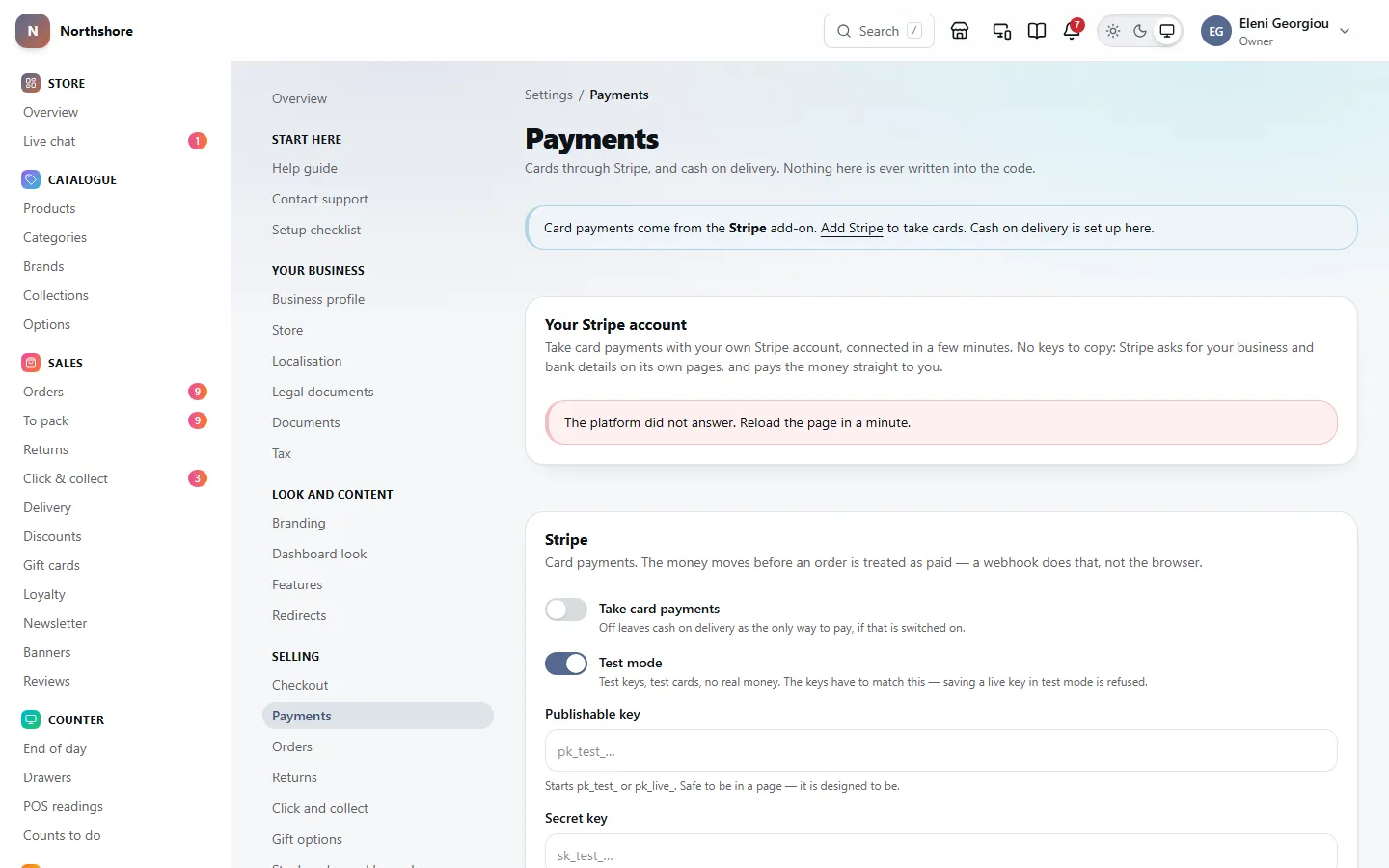
Card payments go through Stripe. You need a Stripe account first, then three values from its dashboard: a publishable key, a secret key and a webhook signing secret. On a shop hosted on the platform, connecting your Stripe account (above) does all of this without keys.
- Open Stripe, from its card on Add-ons.
- Switch on Take card payments.
- Leave Test mode on while you are setting up.
- Paste your Publishable key. It starts pk_test_ in test mode or pk_live_ in live mode.
- Paste your Secret key. It starts sk_test_ or sk_live_.
- Paste the Webhook signing secret, which starts whsec_ (see the next section for where it comes from).
- Press Save.
- Press Check the connection. Stripe confirms whether the saved secret key works, and whether it is really in test or live mode.
Saving is refused if card payments are switched on but any of the three values is missing, or if the publishable key does not match the mode — a test key in live mode, or a live key in test mode.
Tip: Once saved, the secret key and webhook secret are only ever shown as dots. Leave the dots alone to keep them, or paste a new value to replace one. Check the connection tests what is saved, so save first.
Take care: With Test mode off, a red notice reminds you that every payment is real money from a real card, and that refunds cost you Stripe’s fee. Place one small real order yourself after switching to live, then refund it.
If card payments and cash on delivery are both off, a red warning at the top of Payments says there is no way to pay: customers would fill a basket and find nothing to click at the end.
Tell Stripe where to send its messages
Needs the permission Manage payments.
An order is only marked as paid when Stripe sends the shop a message to say the money has moved. Without it, every card order stays unpaid.
- Copy the address shown in the Where Stripe sends its messages card.
- In your Stripe dashboard, go to Developers, then Webhooks, and add it as a new endpoint.
- Tick these 8 events: payment_intent.succeeded, payment_intent.payment_failed, payment_intent.processing, payment_intent.canceled, charge.refunded, refund.failed, charge.dispute.created and charge.dispute.closed.
- Stripe then shows a signing secret starting whsec_. Paste it into Webhook signing secret on Stripe and press Save.
refund.failed is how the shop learns that a refund it made did not go through after all, for example because the card has been closed. The amount stops counting as refunded, the order says what happened, and the notification bell lists it under Refunds that failed. Add it to a webhook set up before it was on this list.
charge.dispute.closed is how the shop learns that a payment dispute has been won or lost. If your webhook was set up before it was on this list, open the endpoint in Stripe, add that event and save — nothing changes on Stripe. Without it a dispute stays in the notification bell until its deadline, whatever the bank decided.
Take care: Test mode and live mode have separate webhooks and separate signing secrets in Stripe. When you go live, set the webhook up again in live mode and paste the new secret.
Offer local payment methods
Needs the permission Manage payments.
With Stripe, customers pay by card. Add Local payment methods under Add-ons to offer the ways people pay in their own country as well, beside the card form. They run through your Stripe account, and Stripe charges its own fee for each.
- Apple Pay and Google Pay — buttons above the card form, on the phones and browsers that have them. Saving with Apple Pay on registers your shop’s address with Stripe, which Apple Pay needs.
- iDEAL (Netherlands), Bancontact (Belgium), EPS (Austria) — in euros.
- Przelewy24 and BLIK (Poland) — Przelewy24 in złoty or euros, BLIK in złoty.
- Klarna — pay later or in instalments, across most of Europe and North America.
- SEPA Direct Debit — from a euro bank account. It takes a few working days to clear, and the order waits until it does; the customer is told so.
- Link — Stripe’s saved details, for a quicker checkout next time.
Each method shows only for a delivery to the countries it is used in, and in the currencies it takes, so a customer in Poland paying in złoty sees BLIK and Przelewy24, and one in the Netherlands sees iDEAL. Every method starts switched on when you add the add-on; switch off any you do not want. Refunds go back the way the customer paid, from the order page, as for cards.
Offer cash on delivery
Needs the permission Manage payments.
With cash on delivery the courier collects the money at the door. It is common in Cyprus and Greece and lets people without a card buy from you.
- Offer cash on delivery — the on and off switch.
- Only in these countries — switch on the countries, by name, grouped by region. None switched on offers it everywhere you deliver.
- Smallest order — the least an order must come to. Empty means no limit.
- Largest order — the most cash your courier will carry.
- Surcharge — an extra charge for paying this way. It is added as a line on the order, so the customer sees it. It is refunded, in cash at the shop, when the whole order is cancelled, returned within 14 days of delivery or returned faulty, and kept otherwise.
Press Save at the bottom of the page to keep changes to any card on this screen. The Cash on delivery and card badges in the shop footer change to match.
Tip: If somebody else saved this screen while you had it open, your save is refused rather than undoing theirs. Reload the page to see their change, then make yours again.
Cancellation reasons and unpaid card orders
Needs the permission Manage store settings.
When staff cancel an order, they must pick a reason from a list. There is no free-text option, so you can count the reasons later. Orders settings is where you edit that list.
- Open Orders settings.
- In Reasons, type one reason per line. Keep them short — they appear in a drop-down list and in reports.
- Press Save.
- You need between one and twenty reasons, each up to 80 characters.
- The starting list is: Customer changed their mind, Out of stock, Payment not received, Suspected fraud, Duplicate order, Cannot deliver to that address, and Other.
- Changing the list does not change orders already cancelled. They keep the reason they were given.
Under Unpaid card orders, Cancel after (hours) decides how long an order waits for a customer who reached the card payment step and then left. Its stock, any gift card balance and any discount are held meanwhile. After this many hours (1 to 72, normally 2) the order is cancelled and everything is released. Cash on delivery orders are never cancelled this way.
Set your returns window and rules
Needs the permission Manage store settings.
Everything on Returns is about a customer changing their mind. An item that is faulty, damaged or not what was ordered has no time limit, and its return postage is always yours to pay. None of these settings changes that.
- Days to change your mind — 14 to 365. Fourteen days is the legal minimum for online sales in the EU, counted from delivery, not dispatch. Some shops offer thirty as a selling point. A longer window is your own goodwill: the delivery charge, gift wrapping and cash on delivery fee are refunded on a whole order only within the legal 14 days, whatever this says.
- Accept change-of-mind returns — off stops the online returns form offering it. Customers keep the legal right anyway, and your returns policy has to say so.
- Who pays return postage on a change of mind — The customer, or The shop. This is the cost of sending it back only. The original delivery charge, gift wrapping and cash on delivery fee are a separate matter that no setting changes: they are refunded when a whole order comes back within 14 days of delivery (delivery up to your cheapest standard delivery) or faulty, and kept otherwise — see Inspect a return and refund it.
- Approve returns before anything is posted — on, the customer waits for an email saying yes. Off, they can send it straight away, which is quicker for them but means parcels arrive that nobody agreed to.
- Ask for a photograph of a fault — a picture usually lets you decide without waiting for the parcel.
- Instructions on the return form — shown above the list of reasons. How to pack it, what to include.
- Return address — where returns are sent: the returns email, the gift-return slip in the box, the gift-return page and your returns policy all give this one. Leave it empty to use your main shop — the location marked Main shop on Store locations. Parcel labels use it as the sender too, unless the order was packed at a location that was recorded.
Returns themselves are handled on Returns. See Fulfilment and returns.
Click and collect settings
Needs the permission Manage store settings.
This screen only exists while Click and collect is on in Features. The top of Click and collect lists which shops customers can collect from.
Take care: If no shop is offering collection, a yellow warning says so and nobody can choose it at the checkout. A shop must be active, public and have collection ticked in Store locations. A basket is only offered a shop that has everything in it.
Under How long you hold it — counted from when the customer is told the order is ready, not from when they paid:
- Days on the shelf — 1 to 90, normally 14. After this the order shows as not collected and you decide what to do. Nothing is cancelled or put back into stock automatically.
- Send one reminder after this many days — normally 7. Zero sends none. A reminder that would arrive after the shelf time has run out is not sent.
- Usually ready within (hours) — shown at the checkout, normally 4. Zero promises nothing, and the checkout then says nothing about timing.
Under At the counter:
- Make staff say what they checked — on, staff cannot record a handover without a short note, such as “driving licence” or “order email on their phone”. That note is your only evidence if somebody later says they never got it.
- Note for whoever is at the counter — shown when staff hand an order over. Anything they should ask for beyond the name.
Under What the customer is told, Collection instructions are added to the “ready to collect” email: where the desk is, where to park.
Orders waiting to be collected are on Click and collect.
Live chat hours and messages
Needs the permission Manage store settings.
This screen only exists while the Live chat add-on is on, from Add-ons. The note at the top of Live chat says whether the chat is showing as online or offline right now.
Who answers is not set here. Chat is answered by everybody whose role has the Answer live chat permission, and they are emailed when a customer is waiting. Change that on Roles.
- Show as online — During opening hours follows the opening hours of your main shop (marked on Store locations), the ones in the footer, including the holidays and closures added as exceptions there, in the shop’s own time zone. Always shows it as online all the time.
- Greeting — the first thing a customer reads when they open the chat.
- While offline — shown instead of the greeting outside your hours.
Outside your hours the chat still takes messages, tells the customer the reply will come by email, and emails your staff as usual. Messages are deleted a month after they were written.
Conversations are answered on Chat. See Customers and chat.
Gift wrapping and gift messages
Needs the permission Manage store settings.
This screen only exists while Gift options is on in Features. Whether gifting is offered at all is that switch, not anything on this page.
Under What it costs on Gift options:
- What the shop wraps — The whole order, once, or Each item the customer picks. Per item charges for every item, so three of the same jumper is charged three times.
- Price — in euro, per order or per item. Leave it at zero to wrap for free.
- VAT class for the wrapping — wrapping is a service, which may not carry the same VAT rate as clothing. If unsure, choose standard.
- What the wrapping is — shown beside the option at checkout, up to 140 characters. Paper, ribbon, a card.
What was paid for wrapping is refunded only when the whole order is cancelled, returned within 14 days of delivery or returned faulty. Wrapping is charged on the order, not inside an item’s price, so returning one wrapped item of several refunds the item but not its wrapping.
Under The message:
- Longest gift message — 0 to 1000 characters, normally 250. Zero means no message can be added. The message is printed in a fixed box on the packing slip, and anything that does not fit is not printed.
- Let the customer address it to somebody else — puts the recipient’s name on the parcel instead of the buyer’s. The delivery address is not changed.
Under Returning a present, Put a gift return slip in every gift order adds a second page to the packing slip with a code. The person who received the gift can use it to exchange it or get a gift card for its value, online, by post or in the shop. It shows no prices and nothing about the buyer.
Tip: There is no switch to hide prices on the packing slip, because a packing slip never shows prices on any order. The buyer’s invoice, which does, is emailed to them.
Set up loyalty points
Needs the permission Manage store settings.
This screen only exists while the Loyalty points add-on is on, from Add-ons. The box at the top of Loyalty works out what the scheme gives back as a percentage, from the two rates below. You do not set it separately.
Under Earning:
- Points per euro spent — whole points only, 0 to 1000, normally 1. Counted on what was paid for goods after any discount. Gift cards never earn points.
- Earn on delivery and wrapping too — off is right for most shops, so people are not rewarded for choosing the dearest courier.
Under Spending:
- Points that buy one euro — normally 100. With 1 point per euro and 100 here, customers get 1% back, which is a safe place to start.
- Fewest points that can be spent at once — normally 200. Zero allows any amount, which lets people take a few cents off and slows the checkout down for no real saving.
Under What you tell people, write How the scheme works, in your own words (up to 400 characters). It is shown wherever a customer sees their balance. Left empty, they only see the rates.
Take care: Every point you give out is a promise to take money off a future sale. Changing the rates later changes what points already earned are worth. The Loyalty screen shows what the points you owe add up to.
How new stock codes are made
Needs the permission Manage store settings.
Stock codes and barcodes decides what the shop makes up for an item that arrives without a stock code — from an import, or when you create sizes and colours for a product.
Stock code pattern is built from four words in curly brackets: {brand}, {product}, {options} and {sequence}. Anything else you type, such as dashes, is printed as it stands. The standard pattern is {brand}-{product}-{options}.
Underneath, an example shows what a Timberland waterproof jacket in yellow, age 7, would be called with your pattern, and it updates as you type. A misspelt word in curly brackets is shown in red, because it would be printed on the label exactly as typed.
Take care: Changing the pattern does not rename anything. It only applies to codes made from now on. Codes already printed on labels and given to suppliers stay as they are; to change those, use Generate identifiers on the product and tick Regenerate SKUs.
Barcodes and printed labels
Needs the permission Manage store settings.
Under Barcodes, for items that have no manufacturer barcode:
- Prefix — three digits from 200 to 299, normally 200. That range is reserved for barcodes a business uses in its own shop, so yours can never clash with a real product’s barcode.
- Give a new garment a barcode automatically — off at the start. When it is on, every new product, every new size or colour you add to one, and every duplicated product gets the next barcode in your range by itself. Products imported from a file keep whatever barcodes the file has; to fill in the gaps afterwards, use Generate identifiers on the product and tick Generate barcodes.
Take care: Changing the Prefix starts a new run of numbers instead of carrying on from the old one.
Under Printed labels, match the layout to the sticker sheets you buy:
- Labels across — columns on the sheet, 1 to 8, normally 3.
- Labels down — rows on the sheet, 1 to 20, normally 8.
- Print the price on the label — turn it off if you change prices often, so old stickers do not cause arguments at the POS.
The screen tells you how many labels fit on an A4 sheet and how big each barcode comes out compared with its standard size.
Take care: If a yellow warning says the barcode is below the minimum size, some scanners will not read it — the stickers will look fine and fail at the POS. Fewer labels across the sheet makes each one bigger.
The default low-stock warning level
Needs the permission Manage store settings.
An item counts as low when what is available drops to its warning level or below. It then shows as Low on Stock, appears under Needs attention, and is suggested in What to reorder.
- Open Stock codes and barcodes.
- Under Low stock, type a number in Default low-stock warning level. It starts at 3.
- Click Save.
The default applies to every item that has no level of its own. An item’s own level, set on its stock page, comes first; then the level on its product’s primary category; then this default.
Tip: Type 0 if you only want to be told when things run out completely.
Review rules
Needs the permission Moderate reviews.
This screen only exists while Reviews is on in Features.
- Publish reviews without reading them — off is strongly recommended. With it on, the first you hear of an abusive review may be a customer telling you about it.
- Only accept reviews from people who bought it — fewer reviews, but more trustworthy ones. Your choice.
- Let people attach photographs — a photo of the item being worn is often the most useful thing on the page. Customers add them while writing a review, with Add a photograph, and need to be signed in to an account to do so; a guest is asked to sign in first. Photographs are read with the review before it appears, unless Publish reviews without reading them is on. They also need the Review photos add-on, from Add-ons; without it, a yellow note above this switch says so and no photographs are taken or shown.
- How many per review — 1 to 6 photographs, normally 3. Each can be up to 8 MB.
- Days after delivery — when the email asking for a review goes out, normally 14. Zero never asks.
- Reviews needed before publishing an aggregate rating — 1 to 50, normally 3. Below this, your star average is not sent to Google, because a single five-star review is the kind of thing Google penalises.
Reviews are read and approved on Reviews. See Marketing.
Choose how your emails are sent
Needs the permission Manage store settings.
On the platform, your shop sends email from the day it opens: order confirmations, password resets, dispatch notices and the rest go through the platform’s sending service, with nothing to set up. Email delivery starts with How your emails are sent.
- Through the platform (recommended) — your emails are sent as your shop’s own address on the platform’s sending domain, shown on the card, with your shop’s name on them. They pass the checks inboxes make against forged mail.
- From name — the name customers see. Left empty, it uses your Shop name from Store.
- Replies go to — where a customer’s reply goes. Left empty, the support or contact email on your Business profile.
- My own mail server — your provider’s server and your own address instead. Choose it, press Save, then fill in the server below it. Until the server is saved, emails wait rather than send.
Take care: Newsletters and other marketing — abandoned-basket reminders, back-in-stock alerts, review requests and newsletter sign-up confirmations — go through the platform too, from an address of their own, apart from your order emails. They count towards your plan’s Newsletter emails on Plan and billing; more than it includes are added to your next invoice as packs. If too many are reported as spam, or bounce, the platform pauses them so every shop’s email keeps flowing: they are not sent, campaigns cannot be sent or scheduled, and each of those screens says why. Order emails and password resets are not affected. To send them through a service of your own instead, add Resend or Another email provider on Add-ons.
Through the platform, an address that does not exist, or whose owner marks your email as spam, is noticed for you: it stops getting your newsletters and other marketing, as on Newsletter, and the sending service stops every email to it.
You can go back to the platform’s at any time: choose Through the platform and press Save. Your own server’s details are kept, so switching back to them means choosing it again, not typing them again.
Tip: Emails sent through the platform count towards the emails your plan includes, listed on Plan and billing. Your own mail server’s do not.
Connect your own mail server
Needs the permission Manage store settings.
With My own mail server chosen, or on a shop that is not on the platform, every email the shop sends goes through the mail server set up on Email delivery. Your email provider gives you these details.
- How email is sent — SMTP sends real email. Log only — nothing is sent keeps emails back without sending them, which is useful while setting up. Nobody receives anything.
- Host — your provider’s mail server name, such as mail.example.com.
- Encryption and Port — TLS usually goes with port 465, STARTTLS with port 587. None is not for a live shop.
- Username and Password — your mailbox sign-in. The password is stored encrypted and only ever shown as dots. Leave the dots alone to keep it.
Under Who it comes from:
- From name — the name customers see. Left empty, it uses your Shop name from Store.
- From address — must be at a domain you own, or your emails look forged and go to spam.
- Reply-to address — where a customer’s reply goes. Useful when the from address is not a real inbox. Left empty, replies go to the from address.
- Bounce address — where “could not deliver” messages go. Leave it empty and they land in your main inbox looking like customer emails.
When you press Save, the shop first connects to the mail server to check the details work, and only saves if they do. Tick Save without testing the connection first only if the server is not ready yet; it applies to that one save.
Tip: A yellow warning saying the TLS or STARTTLS port looks wrong is the commonest reason sending seems to hang. Ignore it only if your provider gave you a different port.
Take care: A red notice at the top counts emails that have been given up on — those customers were never told what they should have been. A yellow one counts emails still waiting; they will go out by themselves once the mail server works.
Send newsletters through a separate provider
Needs the permission Manage store settings.
The Another email provider add-on has its own page, opened from its card on Add-ons. Its Newsletter and marketing emails card covers newsletters, abandoned basket reminders, back-in-stock alerts, review requests and the newsletter sign-up confirmation. Order, account and chat emails always use the main server.
Send them through is either The shop’s main mail server or A separate provider. Some email hosts do not allow marketing email at all and close accounts that send it. If yours is one of them, use a provider that does, such as Resend.
- Choose A separate provider.
- Fill in Host, Encryption, Port, Username and Password from the provider. For Resend the host is smtp.resend.com, the username is resend and the password is your Resend API key.
- Fill in From name, From address and Reply-to address. Empty ones fall back to the main settings.
- Press Save inside this card.
Tip: Sending marketing from a separate address such as news.yourshop.com keeps complaints about a newsletter away from your order emails.
With a separate provider, marketing emails never go through the main server, even if the provider stops working. They wait until it is fixed.
Send a test email and stop emails going to spam
Needs the permission Manage store settings.
- Save your mail server settings first. The test uses what is saved.
- In Send a test, check Send to — it starts as your own address.
- If you use a separate marketing provider, choose under Through whether to test The main server or The marketing provider.
- Press Send a test email and check the message arrives, including in your spam folder.
Once a From address is saved, Getting your email delivered lists three records — SPF, DKIM and DMARC — that need adding where your domain name is managed. Without them, order confirmations tend to land in spam.
Take care: The values shown in those records are placeholders, not something to copy. The real values come from your email provider and are specific to your account. Ask them, or whoever manages your domain.
The What is sent card at the bottom lists which emails use which server. The wording of each email is edited on Email templates.
Take payment by bank transfer
Needs the permission Manage payments.
With the Bank transfer add-on, customers can choose to pay into your bank account at checkout. After placing the order they see your IBAN, BIC and the order’s reference, on the order’s page and in the confirmation email. The order waits for the money with its stock held, and nothing is packed until it is paid.
- On Bank transfer, give the Account holder and IBAN (the IBAN is checked as you save), and the BIC and Bank name if you like.
- Choose Days to pay: after that the order is cancelled, its stock goes back on sale and the customer is emailed. Reminder, days before sends them a reminder first; 0 sends none.
- Click Save. Bank transfer now shows at checkout, for orders in your own currency.
To mark orders paid, download your bank statement as CAMT.053 (most banks offer it, sometimes called XML or ISO 20022) or as CSV, and upload it under Match payments from your bank statement. Each payment whose reference and amount match an order marks that order paid: the customer gets a "payment received" email, and the order moves on to be packed like a card order.
- To match by hand lists what could not be matched, with the reason: no reference, the wrong amount, or more than one order mentioned. Choose the order it pays for and click Match. A payment for less than the order owes cannot be matched: ask for the rest, or record what was paid on the order.
- Not an order sets aside money that is not for an order, such as a refund from a supplier.
- Uploading the same statement twice, or two that overlap, counts each payment once.
Tip: A refund of a bank transfer order moves no money by itself: send it back by transfer yourself. The account it came from is on the order’s timeline.
Mailboxes on your domain with MXroute
Needs the permission Manage store settings.
With the MXroute add-on, you get mailboxes on your own domain, such as hello@yourshop.com, from your own MXroute account, and one of them sends the shop’s order and account emails.
- In MXroute, add your domain and make a mailbox for the shop’s emails, such as orders@yourshop.com.
- On Domains, under mailboxes, choose MXroute. Give the two mail servers and the DKIM key your MXroute panel shows for the domain, and click Set MXroute’s records.
- On MXroute, give the Server hostname from Email Clients in your MXroute panel, the Mailbox and its Password, then click Connect. The shop checks MXroute takes the password before saving anything.
- Send a test from Email delivery to check one arrives.
Take care: MXroute sends at most 400 emails an hour from each address and allows no newsletters or other marketing. Send those through Resend or another email provider: until one is set up, they wait in the queue rather than going through MXroute.
To stop using MXroute, set another mail server on Email delivery first, then remove the add-on. Your mailboxes and your domain’s records stay as they are.
Send your marketing email through Resend
Needs the permission Manage store settings.
With the Resend add-on, newsletters, abandoned-basket reminders, back-in-stock alerts and review requests go through your own Resend account. Order and account emails keep going through your main mail server.
- In Resend, verify the domain you will send from, under Domains. A subdomain such as news.yourshop.com keeps a newsletter complaint away from your order emails.
- In Resend, under API Keys, create a key with Sending access. It starts re_.
- On Resend, paste the key into API key, and give a From address at the domain you verified. From name and Reply-to address fall back to your main ones.
- Click Save. The page says when your marketing email is going through Resend.
The key is stored encrypted and never shown again. To replace it, paste a new one; to keep it, leave the box alone.
Close the shop while you work on it
Needs the permission Manage feature flags.
Maintenance mode closes the shop to everybody but staff. Visitors see the closed page instead of the shop; staff signed in to the shop see it as usual, so you can check everything before opening. Search engines are told the shop is closed for now, so they keep it in their results.
- Switch Close the shop on or off, and click Save.
- Under Message, write what visitors read under your shop’s name, or leave it empty for the standard wording.
- Beside the form is the closed page exactly as visitors see it. To add pictures, text or anything else to it, click Edit the closed page: it opens in Page layouts like the shop’s other pages.
Take care: Maintenance mode is on when a shop is first set up, so nobody can see it while you are getting it ready. Opening the shop means switching it off here, and it is refused while the shop has no way to pay, nothing to buy or no returns policy; the page says what is missing.
Switch features on and off
Needs the permission Manage feature flags.
Features decides what the shop has. In the Built list, switching a feature off removes it: its pages and screens disappear, not just the buttons. Press Save after changing any switch. The POS, payments, Google and Meta are not here: they are add-ons.
- Wishlist — customers can save things for later and share the list.
- Reviews — ratings and written reviews on product pages. Off means no reviews, no stars and no rating in search results.
- Coupons — discount codes customers type at the basket and the checkout. Off removes the code box from both and refuses any code, including one offered in a banner or a basket reminder. Automatic discounts need no code and keep working.
- Guest checkout — buying without an account. Needs Let people buy without an account on Checkout as well.
- Click and collect — collecting from a shop instead of paying for delivery.
- Newsletter — the sign-up form and its confirmation email.
- Gift options — gift wrapping and a message with the order.
- Hide out of stock — removes sold-out products from listings entirely.
Closing the shop to everybody but staff is not here: it has its own page, Maintenance mode.
Tip: Guest checkout also has a more detailed switch, Let people buy without an account on Checkout. The switch here is the master: guest checkout only works when both are on, and switching either one off stops it. While the switch here is off, the checkout screen shows a yellow note saying so.
With Coupons off you can still make and edit codes on Discounts, ready for when you switch it back on; a yellow note at the top of that page reminds you that codes are not being taken. To stop just one code working, change that code on Discounts instead.
Features that are not built yet
Needs the permission Manage feature flags.
The Not built yet card lists three switches: Blog, Product videos and Back orders (selling things that are not in stock yet).
These switches save, but nothing in the shop uses them yet. Turning one on will not make the feature appear. They are there so your choice is already in place when the feature arrives.
How invoices are numbered
Needs the permission Manage business profile.
Documents covers invoices, credit notes, receipts and packing slips. Your logo and colours come from Branding, and your company details from the Business profile.
An invoice, credit note or receipt is from your Trading name — or the Shop name if the trading name is empty — printed at the top (under From on an invoice) with the address of your main shop — the one marked Main shop under Store locations — or the registered address if you have none. A POS receipt shows the shop whose POS printed it instead — its address and phone — with the main shop’s address underneath when that is somewhere else. At the bottom, one line of small print gives the legal name, the company registration number and the country it is registered in, the registered office and the VAT number. Anything you have not filled in is left out.
Once you have an order, See one has buttons for an Invoice, Receipt, Credit note, Packing slip and Shipping label, each made from your most recent order and opened in a new tab. A preview never uses up a number.
Under Numbering:
- Invoice prefix, Credit note prefix and Receipt prefix — up to eight characters each. They start as INV, CN and RCT.
- Restart the numbering — Every January (the year is then part of the number) or Never — one sequence forever.
- Digits — 1 to 10, normally 5. Numbers are padded with zeros so they sort in order.
- Start at — moving from another system? Set this past the last number you issued there.
A grey box shows what your next invoice, credit note and receipt would be called, and updates as you type. Below it, What you have issued shows how many of each you have issued and the next number.
Take care: Documents already issued keep their numbers. Changing a prefix starts a differently named run; it never renumbers anything. Start at only applies to a run that has not issued anything yet — once the first number in a run is used, it carries on from there.
Payment terms, bank details and footer
Needs the permission Manage business profile.
Under Wording, printed under the totals:
- Payment terms — when and how you expect to be paid, such as “Payment is due within 14 days.” Invoices only.
- Bank details — for customers paying by transfer. Invoices only.
- Footer — on every document, under everything else. Leave it empty for none: invoices, credit notes and receipts already end with your legal name, company number, registered office and VAT number.
- Print the logo — off saves toner on packing slips and does not affect whether an invoice is valid.
Tip: Credit notes and receipts leave out the payment terms, so nobody is asked to pay a document that refunds them.
Handle requests to see or delete personal data
Needs the permission Manage legal pages.
People may ask for a copy of the data you hold about them, or for it to be deleted. The law gives you one month from the day the request arrives. Privacy and data keeps track.
How you are doing shows requests Open now, Overdue, Answered in time over the last twelve months, and the Average time taken.
Requests made from the shop are dealt with automatically once the person confirms by email. They only appear under Open requests if something needs a decision. Each shows its due date and whether it is waiting for the person to confirm.
If a request reaches you by email, phone or on paper, record it so the deadline is tracked. This needs the Erase customer data permission.
- Under Record a request that came in another way, choose What have they asked for? — Download a copy of your data or Delete your account and data.
- Enter Their email address — the one their account or orders are under.
- Press Record the request. The month starts today. They are emailed to confirm it was really them.
On an open request:
- Confirm by hand — when they cannot receive the email. Write how you checked it was them, then press Confirm and start.
- Refuse — the law only lets you refuse a request that is clearly unfounded or excessive. Write why — it is sent to them word for word — then press Refuse and tell them.
Take care: Confirm and start begins the work straight away. A deletion cannot be undone.
Recently answered lists the last ten closed requests and how long each took.
How long personal data is kept
Needs the permission Manage legal pages.
Under Where requests reach you, the Email address for data requests is named in your privacy policy. Leave it empty to use the support email from the business profile, or its contact email when there is no support email.
Under How long you keep things, an empty box (or zero) means never delete. Each box tells you how many records would go on the next run.
- Delete expired data automatically — runs once a day. Switch it off if you are in the middle of an audit or dispute and need everything kept.
- Names and addresses on orders (years) — normally 7, because invoices are tax records. After this the amounts and VAT stay but the customer’s details are removed.
- Accounts that never ordered and went quiet (years) — off unless you enter a number.
- Abandoned baskets (days) — normally 60.
- Superseded cookie choices (months) — normally 24. The customer’s current choice is always kept.
- Sign-in attempts (days) — normally 180.
Take care: Deleted personal details cannot be brought back. Check the counts shown under each box before you shorten a period.
The Audit log is never deleted. It records actions, not personal details.
Let customers sign in with Google, Apple or Facebook
Needs the permission Manage integrations.
Customer sign-in lets customers use an account they already have instead of a password. Each one stays off until you switch it on and fill it in. A half-finished one simply does not appear on the shop, so nothing breaks while you set it up.
Each card shows a Redirect URI to register with the provider. Copy it into the provider’s settings exactly as shown.
- Google — create an OAuth client (type: Web application) in Google Cloud Console, under APIs & Services, then Credentials. Paste the Client ID and Client secret, and switch on Offer “Continue with Google”.
- Apple — needs an Apple Developer account, a Services ID with Sign in with Apple, and a key for it. Fill in Services ID, Team ID and Key ID, then open the .p8 key file in a text editor and paste all of it into Private key (.p8). Switch on Offer “Continue with Apple”.
- Facebook — create an app at developers.facebook.com with Facebook Login, asking for the email permission. Paste the App ID and App secret, and switch on Offer “Continue with Facebook”.
Press Save at the bottom. Secrets and keys are never shown again once saved; leave the box empty to keep what is there.
Tip: Customers who choose Apple’s “Hide my email” get a private relay address. For your emails to reach them, register your sending domain in Apple’s Private Email Relay Service.
Check your integrations are working
Needs the permission Manage integrations.
Google Analytics, Google Ads, Google Merchant Center and Meta (Facebook and Instagram) are add-ons, each with its own page, opened from its card on Add-ons. These connections can fail without anybody noticing, so each page starts with a status card.
Each status card shows a badge — Off, Not finished, Failing, Working or Nothing sent yet — with Last sent, Waiting, Stuck and Last problem.
- Test connection — checks the saved details there and then.
- Send failed events again — appears only when something is stuck, and tries again.
- History — the most recent attempts, with the service’s own words when something failed.
Take care: A red notice saying not one product would appear means every product is being rejected. The reasons are listed in Catalogue feed, at the bottom of the Google Merchant Center and Meta pages.
Connect Google Analytics, Google Ads and Meta
Needs the permission Manage integrations.
Each service is an add-on: add it on Add-ons, then open its page from its card there. Each has its own Turned on switch. Off means nothing is sent and nothing is loaded, whatever is filled in. Nothing is measured for a visitor until they accept the relevant cookies.
The catalogue feeds are on while your shop has Google Merchant Center or Meta. Removing both switches them off.
- Google Analytics — Measurement ID (looks like G-XXXXXXXXXX) and API secret, which lets purchases be reported even when a browser blocks the tracking. Debug mode sends everything to Google’s DebugView for testing; switch it off afterwards, because debug traffic is counted in your reports.
- Google Ads — Conversion ID (looks like AW-123456789), then a Conversion labels box for each action: Purchase, Begin checkout, Add to basket, Newsletter signup and Contact form. Offline conversion name must match your cash-on-delivery conversion name in Google Ads exactly. Dynamic remarketing needs the Merchant Center feed live first.
- Google Merchant Center — your Merchant ID, so products can appear in Google Shopping.
- Meta — Pixel ID, Catalogue ID from Commerce Manager (so price and stock changes reach Meta within the hour), and the Conversions API token.
Take care: A Google Ads action with no label sends nothing, and Google shows no error. Fill in a label for every action you created in your Ads account.
Take care: Leave Meta’s Test event code empty in normal use. While it has a value, Meta leaves your sales out of its ad optimisation, even though everything looks like it is working.
Press Save at the bottom of the page. Saving one add-on’s page leaves the others as they are. The API secret and the Conversions API token are never shown again once saved; leave them alone to keep them.
With Google Ads on, its page has an Offline conversions card offering Download the last 30 days — delivered cash-on-delivery orders, ready to upload in Google Ads under Goals, Conversions, Import.
The catalogue feed for Google and Meta
Needs the permission Manage integrations.
The Catalogue feed card, on the Google Merchant Center and Meta pages, shows what Google and Meta would receive if they fetched your product list now: Sellable variants, how many Would appear, and how many are Rejected.
Problems are grouped by cause, with a few example stock codes. Not shown means those items are missing from Google and Meta altogether — fix these first. Competes badly means they appear but are less likely to be shown.
Where the feeds are gives the two feed addresses, one for Google and one for Meta. Each works only with the feed’s private key added to the end, which is not shown on this screen on purpose. If you do not have the key, or the address answers that it is not found or not configured, ask whoever set up the shop’s server to switch the feed on and give you the key.
See which countries you can sell to
Needs the permission Manage shipping.
Where you sell is read-only. It works out which countries customers can order to from your shipping zones and the countries you have refused. There is no separate list to tick.
- Countries you sell to — offered in the checkout’s country list.
- Set up but unreachable — a country in a shipping zone that is switched off or has no rates. A customer there can type their whole address and then find no delivery option.
- Refused — countries you have chosen not to send to, each with a reason.
The list shows every country you sell to and which zone prices it. Covered by more than one zone warns where two zones include the same country. Countries you have refused shows each refusal and the reason customers see.
Take care: Watch for a warning that you cannot deliver to your own country. Staff rarely order to themselves, so a missing home country is easy to miss.
- To sell somewhere new, press Shipping zones and add the country to a zone.
- Give that zone at least one rate.
- Come back here and check the country appears under Countries you sell to.
See Fulfilment and returns for setting up Shipping.
Customs paperwork and countries you will not send to
Needs the permission Manage shipping.
Customs and restrictions covers parcels leaving the EU customs union, and countries you refuse to send to. If you are based inside the EU, parcels to other EU countries need no customs paperwork.
Take care: If your EORI number is missing, a yellow warning links to the Business profile to add it. Parcels leaving the EU without one can be held.
Under Where you will not send:
- Press Add a country.
- Pick the country from the list.
- Type the reason in the box beside it. Customers there read it instead of a delivery option, so write it as you would say it, for example “We cannot ship there while sanctions are in force.”
- Press Save. Use Remove beside a country to allow it again.
Under What goes on the declaration:
- Reason for export — what a parcel is declared as by default: Sale of goods, Gift, Commercial sample, Returned goods, Documents or Other. A shop normally uses Sale of goods.
- Where a CN22 becomes a CN23 — the parcel value, in euro, above which the larger customs form is used. Normally 380.00. The official limit moves with exchange rates, so check it with your post office once a year.
- Note on the commercial invoice — printed under the totals for customs officers.
Who pays import duty (DDP, where you collect it at checkout, or DAP, where the courier asks the customer) is set on each zone in Shipping, not here.
Other screens on the Settings page
These cards also appear on Settings, but each has its own chapter in this guide:
- Store locations — addresses, opening hours, click and collect. See Stock.
- Shipping — zones, rates and couriers. See Fulfilment and returns.
- Legal documents — terms, privacy, cookies, returns and delivery. See Website content.
- Import and Export — bringing data in and taking it out as a file. See Imports and exports.
- Audit log — every change and every sign-in. See Staff and access.
- Redirects — where an old address should send people now. See Website content.
- Security — your own password, two-factor and signed-in devices. See Staff and access.
- Setup checklist — everything a shop needs before it can take an order. See Getting started.