

Adding, editing and selling products: photos, sizes and colours, prices, stock codes and barcodes, labels, and changing many products at once.
Find a product
Needs the permission View products.
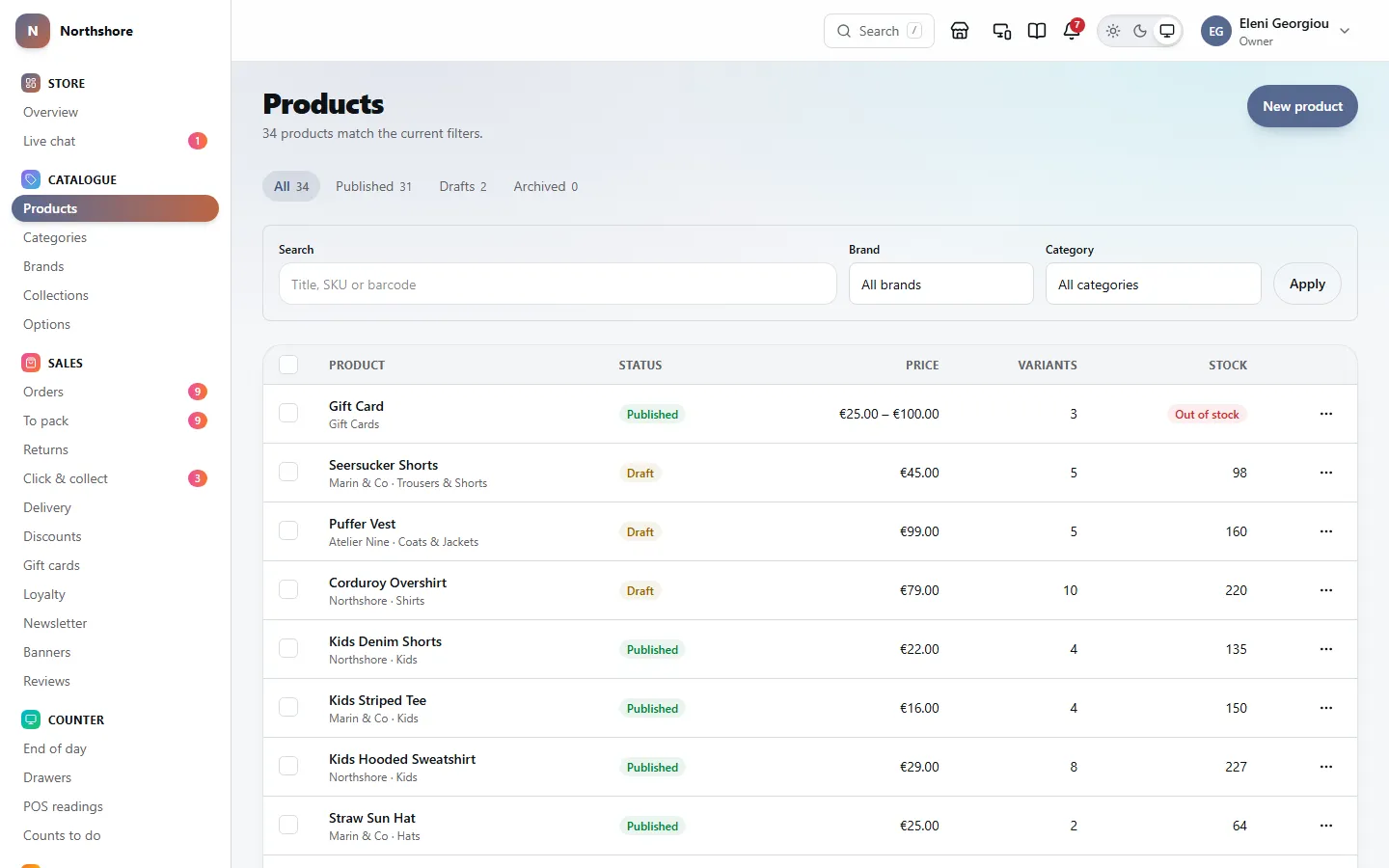
The Products list shows every product in the shop, 25 to a page, with the most recently changed first. Use Previous and Next at the bottom to move between pages.
- All shows everything that is not archived. Published, Drafts and Archived narrow it down. The number beside each tab is how many products are in it.
- Search finds a product by its title, part of its web address, its subtitle, an exact tag, or any of its stock codes (SKUs) or barcodes. Searching by the code on the label in your hand is usually the quickest way.
- Brand and Category narrow the list further. The category filter finds products that are in that category in any way, not only those with it as their main category.
- Type in Search, or pick a Brand or Category, or both.
- Click Apply.
- Click a product to open it.
Each row shows:
- Product: the title, with the brand and main category under it.
- Status: Published, Draft or Archived.
- Price: one price, or a range when the sizes or colours cost different amounts.
- Variants: how many sizes, colours or other combinations it has.
- Stock: how many you have across every location. When some of it is already promised to orders, the number still free to sell is shown under it. A product with none at all shows Out of stock.
Tip: The address in your browser changes as you filter, so you can bookmark a filtered list or send it to a colleague.
Add a product
Needs the permission Manage products.
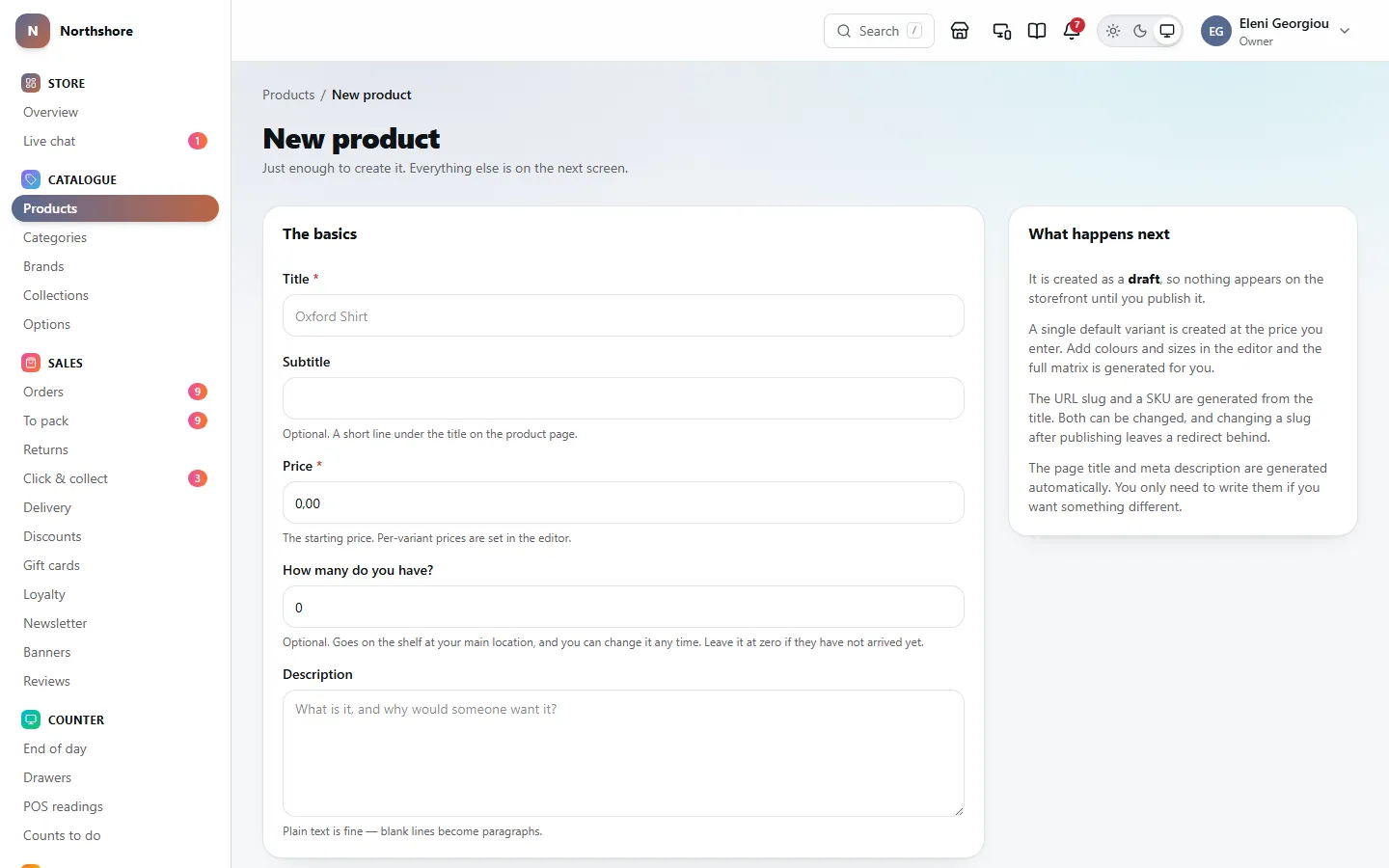
Creating a product only asks for the basics. Everything else, including photos, sizes and colours, is added on the next screen.
Take care: The shop needs a location first: the shop, warehouse or room where the stock is kept. Until it has one, New product shows First, add a location instead of the form. Choose Add a location, save it, and you come straight back.
- Open Products and click New product.
- Fill in Title. Add a Subtitle if you want a short line under the title on the product page.
- Enter the Price. This is the starting price; you can give each size or colour its own price later.
- If you already have some, type the number into How many do you have?. They go on the shelf at your main location. Leave it at zero if they have not arrived yet.
- Write a Description if you have one. Plain text is fine; a blank line starts a new paragraph.
- Under Organisation, choose a Brand, a Primary category and a Tax class if you know them. All three can be changed later.
- Click Create product. The product editor opens.
- A new product is always a draft, so nothing appears on the shop until you publish it.
- It starts with a single variant called Default at the price you entered. It goes on sale when you publish the product.
- Its web address and its stock code are made up from the title. Both can be changed in the editor.
- Its page title and description for search engines are written for you automatically.
Tip: Leave Tax class on Store default unless the product needs a different VAT rate, such as children’s clothing in a country that taxes it lower.
Put a product on sale
Needs the permission Manage products.
A customer can buy something when the product is Published and the size or colour they want is On sale in the variants table. Publishing a draft puts every one of its sizes and colours that has a price on sale at the same time, so for a new product one step is enough.
- Open the product.
- Check the prices in the Variants table further down. A variant with no price stays off sale.
- In the Status card, set Visibility to Published — on sale.
- Click Save product. The message says how many variants were put on sale, and the On sale switches in the variants table are now on.
- Variants with no price, and combinations you have removed, are never put on sale by publishing.
- This only happens when a draft is published. Saving a product that is already published leaves its variants as they are, so a size or colour added later stays off sale until you switch it On sale and click Save variants.
- Each time it happens, it is recorded in the Audit log as Product variants put on sale.
Take care: If the product is published but none of its variants are on sale, a yellow notice saying Nobody can buy this appears at the top of the product page. The shop does not list the product and its page says it is not available. Give the ready variants a price, switch them On sale and click Save variants to fix it.
To take a product off the shop without archiving it, set Visibility back to Draft — hidden from the storefront and click Save product. To stop selling just one size, switch its On sale off and click Save variants.
Schedule a product to go on sale later
Needs the permission Manage products.
A draft can be set to publish itself at a time you choose, for a launch or a new season.
- Open the product. Its Visibility must be Draft — hidden from the storefront.
- Pick a date and time in Goes on sale. The time is the shop’s own time.
- Click Save product. The badge at the top of the page changes to Goes on sale with the date.
- It goes on sale within five minutes of the time you set.
- When it goes on sale, every variant with a price goes on sale with it, so set the prices beforehand. A variant with no price stays off sale.
- To cancel, clear Goes on sale and save. Publishing it by hand, here or with Status on the products list, or archiving it, also cancels the schedule.
- A time that has already passed is refused. Choose Published — on sale instead to publish it straight away.
Edit the title, address and description
Needs the permission Manage products.
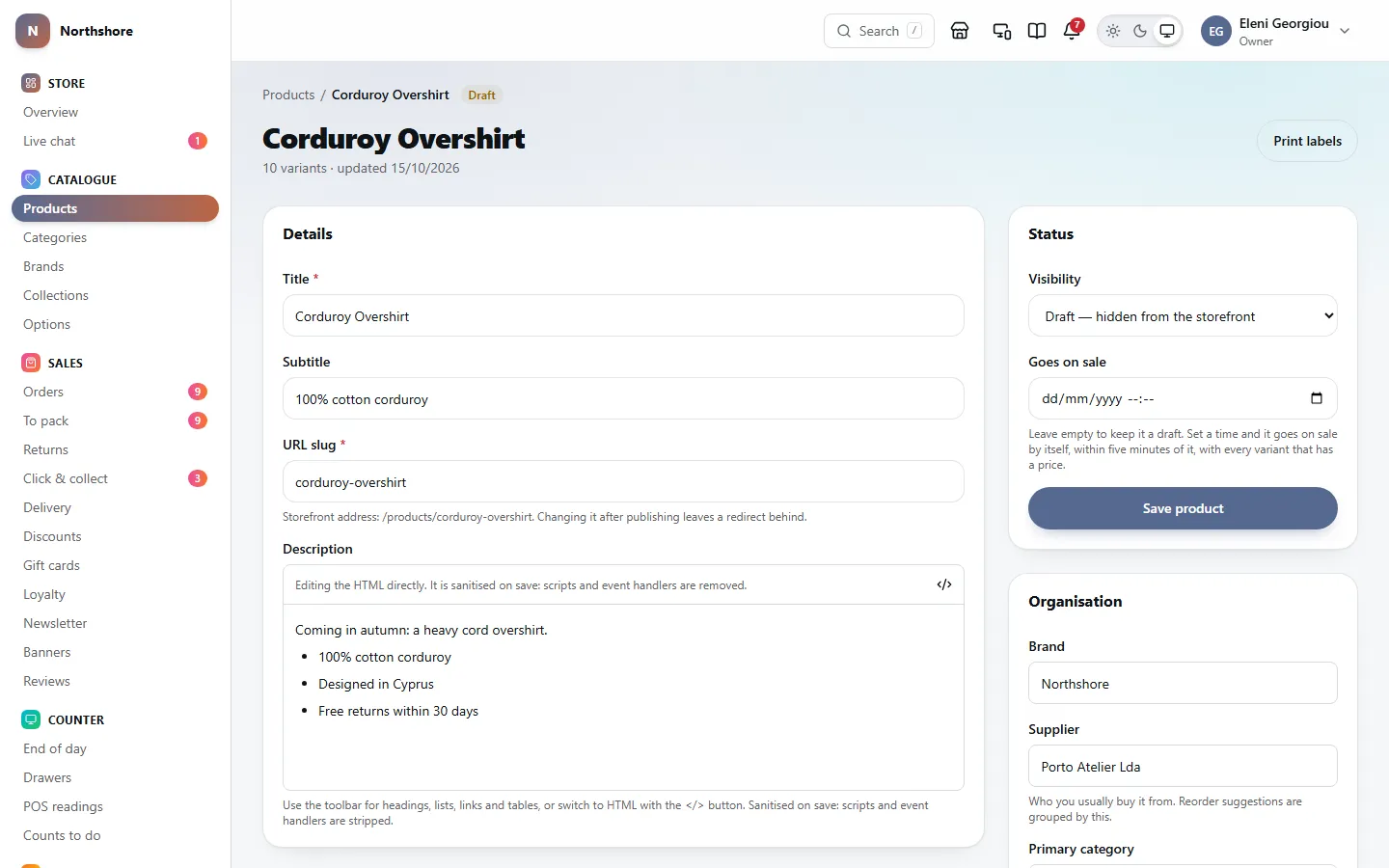
The Details card at the top of the product page holds the words customers read. Everything in it, and in the cards beside it, is saved together with Save product.
- Title and Subtitle: the name, and an optional short line under it on the product page.
- URL slug: the last part of the product’s web address on the shop. If you change it after the product has been published, the old address automatically sends visitors to the new one.
- Description: the text on the product page.
The description editor has a toolbar for Bold, Italic, Underline, Strikethrough, Heading, Subheading, Bulleted list, Numbered list, Quote, links (Add link, Edit link, Remove link), a Divider line, tables (Insert a table, Add a row below, Add a column to the right, Delete the table), and Undo and Redo. The </> button switches to the HTML code if you want to paste in something already formatted; press it again to go back to the visual editor.
Tip: Anything unsafe pasted into the HTML, such as scripts, is stripped out when you save.
Unsaved changes. appears under the save button while you have changes that are not saved yet, and your browser warns you if you try to leave the page.
If your browser closed or crashed before you saved, opening the product again on the same computer shows Unsaved changes from an earlier visit. Click Restore them to put your edits back into the form, then Save product; or click Discard to throw them away.
Staff who can see products but not change them see the same page with everything greyed out and a Read only notice, which names the permission they need: Manage products.
Brand, categories, collections and tags
Needs the permission Manage products.
The Organisation card on the product page decides where the product appears and how it is taxed.
- Brand: shown on the product and used in the brand filter. See Brands.
- Supplier: who you usually buy it from. Reorder suggestions are grouped by this. Only staff who can buy stock see this field.
- Primary category: the product’s main category. Its breadcrumbs and main web address follow this one.
- Tax class: decides the VAT rate in each country you sell to. Store default suits most products.
- Tags: words separated by commas, such as sale, linen, summer. They help the shop’s search, and automatic collections can use them to pick products.
Also in these categories lists every category with a switch. Turn on any others the product should appear in. The primary category is always included and cannot be switched off here.
Collections lists every collection. A hand-picked one has a switch: turn it on to add the product to it.
An automatic collection has no switch, because its rules choose its products. Beside it you read In it because of its rules or Not in it. To change that, change the product’s tags, price, brand or category and save, or change the collection’s rules.
Click Save product when you are done.
Product attributes and customs details
Needs the permission Manage products.
The Product attributes card holds details that Google Merchant Center and Meta (Facebook and Instagram shopping) need before they accept clothing, and that customs forms need for parcels leaving the EU.
- Gender: male, female or unisex.
- Age group: adult, kids, toddler, infant or newborn.
- Material: for example 100% Cotton.
- Care instructions: for example Machine wash at 30°.
- Country of origin: the two-letter code of the country it was made in, such as PT for Portugal or IT for Italy. Customs forms need it for shipments outside the EU.
- HS tariff code: the customs code for the type of goods. For example, 6205 is men’s shirts. Your courier or customs office can tell you the right one.
Click Save product to keep them.
Add and arrange photos
Needs the permission Manage products.
The Images card on the product page holds the product’s photos. The first one is the Main image: it is the one shown in lists, search results and shopping feeds.
- Click Add images, or drag photos from your computer onto the dashed box.
- Wait for each one to upload. They are added to the end of the list as they finish.
- Use the left and right arrows beside a photo to move it earlier or later, or drag it into place.
- Type a short description into Alt text for each photo. It saves when you click away from the box.
- JPEG, PNG, WebP, AVIF and GIF files are accepted, up to 20 MB each. Smaller, faster versions are made for you at every size the shop uses.
- If you upload a photo that is already in your media library, the existing file is reused rather than stored twice.
- Shown for links a photo to one size or colour, so it is shown when the customer picks that one. Leave it on Every variant for photos of the whole product.
- The circular-arrows button rebuilds the smaller versions from the original. You only need it if a photo looks wrong on the shop.
Alt text is what a screen reader reads aloud to a customer who cannot see the photo, and what search engines use to understand it. It is also a legal accessibility requirement for shops in the EU. Photos without it show No alt text. Describe the garment, for example: Navy Oxford shirt, worn open over a white tee.
Tip: Alt text belongs to the photo file, so if the same photo is used on another product, changing it here changes it there too.
There are two ways to get rid of a photo:
- The × button takes it off this product only. The file stays in the Media library.
- The red bin button deletes the file for good, after you confirm with Delete image. This is refused while the same photo is used anywhere else, such as on another product, as a sharing image, in a menu or on the homepage; use × instead.
Take care: Deleting a photo permanently removes the original and every size made from it. It cannot be undone.
Add sizes, colours and other options
Needs the permission Manage products.
If a product comes in more than one size, colour or fit, you add those as options in the Options and variants card. Every combination becomes a variant: a separate thing with its own price, stock code, barcode and stock. A shirt in 3 colours and 4 sizes has 12 variants.
- Under Add an option from the library, pick the option, for example Colour or Size.
- Click the values the product comes in from the row marked From the library:. Each one you click is added.
- To add a value that is not in the library, type it into Add value… and press Enter. You can paste a list separated by commas, such as S, M, L, XL.
- Repeat for the next option.
- Click Preview changes to see what will happen.
- Click Save options. The variants table below updates.
- The shop’s shared list of options and values is kept on the Options screen. Picking from it keeps the same colour spelled the same way on every product. See Options.
- One-off option adds an option that is not in the library, for something only this product has, such as Monogram. Type its name in Option name. A typed value that matches one in the library is linked to it automatically.
- The ‹ and › arrows on a value move it earlier or later; this is the order customers see. Sort sizes puts sizes in their natural order (S, M, L rather than alphabetical).
- The up and down arrows beside an option change which comes first. The bin button removes the whole option.
- The × on a value removes that value.
- The number of combinations is shown as you go. One product can have up to 500.
- Discard throws away the changes you have made to the options since the last save.
When you save, new combinations are created at the price of the product’s default variant, and they start off sale. If the product is still a draft, they go on sale with it when you publish it. If it is already published, price them, add their stock, and switch them On sale in the variants table.
Take care: Removing a value or an option removes the variants that used it. A variant that has been ordered or has stock history is archived, so the order records stay intact. Any other variant is deleted for good, with its prices and stock. Preview changes shows how many of each, and you are asked to confirm before anything is deleted or archived.
Tip: If the product is simply not made in one combination, such as the large size in pink, do not remove the value. Remove just that combination from the variants table instead (see below).
Set prices, stock and availability for each variant
Needs the permission Manage products.
The Variants table lists every size, colour or combination of the product. Everything in it can be typed into directly. When you have finished, click Save variants at the bottom. The footer says how many variants you have changed.
- SKU: the stock code. It must be different for every variant in the shop.
- Barcode: usually the 13-digit EAN printed on the manufacturer’s label.
- Price: what the customer pays.
- Was price: an older, higher price. The shop shows it crossed out next to the price and works out the saving from it. Leave it empty when the item is not reduced.
- Cost: what you paid for it. Customers never see it; it is used for profit figures.
- Weight (g): the weight in whole grams, packed as it is posted, for example 450. Customs forms for parcels leaving the EU and shipping methods priced by weight use it. A variant with no weight is declared as weighing nothing.
- Stock: how many you have at the location shown. Typing a new number records the difference as a correction in the stock history.
- Low at: the stock level at which the variant counts as running low. Leave it empty to use its primary category’s Low-stock warning level, or the shop’s default if the category has none.
- On sale: whether customers can buy this variant.
The printer button at the end of a row prints labels for that variant alone. See Print barcode labels.
Badges in the Variant column tell you more: Default is the variant the product was created with, Has orders means it has been sold, and Archived marks a combination kept only for its order history. Archived rows are greyed out and cannot be selected.
If the shop keeps stock in more than one place, a Stock at picker appears above the table. Choose the location first; the stock column then shows and changes that location only, with the total for everywhere underneath. When some stock is already promised to orders, the number still free to sell is shown as free.
- Changing Price, Was price or Cost needs the Manage pricing permission. Without it those boxes are greyed out.
- Changing Stock needs the Adjust stock permission. Without it the stock figures are shown but cannot be typed into.
- Stock can only be entered once the shop has at least one location. Set one up on the Locations screen.
Tip: For counting, moving or receiving stock in bulk, use the stock screens instead. See Stock.
Change many variants at once
Needs the permission Manage products.
To give all the sizes the same price, or put a whole colour on sale, select the variants and apply one change to all of them.
- Switch on the selector at the start of each variant you want, or the one in the heading to select them all.
- Choose what to do from the menu that appears above the table.
- Type the value, if it asks for one.
- Click Apply. Clear unselects everything.
- Set price to: one price for all of them, for example 24.99.
- Adjust price by %: a percentage up or down. Type -20 to take 20% off, or 10 to add 10%.
- Set was-price to: the crossed-out price. Leave it empty to clear it, which ends a reduction.
- Set stock to: the same stock count for each, at the location chosen in Stock at.
- Set weight (g) to: the same weight in grams for each. Leave it empty to clear it.
- Low-stock threshold: the same Low at level for each. Leave it empty to go back to the category’s or the shop’s default.
- Put on sale and Take off sale.
- Remove these combinations: see the next section.
The three price choices only appear for staff with the Manage pricing permission, and Set stock to only for staff with the Adjust stock permission.
Take care: A bulk change is saved as soon as you click Apply. There is no undo button here.
Remove a combination the product is not made in
Needs the permission Manage products.
Sometimes a product is made in most combinations but not all, for example every colour comes in every size except pink, which has no XL. You can remove just that combination without touching the options.
- In the Variants table, select the combinations that do not exist.
- Choose Remove these combinations and click Apply.
- Read the explanation and click Remove.
- A removed combination is not offered on the shop, and saving the options again does not bring it back.
- If it has orders or stock history it is archived, so those records stay intact. Otherwise it is deleted with its prices and stock.
- To stop selling something for now, use Take off sale instead. That keeps it ready to switch back on.
Removed combinations are listed under the table as Removed combinations. Click Bring back beside one to recreate it. It comes back off sale, so give it a price and stock, then put it on sale.
Make up stock codes and barcodes
Needs the permission Manage products.
Every variant needs a stock code (SKU), and a barcode if you scan items at the POS. You can type them into the variants table yourself, or let the shop make them up for every variant at once.
- Click Generate identifiers above the variants table.
- Leave Regenerate SKUs on to make new stock codes from the brand, product title and option values.
- Leave Generate barcodes on to give a barcode to every variant that does not have one.
- Switch on Replace existing barcodes only if you also want to replace barcodes the variants already have.
- Click Preview. A table shows each old code crossed out beside its new one.
- Click Apply to to save them.
- The barcodes made up here are 13-digit codes in a range kept for shops’ own use, so they can never clash with a manufacturer’s barcode.
- How made-up stock codes look, the barcode range, and whether new products get a barcode automatically are set in Stock codes and barcodes.
Take care: Once labels are printed and stuck on, changing a stock code or barcode means relabelling the stock. Replace existing barcodes is off by default for that reason.
Print barcode labels
Needs the permission View products.
You can print a sheet of sticky labels for a product, showing the stock code, the barcode, the product name and the variant.
- Open the product.
- Click Print labels at the top of the page.
- In Copies of each, type how many labels you want for every size or colour, for example 6 if six of each came in.
- Click Open the label sheet. The sheet opens in a new browser tab.
- Print it from that tab onto your label paper.
To print labels for one size or colour only, click the printer button at the end of its row in the Variants table, type How many labels, and click Open the label sheet.
- Up to 20 copies of each can be printed at once.
- Variants that have been removed or archived are left out.
- The number of labels across and down the sheet, and whether the price is printed on each label, are set in Stock codes and barcodes. Match them to the label paper you buy.
- Anyone who can see products can print labels.
How the product looks in search results
Needs the permission Manage products.
The Search appearance card near the bottom of the product page controls what Google shows for the product and what appears when someone shares its link. It is written for you automatically from the title and description, and keeps itself up to date when they change. You only need to touch it if you want something different.
- The box at the top is a rough preview of the search result. Worth fixing lists anything that would look bad, such as a title too long to show in full.
- Page title and Meta description: leave them empty to use the generated text, which is shown faintly in each box. The counter shows the length against what search engines display.
- Canonical URL: only needed when this page duplicates another one. Usually empty.
- Hide from search engines: keeps the page out of Google. Anyone with the link can still open it.
- Sharing image: the picture shown when the page is posted to WhatsApp, Facebook or X. Left empty, the product’s first photo is used. Click Choose a picture to pick another, or Use the page’s own to go back.
Take care: This card has its own Save search settings button. Save product does not save it, and it does not save the product.
Once you have written your own text, the card says it was written by hand and a Use generated text button appears. Click it to go back to the automatic text.
See the product on the shop
Needs the permission View products.
When a product is published, a View on storefront button at the top of its page opens it on the shop in a new tab. Drafts and archived products have no button, because customers cannot see them.
Duplicate a product
Needs the permission Manage products.
Duplicating is the quickest way to add a product that is nearly the same as one you already sell.
- On the Products list, click the … button at the end of the product’s row.
- Click Duplicate. The copy opens straight away.
- Change the title, web address and anything else that differs, then click Save product.
- The copy is called the original’s title with (copy) after it, and is always a draft.
- It copies the description, organisation, attributes, options, variants, prices, costs and weights.
- It copies the photos too, in the same order and with the same alt text. They are the same files from the media library, not new uploads, so changing a photo’s alt text changes it on both products. A photo shown for one colour is shown for that colour on the copy.
- Options picked from the Options library stay linked to it, so renaming a value there renames it on the copy too.
- It does not copy stock, barcodes, or search settings. Each variant gets a new stock code ending in -COPY, and a new barcode if the shop gives new garments one automatically.
- Its variants start off sale, and go on sale when you publish the copy.
Archive or restore a product
Needs the permission Manage products.
Archiving takes a product off the shop straight away and keeps every record of it. It is the safe way to stop selling something for good, and it can always be undone.
- Open the product and scroll to the Danger zone at the bottom, or click … on its row in the products list.
- Click Archive, then Archive again to confirm.
Archived products move to the Archived tab of the products list. An archived product’s page shows This product is archived, and its Visibility is locked.
- To bring it back, open the product and click Restore in the Danger zone, or click … then Restore on the list.
- Check it over, then publish it. Its variants that have a price go on sale with it.
A restored product comes back as a draft with all its variants off sale, so it never reappears on the shop before you have checked it. Combinations you had removed before archiving it stay removed.
Delete a product
Needs the permission Delete products.
Deleting removes a product, its variants and its stock records permanently. It is meant for mistakes, such as a product created twice. Only staff with the Delete products permission see the Delete option.
- Open the product and scroll to the Danger zone, or click … on its row in the products list.
- Click Delete.
- Type the product’s title exactly to confirm, then click Delete product.
If anything has ever been ordered from the product, or it is on a purchase order, it is archived instead of deleted, so those records stay intact. The Danger zone tells you before you click: it says how many order lines and purchase order lines refer to the product, or that it can be removed permanently. The message afterwards says which happened.
Take care: A real delete cannot be undone. If you might want the product again, archive it instead.
Change many products at once
Needs the permission Manage products.
From the products list you can change the price, status, category, collections, tags or search text of up to 500 products in one go, for example to put a whole brand on sale.
- On the Products list, tick the products you want. The box in the heading ticks every product on the page. Hold Shift and tick another row to select every product in between.
- A bar appears at the bottom of the screen with the number selected. Click what you want to change: Price, Status, Category, Collection, Tags or SEO.
- Fill in the change.
- Click Preview changes. A table lists each product with its value Now and After. Products that would not change are greyed out.
- If it is right, click Apply to to save it. If not, change the fields and click Preview again.
- Price changes every variant of each product. Only staff with the Manage pricing permission see it. Choose Which figure (Price, Was price (crossed out on the shop) or Cost) and the Change (Increase by percent, Reduce by percent, Increase by amount, Reduce by amount or Set to). Round up to end in can round the results up to end in .99, .95, .90, .50 or .00. A percentage or amount change skips variants that have no figure, for example no cost recorded.
- Status sets them all to Published or Draft. Publishing a draft also puts its variants that have a price on sale, as it does on the product page, and cancels any Goes on sale date it had. The preview says how many for each product, and warns you about any product that nobody could buy because none of its variants has a price. Undo takes those variants off sale again and puts the Goes on sale dates back.
- Category sets the Primary category. The products are also added to that category. No category clears it.
- Collection adds them to, or removes them from, one hand-picked collection. Automatic collections are not offered, because their rules choose their products.
- Tags can Add these tags, Remove these tags, or Replace every tag with these. Separate tags with commas.
- SEO puts their search titles and descriptions back to the automatic text. Anything someone wrote by hand is left alone.
Your selection is remembered while you move between pages, search and filter, so you can build it up from several searches. Click Clear on the bar to start again. More than 500 products cannot be changed at once.
Tip: After applying, the message at the bottom of the screen has an Undo button for one minute. It puts every product back as it was before.
Take care: After the minute has passed there is no undo, so always read the preview before clicking apply.