

Signing in, two-factor codes, the Overview page, finding your way around the dashboard, your profile and notifications, and the setup checklist for a new shop.
Join from an invitation
Nobody can sign up to the dashboard on their own. Someone at the shop invites you, and you receive an email with a link. The link works for seven days and only once.
- Open the link in the invitation email. The page says which shop you are joining, the role you have been given and the email address you will sign in with.
- Enter your First name and Last name.
- Type a password in Choose a password. It must be at least 12 characters, and it is refused if it has appeared in a known data breach.
- Click Join.
- You are taken to the sign-in page with the message that your account is ready. Sign in with your email and the password you just chose.
- If the page says the invitation has expired, ask whoever invited you to send another.
- If it says the link does not match an invitation, a newer invitation has probably replaced it. Look for a more recent email.
- If it says the invitation has already been used, you already have an account. Sign in instead.
Tip: You cannot change the email address on an invitation. If it was sent to the wrong address, ask for a new one to be sent to the right one.
Sign in to the dashboard
- Go to the dashboard address. You will see Staff sign in.
- Enter your Email and Password.
- Click Sign in.
- If you use two-factor authentication, you are asked for a code next. See Enter your two-factor code.
If your session ran out while you were working, signing in again takes you back to the page you were on.
Take care: After a few wrong passwords in a row, sign-in is paused for that account. The message says how long to wait, starting at a minute and getting longer if the wrong passwords continue. A wrong password typed at a POS register does not count against the dashboard, and the other way round.
If the dashboard will not let you in
Some messages mean your password was right, but your role does not allow you in at that moment. Changing your password will not help. Ask an owner to look at your role.
- Your role is not set up to use the dashboard — your role only lets you use the POS. An owner can allow the dashboard on your role.
- Your role is only allowed to sign in during set hours — try again within those hours, or ask an owner to change them.
- Your role is only allowed to sign in from certain locations — you are on a network the role does not allow, such as home Wi-Fi instead of the shop.
- Email or password is incorrect — check both, or use Forgotten your password?.
Owners are never held back by hours or locations. See Limit where and when a role can sign in.
Forgotten your password
- On the sign-in page, click Forgotten your password?.
- Type the email address you sign in with and click Send me a link.
- Open the email and follow the link to choose a new password. The link works for 30 minutes.
- Come back to the dashboard and sign in with the new password.
The page always says a link is on its way, even if the address has no account, so it cannot be used to find out who works at the shop. If nothing arrives, check the spelling and your spam folder.
Take care: Ask for the link once and wait for it. Asking again makes the first link stop working. Choosing a new password also signs you out on every other device.
Tip: If you know your password and only want a new one, you do not need to sign out: change it on Security. See Change your password.
Set up two-factor authentication when you sign in
Two-factor authentication means that, as well as your password, you type a six-digit code from an app on your phone. If your role requires it and you have not set it up yet, you see Set up two-factor authentication straight after your password, and you cannot use the dashboard until it is done. The owner role always requires it.
- Install an authenticator app on your phone if you do not have one. Google Authenticator, 1Password, Bitwarden and Authy all work.
- In the app, add a new account and scan the QR code on the screen.
- If you cannot scan, click Show under Or enter the key by hand and type the key into the app instead.
- Type the six-digit code your app shows into Authentication code.
- Click Turn on two-factor authentication.
- Save your recovery codes (see below), then click I have saved them — continue to the dashboard.
Take care: You have five minutes from typing your password to finish this. If the page says the sign-in attempt has expired, sign in again and start over.
Save your recovery codes
When two-factor authentication is turned on you are shown ten recovery codes. Each one works once, in place of a code from your app, so you can still get in if you lose your phone.
- Click Copy to clipboard or Download to keep a copy.
- Store them somewhere safe that is not your phone, such as a password manager or a printed sheet kept somewhere secure.
Take care: This is the only time the codes are shown. Nobody, not even the owner, can look them up later. If you lose them, you can make a new set from Security while you are signed in.
Enter your two-factor code
- After your password you see Two-factor authentication.
- Open your authenticator app and type the six-digit code into Authentication code.
- Click Verify.
Lost your phone? Type one of your recovery codes into the same box instead. You are then taken to Security with a reminder that the code is now used up, so you can make a new set.
- You get five tries. After that, sign in again from the start.
- You have five minutes after your password to enter the code.
- Codes change every 30 seconds. If one is refused, wait for the next one.
Tip: If you have lost your phone and your recovery codes, someone who manages staff can reset your two-factor authentication. See Reset someone’s two-factor authentication.
The Overview page
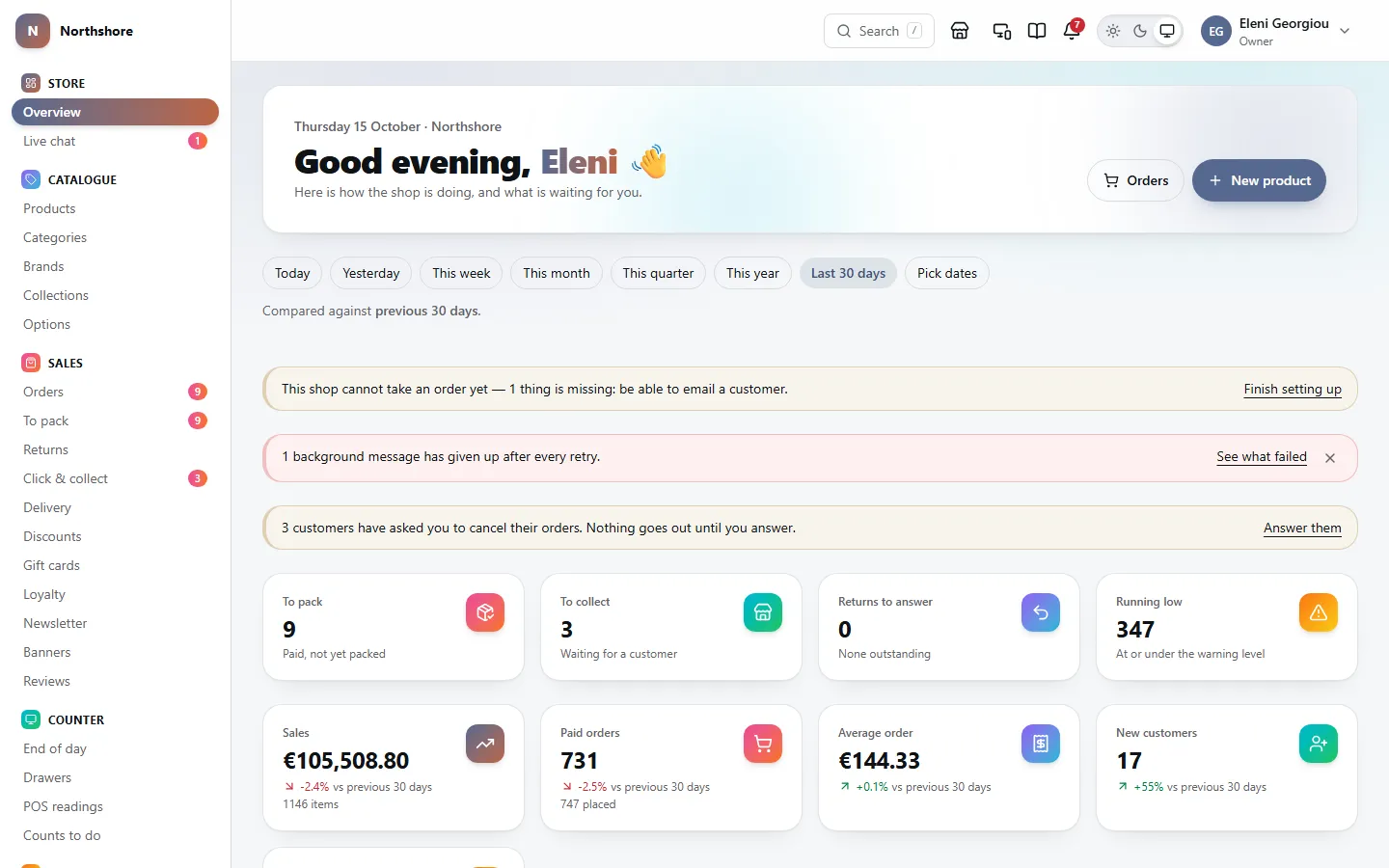
Overview is the first page you see after signing in. It shows what needs doing first and then how the shop is doing. What you see depends on your role: someone who can only pack orders sees the packing numbers, not the shop’s sales.
The first row of tiles shows work waiting right now. Click a tile to go to the screen where you deal with it.
- To pack — paid orders that have not been packed yet. Opens To pack.
- To collect — click and collect orders waiting on the shelf for the customer. Opens Click & collect. Only shown while click and collect is switched on in Features.
- Returns to answer — return requests waiting on your decision. Opens Returns.
- Running low — how many items are at or under their low-stock line, out of stock, or oversold: the same items as Needs attention on Stock, which it opens. Each item’s line comes from the item itself, then its category, then the shop’s default. Only shown if you can view stock.
If you can see sales reports, the next row shows figures for the period you picked, each compared with the period before it. A green arrow is good news and a red one is bad news. For Refunded, which only appears when there were refunds, the arrow is red when refunds go up.
- Sales — what you sold, with the number of items.
- Paid orders — orders that were paid for. If some orders were placed but not paid, it also says how many were placed.
- Average order — the average value of a paid order.
- New customers — customer accounts created in the period, whether or not they have ordered yet.
Below the tiles you will find a sales chart for the period (with the time the figures were last worked out), then three short lists: Best sellers (the top five products by revenue), Where it went (sales by delivery country) and How they paid (sales by payment method).
At the bottom, Needs attention lists the paid orders still waiting to be packed, oldest first, so the customer who has waited longest is at the top. Click an order reference to open it, or All orders to see the full list. Beside it, Running low lists the few items with the least available, starting with anything out of stock or oversold. Click Stock to see them all.
Choose the period the figures cover
Needs the permission View sales reports.
- At the top of Overview, click a period: Today, Yesterday, This week, This month, This quarter, This year or Last 30 days. Last 30 days is used if you pick nothing.
- For your own dates, click Pick dates, fill in From and To, and click Show it.
The line under the buttons says what the figures are compared against, for example the previous 30 days. The period you choose carries over when you click through to a report.
Warnings at the top of the Overview
Coloured bars can appear above the tiles when something needs action.
- This shop cannot take an order yet — something essential is missing, such as a way to pay or a delivery price. Click Finish setting up to go to the setup checklist. Only people who can change the shop’s settings see this.
- Background messages have given up after every retry — something the shop tried to send in the background, such as an email, failed for good. Click See what failed to open Scheduled work. You can close this warning, but it comes back if the number goes up. Only people who can change the shop’s settings see this, because only they can open Scheduled work.
- A customer has asked you to cancel their order — nothing is sent until you answer. Click Answer them to see those orders.
Find your way around
The menu down the left side is grouped into sections: Store, Catalogue, Sales, Counter, Inventory, People, System, Reports and Content. Live chat is at the top, under Store, so a customer waiting is never far away. You only see the screens your role lets you use, and screens for features the shop has switched off are hidden too.
A number beside a menu item, for example beside Orders, To pack, Returns, Click & collect, Live chat or Errors, tells you how many things are waiting there. No number means nothing is waiting.
Click a section’s heading to fold it away, and again to open it. A folded section still shows the screen you are on, and adds up what is waiting in it beside its heading. To keep a screen at the top, point at it and click the pin on its right: it moves to Pinned, at the top of the menu, in the order you pinned things. Click the pin again to put it back. The menu stays the way you leave it on this computer, and anybody else signing in here gets their own.
On a phone or small screen the menu is hidden. Tap the menu button at the top left to open it, and tap outside it or the cross to close it. The pins always show there, as there is nothing to point at.
Some screens you use rarely are not in the menu. Settings is in your account menu at the top right, and from there you reach things like the setup checklist, imports, exports, the audit log and this Help Guide. Roles is reached from the Staff page.
Along the top right you will find, from left to right: Search, the shop and POS buttons, the notification bell, the colour scheme switch and your account menu.
Tip: If you see a yellow bar across the very top saying two-factor enforcement is off, tell whoever looks after the shop’s server. It must be turned back on before the shop goes live.
Search for an order, product or customer
Search finds things from any page, without going to the right list first. It looks through orders, returns, products, customers, discounts and gift cards, but only the ones your role lets you see.
- Click Search at the top of the page, or press / (when you are not typing in a box), or press Ctrl+K (⌘K on a Mac).
- Type at least two characters, for example an order reference, an email, a surname, a postcode, a tracking number, a phone number, a product name, a SKU, a barcode, a discount code or a gift card code.
- Use the up and down arrow keys to move through the results and press Enter to open one, or click it.
- Press Escape or click outside the box to close it.
Each group shows the first five matches. To look through more, use the list screen for that kind of thing and its filters.
Tip: Holding a garment? Click Scan inside the search box to read its barcode with your camera. Your last five searches are listed under Recent when the box is empty. They are kept on this computer only.
The notification bell
The bell at the top right tells you about things that need attention: orders to pack, returns waiting, failed payments, payment disputes, stock running low, customers waiting on live chat and more. A red number on the bell shows how many things are new since you last looked.
Some of these also pop up in the corner of the screen. A stock-ran-low message clears itself after a few seconds — it stays in the bell, so nothing is lost. A customer waiting on live chat stays on screen until you close it or open the chat.
- Click the bell to open the Needs attention panel.
- Click an item to go to the screen where you deal with it.
- Click Settings in the panel to choose what the bell tells you about.
- A red dot beside an item means it is urgent, amber means it needs attention soon, and grey is for information.
- Opening the panel clears the red number, but items stay in the list until the work is actually done.
- When stock runs low, a message pops up naming the item and where it is low. It stays on screen until you close it.
- When a customer starts waiting on live chat, a message pops up with their name and an Open button.
If the panel says Nothing needs you, everything is up to date.
News from the platform
The people who run the platform your shop is on sometimes have something to tell you: planned maintenance, or a new feature. It shows as a coloured bar across the top of the dashboard, and in the bell under From the platform, until you click Got it. Putting it away hides it for you only; everyone else on your staff sees it until they do the same.
After the platform is updated, a What’s new message pops up once, the next time you open the dashboard. Close it with Got it.
Everything the platform has told the shop is kept on From the platform, including the ones you have put away.
Choose what the bell tells you
Each person chooses their own notifications. They are under Notifications on My profile. You only see switches for things your role lets you deal with.
- Open My profile, or click the bell and then Settings.
- Under Notifications, switch on or off each kind of alert, such as Orders to pack, Returns waiting, Payments that failed or Running low.
- Switch on Make a sound when an order comes in if this screen is on a packing bench or counter that nobody watches. It chimes once for each new order, not again for one that is still waiting, and also when a customer starts waiting on live chat.
- Switch on Show a desktop notification for a new order to get a pop-up from your computer. Your browser asks for permission when you switch it on. Click allow.
- Switch on Email me each new order to get an email for every order, at the address you sign in with: for when you are away from the dashboard and have no phone set up. It is there if your role can pack orders. The email’s wording is on Email templates, as Staff new order.
- Click Save.
Take care: If you refuse your browser’s request, the dashboard is not allowed to ask again. To change your mind, allow notifications for the dashboard in your browser’s own site settings.
Get notifications on your phone
If the shop has phone notifications set up, My profile has an On your phone card. It sends the same alerts as the bell, following your switches, even when the dashboard is closed. If you do not see the card, it is not set up for this shop.
- Open the dashboard on the phone or computer you want to be notified on, and go to My profile.
- Under On your phone, click Notify this device and allow notifications when the browser asks.
- Click Send a test to check it arrives.
- On an iPhone or iPad, add the dashboard to your home screen first (Share, then Add to Home Screen), open it from there, and the button appears.
- Every device you have added is listed, with when it was added and when it was last notified. Click Remove to stop notifications to one.
Open the shop or the POS
The shop button beside the bell opens your online shop in a new tab, so you can see it as a customer does. The dashboard stays open where you were.
If the shop uses the POS and your role can use it, a second button opens the POS in a new tab. See POS setup and sign-in.
Switch between light and dark
The three small buttons at the top right change the colours of the dashboard: Light (sun), Dark (moon) and Match system (screen), which follows your computer’s own setting. Your choice is remembered on this computer and browser.
Your account menu and signing out
Click your picture (or your initials) at the top right to open your account menu. It shows your name and email, and has:
- My profile — your picture, your details and your notifications.
- My account — your plan, card and invoices, on Plan and billing. Only for whoever runs the business, on a shop hosted on the platform.
- Settings — the shop’s settings, the setup checklist and this Help Guide.
- Sign out — ends your session on this computer.
Tip: Always sign out on a shared computer. To sign out of other devices too, use Security.
Your profile
My profile shows your notifications (see above), your picture and details, and your account: Name, Email, Role (the role’s name, such as Owner or Shop floor), Job title and Permissions (either All, or how many permissions your role gives you).
- To add a picture, open My profile and, under Picture, click Upload one. Choose a JPEG, PNG or WebP photo; it is cropped square from the middle. It shows in your account menu, on the staff list and beside your chat replies.
- To change it, click Change it. To take it off, click Remove: your initials are shown instead.
- To change your details, go to Your details on My profile.
- Change First name or Last name (your name on record), Call me (optional: what the dashboard and chat call you instead of your full name) or Phone (optional: for whoever runs the shop to reach you).
- Click Save.
The Security card says whether two-factor authentication is on. Click Manage security to go to Security, where you also change your password.
Your email address cannot be changed here, because it is what you sign in with. Your job title and role are set by whoever manages staff, who can also remove a picture that should not be there.
When you are about to be signed out
For safety, a dashboard session lasts 12 hours. Five minutes before it ends, a box appears: You are about to be signed out.
- Click Stay signed in to carry on. You can keep extending until 24 hours after you signed in. After that you have to sign in again.
- Click Not now to close the box. It comes back shortly while time is running out.
If the time runs out, you see You have been signed out. Anything you typed and did not save is still on the screen behind the box.
- If you need to keep what you typed, click Let me copy something first, copy your text, and then sign in again.
- Click Sign in again. You come back to the same page after signing in.
Take care: Signing in again reloads the page, and anything not saved is lost. Copy it first.
Set up a new shop with the checklist
Needs the permission Manage store settings.
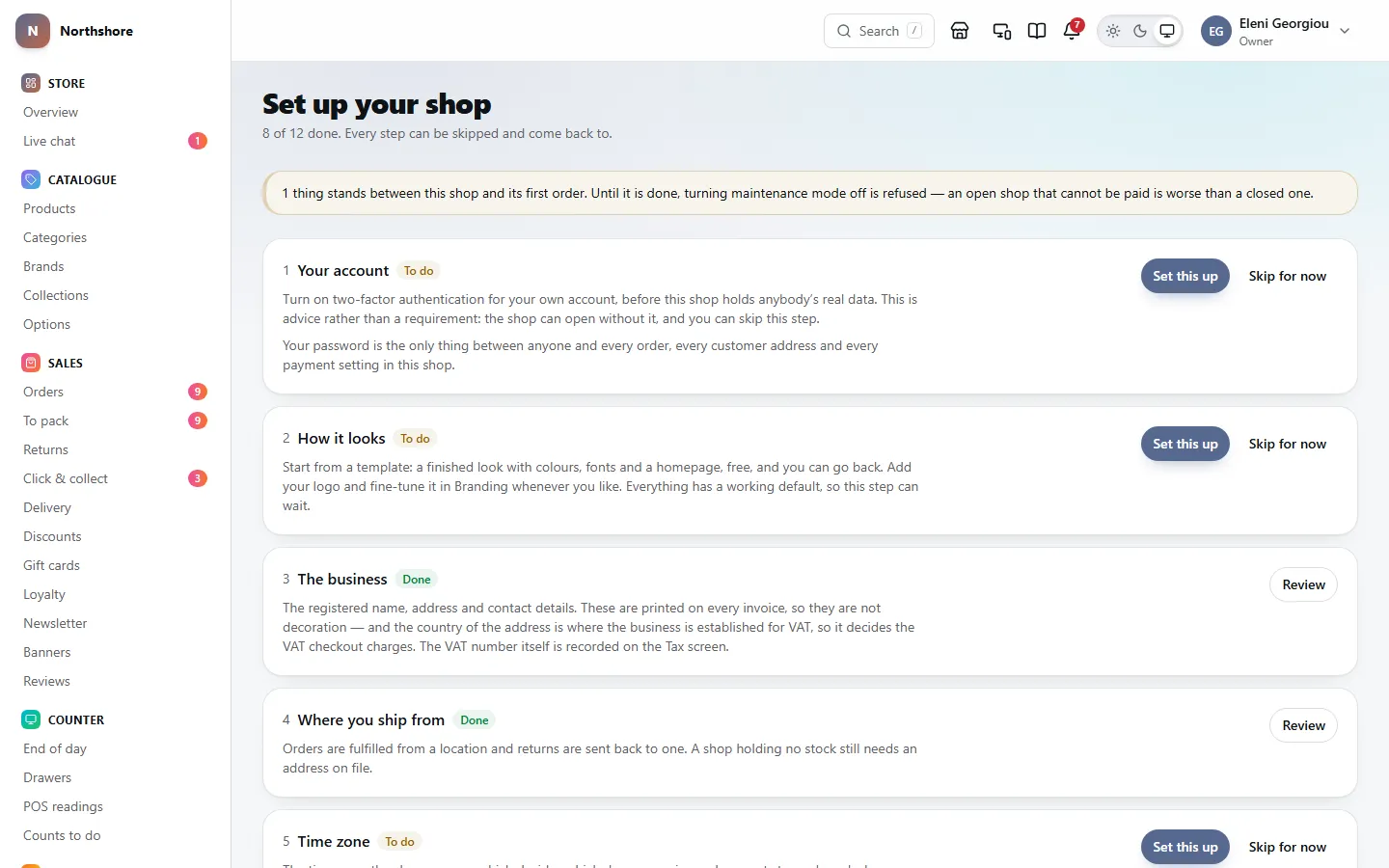
The setup checklist walks you through everything a shop needs before it can take its first order. It reads the shop’s real settings, so anything you set up elsewhere is ticked off here too. Open it from Settings → Setup checklist.
At the top, a green message means the shop can take an order. An amber one says how many things are still missing. While anything is missing, the shop cannot be taken out of maintenance mode.
Each step shows Done, To do or Skipped, says why it matters, and lists what is still missing. The steps are:
- The business — the legal name, registered address and contact email. The legal name and registered address are the small print at the bottom of every invoice.
- Where you ship from — at least one location. Stock is counted at a location too, so add one before counting stock.
- Time zone and currency — the time zone the shop runs on and the currency its prices are kept in. Counts as done once you have opened it.
- VAT — your VAT registration, on the Tax screen. Shows Done once one is recorded. A business below the threshold has none: click Skip for now.
- Your account — turning on two-factor authentication for yourself. Set this up opens Security. It shows Done only once two-factor is on for your account. It is advice rather than a requirement: the shop can open without it, and you can click Skip for now if you decide against it.
- Your plan — what your plan includes and how much of it you use, on Plan and billing. Only on a shop hosted on the platform. Counts as done once you have opened it.
- Taking money — card payments, cash on delivery, or both, on Payments. On the platform, Connect with Stripe takes cards on a Stripe account of your own.
- Delivery — at least one delivery zone with a rate.
- Email — where order confirmations and password resets are sent from. Newsletters need a provider of your own, from Add-ons.
- Add-ons — the services the shop runs on, on Add-ons. Counts as done once you have opened it.
- What the shop offers — reviews, wishlists and the rest, switched on or off on Features; gift cards, loyalty points and more are on Add-ons. Counts as done once you have opened it.
- The policies — terms, privacy notice and returns policy, published.
- Something to sell — at least one published product. Add one under Products, or bring the catalogue in from Settings → Import.
- How it looks — a design template to start from, on Templates: colours, fonts and a homepage. Add your logo in Branding. Counts as done once you have opened it.
- Your own address — a domain of your own, connected or bought on Domains. Only on a shop hosted on the platform, and it can wait: the shop’s address on the platform keeps working.
- Help from us — whether the platform’s support staff may sign in to help you, on Privacy and data. Only on a shop hosted on the platform.
- Open the shop — click Open the shop to take it out of maintenance mode. If anything above is still missing, it says what and the shop stays closed.
- Click Set this up on a step to go to the screen where it is done. On a finished step the button says Review.
- Make the changes on that screen and save them.
- Come back to the checklist to see what is left.
Below the steps, Worth doing, not worth waiting for lists advice, such as two-factor authentication and having the policies read by someone qualified. Click Go there beside any of them. Until you put the checklist away, the same steps are shown on the Overview screen, with a link back here.
Skip a step or put the checklist away
Needs the permission Manage store settings.
- Click Skip for now on a step you want to come back to later. Click Put back to return it to To do.
- Click Put this away at the bottom when you no longer need the checklist. It stays available, and Bring it back reopens it.
Take care: Skipping a step or putting the checklist away does not make the shop ready. If something essential is still missing, the Overview page keeps warning you.