

How much you have and where it is: reading the stock screen, correcting and moving stock, low-stock warnings, stock counts, your shops and warehouses, and the waiting list for sold-out sizes.
Read the stock screen
Needs the permission View stock.
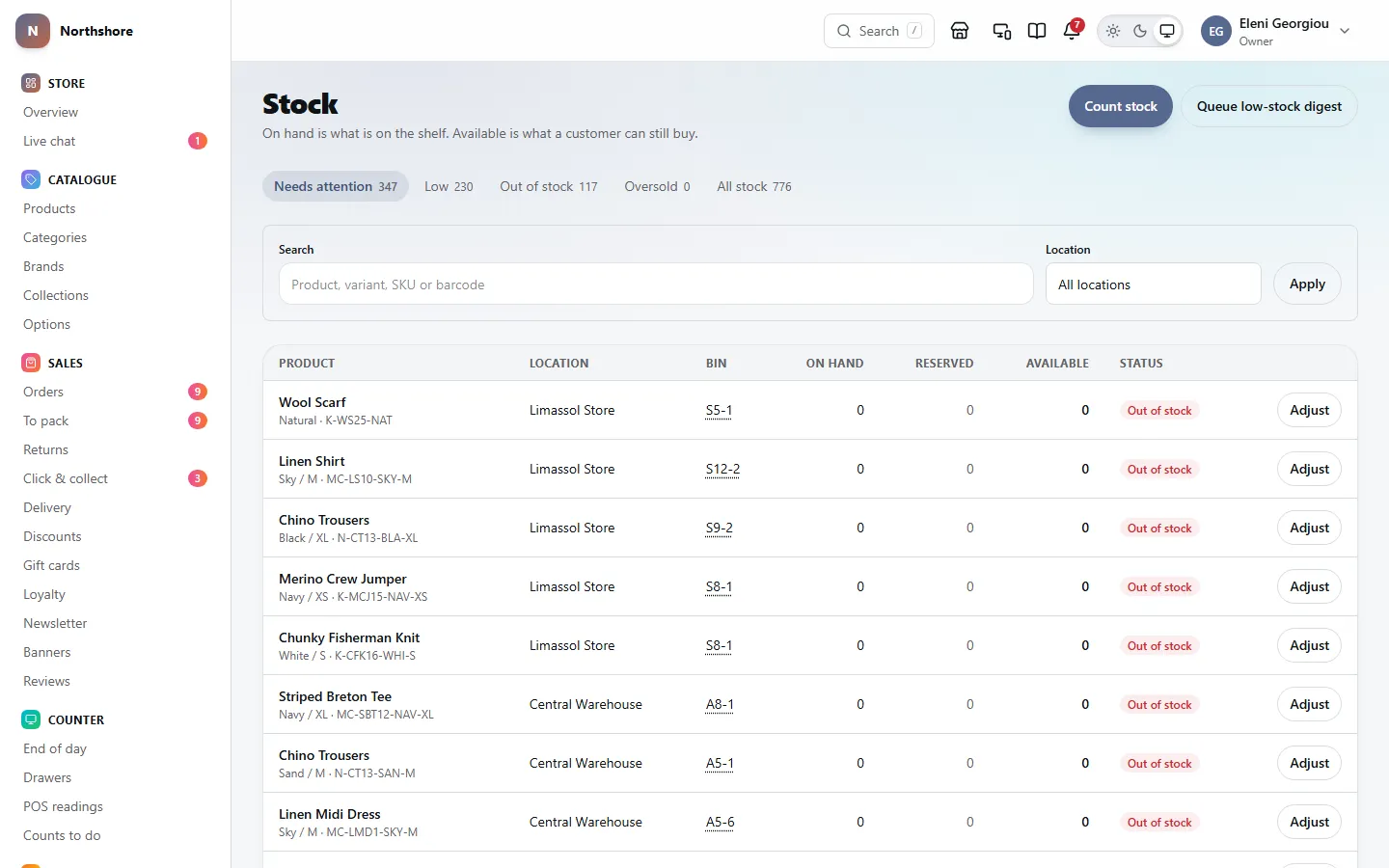
Stock lists every item (each size or colour of a product) at every location that holds it, one row per item per location. It opens on Needs attention, so the first thing you see is what is running out.
Each row shows three numbers:
- On hand — what is physically on the shelf.
- Reserved — what is already promised to customers and cannot be sold again.
- Available — on hand minus reserved. This is what a customer can still buy.
The Status column says how the item is doing at that location:
- In stock — more available than its low-stock line.
- Low — available has dropped to its low-stock line or below. The row shows the line underneath, for example "warns at 3".
- Out of stock — none available.
- Oversold — more is promised to customers than is on the shelf. Something has gone wrong, usually a correction made after a sale, and it is worth checking straight away.
The tabs along the top filter the list: Needs attention (low, out of stock and oversold together), Low, Out of stock, Oversold and All stock. Each tab shows how many rows it holds.
- Type a product name, variant, SKU or barcode into Search.
- Choose a location in Location, or leave it on All locations.
- Click Apply.
- Click a product name to open that item’s own stock page.
Tip: A search made from the Needs attention tab looks through all stock, not just the items that need attention, so an item that is comfortably in stock still turns up.
The list shows 50 rows a page. Use Previous and Next at the bottom to move between pages.
An item only gets a row at a location once it has had stock there. If you search for something and see Nothing to show, it has never been stocked at that location.
Reserved stock and overselling
Needs the permission View stock.
Stock is reserved so two customers cannot both buy the last one. It is held while a customer is going through checkout, and for paid orders that have not been picked yet.
- A hold made at checkout lasts about 15 minutes. If the customer does not finish paying, the stock is released automatically and shows as Reservation released in the item’s movement history.
- Reserved stock cannot be moved to another location. It is promised to an order placed against the location it is in.
- You cannot release a reservation by hand. It is released when the order is dealt with or the checkout runs out of time.
Take care: If you remove stock that is already reserved, an item can become Oversold. The customers’ orders still stand, so you will need to find more stock or contact them.
Add or remove stock by hand
Needs the permission Adjust stock.
Use an adjustment when stock changes for a reason the system cannot see: a delivery that did not come through a purchase order, a damaged item, a customer return you are putting back on the shelf, or a miscount.
- Open Stock and find the item.
- Click Adjust on the row for the right location.
- Choose Add stock or Remove stock.
- Type the number in How many. Always a positive number — the button you chose decides the direction.
- Choose a Reason.
- Write a Note if one is asked for.
- Check the line that says what the stock will be after the adjustment, then click Record adjustment.
The reasons you can choose depend on the direction:
- Adding: Delivery received, Stock count correction or Returned.
- Removing: Damaged or written off or Stock count correction.
A note is required for Stock count correction and Damaged or written off. Say what happened, so anyone looking later knows why the stock changed.
Take care: Adjustments cannot be deleted or edited. If you get one wrong, record another adjustment the other way with a note explaining it. Stock can never go below zero, so the button is greyed out if your removal would take it there.
Tip: Sales, transfers and imports are recorded automatically and cannot be chosen as a reason, so the history always matches your orders. To book in a delivery you ordered, receive it against its purchase order instead — see Receive a delivery.
You can also type a stock figure straight into a product’s variants in the product editor. That is recorded as a Stock count correction too. See Set prices, stock and availability for each variant.
Record where an item sits on the shelf
Needs the permission Adjust stock.
The Bin column records where an item is kept at a location, such as "A-12-3". Pick lists are put in bin order, and the count sheet is sorted by bin, so keeping these up to date saves walking.
- Open Stock.
- Click set bin (or the bin already shown) on the row.
- Type the bin and click Save. Press Escape to leave it as it was.
Without the Adjust stock permission you can see bins but not change them.
See one item’s stock everywhere
Needs the permission View stock.
Click a product name on Stock to open that item’s own page. It shows:
- Totals across every location: On hand, Reserved, Available and On order — what is on purchase orders you have placed and has not arrived yet.
- By location — the same rows as the stock screen, with Adjust and the bin for each location.
- Low-stock warning by location — a warning line for each shop or warehouse, where one needs its own.
- Low-stock warning for this item — the item’s own warning line.
- Move stock — moving stock to another location, whenever the item has stock available somewhere.
- Movement history — every change ever made to this item’s stock.
Click Edit product at the top to go to the product itself.
Check why stock changed
Needs the permission View stock.
Every change to an item’s stock is written down and kept, and nothing in the history can be edited or removed. When a number looks wrong, this is where you find out why.
- Open Stock and click the product name.
- Scroll to Movement history.
- Narrow it with Reason and Location if you need to.
Each row shows When, Location, the Change (+3 or -2), the Balance after it, the Reason with any note or reference (such as the purchase order or stock count), and By — who made it, or System when it happened automatically.
The reasons you will see are Delivery received, Sold, Returned, Stock count correction, Damaged or written off, Transferred between locations, Imported and Reservation released.
Closing a count in Counts to do is recorded as a Stock count correction too, with what was counted, what the system said, and the note — see Close a count.
Click Export CSV to download the history as a spreadsheet. It uses the reason and location you have chosen and includes up to the last 1,000 changes.
Tip: The screen shows the most recent 500 changes. Use Export CSV if you need to look further back.
Move stock between locations
Needs the permission Adjust stock.
Use this when you carry stock from one location to another, for example from the warehouse to the shop.
- Open Stock and click the product name.
- In Move stock, choose where it is coming From. The list shows how many are available at each location that has some.
- Choose where it is going To. Every location in use is listed, with how many it has now, or none here yet.
- Type How many and, if you like, a Note.
- Click Move stock.
The move is recorded as two lines in the movement history, one out and one in, so both locations always agree.
- You can only move what is available. Reserved stock stays where it is.
- You can move stock to a location that has never held the item. It starts keeping it from that moment, and gets a row on Stock.
- Locations switched off (not Active) are not listed, because nothing there can be sold or sent.
- The Move stock card appears whenever the item has stock available somewhere and you have another location to move it to.
Set when you are warned about low stock
Needs the permission Adjust stock.
Each item has a low-stock line. When what is available drops to that number or below, the item shows as Low, appears under Needs attention, and turns up in reorder suggestions.
- Open Stock and click the product name.
- In Low-stock warning for this item, type a number in Warn when available drops to.
- Click Save threshold.
- Leave the box empty to use the line inherited from elsewhere. The hint under the box says which number applies and where it comes from: the product’s primary category, or the store default.
- The store default is 3 until you change it. Change it with Default low-stock warning level in Stock codes and barcodes — see The default low-stock warning level.
- Type 0 if you only want to know when it has run out completely.
A shop floor that sells two a day and a stockroom that sends out twenty may want different lines for the same item. Under Low-stock warning by location, type a number beside a location and click Save. That location then uses its own line, before the item’s, the category’s or the store default. Clear puts it back on the next one up. Each row says the line in force and where it comes from, so an empty box never means “no warning”.
You can set the same line for several variants at once from the product editor’s variant table. See Change many variants at once.
You hear about low stock in two ways:
- While you are using the dashboard, a message pops up naming an item the moment it runs low or out, for example "Navy coat — M is down to 2 at Main shop". It stays until you close it. Only staff who can view stock see it.
- Click Queue low-stock digest on Stock to email a summary of everything low, out of stock or oversold to every active member of staff who can view stock. Nothing is queued if nothing needs attention.
Tip: The digest only goes out once email delivery is set up. The message after clicking says how many people it was queued for.
Do a stock count with the count sheet
Needs the permission Adjust stock.
The count sheet is for a full stock take, or one shelf at a time. It lists every item you track at a location, sorted by bin, with a box for what you counted. Nothing changes until you apply it.
- Open Stock and click Count stock. It opens on Count sheet.
- Choose the Location.
- Type what is on the shelf into each item’s box. Press Enter to jump to the next box.
- Leave a box empty for anything you have not counted. Type 0 for something that is not there.
- Check the differences: each counted line shows correct, or how many more (+) or fewer (−) you found than the system says.
- Click Apply N corrections, check the summary, then click Apply the count.
- Use Find to search by name, SKU, barcode or bin.
- All shows every line, Not counted hides what you have done, and Differences shows only lines that do not match.
- The list loads more as you scroll, or click Show more.
- Your count is saved in this browser as you go, so you can close the page and carry on later on the same computer. Clear this count throws it away.
Each difference is recorded as a Stock count correction with a reference such as SC-2026-10-07-1430, so you can tell later which count it came from. Lines that were already right are not recorded.
Take care: If something is sold or delivered while you are counting, that line is not applied. It comes back at the top of the list, marked "changed while counting", for you to count again.
Count a shelf by scanning
Needs the permission Adjust stock.
Scanning is quicker for one shelf or one rail: scan each item and the screen keeps a running total.
- Open Count stock and click Scan.
- Choose the Location.
- Scan each item with a handheld scanner into Barcode or SKU, or type the code and press Enter. Or click Count with the camera to use a phone or tablet camera, which stays open between scans.
- Check the list under Counted: each item shows what the system says and the difference. Change a number by typing over it.
- Click Apply N corrections. A summary lists every line that will change, from what the system says to what you counted.
- Check it, then click Apply the count. Click Cancel to go back and carry on scanning.
- Every scan adds one. The same label scanned twice within a second counts once.
- Only scanned items are changed. Anything you did not scan is left alone.
- Any item in your catalogue can be counted, even one never stocked at this location. It is marked New here, shows none here yet, and starts at what you counted. The summary says how many items are new to the location, so a scan in the wrong room is easy to spot.
- A code that matches nothing in your catalogue is listed in a warning and nothing is written for it.
- Your scans are saved in this browser as you go, for each location. If you close the page, open Scan again on the same computer and choose the same location to carry on; a note says how many items were already scanned.
- Start again clears everything you have scanned at that location.
Each difference is recorded as a Stock count correction with the count’s reference, the same as the count sheet.
Your locations
Needs the permission View stock.
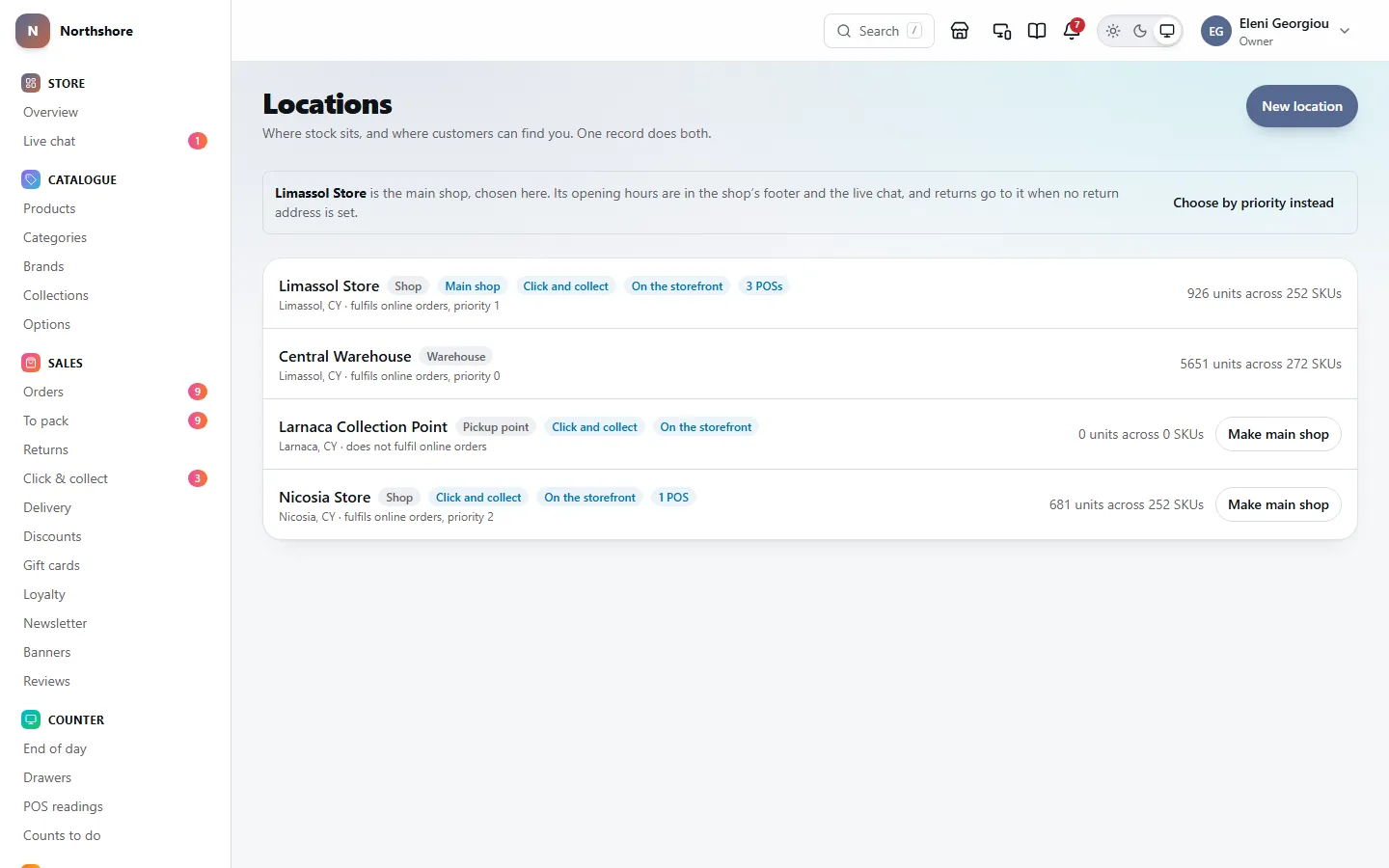
A location is anywhere stock is kept or customers can find you: a shop, a warehouse or a pickup point. The same record holds the address on your contact page and the stock on the shelf.
Locations lists them all with their type, how many units and SKUs each holds, and labels for Main shop, Inactive, Click and collect, On the storefront and the number of POS registers. Underneath each name it says whether it fulfils online orders, and at what priority.
The Main shop is the location that stands for the whole shop wherever only one can be named: the shop footer and the live chat follow its opening hours, its address is in the footer of every email, and returns go to it when no return address is set on Returns. It is listed first, with the Main shop label, and a line above the list says which it is and why.
To choose it, click Make main shop beside the location. Only a location that is active and on the storefront can be the main shop. Until you choose one — or after Choose by priority instead — it is the location on the storefront and active with the lowest Priority number; if two share the lowest number, the one added first. Choosing it does not change where online orders are packed from: that still follows the priorities. If the chosen shop is later taken off the storefront or made inactive, the priorities decide again.
Click a location to see or change it. Click View its stock at the top to open the stock screen filtered to that location.
Anyone who can view stock can look at locations. Adding, changing and deleting them needs the Manage locations permission.
Add a location
Needs the permission Manage locations.
- Open Locations and click New location.
- Give it a Name and choose a Type: Shop, Warehouse or Pickup point.
- Fill in the address: Street address, Town or city, Postcode and Country are required. Address line 2, Region, Phone and Email are optional.
- Set what happens there and its opening hours (see the next two sections).
- Click Create location.
The Country is part of the address customers see, and of the sender on parcel labels for orders packed here. It also sets the VAT rate charged on POS sales here and on click-and-collect orders collected here. Customs paperwork does not use it: that takes the business’s own country, from the Business profile.
- Phone and Email are this shop’s own. Search engines are given them for this shop; leave them empty and they are given the business’s, from the Business profile.
- Latitude and Longitude are optional. They place the map pin and help search engines.
- Google Maps link is the “share” link from Google Maps. Customers get directions instead of a picture.
Tip: Choose Shop for anywhere customers buy at a counter. End of day lists every shop, and any other location that has a POS register.
Choose what a location does
Needs the permission Manage locations.
Open a location from Locations. The What happens here card has four switches:
- Fulfils online orders — online orders can be picked and shipped from here.
- Click and collect — customers can choose to collect their order here. This only works if Show on the storefront is on as well.
- Show on the storefront — the location appears on the contact page, with its address and opening hours.
- Active — turning this off takes the location out of fulfilment and click and collect without deleting anything.
Under Fulfilment order, Priority decides which location ships an online order when more than one could. Lower numbers go first. The first location that has everything in stock fulfils the order, so a warehouse with an empty shelf is skipped.
The same number decides the Main shop: of the locations shown on the storefront, the one with the lowest number. See Your locations.
Click Save location when you are done.
Set opening hours and holidays
Needs the permission Manage locations.
Opening hours appear on the contact page with a live “open now” or “closed” sign, and search engines can show them too. The main shop’s hours are also the ones in the shop footer and the ones the live chat follows.
- Open the location from Locations.
- Under Opening hours, switch each day Open or leave it closed, and set the times it opens and closes.
- Click Save location.
If you close during the day, for example for lunch, click Add opening time under that day. A day open straight through, such as 09:00–18:00, is split for you into 09:00–13:00 and 15:00–18:00; change the times to suit. Click Add opening time again for a third period, or the × beside a period to remove it. Customers then see both periods on the contact page, the footer says “Open until 13:00 (reopens at 15:00)”, and over lunch it says “Closed — reopens today at 15:00”.
Use Exceptions for days the usual pattern is wrong: a bank holiday, a stocktake, an early close.
- Click Add an exception. It starts as today, closed.
- Set the Date, and a Note customers will see, such as “Easter Monday”.
- Leave Open off for a closed day, or switch it on and set its hours. An exception day can be split with Add opening time too.
- Click Remove to take an exception off again.
- Click Save location.
Exceptions count everywhere the hours are shown, worked out in the shop’s own time zone: the contact page, the footer, the live chat and the click-and-collect choice at the checkout. On a closed day the footer says “Closed —” and the note, the live chat shows nobody in, and the day before says when you next open rather than “tomorrow”. With different hours, the note is shown beside them.
Tip: Add bank holidays as soon as you know them. Otherwise the shop tells customers you are open.
POS registers at a location
Needs the permission Manage locations.
The Point of sale card on a location lists the POS registers that sell from its stock. Each POS register sells this location’s stock, and its sales belong to this location.
Adding, changing and removing POS registers is explained in Set up POS registers.
Deactivate or delete a location
Needs the permission Manage locations.
Deactivating is almost always better than deleting. Switch Active off and click Save location: the location stops fulfilling orders and offering click and collect, and everything about it is kept.
To delete a location completely:
- Move or write off any stock still held there. The Danger zone card says how many units are left.
- Click Delete location.
- Type the location’s name to confirm, then click Delete location.
Take care: Deleting cannot be undone, and its stock records go with it. It is refused while any stock is held there, and refused for good if online orders have ever been fulfilled from it — deactivate it instead.
See who is waiting for a size to come back
Needs the permission View stock.
When a size sells out, the product page can offer to email the customer when it is back. Waiting list shows those requests, with the sizes most people are waiting for at the top. It is a good guide to what to reorder and how deep.
Each row shows the Product (click it to open the product on your shop), the Size, the Item code, how many people are Waiting, whether any is In stock, and the Longest wait.
- Requests are for one size. Someone waiting for a medium is not emailed when the large comes back.
- When stock returns, everyone waiting is emailed automatically, a batch at a time. The email links to the product with their size already chosen.
- A request ends after 90 days, or as soon as the person buys that size.
- Nobody who has unsubscribed, whose address bounced, or who reported your emails as spam is ever emailed.
Tip: If In stock shows a number, stock has come back and the emails have not all gone out yet.
Take care: Back-in-stock alerts are an add-on: the form only appears on your shop while the Back-in-stock alerts add-on is added on Add-ons. Without it, the screen says so, and no new requests are collected.