

What the sales, products, customers, profit and VAT reports show, how every figure is worked out, and how to build, save and export reports of your own.
The reports at a glance
The reports live under Reports in the menu. Each one answers a different question, and each needs a permission on your role.
- Sales report — how much money came in, from what, and how it splits. Needs View sales reports.
- Products and stock — what sold, what comes back, what is not moving and what the shelf is worth. Needs View sales reports.
- Customers report — who is buying and whether they come back. Needs View sales reports.
- Profit and margin — what was left after paying for the goods. Needs View finance reports.
- VAT and thresholds — where you stand on cross-border VAT, and the figures a VAT return is built from. Needs View finance reports.
- Saved reports — reports the shop has built for itself in the report builder, an add-on from Add-ons. Needs View sales reports.
Downloading a report as a file is a separate permission, Export reports. Somebody can be allowed to read a report on screen without being allowed to take a copy of it away.
Tip: If a report is missing from your menu, your role does not include it. An owner can change that under Roles — see Staff and access.
How the figures are counted
Every report follows the same five rules, so a figure means the same thing wherever you see it.
- Only paid orders are money. An order still waiting for a card payment or a cash-on-delivery collection counts towards orders placed and nothing else. A cancelled order counts towards nothing at all, even if it was paid and then refunded.
- A refund reduces the day of the sale, not the day the money went back. If a shirt sold on Tuesday comes back on Friday, Tuesday’s figures go down. This is why the figures for a past day can change when an order changes.
- A chargeback counts as a refund. When a customer’s bank takes money back after a dispute you lost, it comes off net revenue and is counted under refunds, on the day of the sale. An order charged back in full drops out of the money like one refunded in full. The items are not counted as returned, because the bank took back money, not goods.
- The day is the shop’s day. Days start at midnight in the shop’s own time zone, set in Localisation, so evening trade lands on the right day.
- Figures are worked out again, never added to. The reports are rebuilt from the orders every few minutes, so a figure that was wrong puts itself right. A sale you have just taken can take up to about ten minutes to appear.
Most cards on the report screens also carry a short line explaining the figure. That wording comes from the same list the reports are built from, so it always matches the number beside it.
Choose the dates and read the comparison
The sales, products, customers and profit reports share one date picker at the top of the page.
- Pick one of Today, Yesterday, This week, This month, This quarter, This year or Last 30 days. Last 30 days is what a report shows when you first open it.
- For any other dates, choose Pick dates, fill in From and To, and choose Show it.
Underneath, the line Compared against names the period every arrow and percentage on the page is measured against. It is always the same number of days immediately before the dates you picked — so a 28-day February is compared with the 28 days before it, not with the whole of January.
- A green arrow means the figure moved the good way, a red one the bad way. A grey dash means there was nothing in the earlier period to compare with.
- This week starts on the day set as the start of the week in Localisation.
- A range you type can be at most 366 days long. If the dates make no sense — the end before the start, or more than a year apart — the report quietly falls back to Last 30 days. If Compared against says “previous 30 days” when you picked something else, check your dates.
Tip: The dates are part of the page’s web address. Bookmark a report, or send the link to a colleague, and it opens on the same dates — as long as their role lets them see it.
Read the sales report
Needs the permission View sales reports.
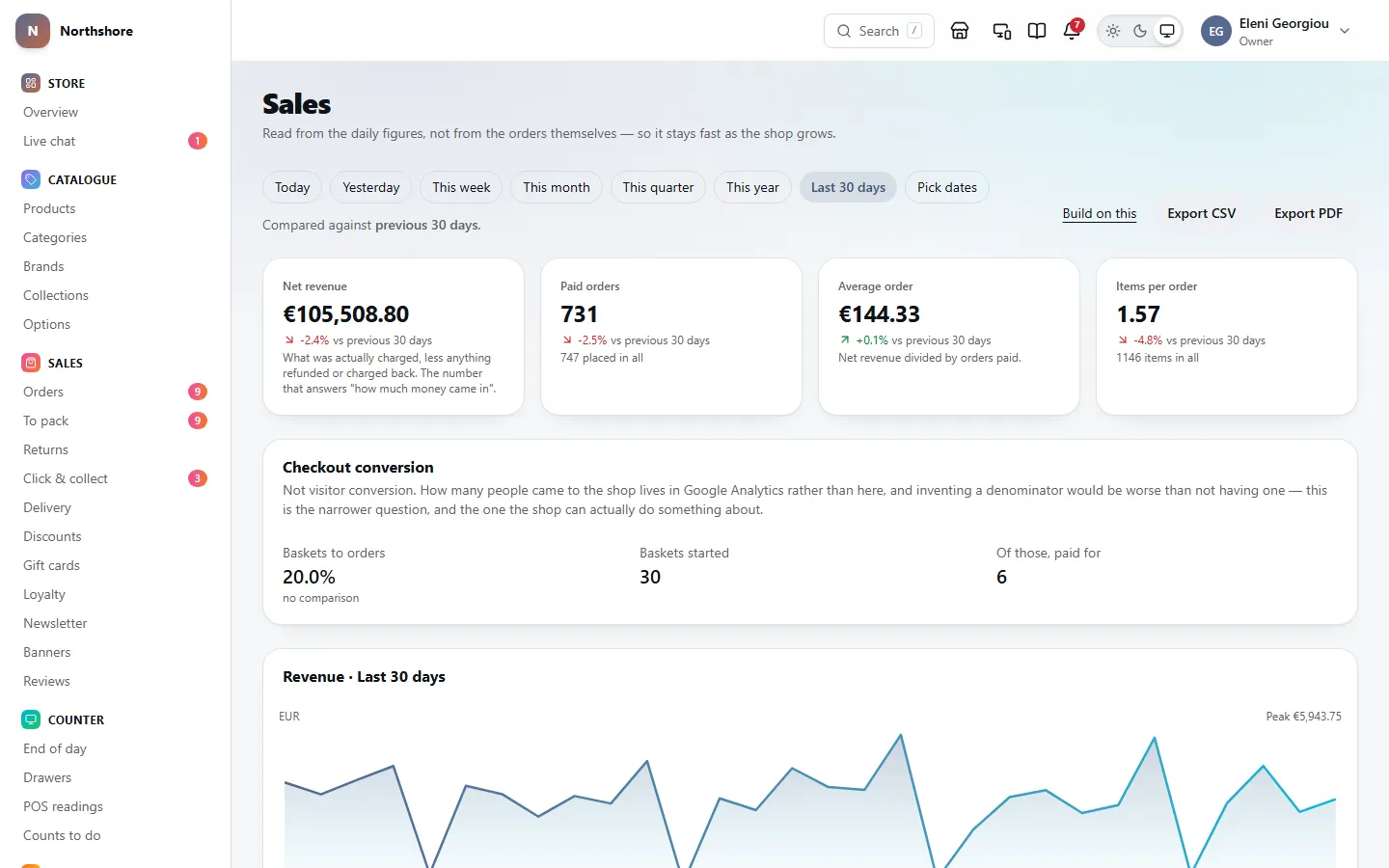
The sales report answers “how much money came in, and from what”. It reads from daily totals rather than from the orders themselves, which keeps it quick however much history the shop has.
- Net revenue — what was actually charged, less anything refunded or charged back. It includes delivery and VAT, because that is what went through the POS or the card machine.
- Paid orders — orders that were paid for. The small line underneath says how many were placed in all, paid or not. The gap between the two is worth watching.
- Average order — net revenue divided by paid orders. Unpaid orders are left out of both halves, so an abandoned checkout does not drag it down.
- Items per order — items sold divided by paid orders. Two of the same shirt count as two.
Checkout conversion shows, of the baskets that had something put in them, the share that became a paid order: Baskets to orders, Baskets started and Of those, paid for. It is not visitor conversion — how many people visited the website is in your analytics, not here.
The Revenue chart shows net revenue day by day across the dates you picked.
What made up the money breaks net revenue into its parts:
- Goods — what the garments came to, before discounts, delivery and VAT.
- Discounts — money taken off by a code or by hand.
- Delivery — what customers paid for delivery. Not what it cost you to send.
- VAT — the tax inside the total, at the rate of the country the order went to.
- Refunds — money given back, with the share of what was taken. This includes money a customer’s bank took back after a dispute you lost.
- Net revenue — the total, as at the top of the page.
Split the sales by payment, delivery, code, category, channel or country
Needs the permission View sales reports.
The Split it up card on the sales report breaks the money down one way at a time. Choose a tab above the table:
- Payment method — how customers paid. Cash on delivery behaves differently enough to be worth watching.
- Delivery method — which delivery option was chosen.
- Discount code — what each code brought in. Orders without a code are grouped together.
- Category — by each garment’s main category.
- Channel — the website, the POS, phone orders, or imported history.
- Where it went — by delivery country.
Each row shows the items, the revenue and its Share of the whole. Every tab except Category also shows the number of orders, and adds up to net revenue.
Take care: Category adds up to less than the other tabs, and that is correct. One order can hold a coat and a scarf from different categories, so this tab counts the goods on each line only — there is no fair way to split one delivery charge between two categories.
The VAT table on the sales report
Needs the permission View sales reports.
At the bottom of the sales report, the VAT card lists the VAT charged in the period by Country and Rate — the country whose rules applied and the rate that was actually charged — with the Orders, the Taxable amount and the VAT, and a Total row.
Money that went back takes its VAT with it. An order refunded or charged back in full is left out; one refunded or charged back in part counts only the part you kept — the same goes for the EU €10,000 threshold on VAT and thresholds.
Take care: If a yellow message says the table adds up to a different amount from the day totals, do not file anything until you know why. It usually means an order has a VAT total with no rate breakdown behind it.
Tip: For an EU OSS return or the UK figures, use VAT and thresholds instead — it is laid out the way a return asks for it.
Read the products and stock report
Needs the permission View sales reports.
This report has two halves that work on different clocks. What sold, and what came back, is for the dates you pick. What is on the shelf is always right now.
What sold has one row per size or colour, because that is what gets reordered. Choose how the top 25 are ordered: By revenue, By units, By margin or By return rate. The columns are:
- Product (a link to the product), Size or colour and SKU.
- Units and Revenue.
- Margin — what it sold for less what it cost. A dash means no cost price was entered, not that it cost nothing.
- Returned — items refunded, and that as a share of what sold.
What comes back lists the products whose items were actually sent back, with Sold, Came back and Rate. This is different from the refund figure above: a goodwill refund with nothing sent back is not a return, and an exchange is one even though no money moved. A rate of 30% or more shows in red. Where too few were sold for a rate to mean anything, it shows as “1 of 2” in grey instead.
Four figures describe the shelf right now:
- On the shelf — the number of items, and the number of sizes.
- Worth, at cost — what the stock cost you.
- Worth, at retail — what it would sell for.
- Turned over — roughly how many times the stock sold through in the period, worked out from what sold at cost against what you hold at cost.
Take care: If a yellow message says some items have no cost recorded, Worth, at cost and every margin on the page are too low or missing. Add cost prices to those products on Products and the figures become worth reading.
Find what ran out and what is not selling
Needs the permission View sales reports.
Out of stock, and what it probably cost lists the sizes that had nothing on the shelf on some days of the period:
- Days out — days with none, out of the days counted.
- On hand now — what you have today.
- Sales a day when in — how fast it sold while it was in stock.
- Probably missed — an estimate of the sales lost, assuming it would have kept selling at that rate.
- Waiting — customers on the waiting list for it. That one is a real count, not an estimate.
What is on the shelf is written down once a day and cannot be worked out afterwards, so this table only goes back to the first day that record was kept. Until then it says nothing has been recorded yet.
Not moving lists the 25 sizes that have gone longest without a sale. Anything that has never sold at all comes first and shows Never under Last sold. Tied up is the stock’s value at cost.
Tip: The estimate under Probably missed is weakest for something that sold out because of a sale or a mention somewhere. Look at Waiting beside it before reordering a lot.
Read the customers report
Needs the permission View sales reports.
The customers report shows who is buying and whether they come back. The top half is for the dates you pick; The customer base, all time is about everybody the shop has ever had.
- Orders from new customers and Orders from returning — an order is new when it is the first that email address has ever placed, so a guest buying for the second time counts as returning.
- New accounts — accounts registered in the period, whether they bought or not.
- Average order — the same figure as on the sales report.
The customer base, all time shows Have bought, Bought more than once, Come back (the share who bought again), Average spent and Between orders (the average gap for people who have ordered more than once). These count registered customers only.
New against returning, day by day lists each day that had orders, with the new and returning orders and the revenue.
Do they come back groups customers by the month they first bought, for the last twelve months. Each row shows how many there were and, in the columns +1 to +11, the share who bought again that many months later. A dot means nobody did, or that month has not happened yet. This table counts by email address, so guests are in it.
Best customers shows the top 20 registered customers By spend or By orders, with links to each one. Where orders went splits the period’s orders by delivery country.
Tip: The all-time figures and the Do they come back table answer different questions — one counts accounts, the other email addresses — so they will not add up to each other.
Read the profit and margin report
Needs the permission View finance reports.
Profit and margin shows what was left after paying for the goods. It is behind its own permission, View finance reports, because what you make on each garment is not something everybody on the staff needs to see.
- Gross profit — goods sold, less what they cost, less discounts. Delivery is not in it.
- Margin — profit as a share of what the goods sold for.
- Cost of goods — what the items sold had cost, as recorded on each order at the time. A later change to a supplier price does not rewrite last year’s margin.
- Cost coverage — the share of the items sold that have a cost price recorded. Everything else on the page is only as reliable as this number.
Take care: When cost coverage is below 95%, a yellow message appears above the figures. Items with no cost price are treated as costing nothing, so profit and margin come out higher than the truth. Add cost prices on Products to fix it.
What moved the margin shows Goods sold, Cost of those goods, Discounts given and Gross profit. Underneath, it says how much was charged for delivery. What the courier charged you is not recorded anywhere in the system, so delivery is kept out of profit altogether — treat it as roughly breaking even.
Margin by category shows each category’s Items, Goods, Cost, Profit, Margin and Costs known. A coverage below 95% shows in amber.
Making the most lists the ten sizes that made the most profit in money. Making the least lists the ten with the thinnest margin as a share of what they sold for — worth a look before the next order goes in.
Check the money taken against your statements
Needs the permission View finance reports.
The Money taken card on the profit report lists what came in by payment method — Payments, Refunded and Net — and, under Reconciles against, where you can check it:
- Your payout statement — card and online payments that went through a payment provider.
- The courier’s remittance — cash on delivery, which is collected at the door.
- Nothing — recorded by hand — payments somebody recorded manually.
If a customer’s bank took money back after a dispute you lost, a Charged back column appears too. It is taken off on the day the dispute was lost.
Below the table, Settled through a gateway, Collected in cash and Recorded by hand total each kind.
Take care: Only Settled through a gateway should match your payment provider’s payout statement. Cash on delivery never appears in one — check it against what the courier pays you.
Tip: Disputes and Dispute fees are counted when Stripe moves the money, so they match your payouts: the disputed amount and Stripe’s fee come off on the day a dispute opens, and come back, shown with a +, on the day a dispute you won closes. A dispute recorded before the shop kept these figures is counted on the day it was lost.
Watch the €10,000 EU distance-selling threshold
Needs the permission View finance reports.
When you sell to customers in other EU countries, your own country’s VAT applies until your sales to all other EU countries together pass €10,000 in a calendar year. From then on, each customer must be charged their own country’s VAT, usually declared through the EU One Stop Shop (OSS). VAT and thresholds tracks where you stand, and says when you have passed it. The checkout does not switch by itself: switch on Charge its VAT for those countries in VAT by country, or record your OSS registration. A business established outside the EU has no threshold, and the page says so instead.
Take care: These figures are worked out from your own orders to help you report. They are not tax advice, and nothing on this page is filed anywhere for you. Check them with your accountant before submitting a return.
The €10,000 threshold card shows the total sold to other EU countries this calendar year, how much of the €10,000 is used and how much is left, and a bar that is green, turns amber from 80%, and red once you are over. The message under the bar says what to do at each stage.
- Only sales to other EU member states count. Sales in your own country, and to places outside the EU such as the United Kingdom or Norway, are left out.
- Sales are counted excluding VAT but including what was charged for delivery and gift wrapping, by the country the parcel went to.
- Where it went lists each country’s Orders, Sales, excluding VAT and VAT charged. None of those is the threshold on its own — it is the total that counts. Three countries at €4,000 each is over it.
- The total starts again from zero every January.
Tip: Registering for OSS before you cross the line is much less work than sorting it out afterwards, and there is no penalty for registering early.
Get the figures for an OSS return
Needs the permission View finance reports.
The OSS return card shows one quarter, with the date the return is due by. It opens on the latest quarter that has finished, because that is the one you would be filing.
- There is one row per Member state and Rate, which is how the return asks for it, with the Orders, the Taxable amount and the VAT due, and a total.
- Your own country is left out — domestic sales go on your normal VAT return. So are countries outside the EU, and any sales where no VAT was charged.
- To step back a quarter, choose the button with the previous quarter’s name (it starts with ←), as many times as you need. To step forward again, choose the button with the next quarter’s name (it ends with →). It stops at the latest quarter that has finished, because the one in progress is not complete.
- When you are looking at an older quarter, Latest complete quarter takes you straight back. It is not shown when you are already on it.
Take care: If a yellow box lists problems — for example VAT that does not match the taxable amount for a rate, or VAT recorded without a destination country — look at those orders before filing.
With the Export reports permission you also see Export CSV. It downloads straight away: one spreadsheet holding the OSS rows, the UK figures and the year-to-date threshold position, with the disclaimer as the first line. Amounts in it are in cents (or pence for the UK part), so a spreadsheet can add them up — divide by 100 for euros or pounds.
UK sales and where you are registered
Needs the permission View finance reports.
The United Kingdom card covers the same quarter. Parcels to the UK are split at £135 of goods, not counting delivery:
- Consignments you account for — parcels at or below £135. You charge UK VAT on these and declare it to HMRC.
- Goods value and UK VAT to declare — the totals for those parcels.
- Above £135 — recipient pays import VAT — the number of parcels sent without UK VAT.
The amounts are shown in pounds because that is what the limit is set in, but they are read straight from your order figures. If you sell in euros, check the exchange rate with your accountant.
Where you are registered lists the VAT registrations the shop has on record, with the scheme, VAT number and dates. An OSS registration in force means the checkout charges each EU country’s own VAT from the first order. With none, it charges your own country’s VAT until you pass the threshold, and each country’s own VAT after that.
Tip: When you register for OSS, record it in Tax under Settings. The checkout starts charging each country’s own VAT from the date you give. See record a VAT registration.
Download a report as a spreadsheet or PDF
The sales, products, customers and profit reports each have Export CSV and Export PDF buttons at the top. A CSV opens in a spreadsheet; a PDF is branded like your invoices and is the one to send to an accountant. Either way, the file covers the dates you are looking at.
- Pick the dates you want.
- Choose Export CSV or Export PDF. A message says the file is being built.
- Choose Open Export in that message, or open Export yourself. The file is built in the background and appears under Recent exports — if it still says queued or running, reload the page after a moment.
- Choose Download beside it. A PDF downloads as a PDF and a CSV as a CSV, named after the report and the dates it covers.
- The buttons need two permissions: the one for the report itself (View sales reports, or View finance reports for profit and margin) and Export reports. Without Export reports you see the report but not the buttons. The same two are checked again when you choose Download.
- You do not need View products to collect a report from Export. Export reports is enough to open it.
- The download link works for 7 days. After that the file is deleted, but the record of who took it stays.
- The Export CSV on VAT and thresholds and on a saved report works differently: the file downloads straight away. Both need Export reports, and the VAT one also needs View finance reports.
Tip: To have a report emailed to you every day, week or month, see scheduled exports.
Use the saved reports
Needs the permission View sales reports.
Saved reports lists the reports the shop has built in the report builder. Choose a report’s name to run it. The report builder is an add-on: these screens are there while the Report builder add-on is on, from Add-ons.
- The grey badge says what the report is about — orders, customers, stock movements and so on.
- only you means the report is private to the person who built it. Everybody else’s list only shows reports that were shared.
- Under each report is who built it and when it was last changed.
- If your role cannot see one of the columns in a report, its name is greyed out and a line in red says which column. You cannot run it, but you can still Duplicate it to get your own copy without that column.
Beside each report:
- Edit (your own reports) or Open (somebody else’s) opens it in the report builder.
- Duplicate makes a private copy under your name, called “(copy)”, and opens it in the builder. This is the only way to change a colleague’s report.
- If the report has columns your role cannot see, the copy is made without them — and without any filter, group, total or sort that used them. A blue box at the top of the builder names what was left out. The original is not changed.
- If nothing would be left once those columns are taken out, Duplicate says so in red and makes no copy.
- Delete (your own reports only) asks you to confirm first. Anybody who relied on it loses it.
Take care: Deleting a saved report cannot be undone from the dashboard. If anybody else uses it, duplicate it first so a copy survives.
Run a saved report and download it
Needs the permission View sales reports.
Running a saved report shows the full table, with the report’s name and description at the top. Money is shown in your shop’s currency.
- Edit (your own) or Open in the builder (somebody else’s) takes you to the builder with the report loaded.
- Export CSV downloads the whole report straight away. It needs the Export reports permission. Money columns in the file are in cents, and the column heading says so.
- For a PDF, choose the report by its name under What to export on Export, choose PDF under As, then Build the file. It appears under Recent exports by its name, and downloads named after it.
- If the report was set to compare with the period before, a second table underneath shows the same figures for the same number of days just before.
- A report stops at its row limit. If it has more rows than that, a yellow message says so — the figures cover only the rows shown, and the CSV ends with a line saying it is not the whole report.
Tip: A report that uses a rolling period, such as Last 30 days, moves forward every time you run it. One saved with fixed dates always shows those dates.
Build a report of your own
Needs the permission View sales reports.
The report builder answers the questions the fixed reports do not. You pick what to report on, choose the columns, and narrow it down. A preview of the first 25 rows updates as you go, and nothing is saved until you save it.
- Open Saved reports and choose Build a report.
- Under What to report on, choose a subject. Changing the subject clears everything else you had chosen.
- Under Over what period, pick a period, or Between two dates and fill in both dates.
- Under Columns, choose the columns you want, in the order you want them. Choose one again to remove it.
- Check the Preview on the right.
- Choose Run it in full to see every row, or Save as a report to keep it.
The subjects are:
- Orders — one row per order.
- Order lines — one row per item on an order: what actually sold.
- Products — one row per product, with what it sold in the period.
- Variants — one row per size and colour, with stock and what it sold.
- Customers — one row per customer. Needs View customers.
- Stock movements — one row per change to stock, with the reason. Needs View stock.
- Discounts — one row per discount code, with what it was used on.
- Cost, unit cost, margin and margin % columns need View finance reports. Without it they are not offered.
- A column marked with a dot is worked out from the others. It cannot be filtered on, totalled or sorted by — use the columns it comes from instead.
- For the customers subject, the period is when the customer registered, not when they last bought.
- In the preview, money is shown in cents. Amounts are formatted properly when the report is run.
Tip: The builder keeps the report in the page’s web address, so you can copy the address and send a half-built report to a colleague. It opens for them with whatever their own role allows.
Group, total, filter and sort a report
Needs the permission View sales reports.
Group and total turns a list of records into a summary — for example, orders grouped by delivery country, with the total of each.
- Under Group by, choose one or more things to group on.
- Under Totals, choose Add a total… and pick one, such as Total, How many, Average, Lowest or Highest of a column. Add as many as you need; choose × to remove one.
- Once a report is grouped, the Columns card is ignored, and a Compare with the period before switch appears under the period. Turn it on to show the same figures for the period just before.
Take care: A grouped report needs at least one total. Without one, the builder shows a red message and will not save.
Narrow it down adds filters. Choose Add a filter… and pick a column:
- A list (such as status or channel) — choose the values to include.
- Text — type what it should contain.
- Yes or no — choose Yes or No.
- A number or amount — give a lowest value, a highest value, or both. Amounts are in cents, so €25 is 2500.
- A date (such as Placed or Paid) — pick a first day, a last day, or both. Both days are included.
- Choose × beside a filter to remove it.
Sort and size:
- Sort by — any column the report is showing. Then choose Highest first or Lowest first.
- Most rows to return — 200 unless you change it, and never more than 5,000.
Tip: Over what period sets the dates the whole report covers, and it always applies. A date filter narrows it further — for example, orders placed in the last 30 days that were paid in the last week.
Save, share and change a report
Needs the permission View sales reports.
- In the builder, choose Save as a report (or Save changes if you are editing your own). The button stays greyed out while anything still needs fixing.
- Give it a Name — up to 80 characters, and different from your other reports.
- Optionally fill in What it is for. It is the first thing a colleague reads.
- Leave Everybody can see it on to share it, or turn it off to keep it in your own list.
- Choose Save. The saved report opens straight away.
- Sharing a report does not show anybody columns their role does not allow. Whoever opens it only sees what their own permissions let them see.
- If you open somebody else’s report and save it, you save a copy under your own name. Their report is not changed.
- A saved report can be emailed regularly from Export — see scheduled exports.
Start a report from one of the built-in ones
Needs the permission View sales reports.
The sales, products, customers and profit reports each have a Build on this link at the top. It opens the report builder with one of that report’s tables already set up, ready for you to change — for example, to break sales down by brand.
- Hold the pointer over Build on this to read which part of the report it copies and what it leaves out.
- What opens is an ordinary new report. Changing it never changes the built-in report.
- The figures may not match the built-in report to the cent — the builder reads the orders directly, while the built-in reports read daily totals.
- The link only appears if you have View sales reports, which the builder needs.